Controlling notification send limits in Courier
 Jason AxtellMay 16, 2023
Send limits are a new addition to the Courier app that allow you to manage notification rate limits. This means you can set a maximum limit on the number of notifications you can send over a certain time period. The advantages of using send limits are twofold: you can save money by imposing spending caps on notifications, and you can improve the customer experience of your app by avoiding bombarding users with too many notifications at once.
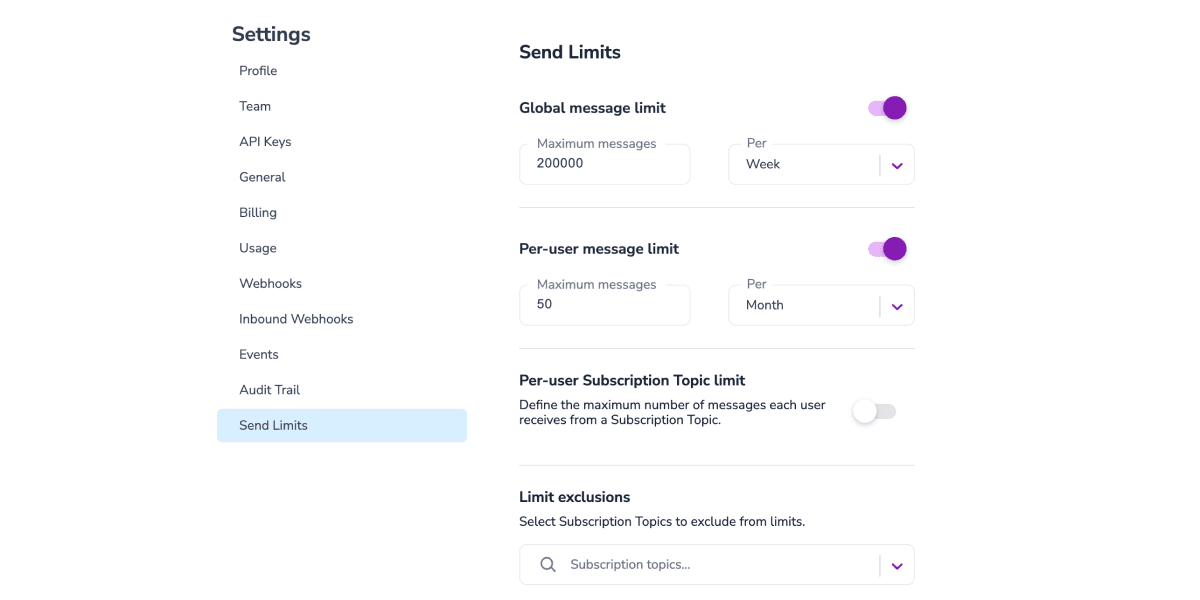
Send limits can be applied in a variety of ways, including system-wide notification limits, as well as specific limits for individual users or notification topics. For instance, you can set an overall limit of 200,000 notifications per week.
This article will explore the various types of notification rate limits available, explain when send limits are useful, and provide guidance on how to set them up.
The different types of Courier send limits
Send limits come in different types, offering various levels of control over your messaging costs and your customers’ experience. You can set global message limits that apply to all messages, or choose more precise options for greater control.
Each limit allows you to set a maximum number of messages for a particular unit of time, such as per day, week, month, or billing period. Note that the units of time are currently measured using fixed timescales. For example, if you want to set a message limit per day, you should be aware that a day runs from midnight to midnight. Similarly, a week is defined as running from 00:00:00 Sunday morning to 11:59:59 Saturday night.
The billing period option is particularly useful: if you have a contract based on sending a predicted volume of messages, this helps you stick to your plan, and ensures you won’t use up all your message budget before the time period ends.
Global message limits
Global message limits are our simplest type of send limits. They allow a rule to be applied to all your messages, such as setting a maximum limit of 200,000 messages per week.
Per-user message limits
With per-user message limits, you can set rules that limit the number of messages sent to each user, such as a daily limit of three messages per user.
Per-user subscription topic limits
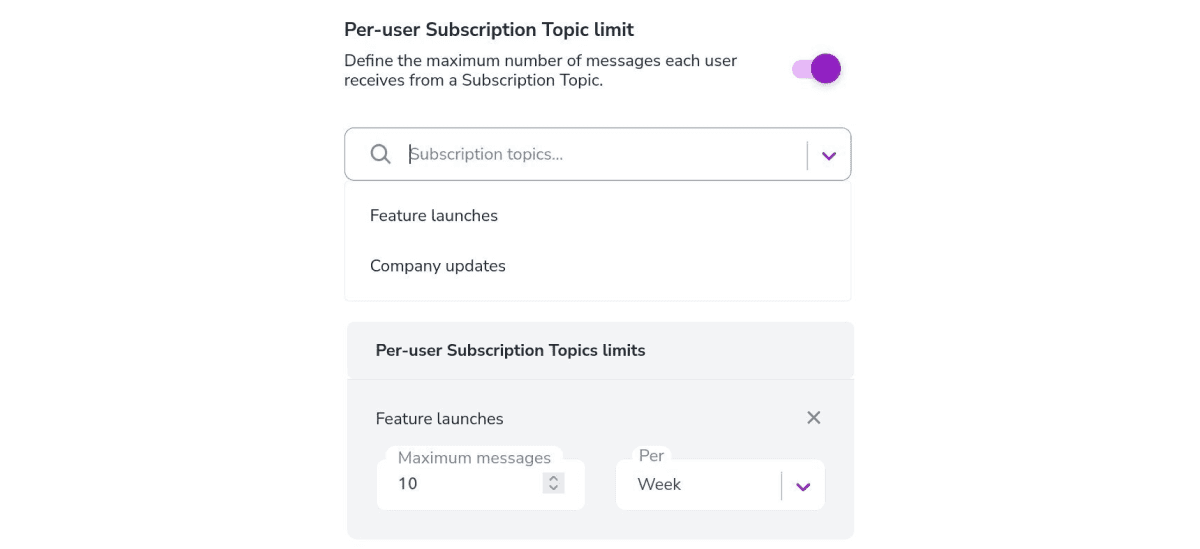
Per-user subscription topic limits are an additional send limits feature, which allow you to set individualized rules for specific subscription topics, such as "password reset messages" or "marketing messages." You can set up different rules for each topic, such as limiting marketing emails to two per day per user while also allowing up to ten password reset emails per day per user.
Limit exclusions
Another feature of send limits is the ability to set limit exclusions. These rules allow certain subscription topics to bypass any other types of limits you may have added, enabling you to let certain types of messages through, regardless of any other rules you have set. For instance, you may want to allow billing alerts or password reset emails to come through, even if you’ve already reached your global message limit.

Who are send limits for?
Send limits are a valuable feature for many Courier users. For those who need to stay within a budget, send limits allow you to impose a spending cap on your notifications, which can help you avoid unexpected costs.
If your focus is on providing a good customer experience, send limits provide an added layer of protection to prevent users from receiving too many notifications at once, which could cause them to become frustrated and even unsubscribe from your service.
If you typically send a lot of notifications, send limits can provide peace of mind. It's easy to lose track of the number of notifications sent, and send limits can help to ensure that you don't accidentally exceed your intended limit. This can help you to keep within your budget and avoid unexpected expenses.
One of the most significant benefits of send limits is the fine-grained control they offer over notification limits. For example, if you only want to send a maximum of two notifications to a person per day, send limits can help you achieve this. Similarly, if you want to limit the number of marketing notifications sent to a particular user to a maximum of three, send limits can enforce this limit.
Get started using send limits
To set some send limits, navigate to "Settings" in the Courier app, and select "Send Limits." From here, you can toggle different types of message limits on or off, as described in our Send limits documentation.
You could start by setting up global message limits. Consider how many messages you’re already paying for in your contract and use that as a starting point to decide how many messages to allow each month. Make sure to pair this with “limit exclusions” for any important messages that you can’t afford to be blocked.
Subscription topic limits are for adding messaging limits to particular types of messages, such as marketing emails. Select a subscription topic from the drop-down box to begin setting limits for it. You can set different limits for as many different types of subscription topics as you need.
Keep in mind that the send limits feature is currently only available to business-tier customers. However, once you have access, utilizing the different types of message limits can provide greater control over both your costs and the customer experience.
If you're not currently a business-tier customer but are interested in the send limits feature, you can request a demo of our business-tier offering. In addition to send limits, our business-tier offering also includes features such as template analytics and observability integrations.
Send limits offer a level of control over your notifications that can help you stay within budget and avoid overloading your users with too many messages. With send limits, you have the ability to set specific notification limits for each type of message, allowing for more granular control over your notification strategy.
If you're new to Courier and want to try it out, sign up for free today, which includes up to 10,000 notifications per month.
Similar resources

Introducing Cross-Device Email Preview: see your email on real devices before you send
Cross-Device Email Preview renders your template on the real clients you pick, from Outlook on Windows to dark mode on iPhone, and returns a screenshot of each one. Pick from 96 clients across 21 apps without leaving Design Studio.

New settings page, easier to use, with new background colors
Courier settings has been redesigned. Workspace pages and developer pages are grouped separately, every page says what it's for, and the app now comes in light or dark with nine background colors.

Broadcasts: send one-time messages to your users, right from Courier
Broadcasts lets you send a one-time message to a group of your users, now or on a schedule, without leaving Courier.