Terminal-First Development vs. IDE: Building Notification Infrastructure with Claude Code and Cursor
 Kyle SeylerJanuary 29, 2026
Terminal-First Development vs. IDE: Building Notification Infrastructure with Claude Code and Cursor
TLDR
Terminal-first tools like Claude Code and Cursor's IDE approach both work for building notification infrastructure. The difference is autonomy vs. feedback.
Quick picks:
- Claude Code + Courier CLI — Best for bulk operations, CI/CD pipelines, headless environments, and autonomous multi-step tasks
- Cursor + Courier MCP — Best for exploration, prototyping, and real-time visual feedback while you work
- Both together — Run Claude Code from Cursor's terminal for the best of each
This guide walks through setup, practical examples, a real migration scenario (SMTP + APNs to multi-channel), and when to use each approach.
The core tradeoff: autonomy vs. feedback
Every tool makes a bet about how you want to work.
If you've been writing code for any length of time, you've developed habits. Maybe you live in the terminal, chaining commands together and scripting repetitive tasks. Maybe you prefer a visual environment where you can see your project structure, set breakpoints, and watch variables change. Most developers use both, depending on the task.
AI coding tools have inherited this split. Terminal-first agents like Claude Code bet that you want to describe a goal and let the AI figure out how to get there. IDE agents like Cursor bet that you want to stay in control, watching each step and adjusting as you go.
Neither is wrong. But they lead to very different experiences when you're building real infrastructure.
Terminal-first AI agents run commands, navigate files, and execute deployments without a GUI. They hold more code in memory and work autonomously on complex tasks. When something fails, they read the error and try again. You come back to a finished result, or a clear explanation of what went wrong.
IDE-augmented tools keep your existing workflow intact. You see changes before they happen, get inline suggestions, and have access to debugging tools. When something fails, you see it immediately and can intervene. You stay in the loop, but you also stay at the keyboard.
Both can build the same systems. The question is how you prefer to work, and what the task actually requires.
How Claude Code handles development (terminal approach)
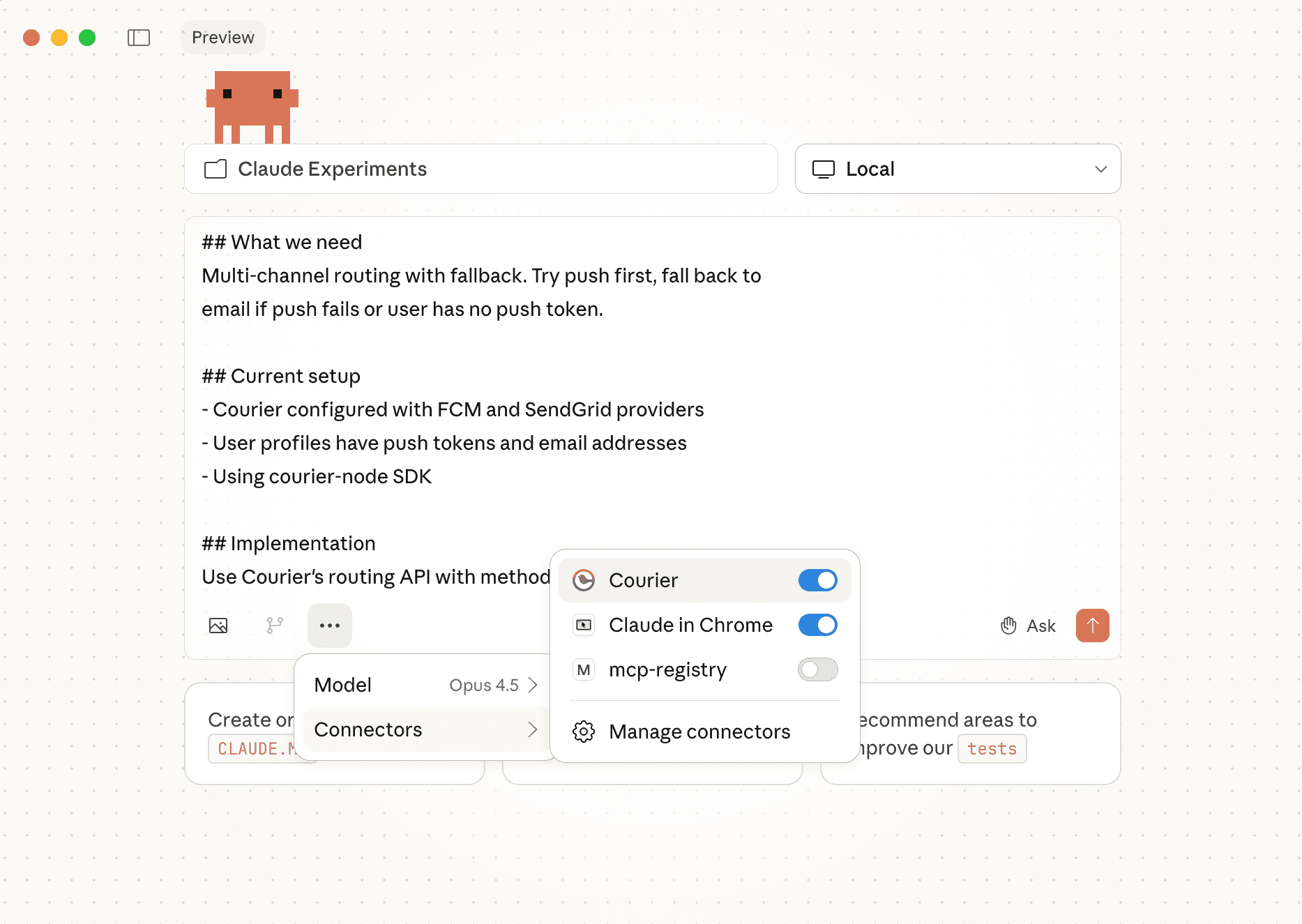
There's a reason CLIs never went away. For certain tasks, typing a command is simply faster than clicking through a UI. But more importantly, CLIs are scriptable. They can be chained, automated, and run without human intervention.
This matters for any kind of infrastructure work: deployments, migrations, data processing, system administration. These are tasks where you want to describe the end state and let the computer figure out the steps.
Claude Code takes this further. It doesn't just run commands you type. It decides which commands to run based on what you're trying to accomplish. You say "set up a new service with tests and CI," and it figures out the sequence: scaffold the project, write initial tests, configure the pipeline, commit the changes.
This approach works well when the task is well-defined but tedious. Migrations, refactors, bulk data operations, test coverage expansion. Things where a senior developer would know exactly what to do, but would rather not spend four hours doing it.
Where terminal shines: bulk operations and scripting
The terminal approach really pulls ahead when you need to do something many times, or when you need to chain operations together.
Consider notification infrastructure as an example. You might need to:
- Import 10,000 users from a CSV
- Subscribe them to appropriate lists based on their preferences
- Trigger a welcome sequence for each
- Monitor delivery status and export failures for review
In a GUI, that's hours of clicking. In a terminal with the right CLI, it's a few commands:
# Install the Courier CLI
npm install -g @trycourier/cli
courier config --apikey pk_YOUR_API_KEY

# Import users and subscribe to list
courier users:bulk users.csv --list new-signups

# Track event to trigger welcome automation
courier track:bulk signup_complete events.csv

# Search for failures and export
courier messages:search --status failed --json --filename failures.json
Claude Code can chain these together, handle errors, and retry failed operations. You describe the end state, and it gets there.
How Cursor handles development (IDE approach)
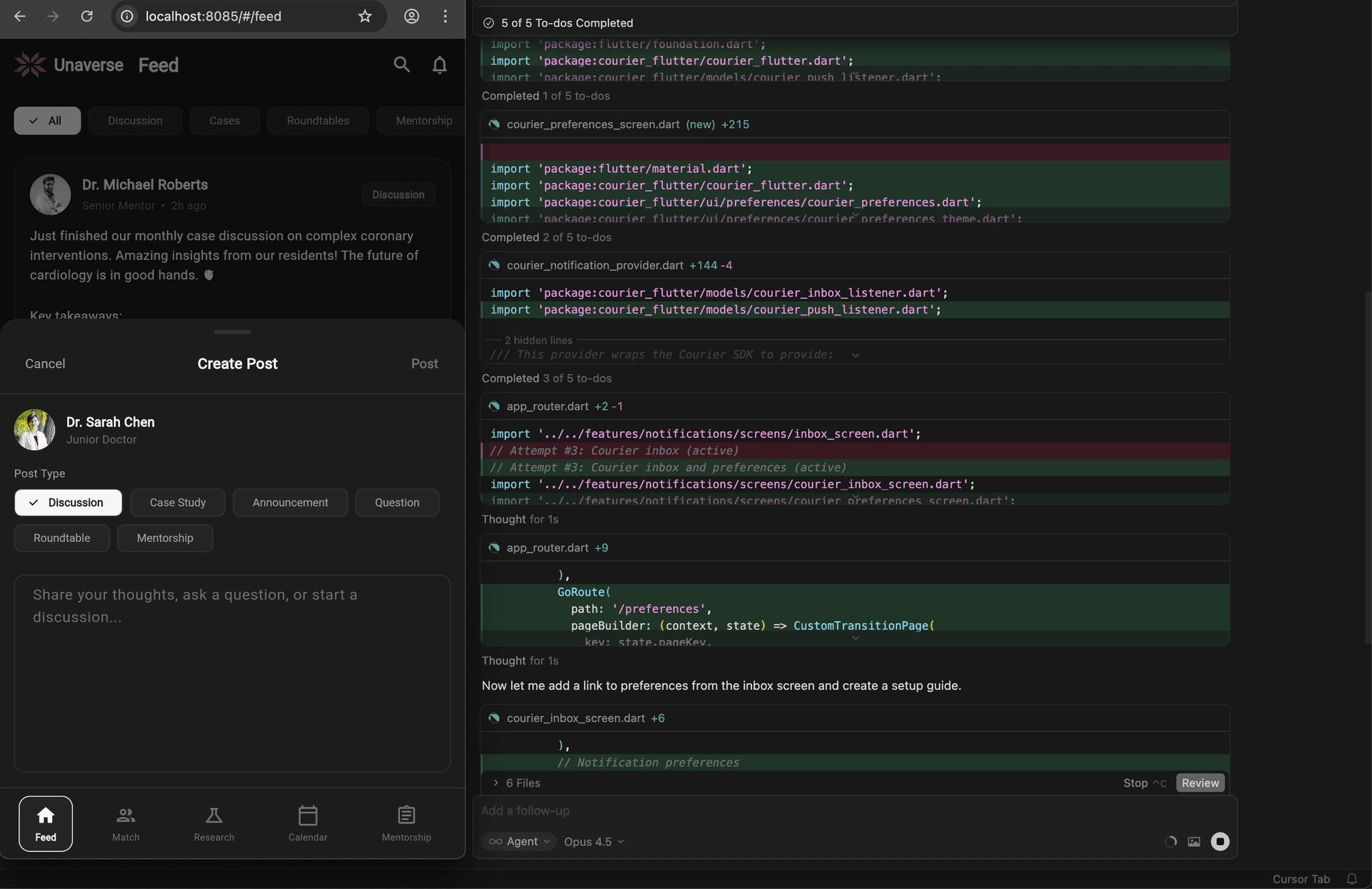
Some tasks benefit from seeing everything at once. When you're learning a new API, debugging an integration, or prototyping a feature, you want to see each step. You want to inspect payloads, modify them, and try again. You want the feedback loop to be tight.
Cursor keeps you in the loop by showing every action. Every API call displays its payload before it executes. You can stop, modify, and restart at any point. For bulk operations, this adds overhead. For getting something right the first time, it can save time.
For infrastructure work, this matters when you're setting up integrations, designing templates, or debugging delivery issues. You want to see exactly what's being sent, what came back, and what went wrong.
Where IDE shines: exploration and integration
The IDE approach works well when you're:
- Learning a new API or SDK
- Debugging why a specific message didn't deliver
- Designing notification templates and seeing previews
- Integrating notifications into existing application code
For example, Courier's MCP (Model Context Protocol) server gives Cursor's AI direct access to the notification API. You describe what you want in natural language, and Cursor translates it to the right API calls while showing you exactly what it's doing.
Add to your mcp.json (in Cursor: Settings > Tools & Integrations > MCP Tools > New MCP Server):
{
  "mcpServers": {
    "courier": {
      "url": "https://mcp.courier.com",
      "headers": {
        "api_key": "YOUR_API_KEY"
      }
    }
  }
}
For Claude Code, use the CLI command instead:
claude mcp add --transport http courier https://mcp.courier.com --header api_key:YOUR_API_KEYNow you can interact conversationally:
"Send a test email to alice@example.com with subject 'Welcome to the platform'"
The MCP handles the API call. You see the request and response inline, and can adjust before trying again.
Three trends converging
Something interesting is happening in developer tooling. Three trends that started independently are now reinforcing each other:
- AI-assisted development is becoming the default way to write code
- API-first architecture is becoming the default way to build systems
- Abstraction services (payments, auth, notifications) are becoming the default way to ship faster
Each trend accelerates the others. AI tools work better when they can call well-documented APIs. API-first organizations adopt AI tooling faster because their systems are already modular. Abstraction services benefit from both—they're consumed by AI agents and built by AI-assisted teams.
Here's what the data shows.
Trend 1: AI-assisted development
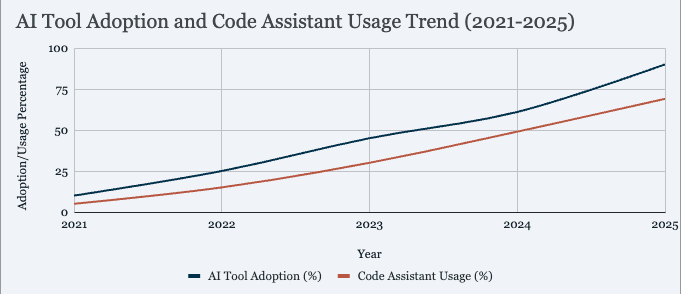
Sources: Jellyfish 2025 AI Metrics, Second Talent GitHub Copilot Stats
The trajectory is steep. AI tool adoption jumped from 61% to 90% of engineering teams in a single year (2024→2025). GitHub Copilot grew from 15 million to 20 million users in three months. 41% of all code is now AI-generated or AI-assisted. This changes what developers build with, but also what they build for.
But adoption is only part of the story. The capabilities of these tools have changed dramatically:
| Period | PR Merge Velocity Boost | Agentic Autonomy (Steps) | Primary Usage Pattern |
|---|---|---|---|
| Early 2024 | +12%* | 1–3 | Generating snippets & unit tests |
| January 2025 | +20%* | 5–8 | Interactive debugging & error fixing |
| July 2025 | +41% | 10 | CLI-based refactoring & script tasks |
| January 2026 | +67% | 21.2 | End-to-end feature delivery |
*Estimated based on trajectory; verified data points from July 2025 onward.
The shift from 1–3 consecutive tool calls to 21+ represents a qualitative change. Early AI assistants suggested code. Current agents execute multi-step tasks autonomously—refactoring across files, running tests, fixing failures, and committing changes. The "agentic autonomy" column tracks how many sequential actions an AI takes before returning control to the developer.
At +67% PR merge velocity, high-adoption teams are shipping nearly twice as fast. Enterprise deployments at Dropbox and Salesforce report over 1 million lines of AI-generated code accepted per month, with 90% developer adoption rates.
Sources: Anthropic: "How AI is transforming work" (Dec 2025), Faros AI: "Measuring Claude Code ROI" (Jan 2026), Anthropic Economic Index (Jan 2026)
Trend 2: API-first architecture
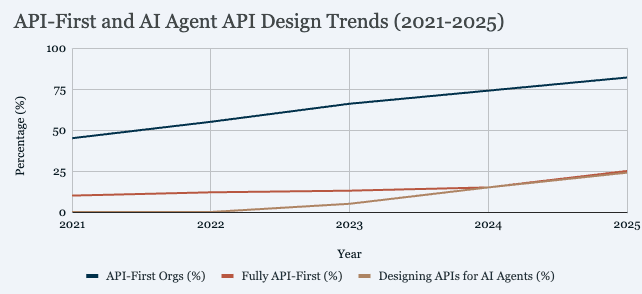
Sources:
- API-First Orgs: Postman State of API 2023-2025 (66% in 2023 → 74% in 2024 → 82% in 2025)
- Fully API-First: Postman 2025 (25% fully API-first, 57% somewhat, 12% increase YoY)
- APIs for AI Agents: Postman 2025 (24% of developers now design APIs for AI agents) -->
Source: Postman State of API 2025
82% of organizations have adopted some level of API-first approach—25% fully, 57% partially—up from 70% in 2024. The pattern: as AI tools become standard, developers lean harder on abstraction layers that let them move fast without rebuilding infrastructure. The emerging question is whether those abstractions were designed for human consumers or machine ones—something only 24% of developers have addressed so far.
Trend 3: Abstraction services
Notification infrastructure fits this pattern. Instead of building email/SMS/push integrations from scratch, teams use platforms that abstract the complexity—the same way they use Stripe for payments or Auth0 for authentication.
The convergence: AI agents don't just help developers build these integrations. They consume them directly. A CI/CD agent that needs to notify a team doesn't construct SMTP packets—it calls a notification API. A customer service agent that needs to escalate to a human doesn't build a ticketing system—it sends a message through existing infrastructure.
The tools in this guide (CLI for automation, MCP for AI integration) sit at that intersection. They're designed for AI-powered development and AI-powered consumption.
Real scenario: migrating from SMTP + APNs to multi-channel notifications
Most applications don't start with notification infrastructure. They start with a direct integration: SendGrid for email, APNs for push. That works until you need more channels, or failover, or observability, or automation.
Here's what a typical migration looks like. You have an application that currently:
- Sends email via SMTP (maybe through SendGrid directly)
- Sends push notifications via APNs
- Has no SMS capability
- Has no failover if a provider goes down
- Has limited visibility into delivery status
You want to:
- Add SMS as a channel
- Add automatic failover between providers
- Add in-app notifications
- Build automation workflows (welcome sequences, re-engagement)
- Get observability into what's actually being delivered
This is a common migration path. Here's how it looks with both approaches.
Phase 1: Connect your existing providers
Courier operates as an orchestration layer above your existing providers. You keep SendGrid for email, keep APNs for push, and add new providers as needed. The abstraction means you can swap providers later without changing application code.
Terminal approach:
You'd configure providers through the Courier dashboard initially (this is a one-time setup), then use the CLI for everything else:
# Verify your workspace connection
courier whoami

# List available templates (if you've imported any)
courier templates:list --json
IDE approach:
Through the MCP, you can explore what's configured:
"List all my notification templates" "Show me the available channels in my workspace"
The MCP supports list_notifications, get_notification_content, and brand management tools for inspecting your setup.
Phase 2: Migrate a single notification
Start with something low-risk. A password reset email, a shipping confirmation, anything that's already working.
Terminal approach:
# Send a test notification using an existing template
courier send --user test_user_123 \
  --template password-reset \
  --reset_link "https://app.example.com/reset?token=abc123"

# Or send with inline content to test
courier send --email test@example.com \
  --title "Password Reset" \
  --body "Click here to reset your password: {{reset_link}}" \
  --reset_link "https://app.example.com/reset?token=abc123"
IDE approach:
"Send a password reset email to test@example.com with a reset link"
The MCP's send_message tool handles the API call. You see the exact payload, can modify it, and inspect the response.
Phase 3: Add failover routing
This is where notification infrastructure starts to pay off. Instead of your application handling provider failures, Courier manages failover automatically.
In the Courier dashboard, you configure routing rules:
- Primary: SendGrid for email
- Failover: Amazon SES if SendGrid fails
- Primary: APNs for push
- Fallback: If push fails (no device token), send email instead
Your application code doesn't change. The routing logic lives in Courier.
Testing failover with CLI:
# Use mock mode to simulate sends without hitting real providers
courier send -M --user test_user \
  --template order-confirmation \
  --order_id "ORD-12345"

# Search for message status to verify routing
courier messages:search --user test_user --json
Phase 4: Add SMS as a channel
With Courier, adding a channel means configuring the provider (Twilio, Vonage, etc.) and updating your routing rules. Your application code stays the same.
# Send to a user who has a phone number in their profile
courier send --user user_with_phone \
  --template verification-code \
  --code "847291" \
  --channels sms

# Or specify the phone directly
courier send --tel "+15551234567" \
  --body "Your verification code is: 847291"
The same message can be sent to multiple channels with fallback:
# Try push first, fall back to SMS, then email
courier send --user user_123 \
  --template urgent-alert \
  --channels push,sms,email
Phase 5: Build automation workflows
This is where both the CLI and MCP provide real value. Automations let you define multi-step workflows that trigger based on events.
Triggering automations via CLI:
# Track an event that triggers an automation
courier track purchase_completed user_123 \
  --product_id "SKU-789" \
  --amount 99.00

# Bulk trigger for many users
courier track:bulk signup_complete signups.csv

# Invoke a specific automation template directly
courier automation:invoke:bulk AUTOMATION_TEMPLATE_ID users.csv --json --filename results.json
Triggering automations via MCP:
The MCP includes invoke_automation_template for triggering workflows:
"Invoke the welcome-sequence automation for user alice@example.com with plan set to premium"
What automations can do:
Courier automations support:
- Delays: Wait 24 hours before sending a follow-up
- Conditions: Only send if user hasn't completed onboarding
- Batching: Group notifications to reduce noise
- Data fetching: Pull external data mid-workflow
- Branching: Different paths based on user attributes
- Cancellation: Stop a sequence if user takes an action
You define these in the visual builder or via the ad hoc API, then trigger them from CLI or MCP.
Phase 6: Observability and debugging
When something doesn't deliver, you need to know why. Both CLI and MCP provide access to message status and history.
CLI for logging and debugging:
# Search messages by user
courier messages:search --user user_123 --json

# Filter by status
courier messages:search --status failed --json --filename failed-messages.json

# Filter by template
courier messages:search --template welcome-email --json

# Filter by date range
courier messages:search --from "2024-01-01" --json

# Filter by tag (useful for grouping related messages)
courier messages:search --tag onboarding --status delivered --json

# Export to webhook for external processing
courier messages:search --user user_123 --webhook https://your-logging-service.com/ingest
MCP for debugging:
The MCP includes list_messages, get_message, and get_message_content:
"Show me recent messages sent to user_123" "Get the delivery status for message msg_abc123" "Show me the rendered content of the last failed message"
This lets you inspect exactly what was sent, to which channel, and what the provider response was.
Deploying automations: terminal vs. IDE
Both approaches can trigger automations, but they fit different workflows.
Terminal automation workflow
The CLI works well for:
- Bulk triggering: Process thousands of users through a workflow
- CI/CD integration: Trigger automations as part of deployment pipelines
- Scheduled jobs: Cron jobs that kick off daily/weekly workflows
- Event ingestion: Process event logs into automation triggers
# Bulk invoke an automation for a list of users
courier automation:invoke:bulk 7ee13494-478e-4140-83bd-79143ebce02f users.csv

# With output capture
courier automation:invoke:bulk AUTOMATION_ID users.csv --json --filename automation-results.json

# Track events that trigger automations (more flexible)
courier track:bulk user_reactivation dormant-users.csv
IDE automation workflow
The MCP works well for:
- Ad hoc triggering: Start a workflow for a specific user during development
- Testing: Invoke automations to verify they work before bulk execution
- Integration: AI agents triggering workflows as part of larger tasks
"Invoke the trial-expiring automation for user trial_user_456 with days_remaining set to 3"
The MCP's invoke_automation_template tool accepts:
- Template ID or alias
- Recipient (user ID)
- Custom data payload
- Brand ID (optional)
Automation structure
Whether triggered via CLI or MCP, automations follow the same structure:
- Trigger: Event, schedule, or API call
- Steps: Sequence of actions (send, delay, fetch, branch)
- Conditions: Logic that controls flow
- Termination: Completion, cancellation, or timeout
Example automation flow for a trial expiration sequence:
Trigger: track event "trial_expiring"
  → Delay 1 day
  → Check: has user upgraded?
    → Yes: Cancel workflow
    → No: Send "trial expiring soon" email
  → Delay 2 days
  → Check: has user upgraded?
    → Yes: Cancel workflow
    → No: Send "last chance" email + push notification
  → Delay 1 day
  → Send "trial expired" email
You build this in the visual designer, then trigger it via:
courier track trial_expiring user_123 --days_remaining 3Agent-to-agent communication

Here's where the choice between terminal and IDE tools starts to matter in a new way, and where notification infrastructure is heading.
We've been assuming a human is always in the loop. A developer runs a CLI command. A user clicks a button that triggers an API call. A cron job fires on a schedule. But AI agents are increasingly autonomous. They run tasks, make decisions, and hand off work to other agents. They need to communicate, and they need infrastructure to do it.
This isn't science fiction. It's already happening in production systems:
- CI/CD agents that notify deployment agents when builds pass
- Customer service agents that escalate to human support after failed resolution attempts
- Data pipeline agents that alert monitoring agents when anomalies appear
- Code review agents that notify maintainers when PRs need attention
The pattern is the same as human notifications. An event happens. A message needs to be sent. The recipient (human or agent) needs to receive it reliably, through the right channel, with the right content.
Why agents need notification infrastructure (not just HTTP calls)
You might think agents can just call each other's APIs directly. But the same problems that plague human notifications plague agent communication:
Delivery reliability: What happens when the receiving agent is down? With direct HTTP calls, you need to build retry logic, dead letter queues, and failure handling. Notification infrastructure handles this by default.
Channel routing: Some agents might poll an inbox. Others might listen to webhooks. Others might watch a Slack channel. Routing to the right channel based on agent capabilities mirrors routing to humans based on preferences.
Observability: When an agent communication fails, you need to debug it. Message history, delivery status, and content inspection are as important for agents as for humans.
Rate limiting and batching: Agents can generate thousands of messages per minute. Without throttling and batching, they'll overwhelm each other (and your infrastructure).
Audit trails: For compliance and debugging, you need a record of what was communicated, when, and whether it was delivered.
Building agent communication with Courier
Agents are just users with profiles. You create them the same way:
# Create agent profiles
courier users:set agent_code_review \
  --email code-review-agent@internal \
  --agent_type "code_review" \
  --capabilities "pr_analysis,security_scan"

courier users:set agent_deployment \
  --email deployment-agent@internal \
  --agent_type "deployment" \
  --webhook_url "https://deploy.internal/webhook"
Create lists for agent groups:
# Subscribe agents to lists for broadcast
courier users:bulk agents.csv --list monitoring-agents
Agents communicate through the same primitives:
# Agent A notifies Agent B that analysis is complete
courier send --user agent_deployment \
  --title "PR Analysis Complete" \
  --body '{"pr_id": "123", "status": "approved", "security_issues": 0}' \
  --channels inbox

# Broadcast to all monitoring agents
courier send --list monitoring-agents \
  --template system-alert \
  --severity critical \
  --message "Database latency exceeded threshold"

# Trigger an automation that coordinates multiple agents
courier track pipeline_stage_complete agent_orchestrator \
  --stage "data_processing" \
  --next_stage "summarization" \
  --output_path "/results/processed.json"
Why MCP works for agent systems
Courier's MCP is particularly well-suited to agent communication:
Natural language intent: Agents describe what they want to communicate without constructing exact payloads. An agent can say "notify the deployment agent that the build passed" without knowing the exact API format.
Safety by design: The MCP intentionally excludes delete operations. When AI agents run autonomously, you want guardrails that prevent catastrophic mistakes. Creating and updating is fine. Deleting requires a human. This is why the Courier MCP documentation notes that destructive operations are "intentionally left out."
Deterministic operations: Unlike code generation (which is probabilistic), sending messages is deterministic. The MCP either succeeds or fails cleanly, making it easier to reason about agent behavior.
Observability included: Every message sent through Courier is logged with delivery status, timing, and content. When agent communication fails, you can debug it the same way you'd debug human notification failures.
What a real workflow actually looks like
The "terminal vs IDE" framing is useful for explaining the tools, but in practice most developers don't pick one. They switch constantly based on what they're doing.
Here's an example workflow for building and testing notification infrastructure:
| Task | Tool | Why |
|---|---|---|
| Research Courier's API and capabilities | Claude Code | Autonomous exploration, can search docs and codebase |
| Test sending notifications to verify setup | CLI | Quick verification, scriptable, immediate feedback |
| Confirm MCP configuration works | MCP in Claude Code | Test the integration directly |
| Check markdown formatting and diffs | Cursor | Visual diff view, syntax highlighting |
| Bulk import users from CSV | CLI | Batch operations need terminal |
| Debug why a message didn't deliver | MCP | Inspect message content and status conversationally |
| Write integration code | Either | Depends on complexity and preference |
The pattern: research in terminal, test with CLI, verify visually in IDE, automate back in terminal.
Claude Code has buttons to open files directly in Cursor. The tools are designed to work together, not compete. Most developers will use both, switching based on the task at hand.
When to use each approach
The honest answer is that most developers will use both. But here's how to think about which tool to reach for.
Terminal-first tools work well when:
You're running bulk operations. Anything involving CSVs, batch processing, or "do this 1,000 times" is terminal territory.
courier users:bulk production-users.csv --replace
courier tenants:bulk tenant-structure.json --merge
courier automation:invoke:bulk AUTOMATION_ID users.csv --json --filename results.json
You need autonomous execution. Terminal agents can handle large refactors, write test suites, and debug across multiple files without prompting you at each step.
You're in a headless environment. Remote servers, CI/CD pipelines, Docker containers. No GUI means terminal tools are your only option.
You want reproducibility. CLI commands can be scripted, version controlled, and run identically across environments. IDE interactions are harder to reproduce.
IDE tools work well when:
You're exploring. When you don't know exactly what you want yet, visual feedback helps you iterate faster.
You want to inspect before executing. See API payloads, modify them, then send. Catch problems before they happen.
You're debugging delivery issues. The MCP's
get_messageandget_message_contenttools let you inspect exactly what was sent and what went wrong.You're integrating notifications into existing code. Code-aware suggestions help you fit notification calls into your existing patterns.
You need VS Code extensions. Debugging, Git, linting, and other tools work as expected.
Using both together
You don't have to choose. Run Claude Code from Cursor's integrated terminal:
claudeThis gives you the IDE for exploration and the terminal for heavy operations. Switch between them depending on the task.
IDE for: Quick edits, visual template design, real-time autocomplete, debugging delivery issues.
Terminal for: Bulk imports, scripted operations, CI/CD automation, agent infrastructure setup.
Quick reference: CLI commands for common tasks
User management
courier users:set USER_ID --email EMAIL --tel PHONE --name NAME
courier users:get USER_ID
courier users:bulk users.csv --list LIST_ID
courier users:preferences USER_ID --url  # Generate preferences page URL
Sending notifications
courier send --user USER_ID --template TEMPLATE_ID --key value
courier send --email EMAIL --title "Subject" --body "Content"
courier send --list LIST_ID --template TEMPLATE_ID
courier send --user USER_ID --channels push,email,sms  # Priority routing
Message search and logging
courier messages:search --user USER_ID --json
courier messages:search --status failed --filename failures.json
courier messages:search --template TEMPLATE_ID --from "2024-01-01"
courier messages:search --tag TAG --csv --filename report.csv
Automations
courier track EVENT_NAME USER_ID --key value
courier track:bulk EVENT_NAME events.csv
courier automation:invoke:bulk AUTOMATION_ID users.csv --json --filename results.json
Inbox management
courier inbox:mark-all-read USER_ID
courier inbox:archive-all USER_ID --before="30 days"
courier inbox:archive-all:bulk users.csv --before="7 days" --tag marketing
Templates and configuration
courier templates:list --json
courier whoami
courier config --apikey YOUR_API_KEY --overwrite
What this means for notification infrastructure
Terminal tools and IDE tools aren't competing. They're complementary. Most teams will use both, switching based on the task.
For notifications specifically:
- Terminal tools handle bulk operations, CI/CD, migrations, and agent-to-agent communication
- IDE tools handle exploration, prototyping, debugging, and real-time feedback
The Courier CLI gives you scripted, reproducible operations. The MCP gives you exploratory, interactive assistance. Both access the same underlying infrastructure.
As AI agents become more autonomous, they'll need to communicate with each other and with humans. The same notification primitives that work for user-facing messages work for agent coordination. That's where this is heading.
Resources
Courier
AI and developer trends
- Jellyfish: 2025 AI Metrics in Review
- Postman: 2025 State of the API Report
- Second Talent: GitHub Copilot Statistics
- Model Context Protocol
Ready to build? Get your API key and try the CLI or MCP today.
Similar resources

How to protect your email domain and sending reputation
AI agents have made spoofing cheap, and a DMARC record at p=none won't stop it. Here's how to enforce DMARC without bouncing your own mail, keep password resets apart from newsletters, protect your sending reputation, read Google Postmaster Tools, and audit your domain with six AI prompts.

How to get your logo in Gmail and Apple Mail
BIMI puts your logo next to your emails in Gmail and Apple Mail, but there is no upload form. It is earned by locking your domain down. Here is the whole project: what it costs, how long it takes, and the five ways it fails silently.

HIPAA-compliant notifications: where PHI should live
A practical guide to HIPAA-compliant notifications across SMS, push, email, and an in-app inbox. One rule, applied to every channel and every place PHI gets stored, including the systems most teams forget are in scope.