

Send from the console
1
Create the Broadcast
In the console, open Broadcasts under Orchestration and select Add broadcast. Name it and pick a channel. Each Broadcast sends on one channel.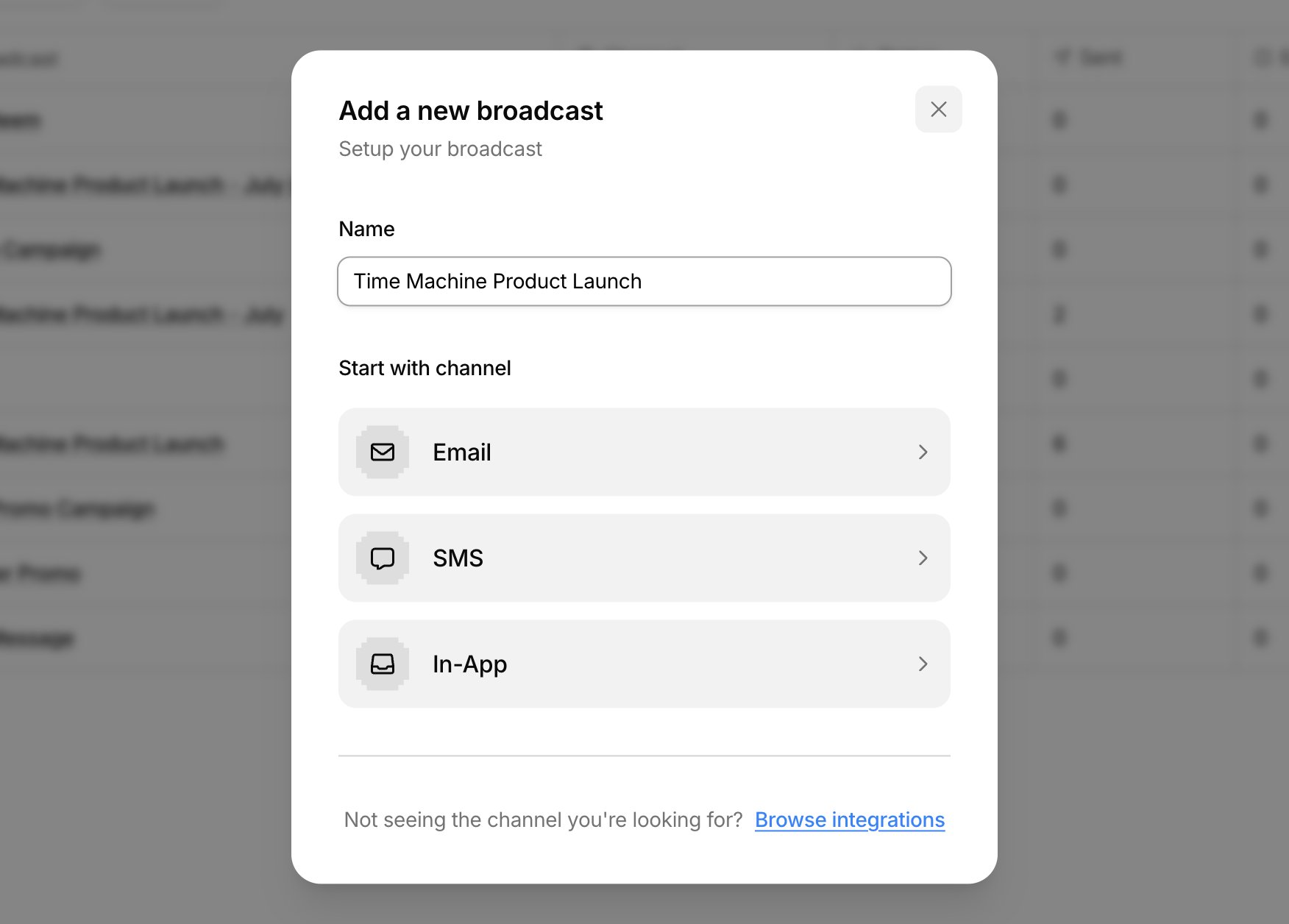
2
Design the content
Drag blocks onto the canvas, the same editor as a Template. Variables resolve from each recipient’s Profile.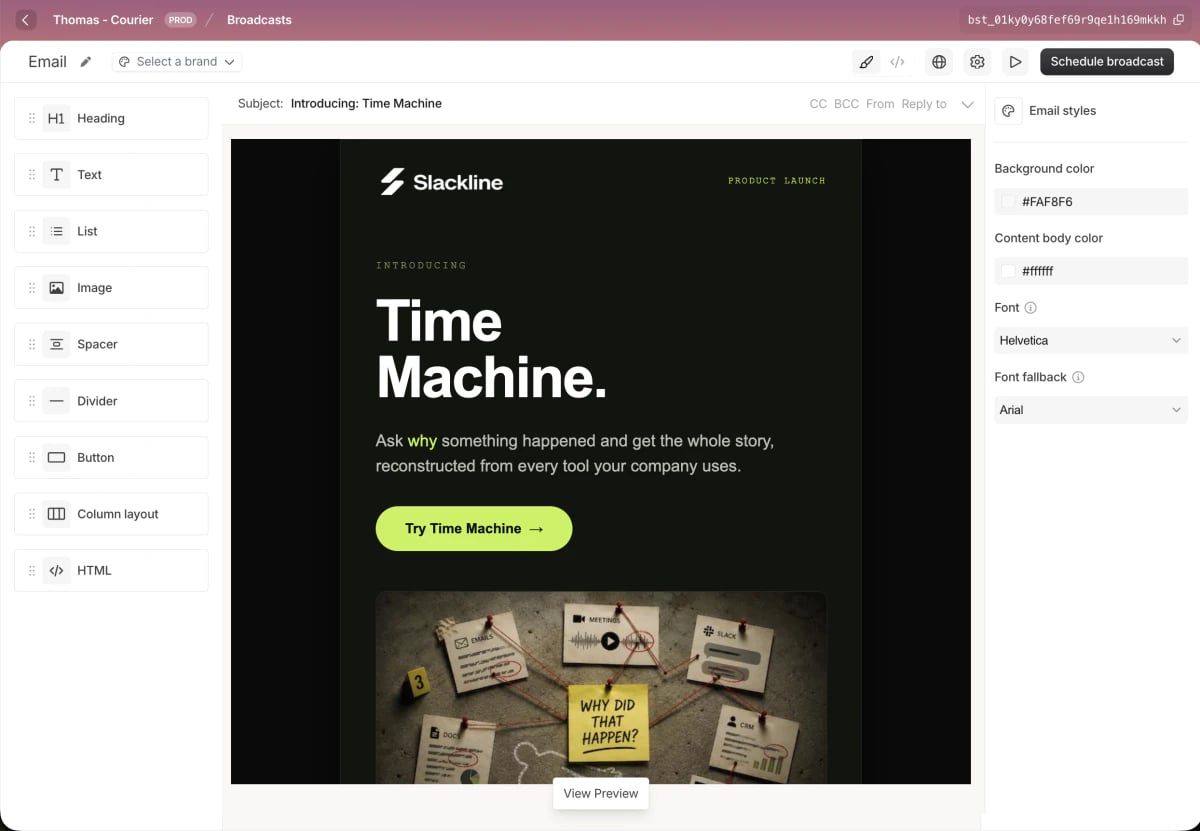
3
Choose recipients
Open Recipients and pick a you curate by hand, or an Courier keeps current from rules.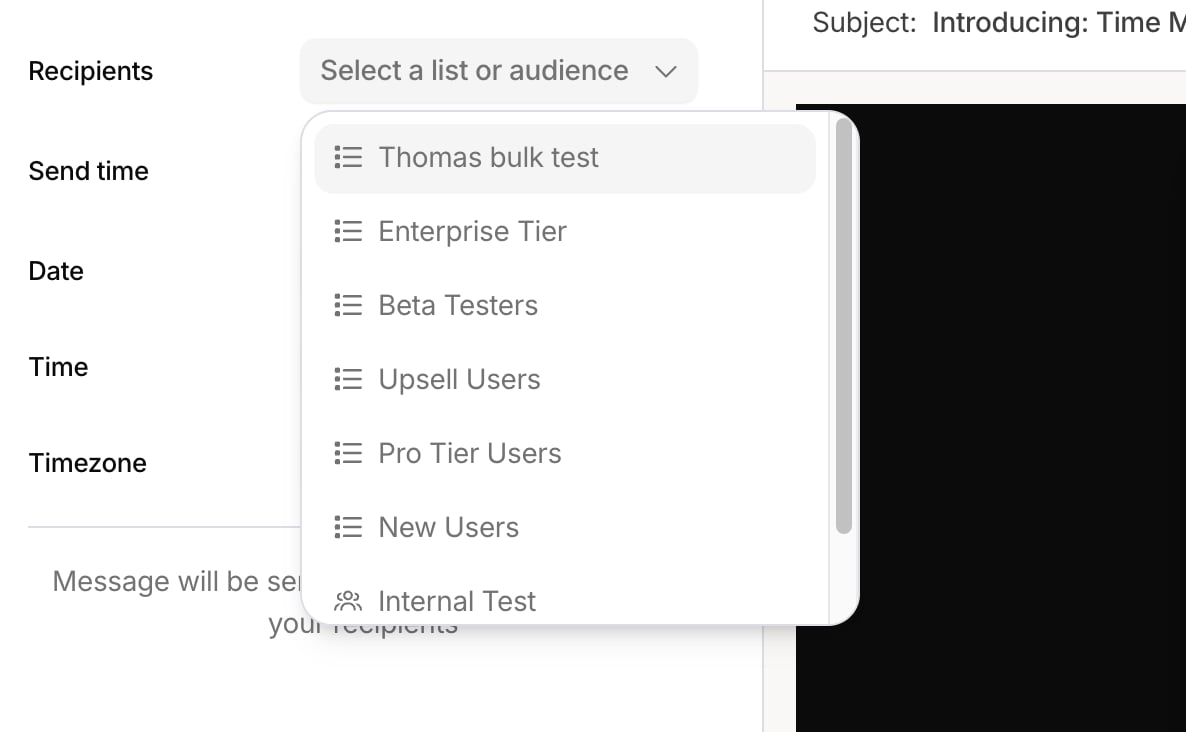
4
Send or schedule
Send now, or schedule a date, time, and timezone. A scheduled Broadcast locks its content. To change the message, cancel, edit, and schedule again.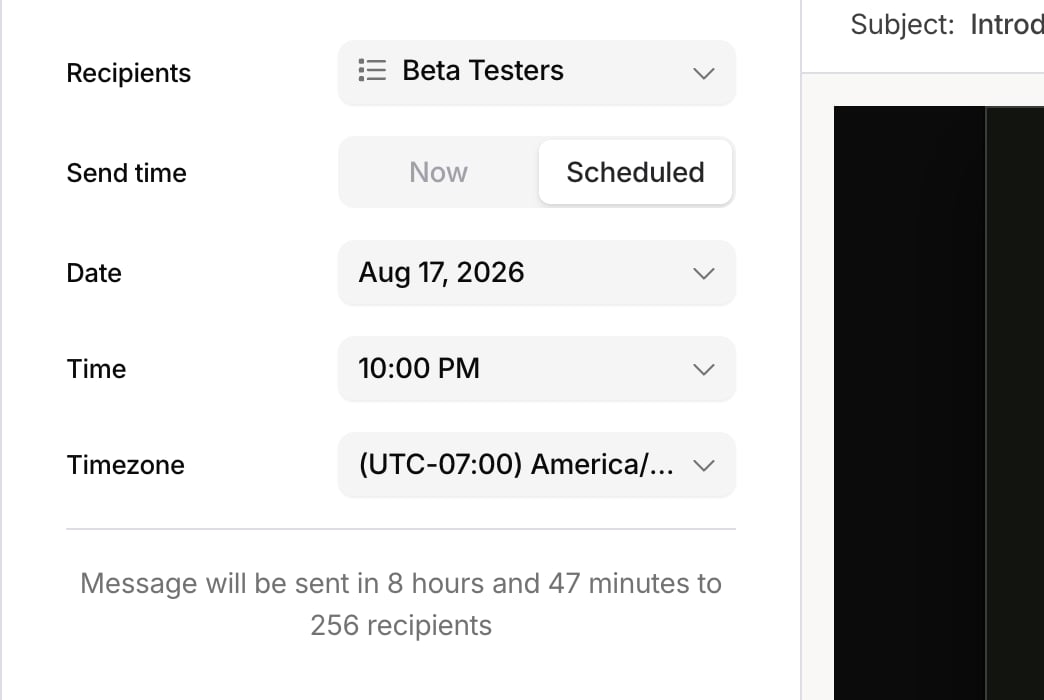
5
Check performance
After it sends, the reports delivery, open, click, and error rates, plus a per-recipient log.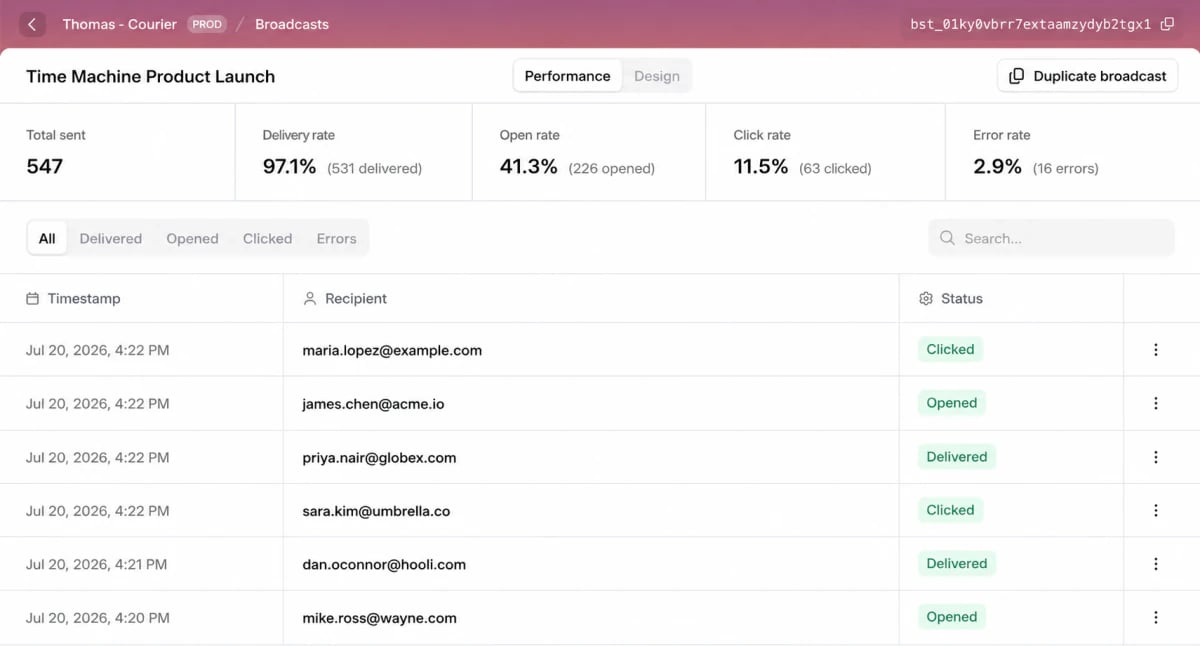
Send with the API
1
Create the Broadcast
takes a name and one channel, and returns the Broadcast ID.
channel is one of email, sms, push, inbox, slack, or msteams.const broadcast = await client.broadcasts.create({
name: 'March product update',
channel: 'email',
});
broadcast = client.broadcasts.create(
    name="March product update",
    channel="email",
)
curl --request POST \
  --url https://api.courier.com/broadcasts \
  --header "Authorization: Bearer $COURIER_API_KEY" \
  --header "Content-Type: application/json" \
  --data '{ "name": "March product update", "channel": "email" }'
broadcast = courier.broadcasts.create(name: "March product update", channel: "email")
broadcast, err := client.Broadcasts.New(context.TODO(), courier.BroadcastNewParams{
	CreateBroadcastRequest: courier.CreateBroadcastRequestParam{
		Name:    "March product update",
		Channel: "email",
	},
})
CreateBroadcastRequest params = CreateBroadcastRequest.builder()
    .name("March product update")
    .channel(CreateBroadcastRequest.Channel.EMAIL)
    .build();
Broadcast broadcast = client.broadcasts().create(params);
$broadcast = $client->broadcasts->create(
  name: 'March product update',
  channel: 'email',
);
BroadcastCreateParams parameters = new()
{
    Name = "March product update",
    Channel = "email",
};

var broadcast = await client.Broadcasts.Create(parameters);
courier broadcasts create \
  --api-key "$COURIER_API_KEY" \
  --name "March product update" \
  --channel email
2
Write the content
takes the same Elemental document a Template uses.
await client.broadcasts.putContent('YOUR_BROADCAST_ID', {
  content: {
    version: '2022-01-01',
    elements: [{ type: 'text', content: 'Here is what shipped in March.' }],
  },
});
client.broadcasts.put_content(
    broadcast_id="YOUR_BROADCAST_ID",
    content={
        "version": "2022-01-01",
        "elements": [{"type": "text", "content": "Here is what shipped in March."}],
    },
)
curl --request PUT \
  --url https://api.courier.com/broadcasts/YOUR_BROADCAST_ID/content \
  --header "Authorization: Bearer $COURIER_API_KEY" \
  --header "Content-Type: application/json" \
  --data '{
    "content": {
      "version": "2022-01-01",
      "elements": [{ "type": "text", "content": "Here is what shipped in March." }]
    }
  }'
courier.broadcasts.put_content(
  "YOUR_BROADCAST_ID",
  content: {elements: [{type: "text", content: "Here is what shipped in March."}], version: "2022-01-01"}
)
// Elemental nodes carry no typed content field, so set it as an extra field.
textNode := shared.ElementalTextNodeWithTypeParam{Type: "text"}
textNode.SetExtraFields(map[string]any{"content": "Here is what shipped in March."})

_, err := client.Broadcasts.PutContent(
	context.TODO(),
	"YOUR_BROADCAST_ID",
	courier.BroadcastPutContentParams{
		NotificationContentPutRequest: courier.NotificationContentPutRequestParam{
			Content: courier.NotificationContentPutRequestContentParam{
				Elements: []shared.ElementalNodeUnionParam{{
					OfElementalTextNodeWithType: &textNode,
				}},
				Version: courier.String("2022-01-01"),
			},
		},
	},
)
BroadcastPutContentParams params = BroadcastPutContentParams.builder()
    .broadcastId("YOUR_BROADCAST_ID")
    .notificationContentPutRequest(NotificationContentPutRequest.builder()
        .content(NotificationContentPutRequest.Content.builder()
            .addElement(ElementalTextNodeWithType.builder()
                .type(ElementalTextNodeWithType.Type.TEXT)
                .putAdditionalProperty("content", JsonValue.from("Here is what shipped in March."))
                .build())
            .version("2022-01-01")
            .build())
        .build())
    .build();
client.broadcasts().putContent(params);
$client->broadcasts->putContent(
  'YOUR_BROADCAST_ID',
  content: ['elements' => [['type' => 'text', 'content' => 'Here is what shipped in March.']], 'version' => '2022-01-01'],
);
BroadcastPutContentParams parameters = new()
{
    BroadcastID = "YOUR_BROADCAST_ID",
    Content = new()
    {
        // Elemental nodes expose no typed content property, so build the node from raw JSON.
        Elements =
        [
            ElementalTextNodeWithType.FromRawUnchecked(
                JsonSerializer.Deserialize<Dictionary<string, JsonElement>>("""
                { "type": "text", "content": "Here is what shipped in March." }
                """)),
        ],
        Version = "2022-01-01",
    },
};

await client.Broadcasts.PutContent(parameters);
courier broadcasts put-content \
  --api-key "$COURIER_API_KEY" \
  --broadcast-id YOUR_BROADCAST_ID \
  --content '{"version":"2022-01-01","elements":[{"type":"text","content":"Here is what shipped in March."}]}'
3
Send it
targets a List or an Audience and sends immediately.
await client.broadcasts.send('YOUR_BROADCAST_ID', {
  recipient_type: 'list',
  recipient_id: 'acme-corp.beta-testers',
});
client.broadcasts.send(
    broadcast_id="YOUR_BROADCAST_ID",
    recipient_type="list",
    recipient_id="acme-corp.beta-testers",
)
curl --request POST \
  --url https://api.courier.com/broadcasts/YOUR_BROADCAST_ID/send \
  --header "Authorization: Bearer $COURIER_API_KEY" \
  --header "Content-Type: application/json" \
  --data '{ "recipient_type": "list", "recipient_id": "acme-corp.beta-testers" }'
courier.broadcasts.send_(
  "YOUR_BROADCAST_ID",
  recipient_type: "list",
  recipient_id: "acme-corp.beta-testers"
)
_, err := client.Broadcasts.Send(
	context.TODO(),
	"YOUR_BROADCAST_ID",
	courier.BroadcastSendParams{
		SendBroadcastRequest: courier.SendBroadcastRequestParam{
			RecipientType: "list",
			RecipientID:   "acme-corp.beta-testers",
		},
	},
)
BroadcastSendParams params = BroadcastSendParams.builder()
    .broadcastId("YOUR_BROADCAST_ID")
    .sendBroadcastRequest(SendBroadcastRequest.builder()
        .recipientType(SendBroadcastRequest.RecipientType.LIST)
        .recipientId("acme-corp.beta-testers")
        .build())
    .build();
client.broadcasts().send(params);
$client->broadcasts->send(
  'YOUR_BROADCAST_ID',
  recipientType: 'list',
  recipientID: 'acme-corp.beta-testers',
);
BroadcastSendParams parameters = new()
{
    BroadcastID = "YOUR_BROADCAST_ID",
    RecipientType = "list",
    RecipientID = "acme-corp.beta-testers",
};

await client.Broadcasts.Send(parameters);
courier broadcasts send \
  --api-key "$COURIER_API_KEY" \
  --broadcast-id YOUR_BROADCAST_ID \
  --recipient-type list \
  --recipient-id acme-corp.beta-testers
4
Or schedule it
takes a wall-clock cancels a scheduled send, and copies one for a repeat.
scheduled_to with no offset, so the zone comes from timezone.await client.broadcasts.schedule('YOUR_BROADCAST_ID', {
recipient_type: 'audience',
recipient_id: 'active-business-users',
scheduled_to: '2026-07-21T20:00:00',
timezone: 'America/New_York',
});
client.broadcasts.schedule(
    broadcast_id="YOUR_BROADCAST_ID",
    recipient_type="audience",
    recipient_id="active-business-users",
    scheduled_to="2026-07-21T20:00:00",
    timezone="America/New_York",
)
curl --request POST \
  --url https://api.courier.com/broadcasts/YOUR_BROADCAST_ID/schedule \
  --header "Authorization: Bearer $COURIER_API_KEY" \
  --header "Content-Type: application/json" \
  --data '{
    "recipient_type": "audience",
    "recipient_id": "active-business-users",
    "scheduled_to": "2026-07-21T20:00:00",
    "timezone": "America/New_York"
  }'
courier.broadcasts.schedule(
  "YOUR_BROADCAST_ID",
  recipient_type: "audience",
  recipient_id: "active-business-users",
  scheduled_to: "2026-07-21T20:00:00",
  timezone: "America/New_York"
)
_, err := client.Broadcasts.Schedule(
	context.TODO(),
	"YOUR_BROADCAST_ID",
	courier.BroadcastScheduleParams{
		ScheduleBroadcastRequest: courier.ScheduleBroadcastRequestParam{
			RecipientType: "audience",
			RecipientID:   "active-business-users",
			ScheduledTo:   "2026-07-21T20:00:00",
			Timezone:      courier.String("America/New_York"),
		},
	},
)
BroadcastScheduleParams params = BroadcastScheduleParams.builder()
    .broadcastId("YOUR_BROADCAST_ID")
    .scheduleBroadcastRequest(ScheduleBroadcastRequest.builder()
        .recipientType(ScheduleBroadcastRequest.RecipientType.AUDIENCE)
        .recipientId("active-business-users")
        .scheduledTo("2026-07-21T20:00:00")
        .timezone("America/New_York")
        .build())
    .build();
client.broadcasts().schedule(params);
$client->broadcasts->schedule(
  'YOUR_BROADCAST_ID',
  recipientType: 'audience',
  recipientID: 'active-business-users',
  scheduledTo: '2026-07-21T20:00:00',
  timezone: 'America/New_York',
);
BroadcastScheduleParams parameters = new()
{
    BroadcastID = "YOUR_BROADCAST_ID",
    RecipientType = "audience",
    RecipientID = "active-business-users",
    ScheduledTo = "2026-07-21T20:00:00",
    Timezone = "America/New_York",
};

await client.Broadcasts.Schedule(parameters);
courier broadcasts schedule \
  --api-key "$COURIER_API_KEY" \
  --broadcast-id YOUR_BROADCAST_ID \
  --recipient-type audience \
  --recipient-id active-business-users \
  --scheduled-to "2026-07-21T20:00:00" \
  --timezone America/New_York