

Message logs
lists every message in the current environment, newest first. Each row shows the message’s status, template, recipient, and the channels it went out on.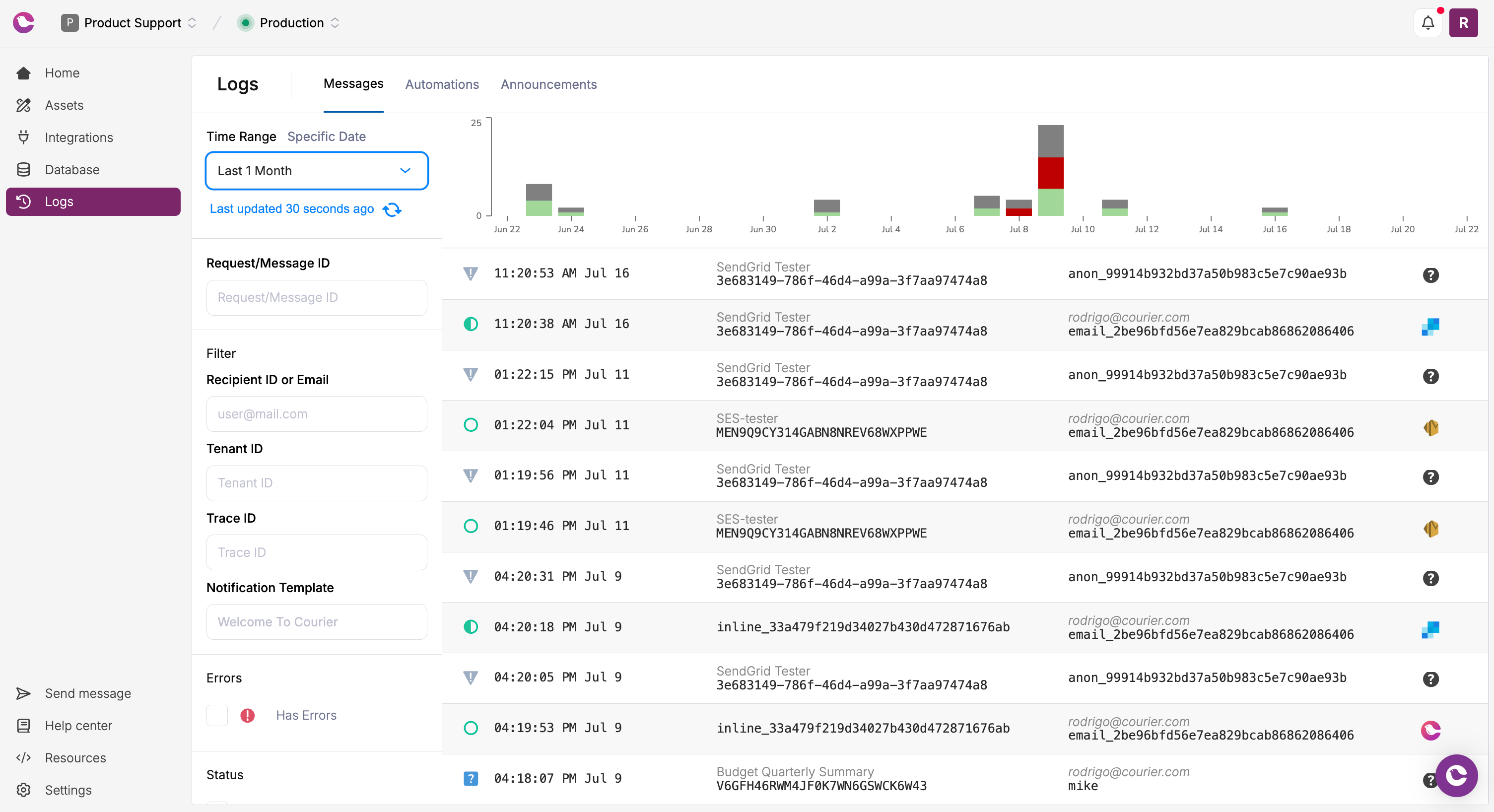
Find a message or a recipient
The histogram at the top shows message volume per day, colored by status. Drag across it to filter the list to that date range.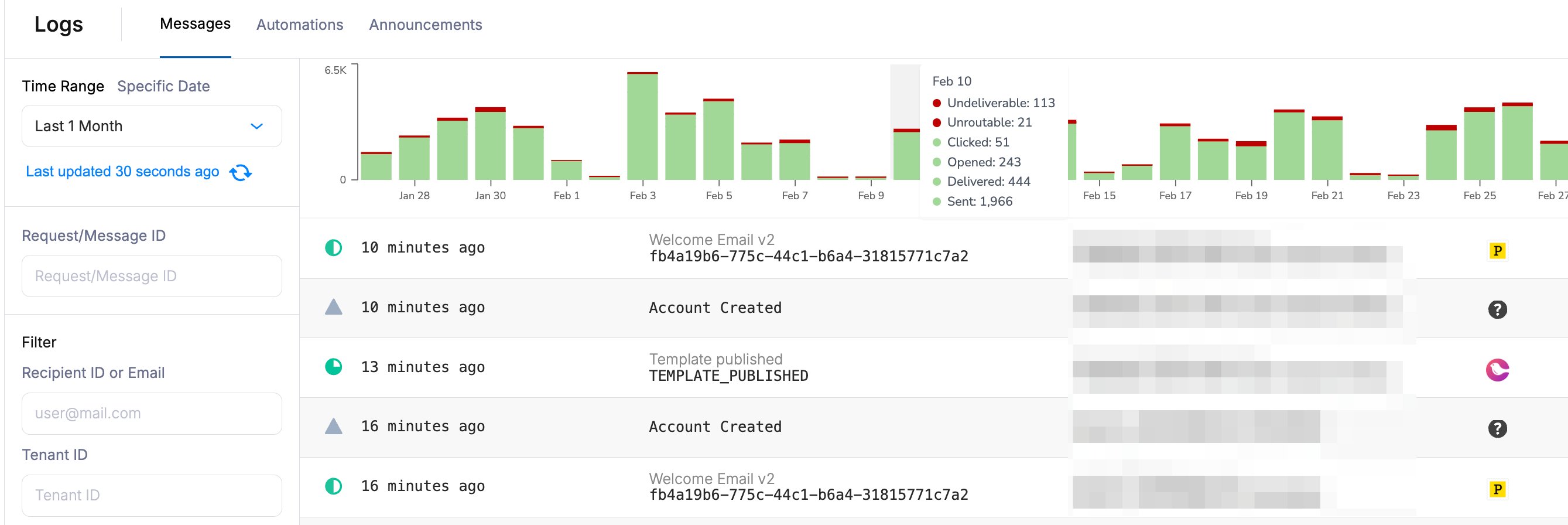
The
requestId the Send API returns is the message ID. It’s the same ID the endpoint and use.
Read a message
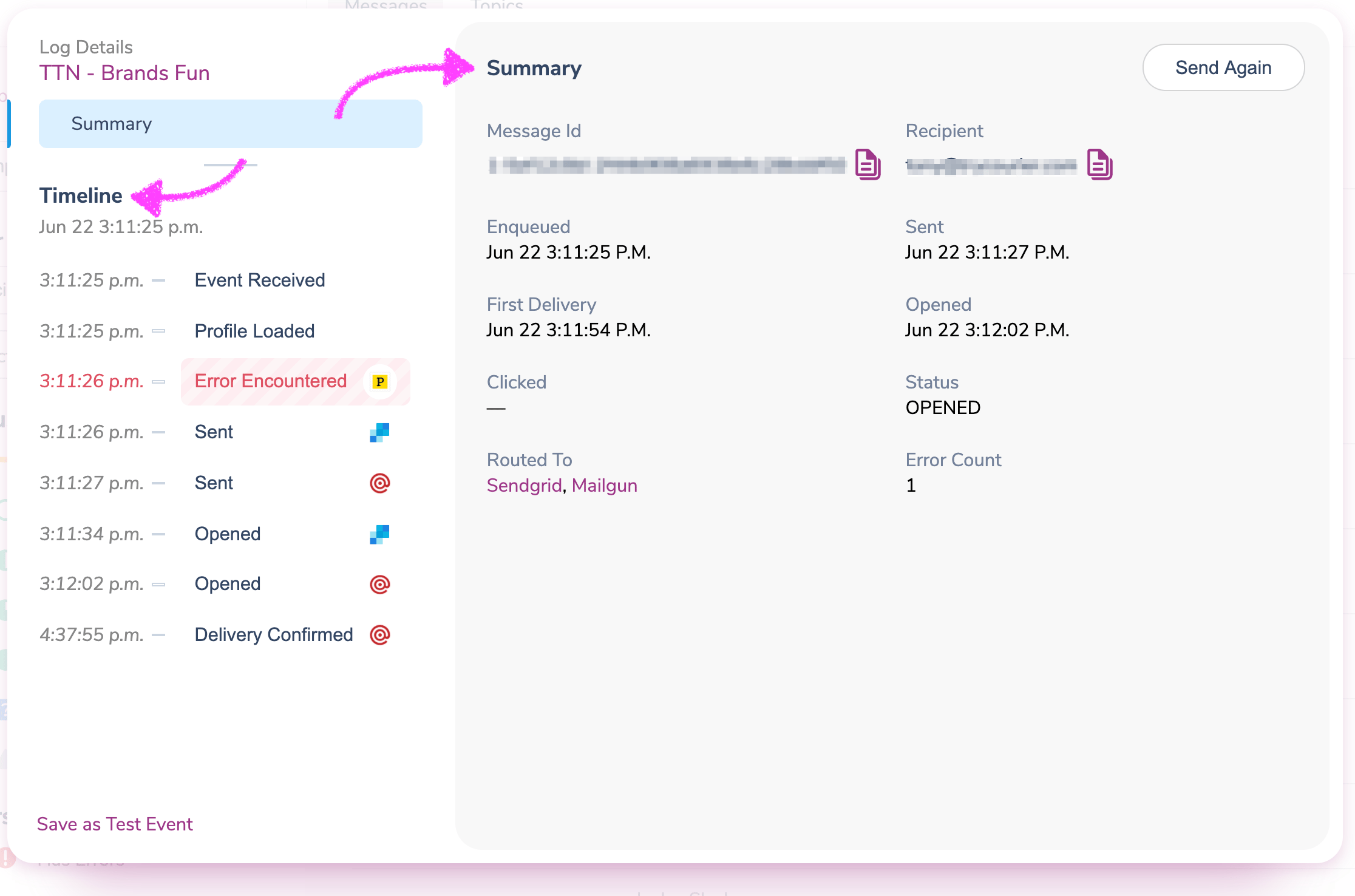
Select a message to open its detail view:- Summary: the message ID, the recipient ID, and a timestamp for each stage, such as enqueued, sent, and first delivery.
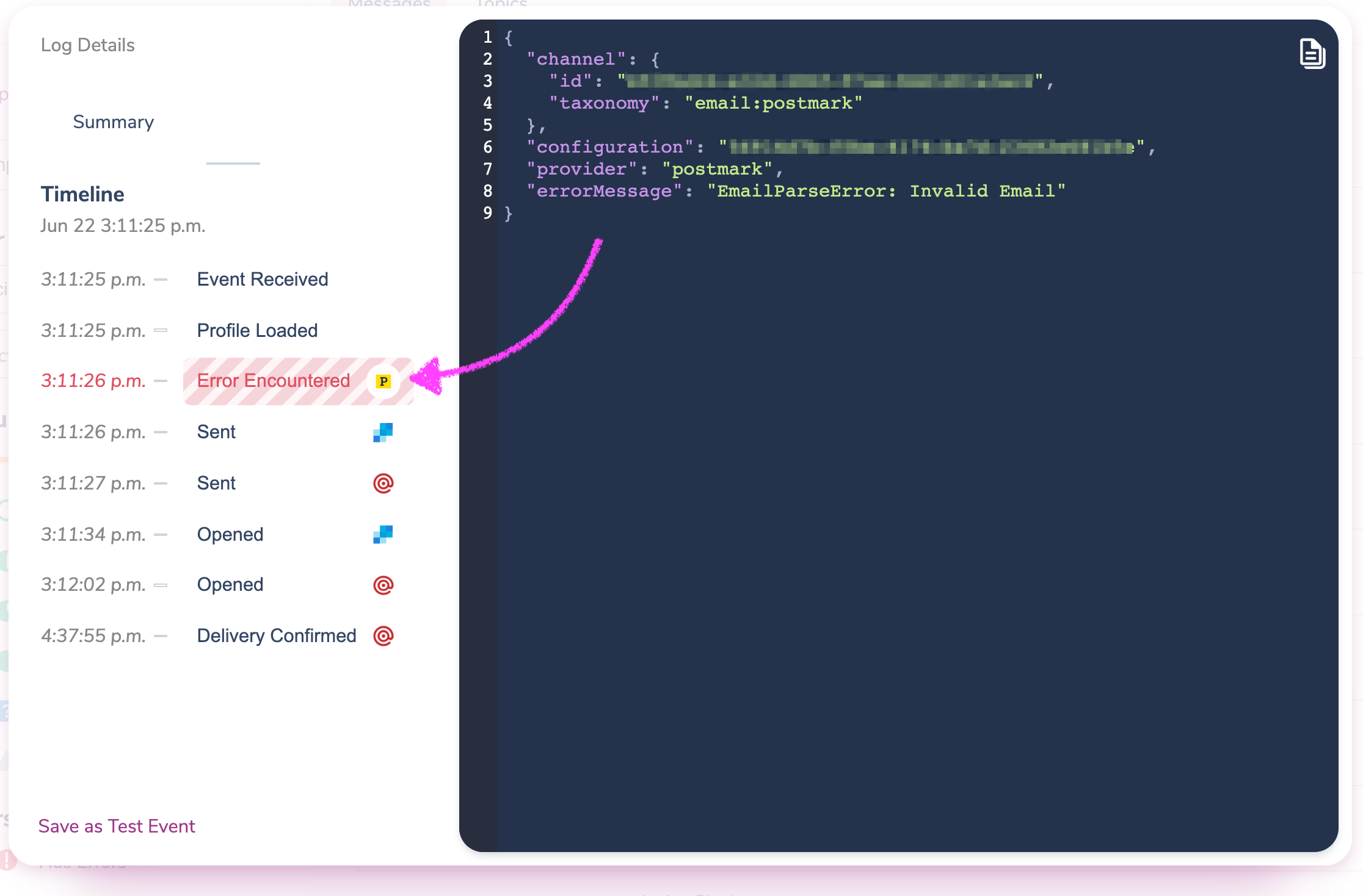
- Timeline: every event in the message’s life, in order. Select an event to see its details, including the provider’s raw response.
DELIVERED comes from your provider, and OPENED and CLICKED come from Courier’s own tracking, so a message can show an open before its delivery is confirmed. lists every status, and explains which channels report opens and clicks.
See the rendered content
Teammates with Full log access see the rendered message in the dashboard. To get it in code, call . It returns what the recipient received, per channel: the subject, HTML, and text body for email, and the message text for SMS and push.Journey logs
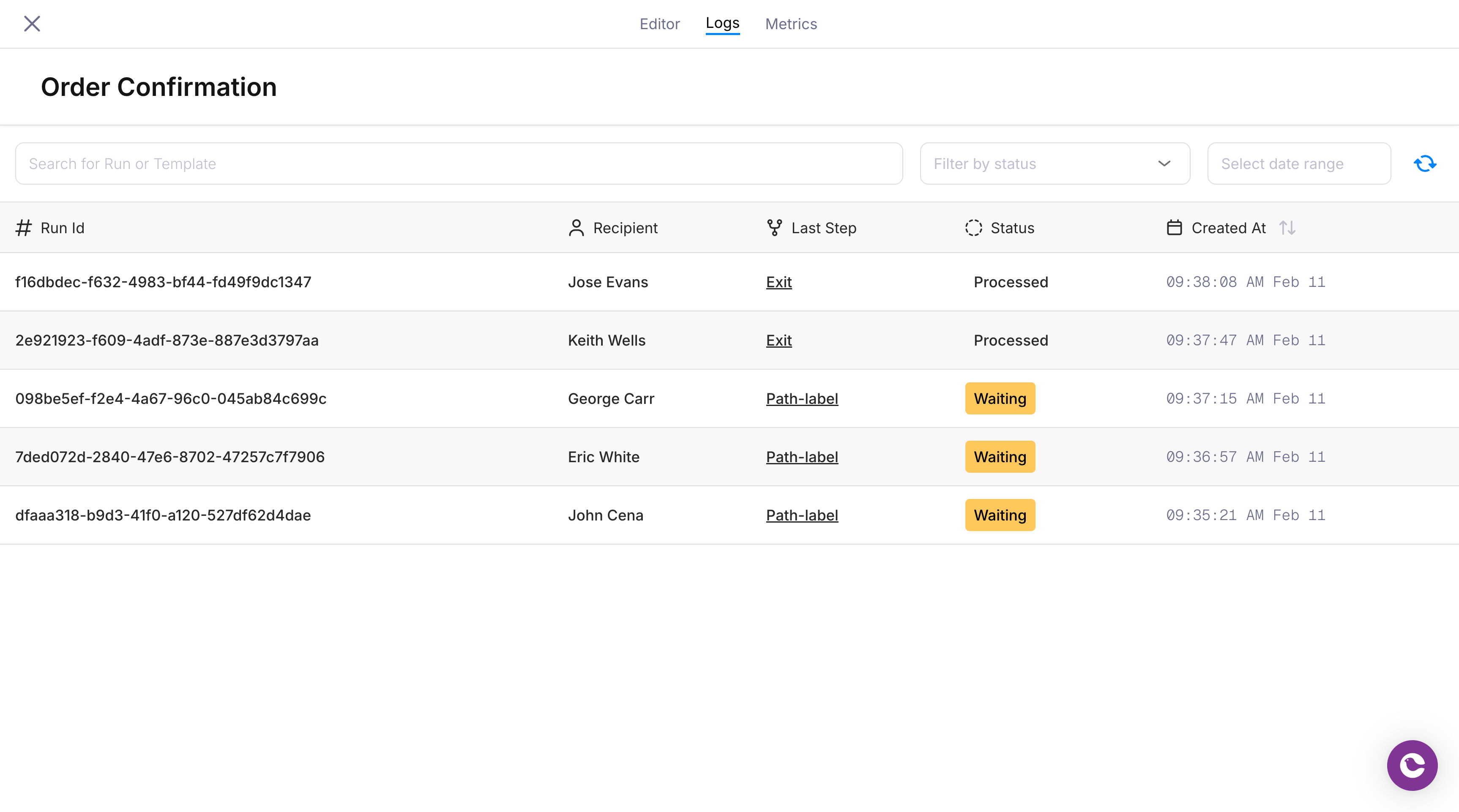
Every time a journey is invoked, Courier records a run: the full trace of that journey for that user, identified by therunId the invoke call returns.
Open a journey and select its Logs tab to see its runs. To see runs across every journey, open the Journeys logs page, which adds a template ID column. Over the API, lists runs and returns each step a run took.
Find a run
Search by run ID or template ID, or filter by status, date range, or recipient. A run has one of these statuses:Read a run
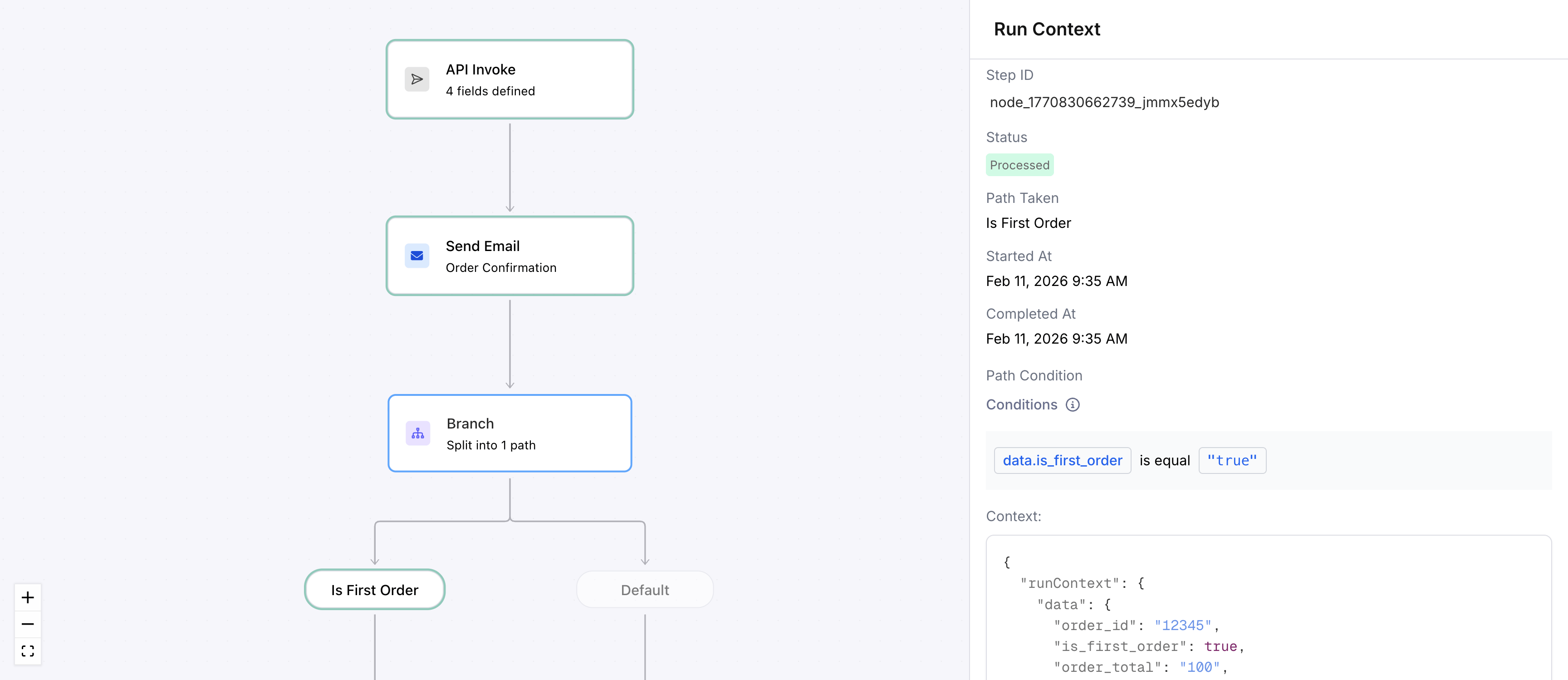
Select a run to see it on the journey canvas, with each node marked by what happened to it. The view shows which nodes ran and in what order, which path each branch took, where a waiting run is paused, and which node failed.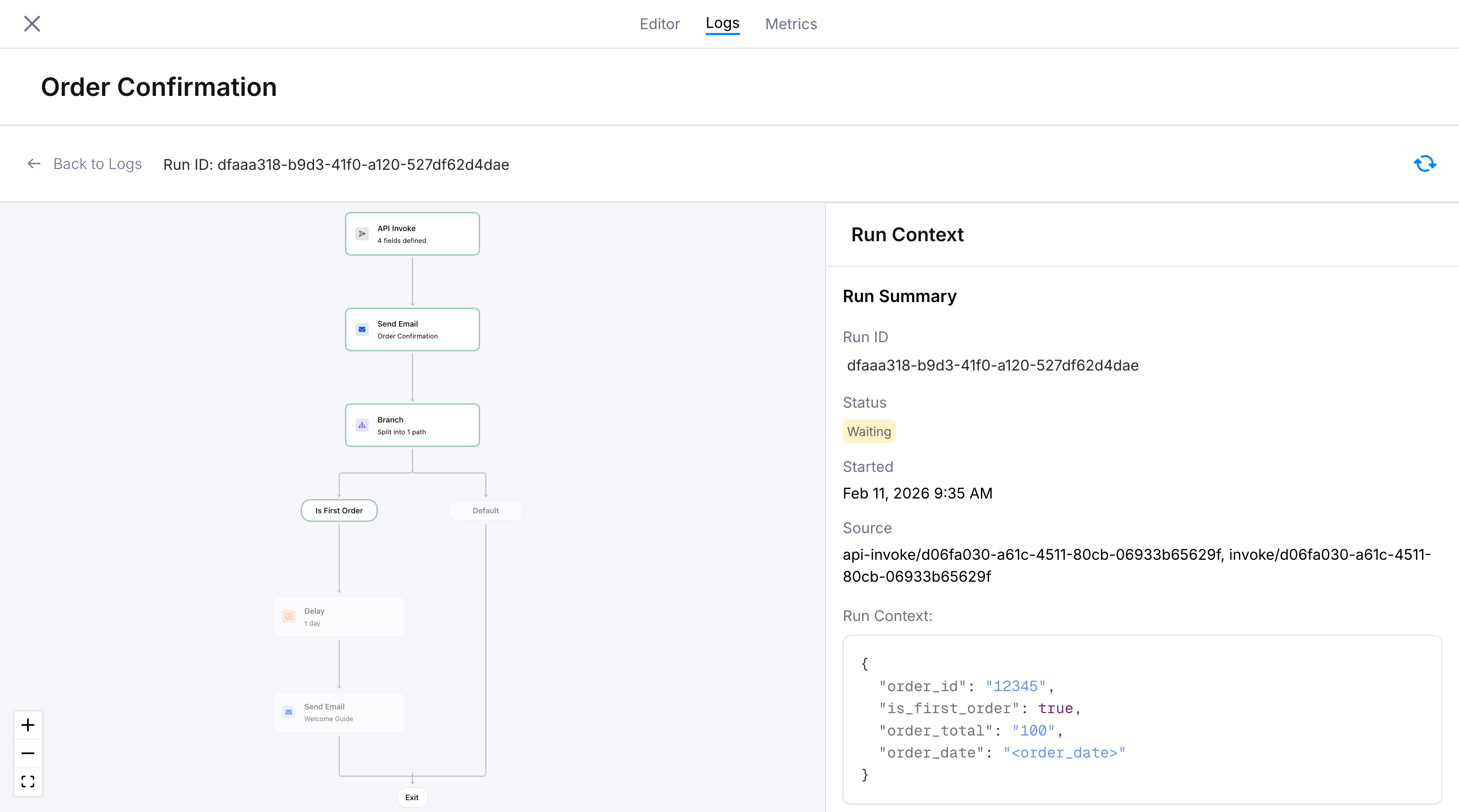
Step context answers most “why” questions. If a branch took the wrong path, the conditions show the value it compared, such as
data.plan being free instead of pro. If a send failed, the profile shows the missing field, such as an empty email.
Read logs over the API or MCP
Everything in the Logs page is available over the API, for support tools, scripts, and AI agents:
With the connected, your AI agent can look up messages for you. Ask it something like “why didn’t Sarah Bennett get her receipt?” and it uses the
list_messages, get_message, get_message_history, and get_message_content tools to find the message and read its timeline.
Other logs
- Broadcasts: each recipient gets their own entry in message logs. The per-recipient view for one broadcast is in .
- Preference changes: open a user in and select their preference log to see when they opted in or out of each topic. The endpoint returns current preferences only, not their history.
- Automations: runs for the previous workflow product are covered in .
- Workspace changes: who changed which setting, and when, is in the .
Troubleshoot a message
If a message showsSENT and the recipient doesn’t have it:
- Open the
SENTevent in the timeline and read the provider’s response. - Look the message up in your provider’s own activity log, such as SendGrid Activity or the SES console, for a bounce, block, or deferral.
- Check SPF, DKIM, and DMARC on your sending domain.
DELIVERED and the recipient still doesn’t have it, the recipient’s mail server accepted it. A spam filter or security gateway on their side is the usual cause.
walks through each case.
Limits & behavior
SENTis not a failure. Courier handed the message to the provider and hasn’t heard back, which usually means delivery tracking isn’t set up for that provider. to getDELIVERED.- Logs are per environment. Test messages appear only in Test logs.
- Retention depends on your plan. Developer and Business keep 30 days of message history. Enterprise keeps 365 days. Searches and reads are clipped to that window, so export anything you need to keep longer. A message’s own event history is capped at roughly 93 days on every plan, so an older message still lists but returns no timeline.
FAQ
How do I check whether a notification was delivered?
How do I check whether a notification was delivered?
Search Courier’s message logs for the recipient’s email address or user ID and open the message.
DELIVERED means the provider confirmed it, and SENT means Courier is still waiting to hear back.Can I see the exact email a user received?
Can I see the exact email a user received?
The dashboard shows the rendered message to teammates with Full log access. Over the API, returns the content per channel, including the subject and HTML for email.
How long does Courier keep message logs?
How long does Courier keep message logs?
Developer and Business keep 30 days of message history, and Enterprise keeps 365 days. A message’s own event history is capped at roughly 93 days on every plan.
Do I need to be a developer to use Courier logs?
Do I need to be a developer to use Courier logs?
Logs are in the Courier dashboard, and anyone on the workspace can search them by recipient, template, or status without writing code. On Enterprise, roles set how much detail they see: Level 1 shows a summary, Level 2 adds status detail and the request data, and Full also shows the rendered message. See .
How do I match a log entry to my API call?
How do I match a log entry to my API call?
The
requestId in your Send API response is the message ID. Fetch the message with it through the Messages API, or match it to message:updated webhook events.Why does a message show OPENED before DELIVERED?
Why does a message show OPENED before DELIVERED?
Courier records opens and clicks the moment they happen.
DELIVERED waits for the provider’s confirmation, which can take minutes or never arrive.How do I find a journey run from my code?
How do I find a journey run from my code?
The invoke call returns a
runId. Search for it in the journey’s Logs tab.Why does an old journey run look different from my current journey?
Why does an old journey run look different from my current journey?
A run shows the version that was published when it started, not your latest draft.