

Toast demo
See toasts pop up for new messages.
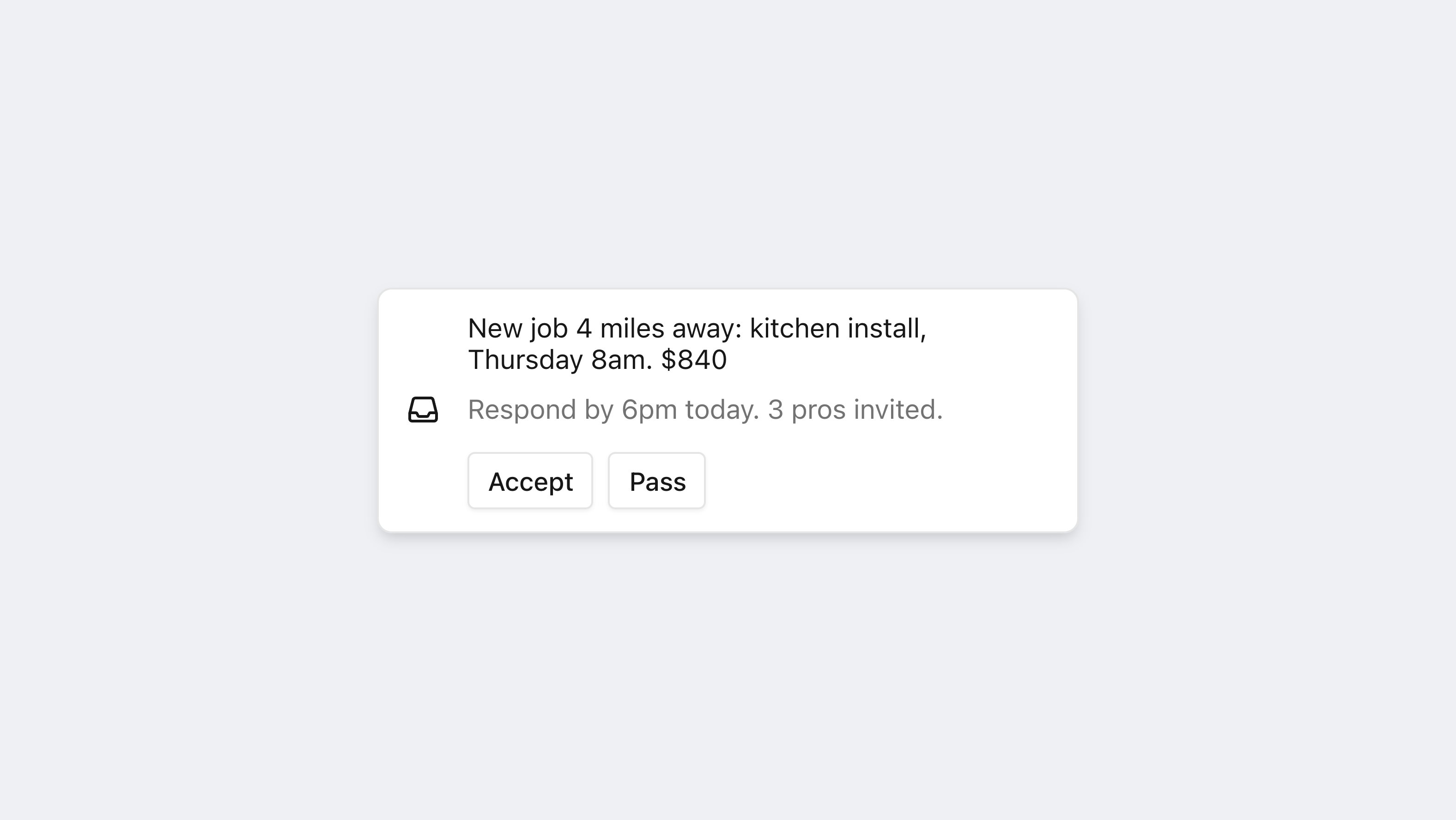
A Courier toast appearing for a new message
The built-in toast is web-only. On iOS, Android, Flutter, and React Native, listen for new messages and show your own UI (mobile tabs below). Or use .
Set up
Install the SDK for your framework:signIn as the inbox and render the component. The web SDKs use the built-in CourierToast. On mobile, listen for new messages and show your own UI:
Handle clicks
A toast fires two events: one when the body is clicked, and one for each the message carries. Action buttons do nothing by default. You decide where they go.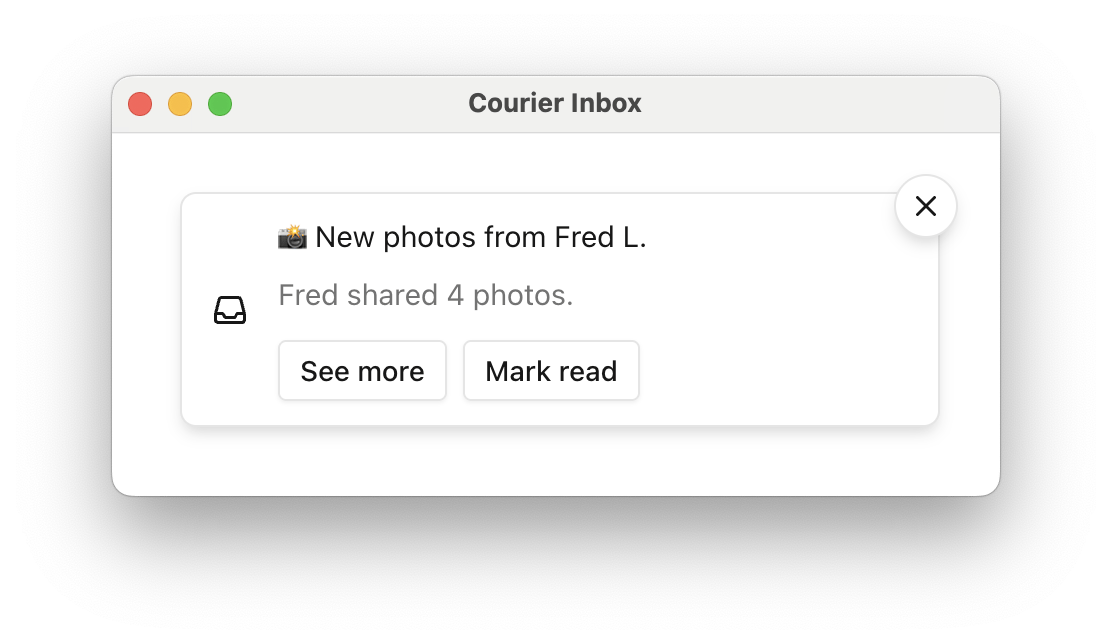
A toast with action buttons. Each button raises its own click event.
InboxMessage. The action event also carries the clicked InboxAction. Every callback the component accepts is in below.
Mobile has no built-in toast. Handle clicks in the UI you render from the inbox listener above.
Props
<CourierToast /> in React, Vue, and Angular. The web component takes the same values as
kebab-case attributes, and courier-toast is the element name.
dismissButton defaults to "auto", which means the button is always visible while
autoDismiss is off and appears on hover once it is on. "hidden" removes it, which
leaves a toast with no manual way out, so pair it with autoDismiss.
The web component also exposes enableAutoDismiss, disableAutoDismiss,
setAutoDismissTimeoutMs, setDismissButton, setMode, setLightTheme, and
setDarkTheme on the element, for hosts that hold a ref rather than re-rendering with new
props.
What auto-dismiss actually does
Only the top toast counts down. The rest of the stack is held paused until it becomes the top one, so three toasts at a 5 second timeout clear over 15 seconds rather than together. Hovering anywhere on the stack pauses every countdown, and leaving it resumes them, so a toast a reader is part-way through doesn’t vanish under the cursor. The countdown bar pauses with it.Waiting for the component with onReady
A toast can arrive before the component has mounted, and a custom render function registered too early is dropped. Both show up as toasts that never appear, or that appear unstyled. Sign in fromonReady when either applies.
Show or dismiss a toast in code
CourierToastDatastore holds the messages the toast component shows. Add one to raise a toast without sending anything, which is the fastest way to style a toast while you build. Remove one to dismiss its toast. The datastore is a singleton in @trycourier/courier-ui-toast, which the React, Vue, and Angular SDKs install for you.
removeMessage matches on messageId, not object identity, so a fresh object carrying the same id dismisses the toast. A message added this way lives only in the browser, so the inbox doesn’t show it and a reload clears it.
Verify
1
Open a screen with the toast component
Sign in a user. Keep the app open on a screen that renders the toast component (or your mobile listener).
2
Send a test message
to that user on the
inbox channel.3
Confirm the toast
A toast pops up for the new message.