

Replace parts of the inbox
Render slots are web SDKs only (React, Vue, Angular, Web Components). On iOS, Android, Flutter, and React Native, use theming or build your own UI below.
header, listItem, emptyState, loadingState, errorState, or paginationItem. Each renderer receives the relevant message or state. Slots you leave out use the built-in element.
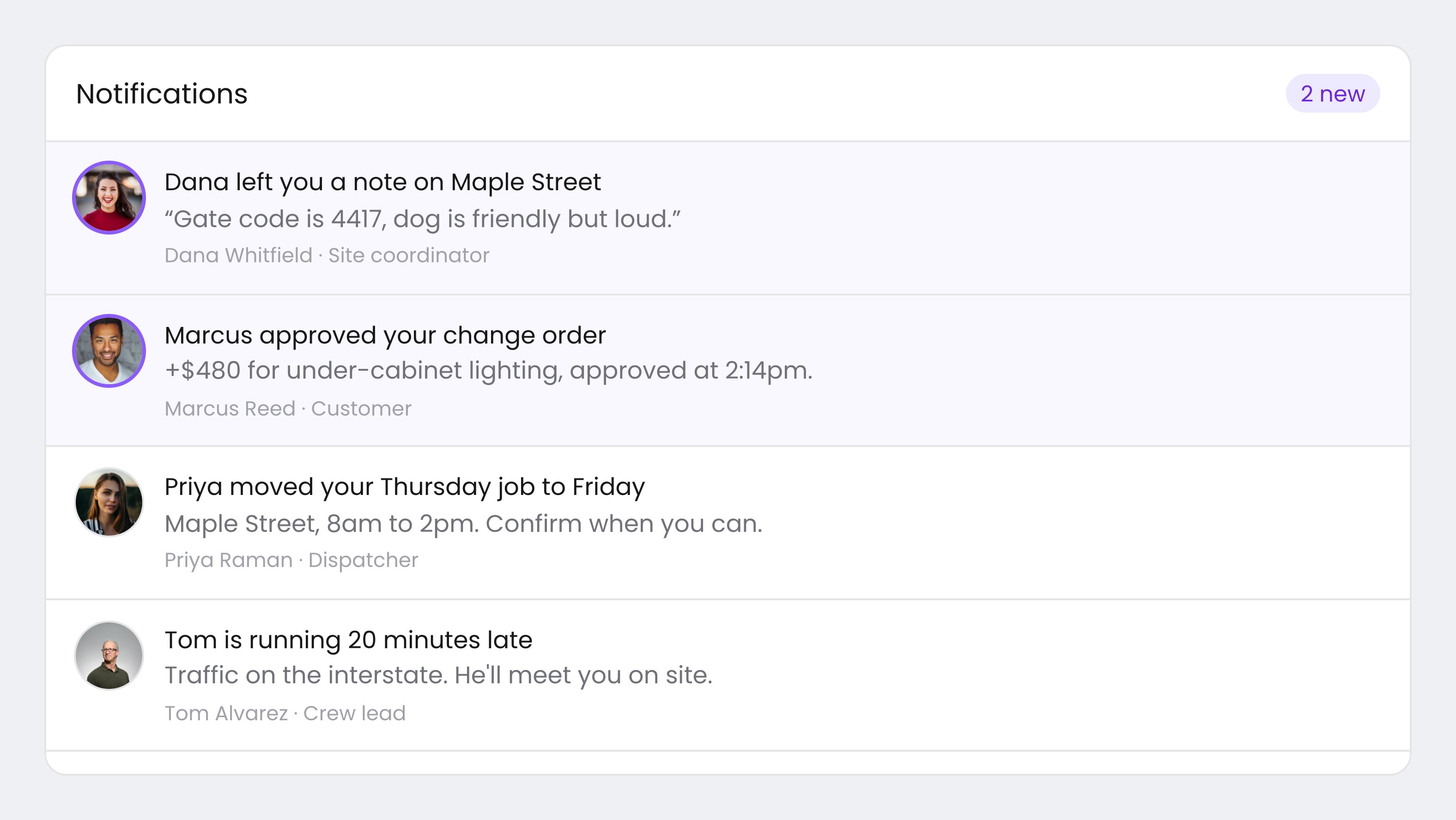
An inbox with a custom header and custom list items, while the SDK still manages the list.
The popup menu button slot exists only on the popup menu component. Every other slot works on both the inline inbox and the popup.
removeHeader() on the web component drops the header entirely instead of replacing it.
The inbox loads the next page when the reader scrolls to the bottom, so a custom pagination item may only flash on screen.
What each renderer receives
The header and the menu button get the feed and tab state, so a custom header can show the selected tab and its unread count. The state slots get thedatasetId of the tab they are rendering, and the error state also gets the error. The list item gets { message, index }.
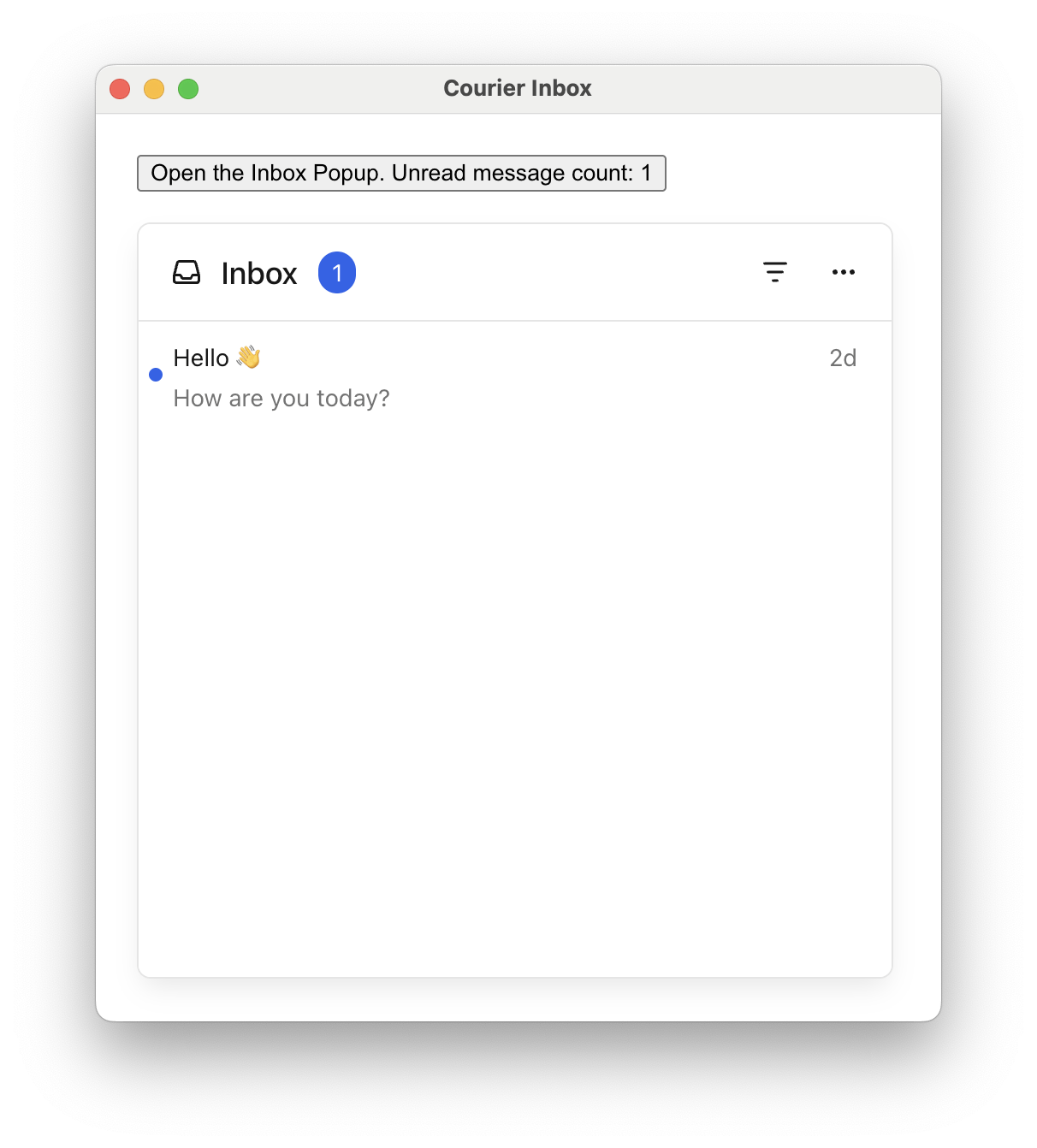
A custom popup menu button that renders the unread count as text.
Build your own UI
You don’t have to renderCourierInbox at all. Every SDK exposes the message data and actions directly, so you can build the whole UI while the SDK keeps everything synced. The setup is the same everywhere:
- Start the feed.
- Render your own UI from the messages.
- Toggle read (or archive) on interaction.
- Tear down the listener when the view goes away.
- Web SDKs: nothing loads automatically. Register the feeds, open the realtime connection, then load:
registerFeeds(defaultFeeds())→listenForUpdates()→load(). - Mobile SDKs: adding an inbox listener loads the first page for you, if you have first. (
refreshInbox()is only for pull-to-refresh.)
useCourier hook) also reports loading, errors, unread count, and pagination state. See Data and actions for the full surface. On the mobile SDKs and Web Components, remove the listener when your view is torn down. The React, Vue, and Angular wrappers do this for you.
Data and actions
The pattern above uses a subset of what each SDK exposes. Here is the full surface: the data you read (messages, unread count, pagination state) and the actions you call (mark read, archive, paginate, refresh). The built-in inbox calls these for you. On the web, read the data from theuseCourier hook (React and Vue), the CourierInboxDatastore (Web Components), or the CourierService (Angular). On mobile, an inbox listener pushes the data to you and the actions take a messageId.