

Batching
This reduces notification frequency and improves the likelihood of recipients engaging with the content. Batching operates based on the following criteria:- Period of inactivity: If no events occur within a defined time span (e.g., one hour), all events since the last notification are bundled into a single notification.
- Maximum event count: Notifications are held until a specified number of events (e.g., 100) have accumulated. These events are then summarized in a single notification.
- Maximum wait time: All events that would have triggered notifications within a predefined duration (e.g., 24 hours) are summarized into a single notification.
Batching Example Use Cases
Article Performance Summary
When an article is published on a news website, events are generated for each view, comment, and share. Instead of sending a notification for each event, these events can be batched within an automation. Once the initial surge of activity subsides or the maximum wait time is reached, the batch compiles view count, top comments, and share count data. This summary is then sent to the author via email.Data Warehouse Analytics
A company processing large amounts of data may generate reports at different times. An event is triggered upon each report’s completion. With batching, these reports can be grouped and sent in a single email once all the reports for the day are generated.Social Media Engagement
When a user creates a popular post that receives numerous likes within minutes, batching can be used to notify the user once the post hasn’t received new likes for a specified period. For example, “Your post received 17 likes.”Creating A Batch
To create a batch, use the “Add to Batch” action, then click within the batch node to open the editor in the sidebar.Configuring A Batch
To configure a batch, click on the batch node to open the editor in the sidebar.Batch Scope
TheScope parameter in the batch node configuration allows you to define the scope of the batch.
It determines how events are grouped together within the batch.
There are three options for the batch scope:
To batch messages for a user while grouping them by category (such as tenant or topic), create a
Batch Key that combines a user identifier and a category identifier. For example, use 'batch_key': 'user_id tenant_id' and pass it to the batch node with refs.data.batch_key. This groups related notifications together into a single batch.Invoking an Automation Containing a Batch
- When an automation containing a batch node is invoked, Courier checks for an ongoing batch run for the configured scope.
- If none exists:
- A new batch run is created.
- The current automation run is marked as pending.
- The system waits until the batch is complete before proceeding to the next step.
- If an existing batch run is found:
- The data object is added to the existing batch.
- The current automation run is terminated.
- Steps connected to the batch are not executed, ensuring that nodes following a batch node are only executed once per batch run.
- If none exists:
Invoke 1
Invoke 2
Invoke 3
Completed Batch Data
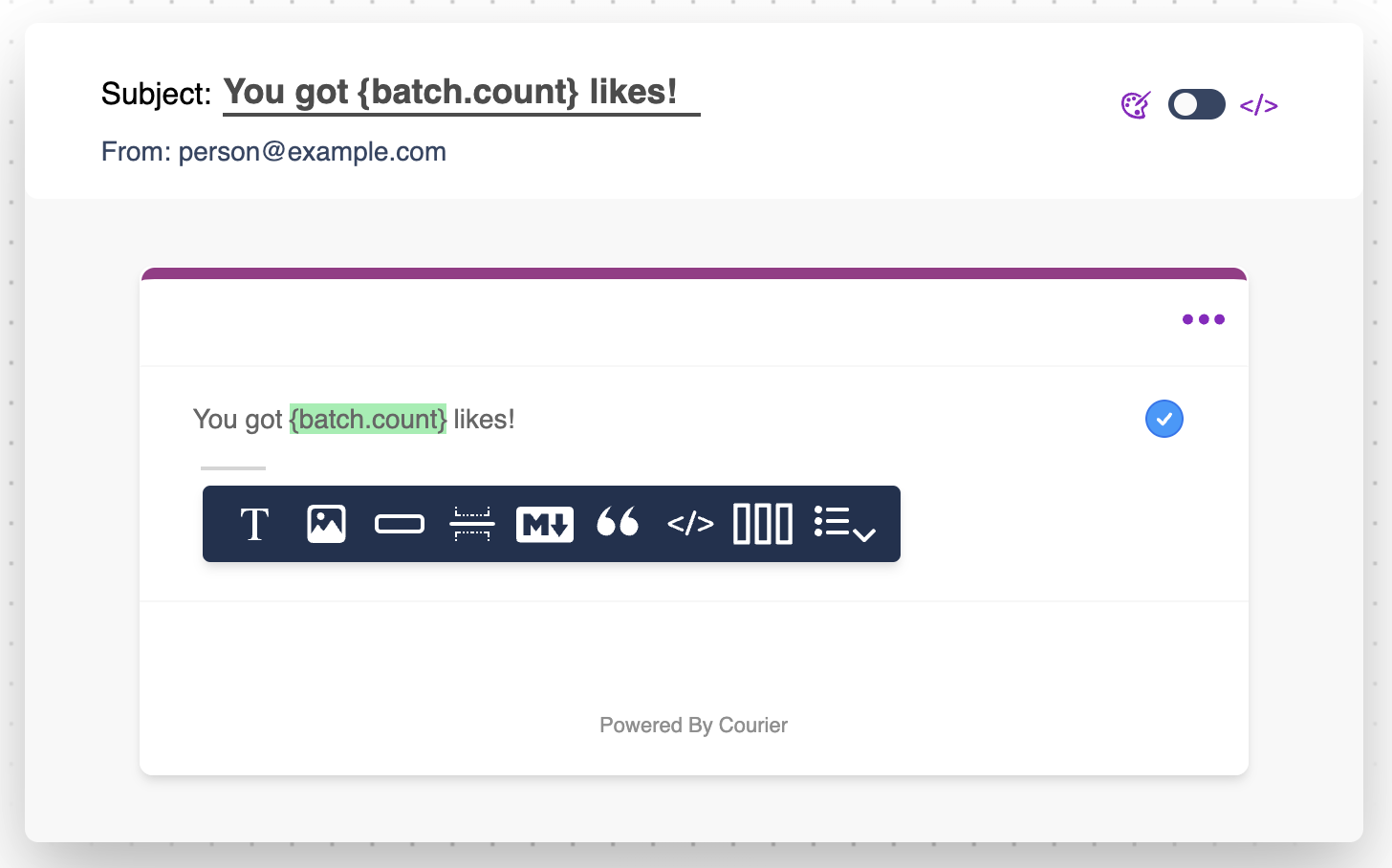
Accessing batch data from a notification template
Batch Categories
When theCategory Key is set to a dynamic value such as refs.data.category_key, events can be grouped by category in a batch run.
In this case, the batch is aggregated by category:
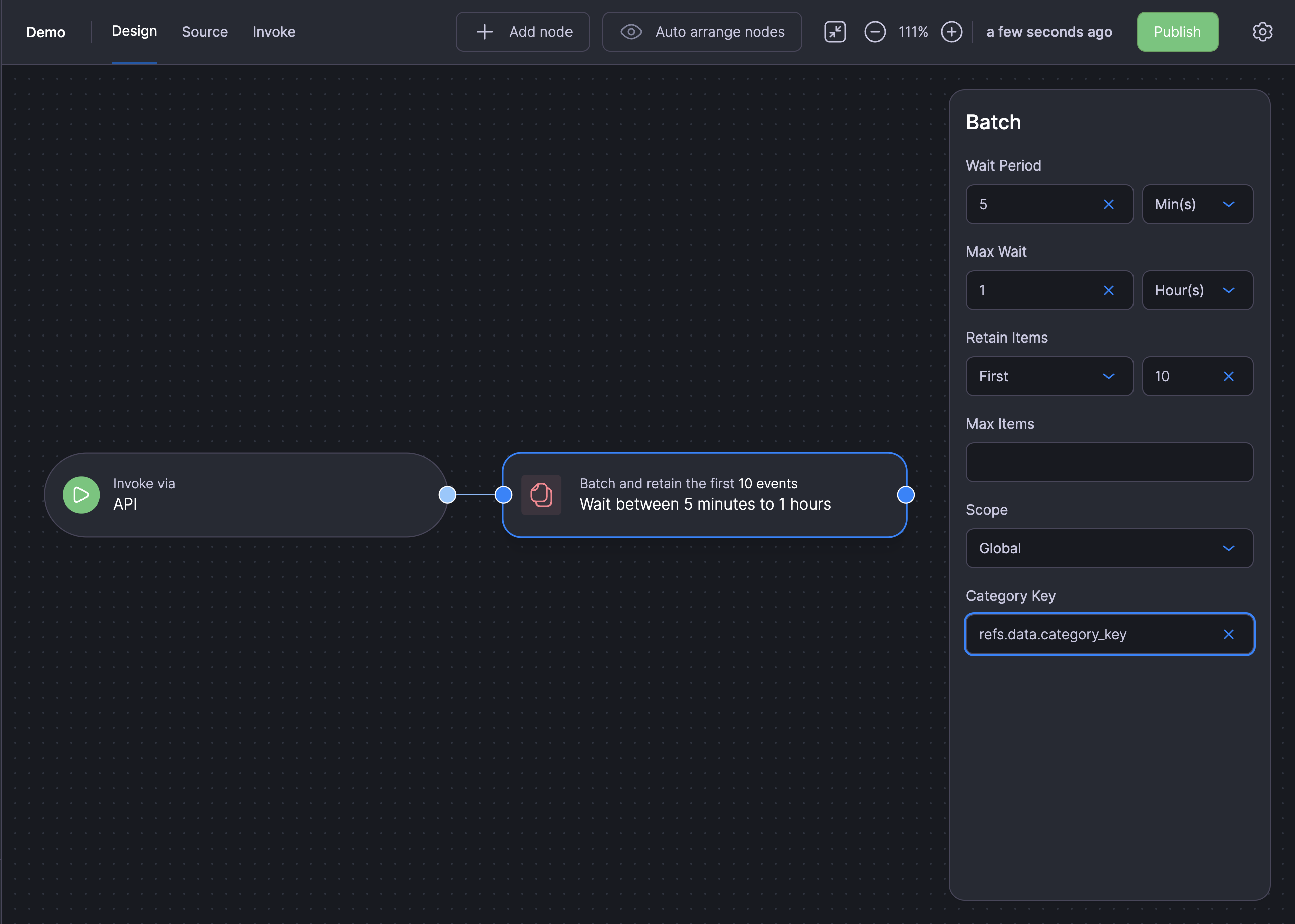
Dynamic Category Key
Category Key is set to refs.data.category_key.
Each time the automation is invoked, a category_key is supplied.
Given the following invocations:
Invoke
Invoke
Invoke
Completed Batch Data