

Add a Cancellation Token
To allow an automation to be cancelled, add a cancellation token to the automation.- Navigate to the settings tab of the automation you want to cancel.
- Add a cancellation token. This can be any value desired. Its best to use a dynamic value so
a specific automation invocation may be cancelled, rather than all running instances. For
example, you may use
refs.data.user_id, which would allow the automation run to be associated with the user the automation would send to. You can also reference profile fields withrefs.profile.*. - Publish the Automation.
- Create a new automation
- Add the
Cancel Automationnode - Set the token to the same token from step 2.
- Publish
Canceling From the UI
An automation can also be canceled from automation logs.- Navigate to the automation logs page in Courier.
- Find your automation in the logs, you can search with a run Id or source.
- If your automation has not finished processing, a cancel button will be shown in the run summary.
- Clicking this button will cancel your automation.
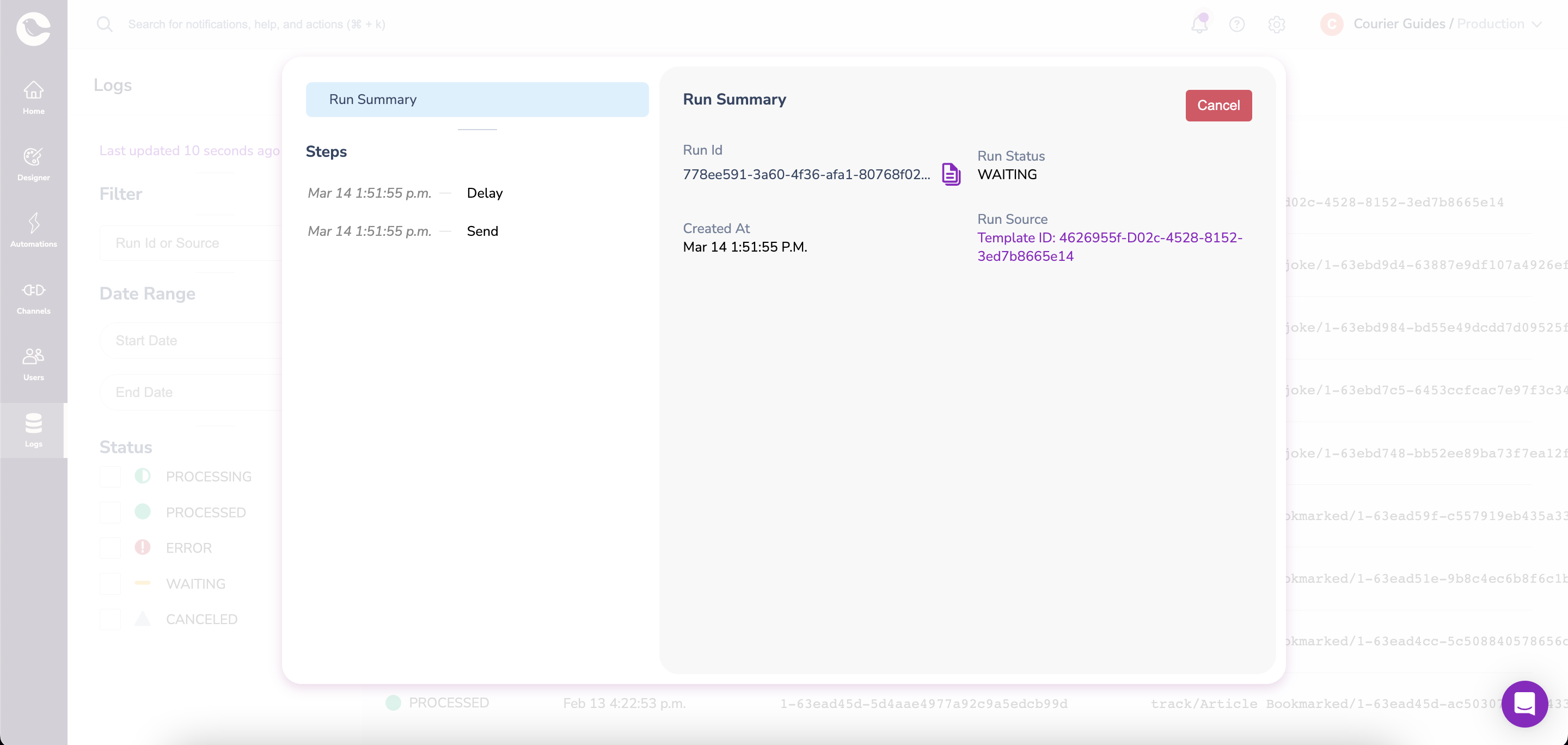
Canceling an Automation from Logs
Canceling Multiple Automations
When multiple automations share the same cancellation token and a cancel automation is invoked, all automations that have the same token will be simultaneously canceled.Templated Cancellation Token
It may be advantageous to create a compound key for your cancellation token. For example, if you want to have a cancellation token that combines two different fields, or a data field and a static string. In automations, most fields support Javascript string interpolation and the cancellation token is an example of one. The documentation above says you can userefs, for example refs.data.user_id and the following would be identical in the cancellation token field, ${data.user_id}. For more advanced interpolation you can perform nested interpolations as well.
Static Fields