Routing strategies determine how notifications are delivered across channels. Each strategy has a name, a routing method (single or all), an ordered list of channels, and optional provider configuration per channel. Templates reference a strategy by its strategy_id (rs_ prefix), so updating one strategy changes delivery behavior for every template that uses it.

Managing routing strategies in Design Studio

Design Studio routing is in Beta. In Classic Designer, routing is configured separately for each template.

Selecting a routing strategy

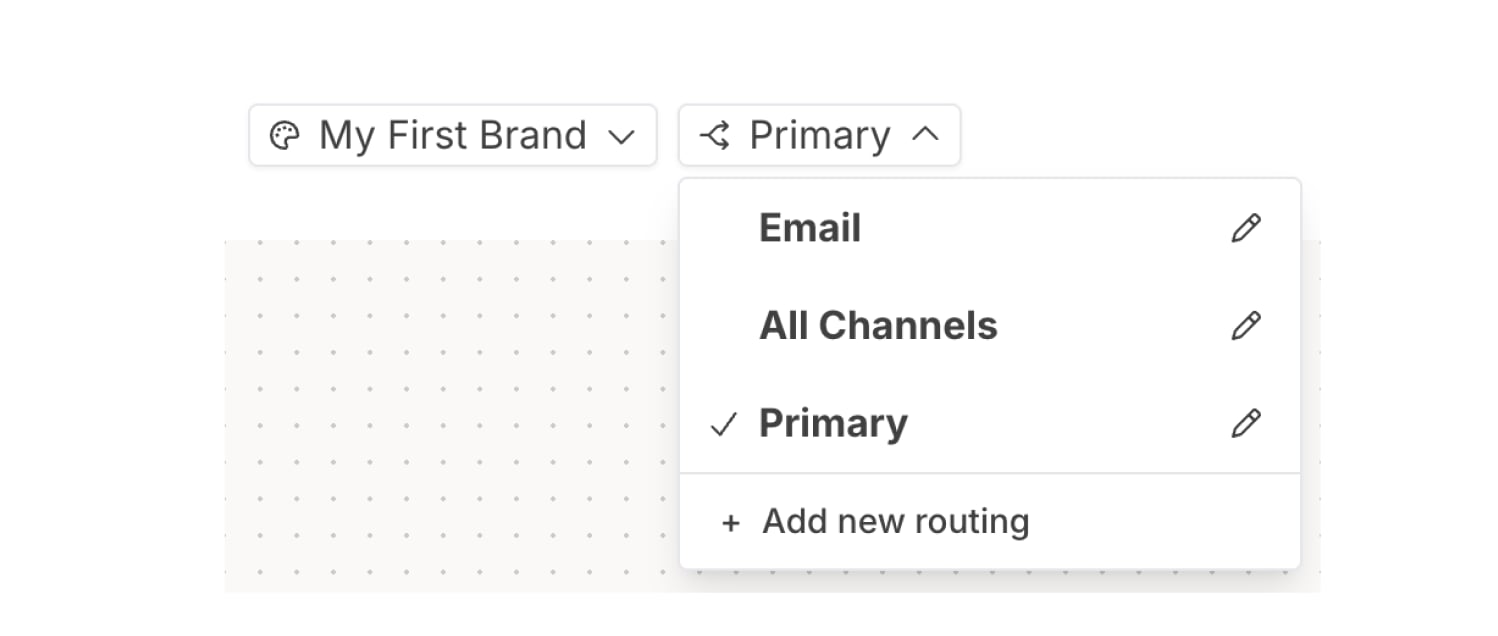
Click the routing dropdown in the template editor toolbar to select or create routing strategies.
Routing selector dropdown showing saved configurations
From this dropdown you can:
  • Select an existing routing strategy
  • Click the pencil icon to edit a strategy
  • Click + Add new routing to create a new strategy

Basic scheme

The Basic scheme sends notifications to all enabled channels simultaneously.
Basic routing scheme with all channels enabled
Toggle channels on or off to control which channels receive the notification. The flowchart on the right shows that all enabled channels receive the notification at the same time.

Advanced scheme

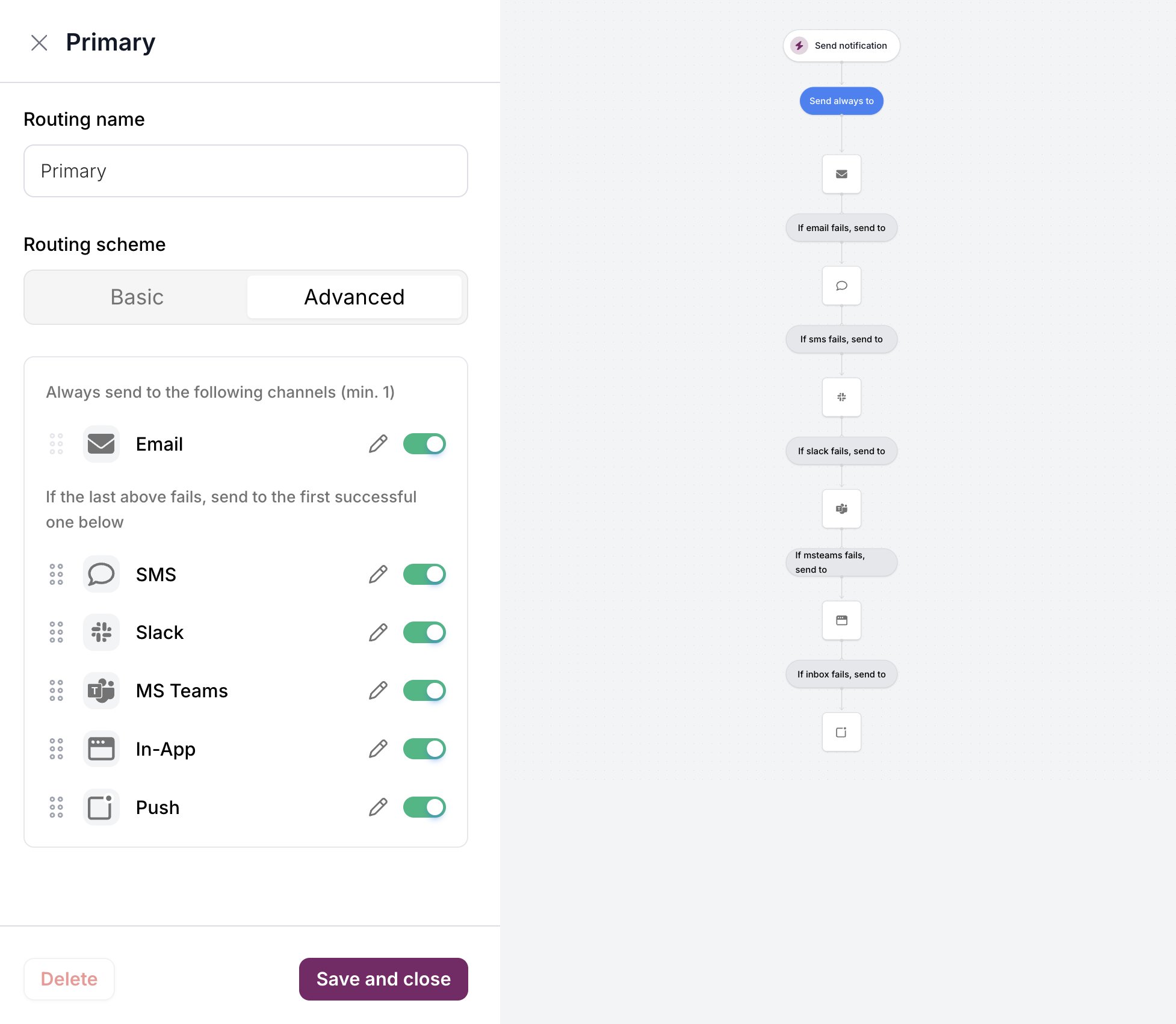
The Advanced scheme provides cascading fallback logic. Notifications are sent to a required channel first, then fall back to other channels if delivery fails.
Advanced routing scheme with fallback chain
The Advanced scheme has two sections:
SectionBehavior
Always send toRequired channel(s) that always receive the notification
If the last above fails, send toFallback channels tried in order until one succeeds
Drag channels to reorder priority. The flowchart visualizes the fallback chain.

Reusing routing strategies

Unlike the classic designer where routing is configured per-template, routing strategies are saved independently and reusable:
  1. Create a routing strategy once (e.g., “Primary” with email + SMS fallback)
  2. Apply it to multiple templates from the routing dropdown
  3. Edit the strategy to update all templates using it

Managing routing strategies with the REST API

You can list, create, retrieve, update, and archive routing strategies programmatically. This is useful for infrastructure-as-code workflows, CI/CD pipelines, and any scenario where you manage templates through the API rather than Design Studio.
For full request/response schemas and SDK examples in all languages, see the Routing Strategies API Reference.

List strategies

Returns metadata only (name, tags, timestamps); use the get endpoint for full routing content.
curl -s "https://api.courier.com/routing-strategies" \
  -H "Authorization: Bearer $COURIER_API_KEY" | jq .
The response is paginated. Pass the cursor value from paging to fetch the next page.

Create a strategy

Provide a name and a routing object at minimum. The routing.method controls delivery behavior:
MethodBehavior
singleTry channels in order; stop after the first successful delivery
allSend to all listed channels simultaneously
curl -X POST "https://api.courier.com/routing-strategies" \
  -H "Authorization: Bearer $COURIER_API_KEY" \
  -H "Content-Type: application/json" \
  -d '{
    "name": "Email with SMS fallback",
    "routing": {
      "method": "single",
      "channels": ["email", "sms"]
    },
    "channels": {
      "email": { "providers": ["sendgrid", "ses"] }
    },
    "tags": ["production"]
  }'
The response returns the new strategy’s id (e.g., rs_01abc123). Use this as routing.strategy_id when creating or updating templates.

Get full details

The list endpoint returns metadata only. To see the complete routing, channels, and providers configuration, retrieve a single strategy by ID.
cURL
curl -s "https://api.courier.com/routing-strategies/rs_01abc123" \
  -H "Authorization: Bearer $COURIER_API_KEY" | jq .

Replace a strategy

PUT /routing-strategies/{id} does a full document replacement. Send the complete desired state; any fields you omit are cleared.
cURL
curl -X PUT "https://api.courier.com/routing-strategies/rs_01abc123" \
  -H "Authorization: Bearer $COURIER_API_KEY" \
  -H "Content-Type: application/json" \
  -d '{
    "name": "Email with SMS fallback v2",
    "routing": {
      "method": "single",
      "channels": ["email", "sms"]
    },
    "channels": {
      "email": { "providers": ["ses", "sendgrid"] }
    },
    "tags": ["production", "v2"]
  }'

Archive a strategy

Archiving removes a routing strategy. The strategy must not be linked to any templates; unlink all templates first or the request returns 409 Conflict.
cURL
curl -X DELETE "https://api.courier.com/routing-strategies/rs_01abc123" \
  -H "Authorization: Bearer $COURIER_API_KEY"

Using a strategy with templates

Every notification template references a routing strategy through routing.strategy_id. When you create or replace a template via POST /notifications or PUT /notifications/{id}, include the strategy ID:
{
  "notification": {
    "name": "Order Confirmation",
    "routing": { "strategy_id": "rs_01abc123" },
    "content": { ... }
  }
}
For a full walkthrough of creating templates with the API, see How to Use the Templates API.

What’s Next

Content Blocks

Building notification content in Design Studio

Templates API

Manage templates programmatically

Channel Priority

How Courier selects delivery channels

Routing Strategies API Reference

Full endpoint schemas and SDK examples