

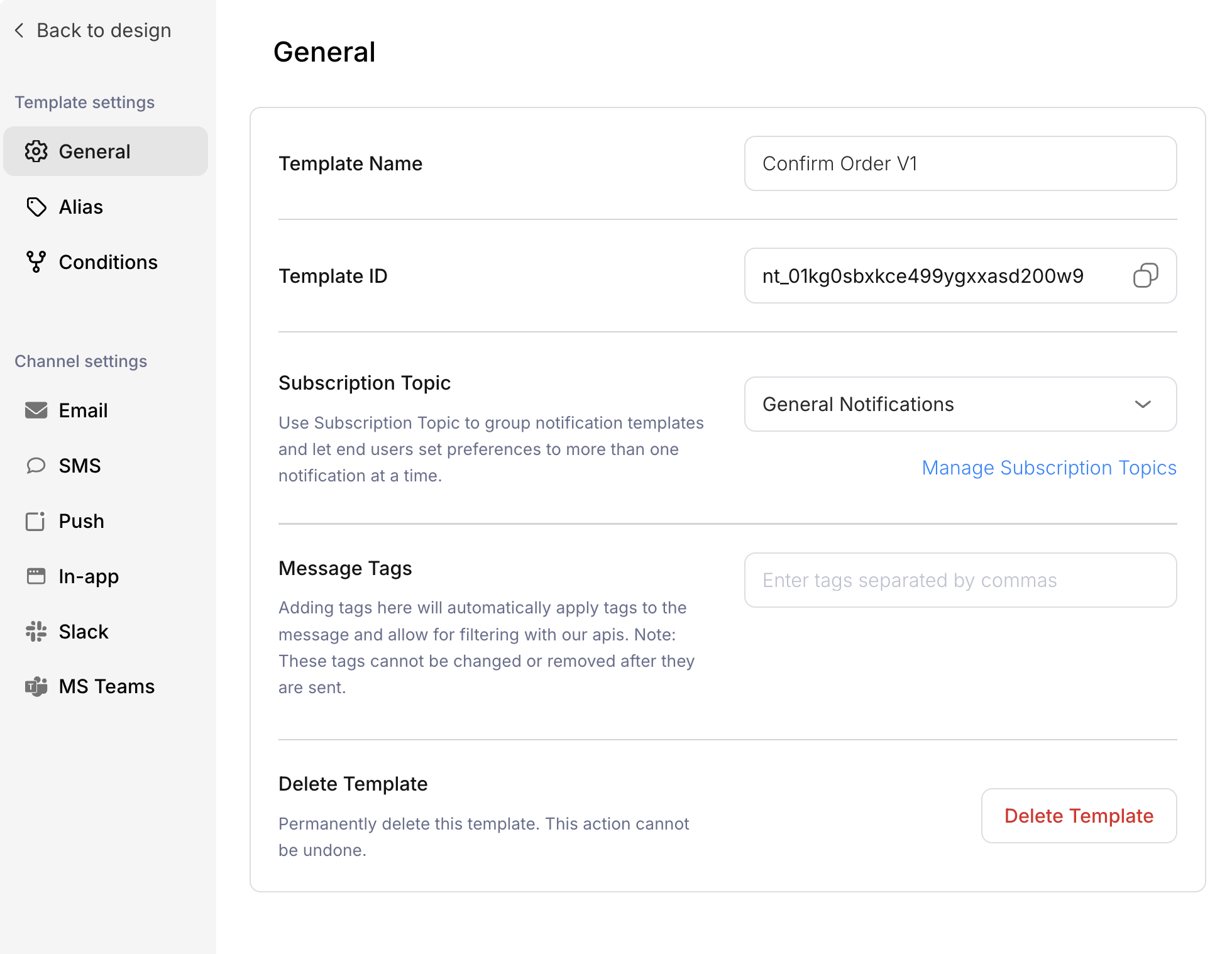
Template Settings Panel
Template settings
General
Alias
Create aliases for your template to use in API calls instead of the Template ID. Aliases make your API calls more readable and let you change the underlying template without updating your application code.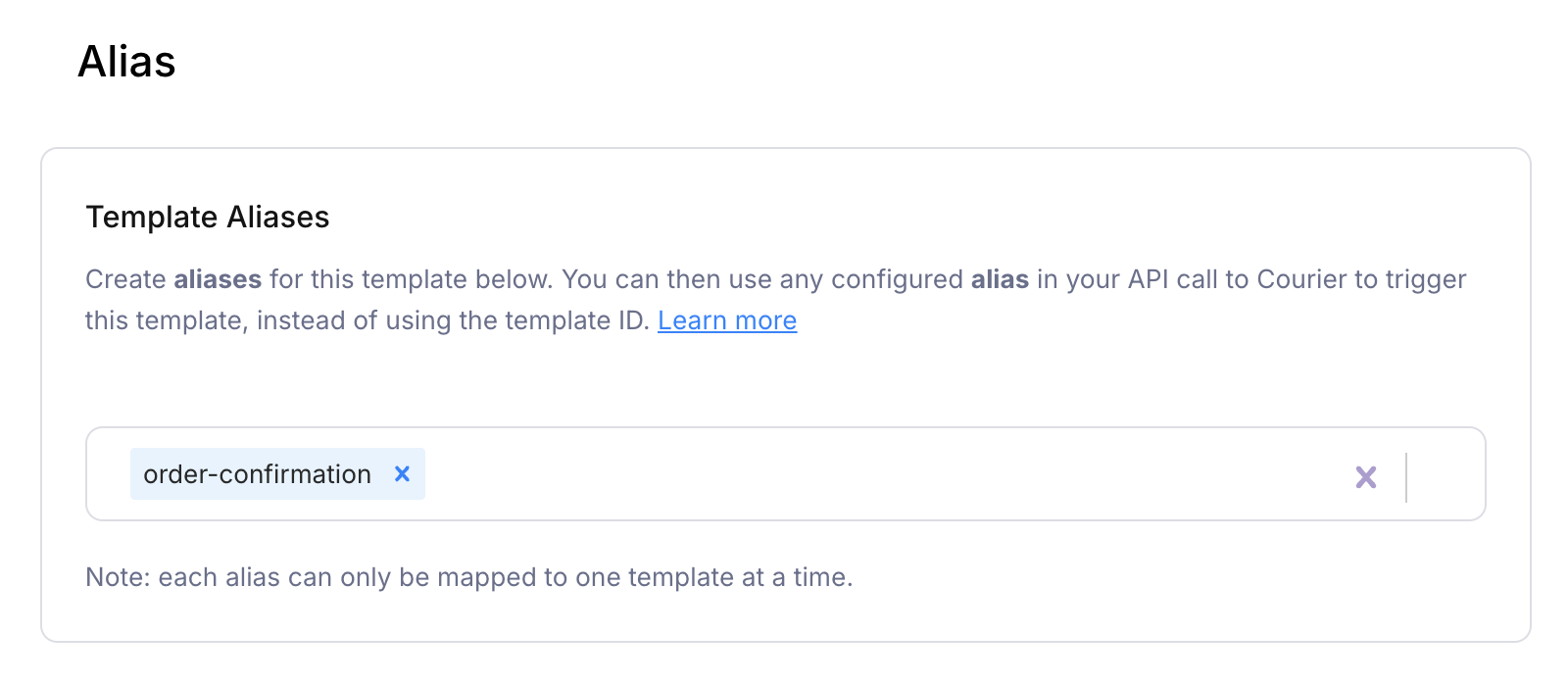
Template Aliases
order-confirmation, you can reference it in your Send API call:
Each alias can only be mapped to one template at a time.
Conditions
Enable or disable the entire template based on conditions evaluated at send time. These conditions apply to all channels in the template, not to a specific channel or integration.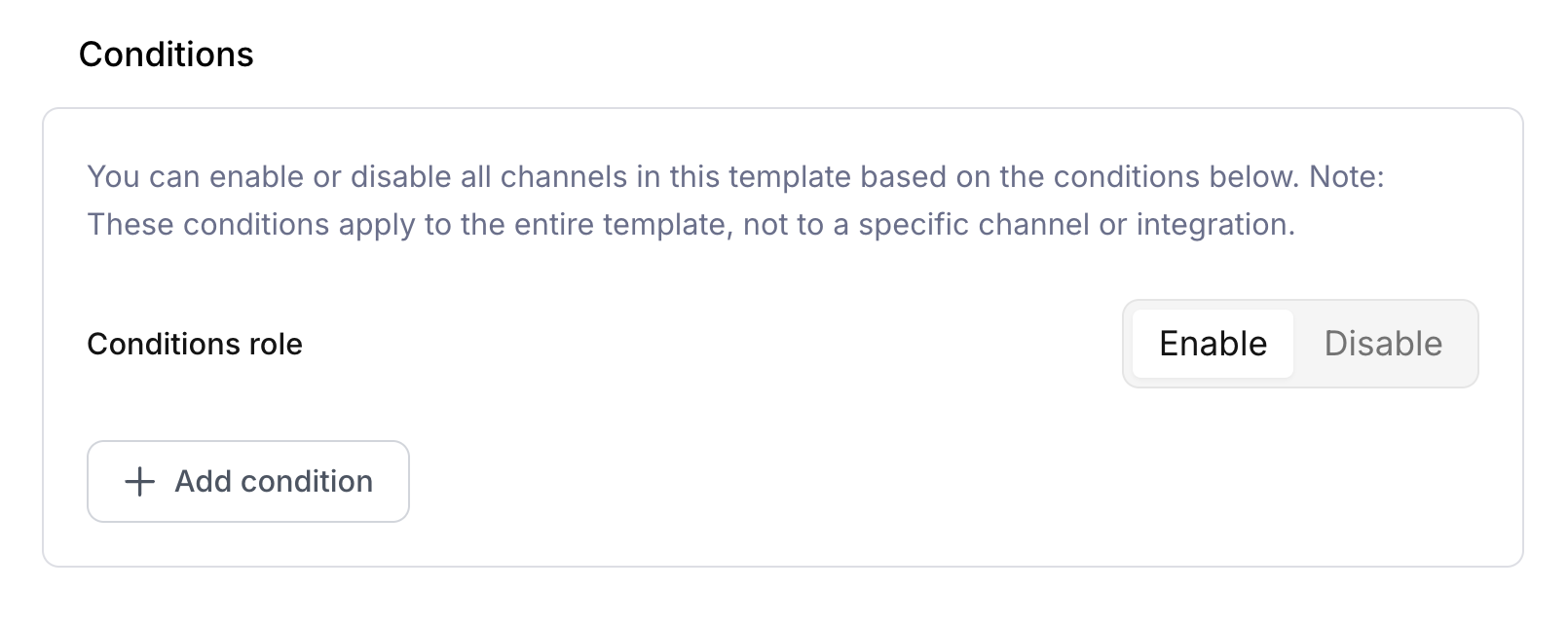
Template Conditions
- Conditions role: Toggle between Enable (send if conditions match) or Disable (skip if conditions match)
- Add condition: Click to add conditions based on data passed in your API request
Channel settings
Each channel configured in your template has its own settings section. Click a channel in the sidebar to configure channel-specific options. Channel settings vary by channel type but may include:- Provider configuration - Which integration to use for sending
- Channel-specific conditions - Send conditions that apply only to this channel
- Formatting options - Channel-specific formatting like email subject lines
For the classic designer settings documentation, see General Settings.