Slack's Notification Flowchart: How Slack Decides What to Send
 Courtney ChuangFebruary 02, 2021
How Slack Designs Notifications to Manage User Attention
For Slack, managing user attention isn't just a feature, it's fundamental to their mission of making work more productive. When notifications create too much noise, a once-essential collaboration hub can quickly become a distraction. But if they fall short, Slack risks becoming just another app left idle in the background.
Today Slack commands the attention of more than 12 million daily active users around the world. And nobody knows more about capturing – and keeping – their attention than Liza Gurtin. As the former product lead for Slack's notifications team, Liza's charter was straightforward, if far from simple: empower users to sort the signal from the noise.
We sat down with Liza to understand how she and her team approached notifications at Slack. She shares her advice for managing the complex logic of delivering notifications, mastering the default state, and empowering users to set their preferences. Liza also explains why businesses shouldn't lose sight of the user experience in pursuit of short-term growth. Let's dive in.
Quick answer: Slack decides whether to send a notification by running every message through a decision tree, the well-known "Slack notification flowchart." It checks whether the channel is muted, whether you have Do Not Disturb turned on (and whether the sender overrode it), and whether you are already active on desktop before deciding whether to notify you at all, and on which channel: in-app, desktop, mobile push, or email. The goal is to surface what matters without overwhelming you.
How Slack's Flowchart Powers Smarter Notification Delivery
Delivering a notification is a bit like a game of "choose your own adventure." A single message can reach you in any number of ways, or not reach you at all, depending on your settings, your preferences, and where you happen to be active.
At Slack, answering the question “Should we send a notification?” requires navigating an intricate maze of decisions, ones made by both the business and the user. If you were on Twitter in 2017, there's a good chance you came across Slack's now infamous flowchart.
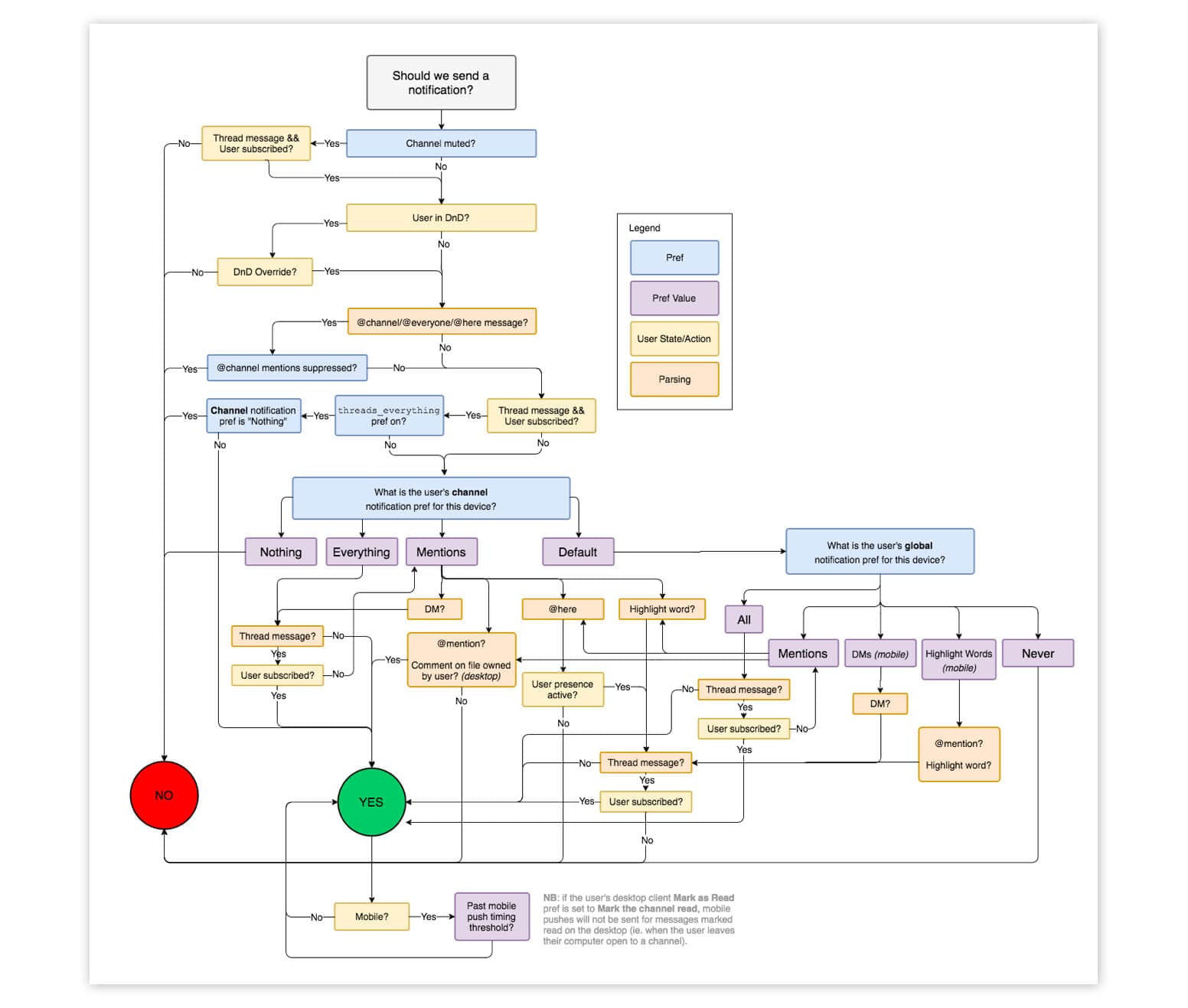
The driving force behind this flowchart is a clear-cut objective: to deliver the notifications users expect, when and where they expect it. “This work was foundational,” Liza explains. “It was about making notifications work in the way that users already expected. That came down to two things: ensuring users weren't overwhelmed by notifications and that they didn't miss key notifications.”
Slack's flowchart reflects the delicate balance the team struck between not overwhelming users and keeping them informed. For Slack's Do Not Disturb feature, for example, the team decided to give senders the ability to override the setting. “Because we're a workplace app,” Liza says, “we believe it's important that people are able to notify their teammates of mission-critical messages, even when their teammates have temporarily paused notifications.”
You can think of each fork in Slack's flowchart as a decision about what's deserving of a user's attention and what's not. Taken as a whole, it's a carefully constructed roadmap for pulling users into the app at exactly the right moments.
How to Read Slack's Notification Decision Tree
Slack's flowchart looks intimidating, but it is really a sequence of yes or no questions asked for every single message. In plain language, Slack works down a list something like this:
- Is the channel or conversation muted? If you muted it, Slack stops here and stays silent.
- Do your preferences allow this notification? Slack checks your per-channel settings and keyword alerts before going any further.
- Are you in Do Not Disturb? If DnD is on, Slack normally holds the notification, unless the sender chose to override DnD for a mission-critical message.
- Where are you active right now? By default Slack notifies your desktop client first, and only falls back to a mobile push if you have gone inactive on desktop.
- Is email still appropriate? Slack switches email notifications off once you install the mobile app, so you are never double-notified.
Each fork is a decision about what deserves your attention and what does not. Read as a whole, this notification decision tree (you may also see it called a notification workflow diagram) is a map for pulling people back in at the right moment and staying quiet the rest of the time.
How Slack Reduced Support Tickets with Smarter Notification Design
Notifications have always been core to using Slack. It makes perfect sense: as a messaging app, Slack is only as valuable as the conversations that it enables you to have. And notifications are the primary way that Slack pulls you into these conversations.
But it wasn't until five years after the app launched that a team dedicated to notifications was formed. When Liza took charge of notifications in late 2018, she brought together a team of 10 full-time engineers along with part-time support from design, analytics, and user research.
One of the driving forces behind the new team? A slew of support tickets from frustrated users. “When the team first got started, notifications were actually one of the biggest drivers of support tickets,” Liza explains, “and one of the bigger problem areas in the product. In a lot of cases, notifications were working exactly as expected, but they weren't meeting user expectations. Users would complain about missing notifications or being overwhelmed by too many of them.”

These support tickets directly informed the team's charter – and their commitment to delivering what Liza saw as the core value of notifications. “Notifications are the primary way that products communicate with their customers, both in and outside the app,” Liza says, “and they're deeply entangled with how products manage their users' attention. As the notifications team, that was our charter: to enable Slack users to sort the signal from the noise.”
Once formalized, the team's charter led them to prioritize where most problems with notifications start: the default state. That is, before any customization, what notifications should Slack send?
Why Smart Defaults Are Crucial for Notification UX
Far too few products obsess enough over the out-of-the-box experience for their notifications. But, if you ask Liza, the default state is the most important one to get right. Why? Because it's key to building trust with your users, especially your average user.
Liza puts it this way: “When users feel they need their attention drawn into Slack, they should trust Slack will notify them and pull them in. Equally, they need to trust that Slack's not going to bother them when it's something unimportant. That should be the default.”
The reality is your average user doesn't want to – and won't – spend hours customizing your product to make it work for them, and notifications are no exception to the rule. “Most users expect your notifications to work exactly the way they want,” Liza explains, “without having to do anything themselves. Less than 5% of Slack's users customize their notification settings.”
That puts the impetus on product teams to set smart defaults. For Slack, smart defaults mean carefully managing their users' attention across all the places they use the product, including in the browser, desktop client, and mobile app. “To minimize disruption and noise, we made two big decisions early on,” Liza says. “The first was to turn email off after a user downloads the mobile app. The second was to prioritize sending notifications to the user's desktop client. By default, we only send push notifications to their phone if a user goes inactive on desktop.”

For the vast majority of Slack's users, these smart defaults mean they get exactly the notifications they need. But the flip side to smart defaults – one that Liza argues is just as important – is putting control back into users' hands. Both are necessary to meet different users' differing expectations.
How Slack Gives Users Control with Notification Preferences
Notification preferences allow users to turn up, or down, the volume on things that your product wants to tell them. Liza compares it talking to a person: “Notifications preferences are a way for a user to say, ‘Hey, I don't want to hear about this. Or, I only want to hear about these two topics.’”
When it comes to notifications, there's a truism you can count on: a user will always know more about their preferences than you ever will. “In the context of Slack, the user knows their work day and the conversations that are important to them way better than our product team or even an AI model could predict,” Liza says. “Notifications are one area where more settings really are better.”
But it's not enough to just enable these preferences somewhere in your product. To proactively help users manage their attention, particularly the ones who aren't going to seek out these settings on their own, Liza doubled down on what she calls “control in context.”
“Control in context,” Liza explains, “is about presenting users with an opportunity to adjust their notification settings at the exact moment those settings are relevant.” She gives the example of Slack's Do Not Disturb feature, which allows users to control the hours they receive notifications. “The first time a user gets a notification over the weekend, we should ask them whether they want to continue receiving notifications at this time in the future or change their settings. We know users are far more likely to take action when the feature is relevant than find the Do Not Disturb setting on their own.”
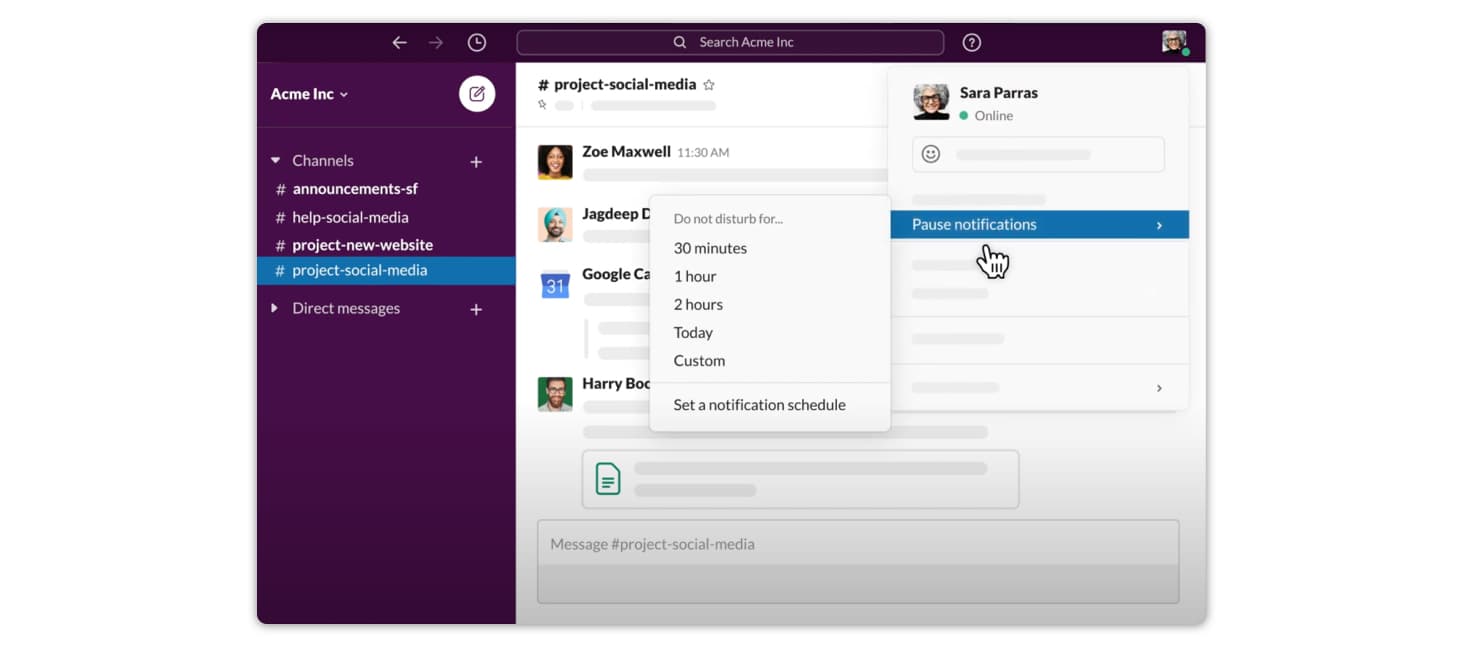
Together, smart defaults and granular preferences let Slack manage their users' attention with precision.
Design Notifications for Long-Term Engagement, Not Growth Hacks
Finally, there's a common misconception about notifications – and it's that notifications are an easy way to drive growth for your app. It's a misconception that Liza is determined to debunk.
Liza warns against the seductive rush of sending a lot of notifications and seeing engagement rates spike. “More usage is not always better usage,” Liza cautions. “You might see a big early benefit from sending a lot of notifications. But there's a real downside: if you overwhelm users and they unsubscribe at the system level, at that point, you won't be able to resurrect them at all.”
Notifications allow products to wield a lot of power over their users' attention and, accordingly, they need to be leveraged with care. A helpful starting point is thinking about notifications in the context of the physical world. “Some notifications are like a gentle tap on the shoulder,” Liza says. “Some are asynchronous like getting a letter in the mail. Others are disruptive like screaming someone's name over and over again. You can guess which ones will cause users to leave.”

While notifications are not a growth hacking tool, they can be an incredibly effective mechanism to drive sustained engagement with your app – and deliver more value to your users. Liza shares an example of a feature she considered launching at Slack: “One of the new notification types we thought about adding was alerting people if there's a lot of activity in a channel they haven't joined yet. Yes, this could be a growth tactic if someone isn't actively using Slack. But, really, we believed that being part of these high-activity channels would deliver value to the user.”
When it comes to notifications, this is Liza's challenge to other product builders: “How can you balance what's good for your product and what's truly net positive for your users? If you want your notifications to be a driver of retention, to really pull people back into your product, then you need to put the user experience first. Don't be the person screaming in the office.”
How to Design a Slack-Style Notification System
You do not need Slack's engineering team to put these ideas to work. A notification system that manages attention as well as Slack's comes down to three layers:
- Smart defaults that fit the roughly 95% of users who never open settings. Decide which channel leads (in-app, push, or email) and when each one should fire.
- User preferences and "control in context," so people can turn the volume up or down, surfaced at the moment a setting is relevant instead of buried in a menu.
- Routing logic, the flowchart itself, that combines defaults, preferences, and real-time context to choose the right channel for each message.
For a deeper look at the architecture behind this, see our guide on how to design a scalable notification system and our field guide to reducing notification fatigue. For inspiration, browse 20 notification examples that actually drive engagement.
Building all three layers in-house is a real project. It is also exactly what Courier provides out of the box. Courier's Journeys let you draw the same branching logic as Slack's flowchart in a visual workflow builder, no engineering required, while routing and a preference center pick the best channel (email, push, SMS, in-app, or Slack) for every notification, with delivery tracking across all of them.
📚 Frequently Asked Questions
How does Slack decide whether to send a notification?
Slack runs each message through a decision tree. It checks whether the channel is muted, whether your preferences allow the alert, whether Do Not Disturb is on (and whether the sender overrode it), and whether you are active on desktop. Only then does it decide whether to notify you, and whether to use in-app, desktop, push, or email.
How does Slack manage notifications across different channels?
Slack prioritizes your desktop client by default and only falls back to a mobile push once you go inactive on desktop. Email is switched off after you install the mobile app, so you are never double-notified. In-app cues like badges and bolded channels run alongside these.
What is a notification flowchart and why does Slack use one?
A notification flowchart is a visual decision tree for whether and where to send a message. Slack's went viral in 2017 for its complexity: each fork checks a condition such as muted, Do Not Disturb, activity, or preferences, so users get the alerts they expect without the noise. It is a repeatable rule set instead of ad-hoc logic.
Why doesn't Slack notify users every time a message is sent?
Not every message warrants an interruption. Slack sends a notification only when a message clears its decision tree: the channel is not muted, your preferences allow it, Do Not Disturb is off (or the sender overrode it), and you are not already active on desktop. This keeps people informed without overwhelming them.
How can I design a Slack-like notification system for my own app?
Start with the same three layers Slack uses: smart defaults for the roughly 95% of users who never open settings, user preferences with "control in context," and routing logic that picks the channel per message. A platform like Courier gives you these building blocks, with Journeys for the branching logic and a preference center for user control.
How do you build a notification system that works across email, push, SMS, and Slack?
Rather than integrate and maintain each provider yourself, use a platform that abstracts delivery. Courier sends across email, push, SMS, in-app, and Slack from a single API, then handles routing, retries, and delivery tracking so one message reaches the right channel for each user.
Can I send Slack notifications with Courier?
Yes, Courier supports direct Slack integrations. You can configure your Slack channel, design templates, and send programmatic notifications based on user behavior or system events, all through a unified API. Learn how in Courier's Slack integration guide.
What are best practices for multi-channel notification strategies?
Some key best practices include:
- Only notify when necessary.
- Let users set preferences.
- Route messages based on urgency and context.
- Use visual flowcharts to define logic.
- Test and iterate to reduce drop-off and unsubscribes.
Similar resources
Know the moment users change notification preferences
Every preference change in Courier now reaches your systems two ways. A `preferences:user:updated` webhook fires the moment a user opts in, opts out, or changes a topic's channels, wherever they made the change. `GET /preferences/logs` returns the history, newest first, with the previous value where Courier knows it. Keep your CRM, warehouse, or marketing tools in step with what users chose.

Courier vs Customer.io: 2026 messaging platform comparison
Courier and Customer.io both send across email, push, SMS, and in-app, but they are not priced or built the same way. Courier bills by the send, puts journeys, experiments, broadcasts, an in-app inbox, preferences, and 50+ delivery providers on one platform, and exposes all of it through an API, a CLI, and an MCP server. Customer.io bills by the number of profiles in your database and fits a marketing team that needs deep behavioral segmentation. This comparison covers pricing, journeys, channels, in-app messaging, localization, and preferences, with every competitor figure linked to Customer.io's own pages.
Your notification analytics are now available by API
If it's in the Courier dashboard, it's on the API. Analytics was one of the last screens where that wasn't true. GET /notifications/{id}/metrics returns sends, deliveries, opens, clicks, errors, and undeliverable counts per template as a time series, broken out by provider and channel, so the numbers can live in your own product or go straight to an agent.