Embed a customizable in-app notification center, toasts, and notification preferences in your web app using Web Components. Works with any JavaScript framework.
The Courier Web Components SDK provides drop-in components for building notification experiences in any JavaScript project:
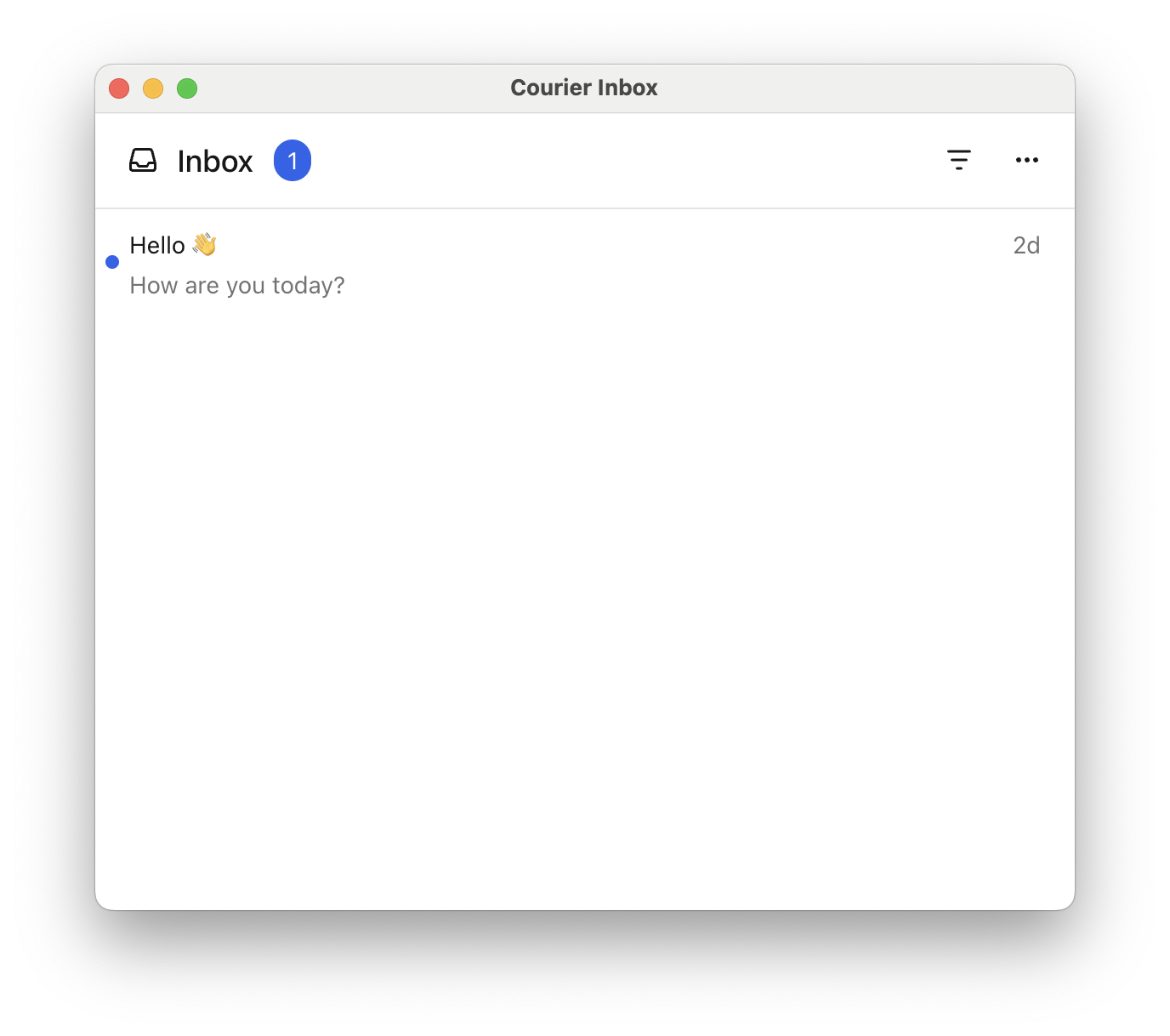
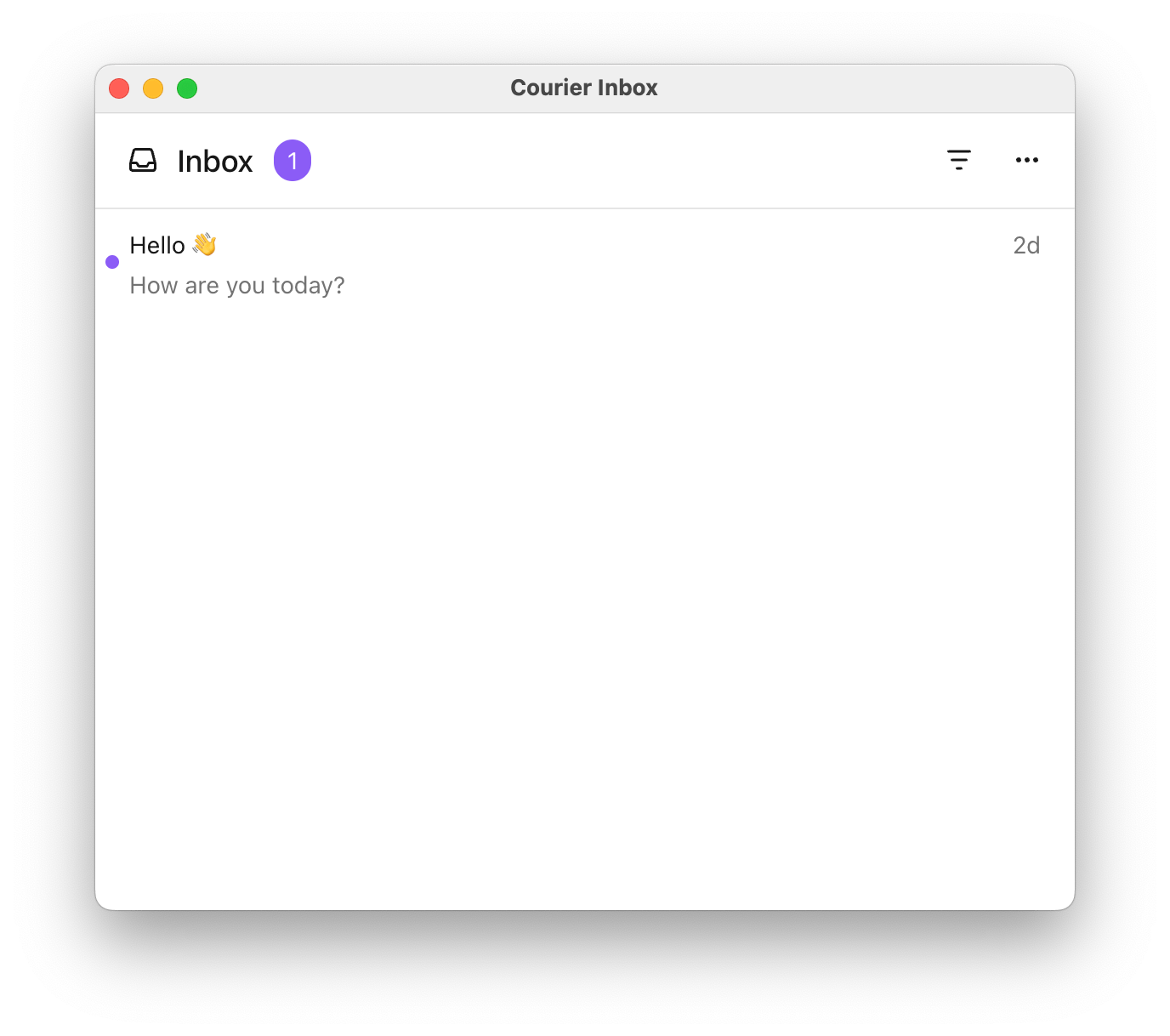
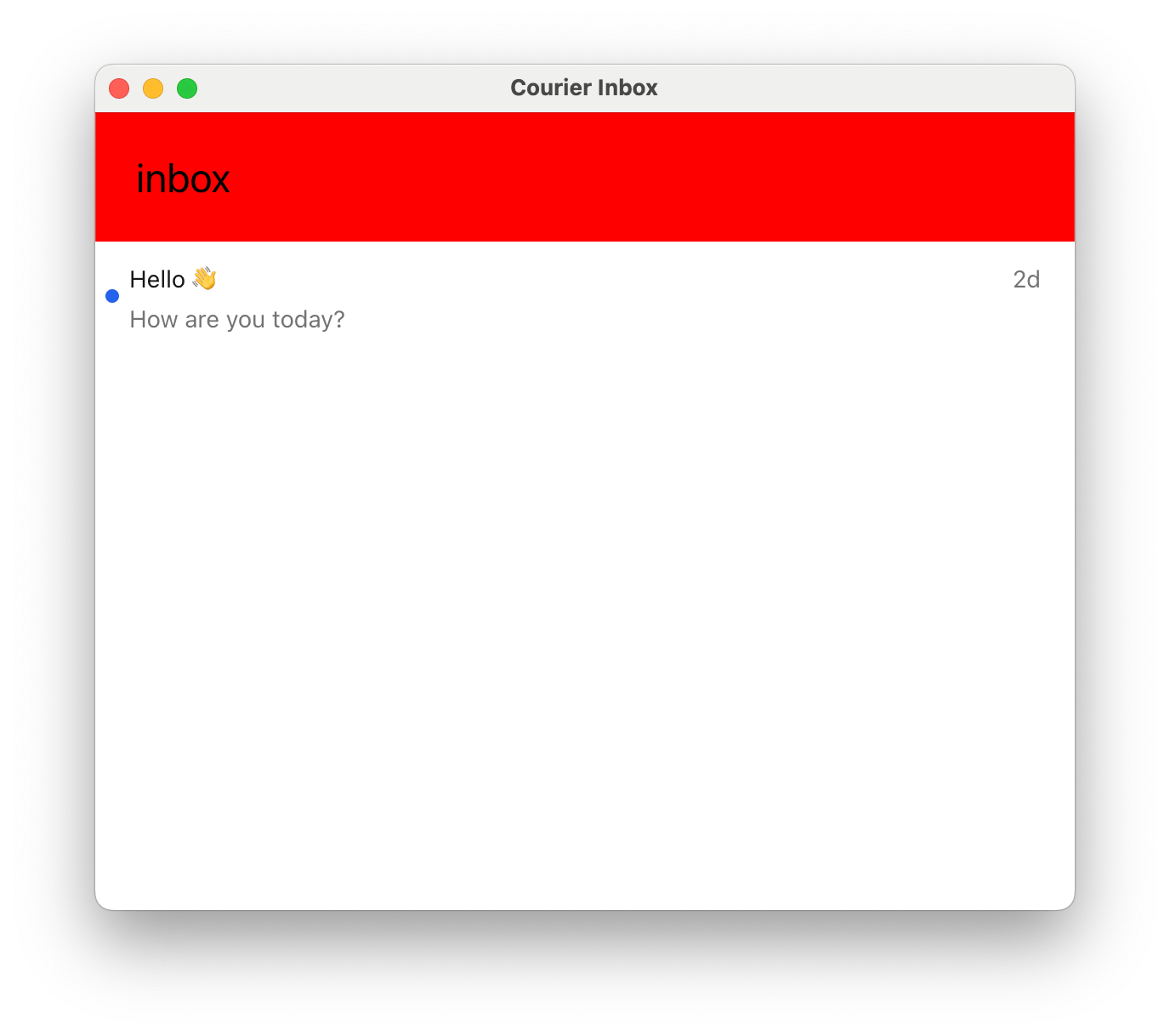
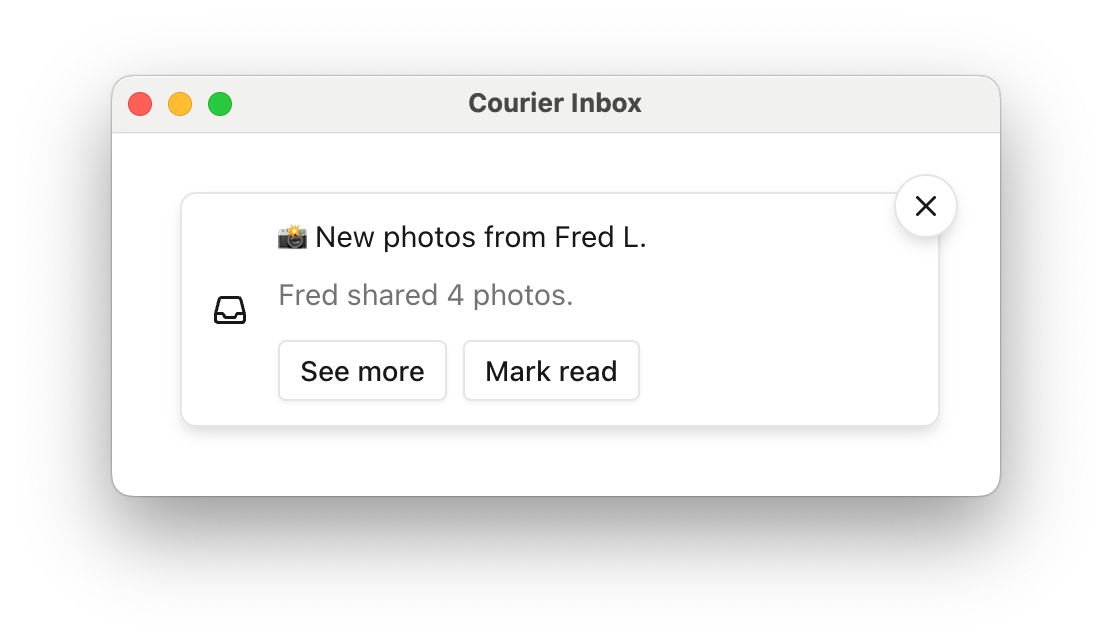
<courier-inbox> — full-featured inbox for displaying and managing messages
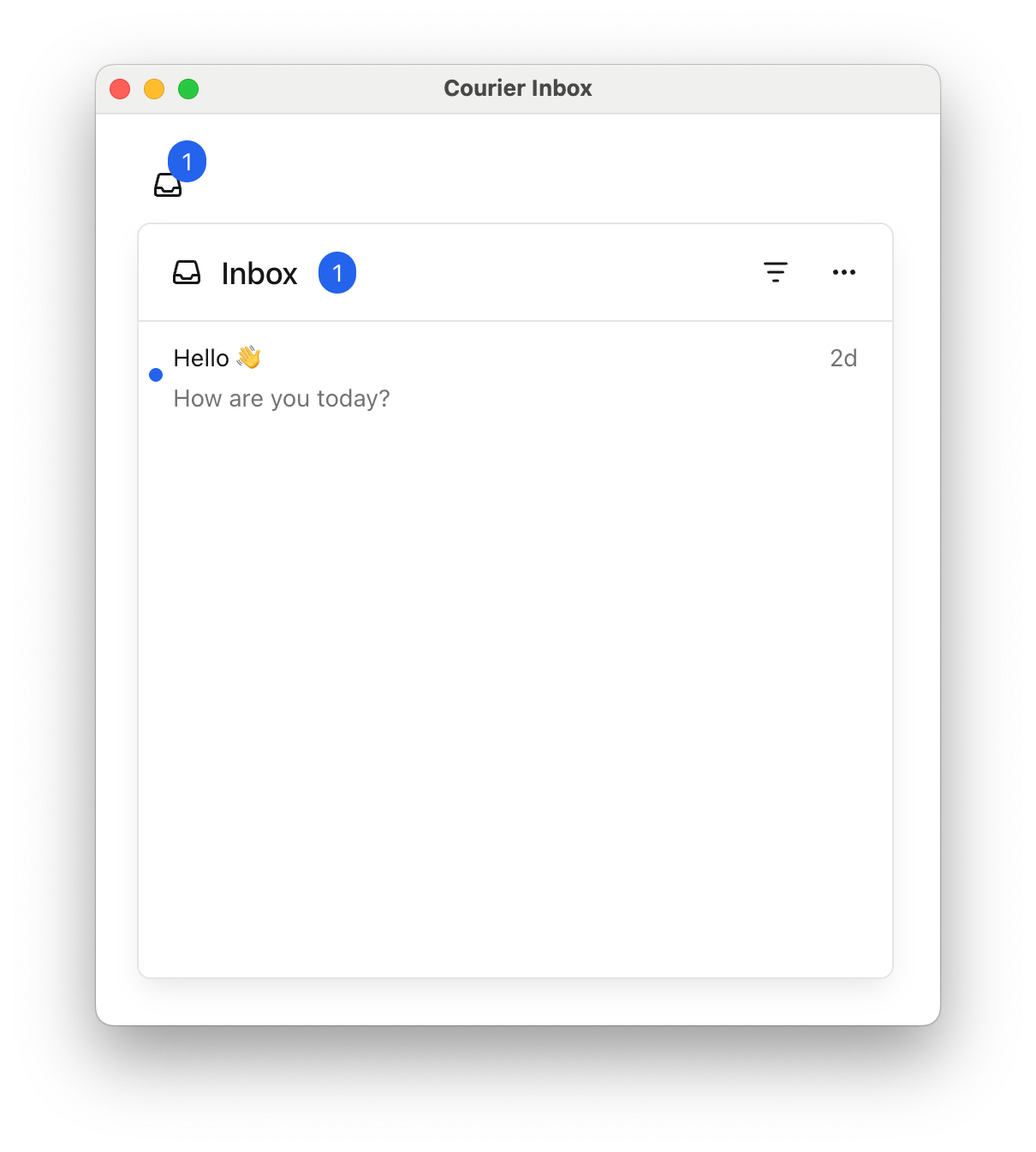
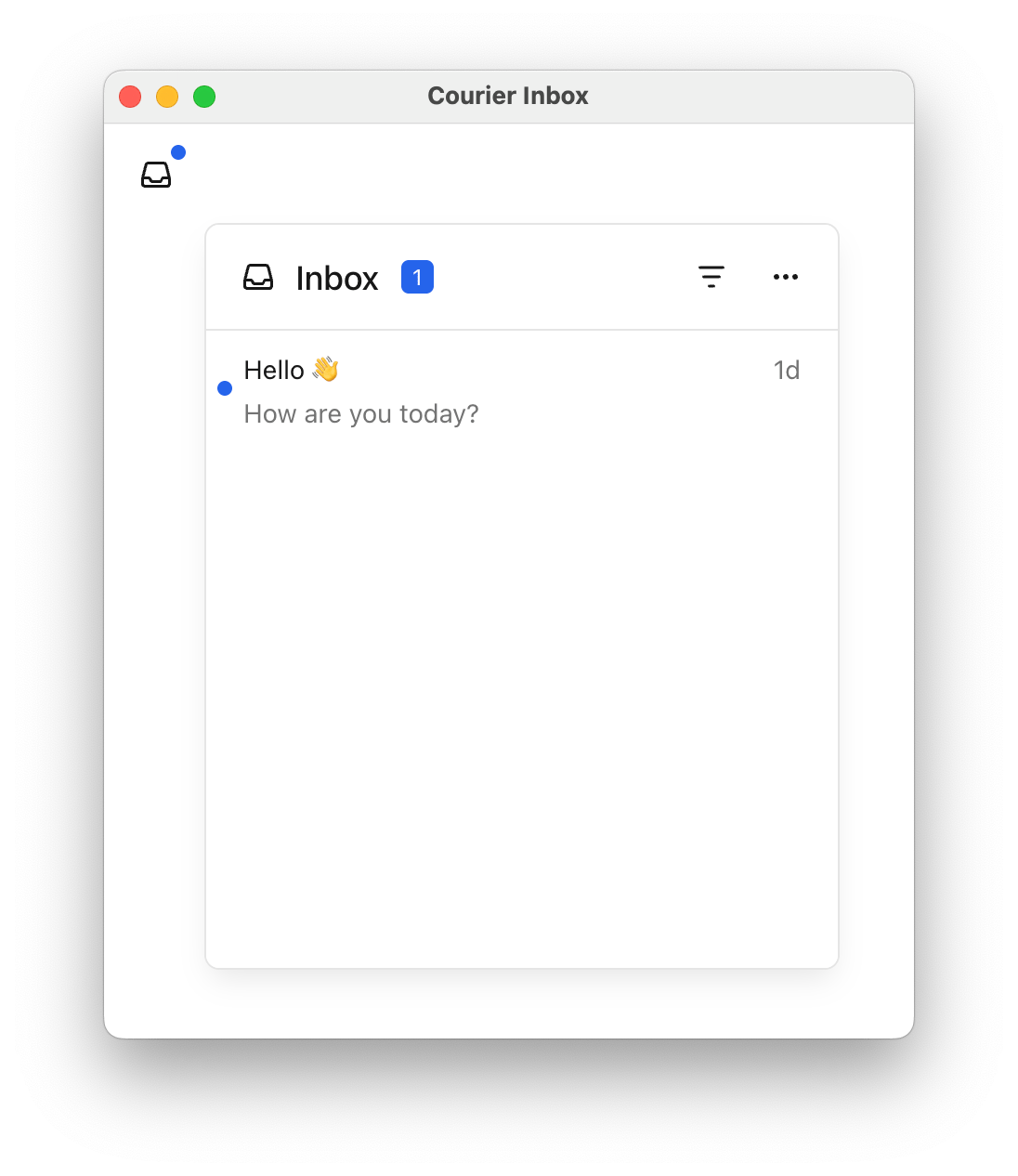
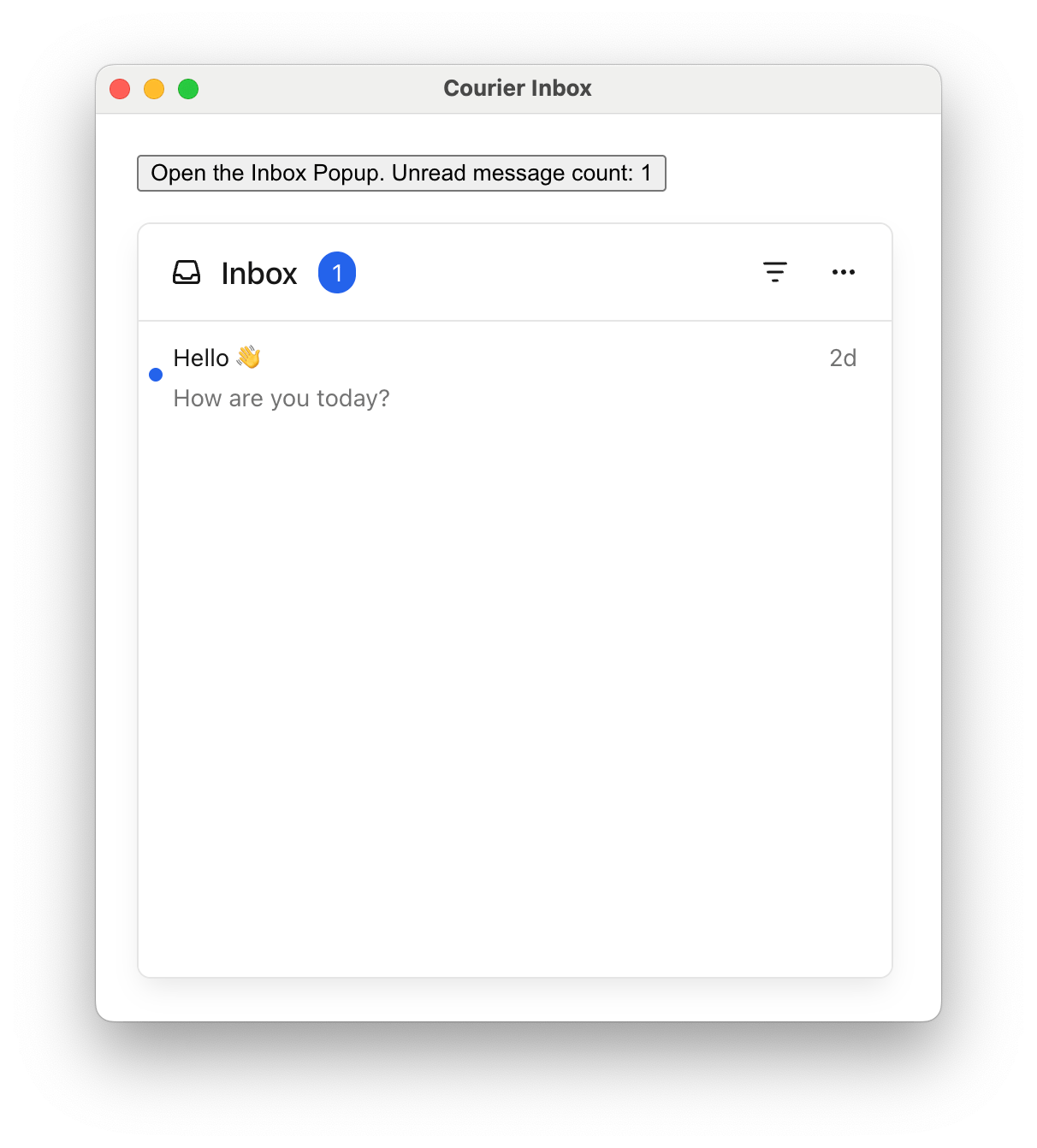
<courier-inbox-popup-menu> — popup menu version of the inbox
<courier-toast> — toast notifications for time-sensitive alerts
<courier-preferences> — notification preferences center for managing topic subscriptions and delivery
This is the latest version of the Courier Web Components SDK, recommended for new and existing apps.Coming from an earlier version? We recommend upgrading — check out the
migration guide for the React SDK, which
is a thin wrapper around these Web Components and exposes a similar API.
Available on GitHub and npm:
Inbox ·
Inbox ·
Toast ·
ToastThe Courier SDKs work with any JavaScript build system and do not require any additional build configuration.
Using React? Check out the Courier React SDK, which provides React components and hooks built on top of these Web Components.
To use the SDK, you need to generate a JWT (JSON Web Token) for your user. This JWT should always be generated by your backend server, never in client-side code.
Inbox and Toast share the same Courier.shared authentication instance and connection to the Courier backend. Authenticate once and both components work.
When your app needs to authenticate a user, your client
should make a request to your own backend (ex. GET https://your-awesome-app.com/api/generate-courier-jwt).
Importing the Courier SDK registers Courier’s Web Components (<courier-inbox>, <courier-inbox-popup-menu>).
<body> <courier-inbox id="inbox"></courier-inbox> <script type="module"> import { Courier } from '@trycourier/courier-ui-inbox'; // Generate a JWT for your user on your backend server const jwt = 'eyJhbGciOiJIUzI1NiIsInR5cCI6IkpXVCJ9...'; // Authenticate the user with the inbox Courier.shared.signIn({ userId: $YOUR_USER_ID, jwt: jwt }); </script></body>
<body> <div style="padding: 24px;"> <courier-inbox-popup-menu id="inbox"></courier-inbox-popup-menu> </div> <script type="module"> import { Courier } from '@trycourier/courier-ui-inbox'; // Generate a JWT for your user on your backend server const jwt = 'eyJhbGciOiJIUzI1NiIsInR5cCI6IkpXVCJ9...'; // Authenticate the user with the inbox Courier.shared.signIn({ userId: $YOUR_USER_ID, jwt: jwt }); </script></body>
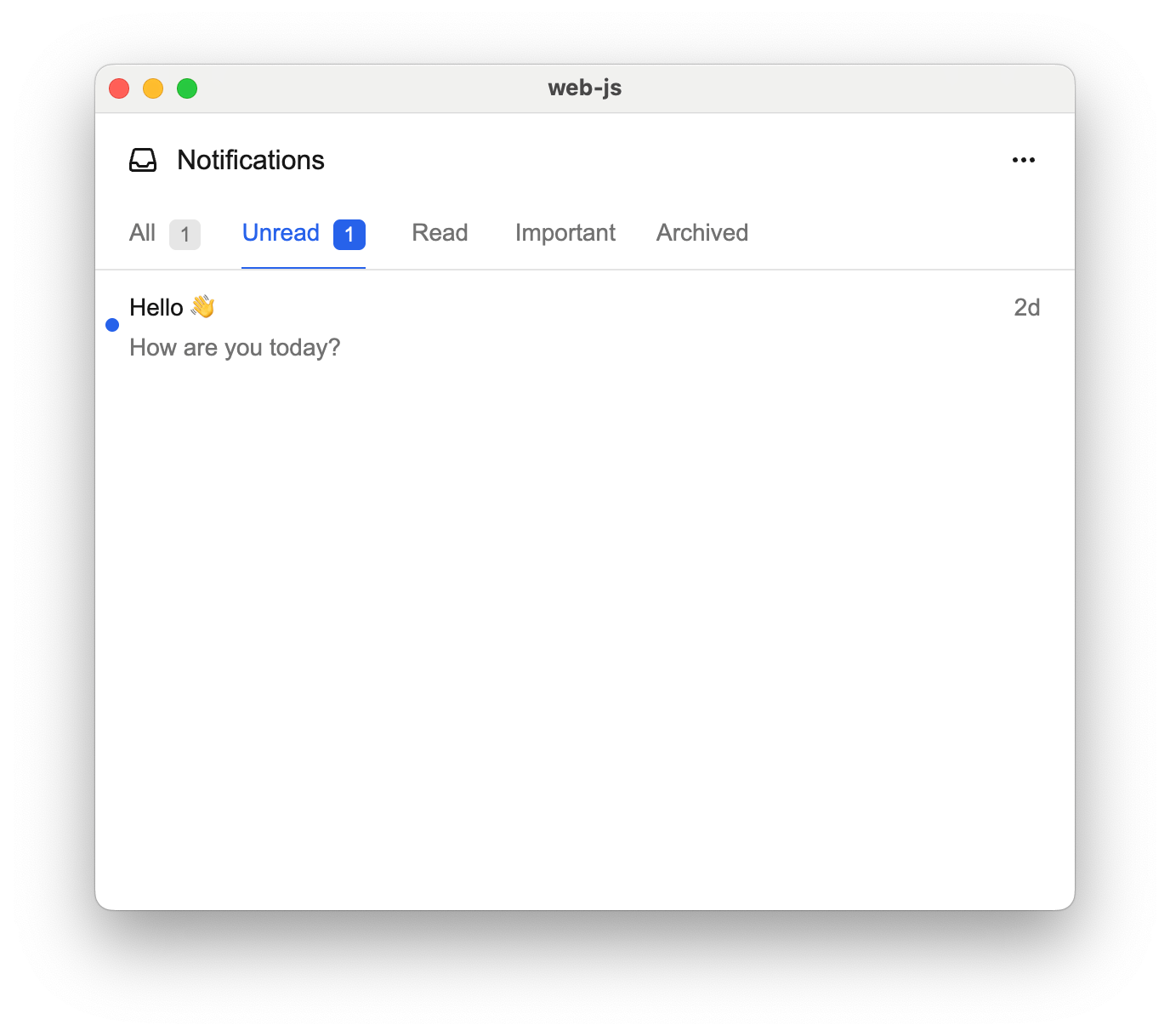
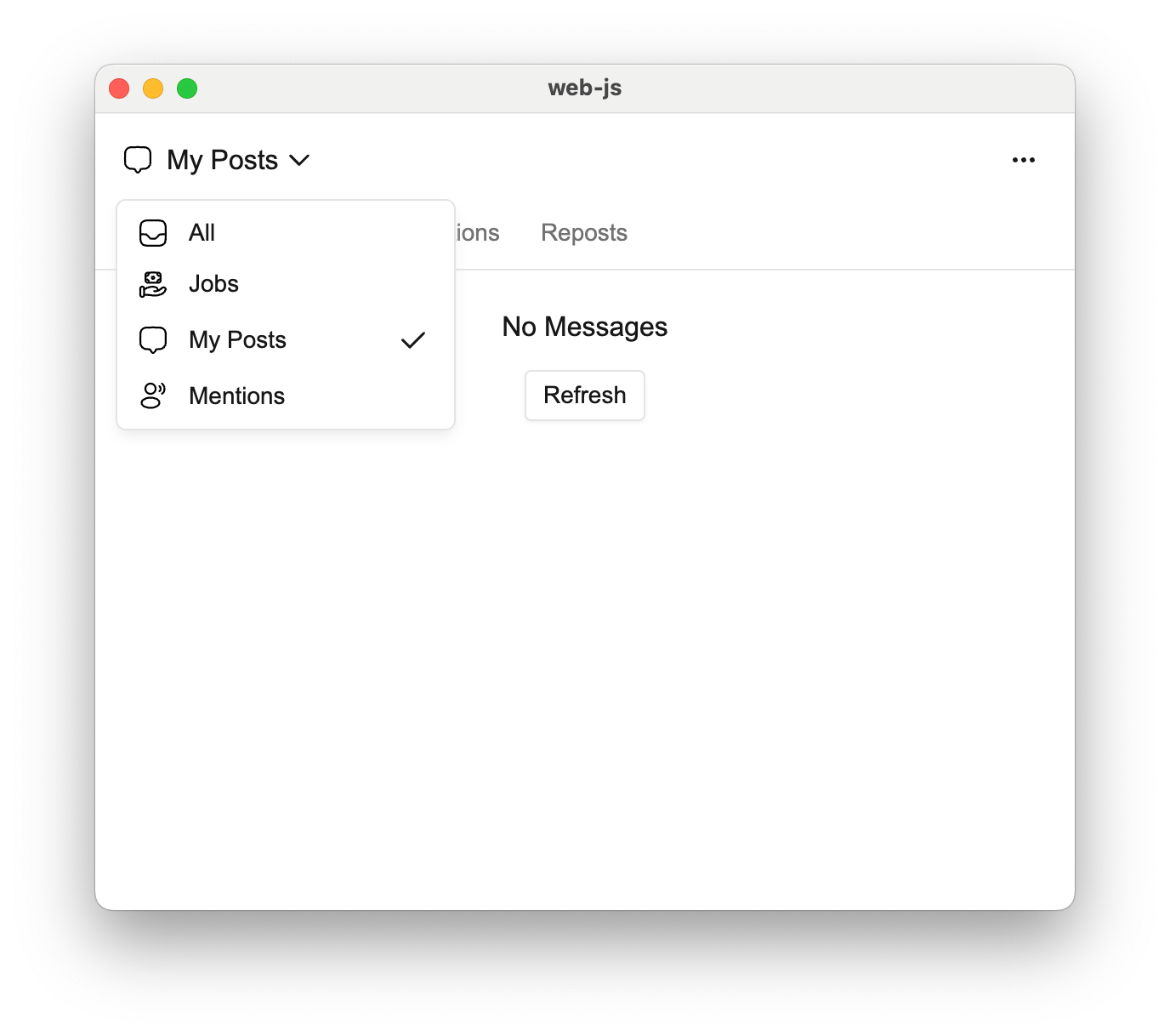
Tabs and feeds allow you to organize and filter messages in your inbox. A feed is a container that groups related tabs together. Each tab represents a filtered view of messages.
If there is only one feed, the feed selection dropdown is hidden. If a feed has only one tab, the tab bar is hidden and the unread count appears next to the feed.
Filter Property
Type
Description
tags
string[]
Messages that have any of the specified tags
archived
boolean
Whether to include archived messages (defaults to false if unset)
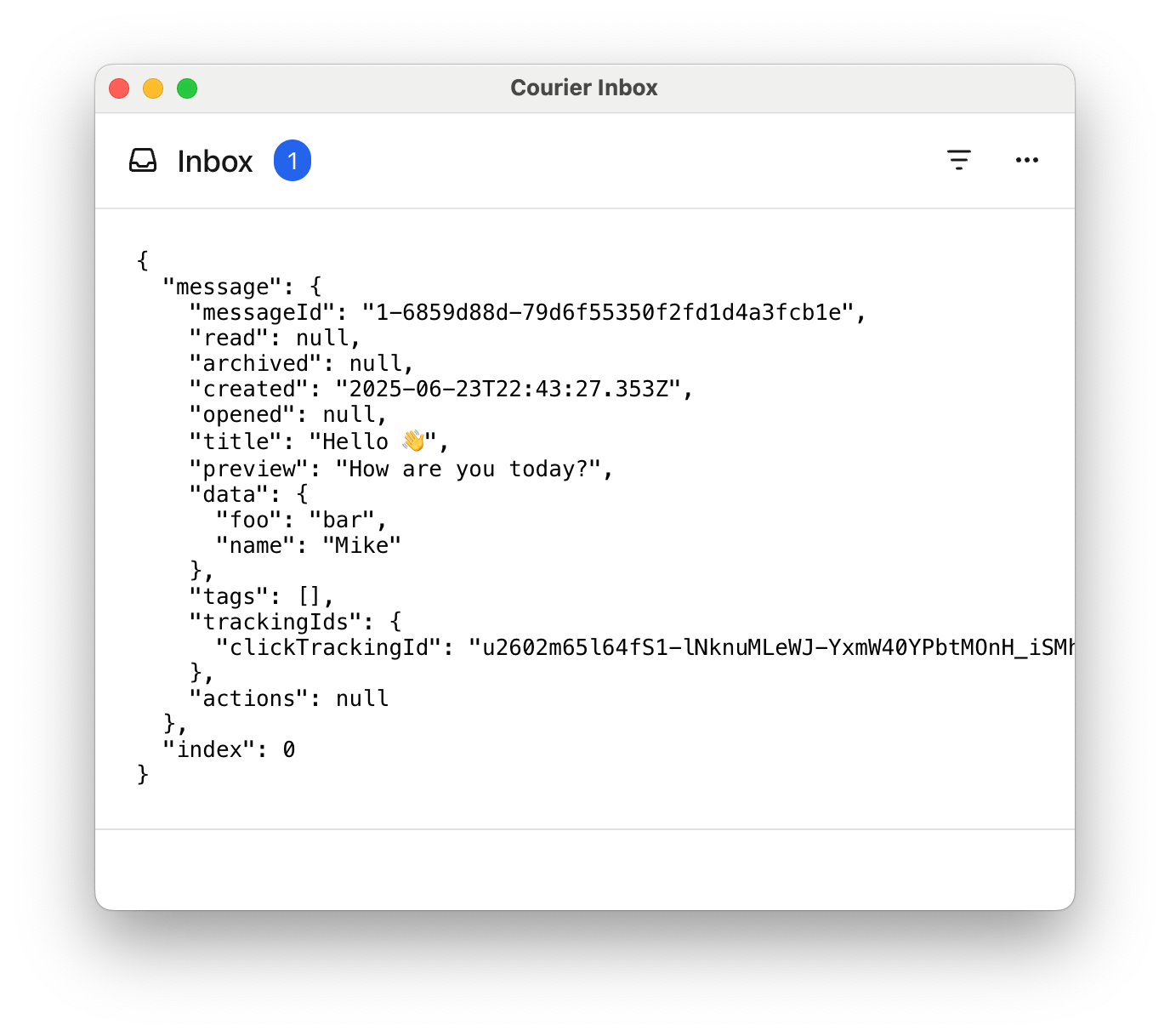
Use the onMessageClick(), onMessageActionClick(), and onMessageLongPress() methods to handle clicks and presses in the inbox.
onMessageLongPress() is only applicable on devices that support touch events.
<body> <courier-inbox id="inbox"></courier-inbox> <!-- Uncomment the line below to use the popup menu instead --> <!-- <courier-inbox-popup-menu id="inbox"></courier-inbox-popup-menu> --> <script type="module"> import { Courier } from '@trycourier/courier-ui-inbox'; // Generate a JWT for your user on your backend server const jwt = 'eyJhbGciOiJIUzI1NiIsInR5cCI6IkpXVCJ9...'; // Authenticate the user with the inbox Courier.shared.signIn({ userId: $YOUR_USER_ID, jwt: jwt }); const inbox = document.getElementById('inbox'); // Handle message clicks inbox.onMessageClick(({ message, index }) => { alert("Message clicked at index " + index + ":\n" + JSON.stringify(message, null, 2)); }); // Handle message action clicks (these are buttons on individual messages) inbox.onMessageActionClick(({ message, action, index }) => { alert( "Message action clicked at index " + index + ":\n" + "Action: " + JSON.stringify(action, null, 2) + "\n" + "Message: " + JSON.stringify(message, null, 2) ); }); // Handle message long presses (useful for mobile web) inbox.onMessageLongPress(({ message, index }) => { alert("Message long pressed at index " + index + ":\n" + JSON.stringify(message, null, 2)); }); </script></body>
Call removeHeader() to remove the header entirely.The setHeader callback receives a props object with a feeds array. Each feed includes selection state, tabs with unread counts, and filter information.
Show Custom loading, empty, error, and pagination states
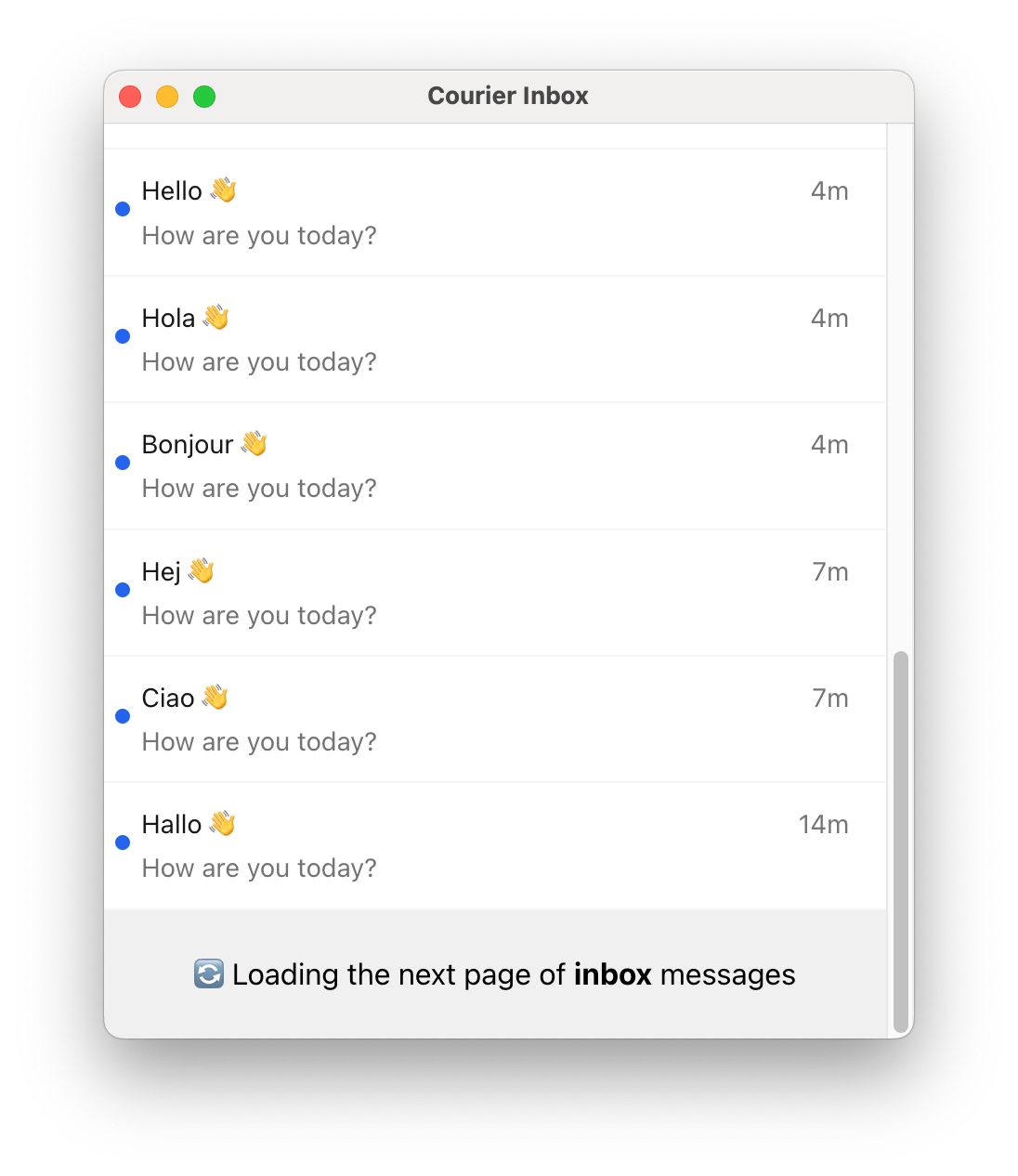
Subsequent pages of messages are loaded automatically when the user scrolls to the bottom of the inbox,
so the pagination component may only be visible briefly.
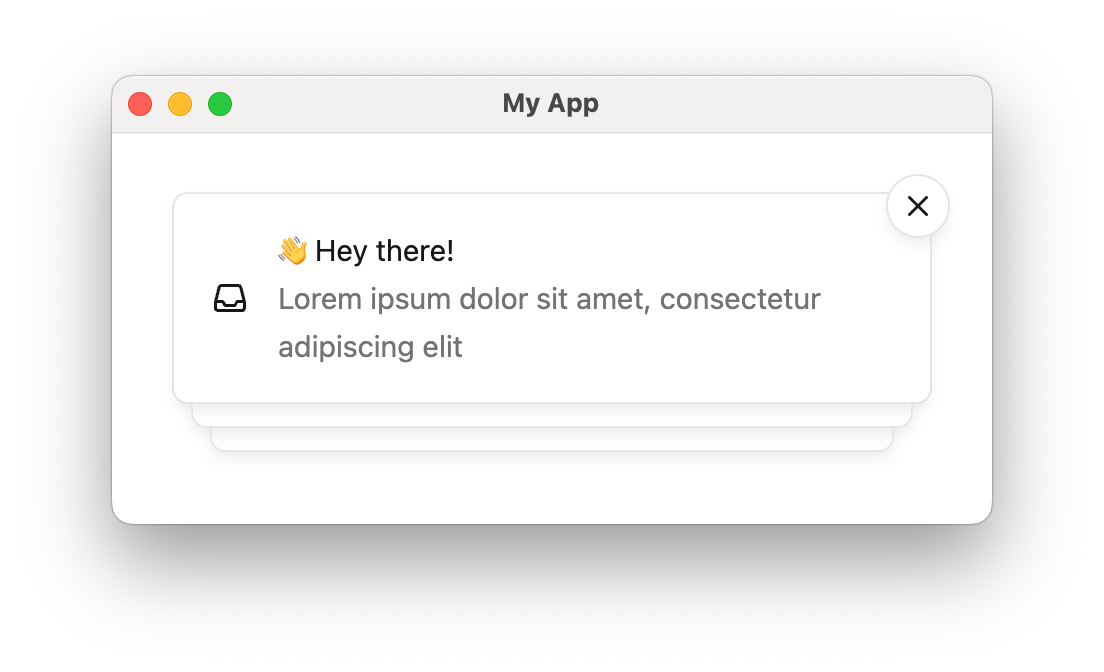
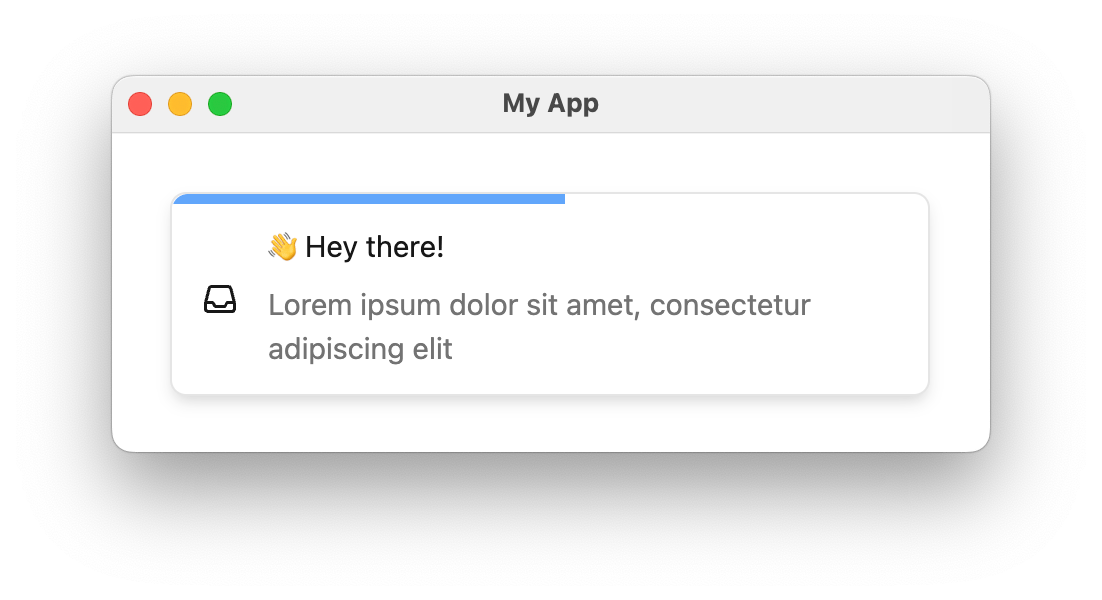
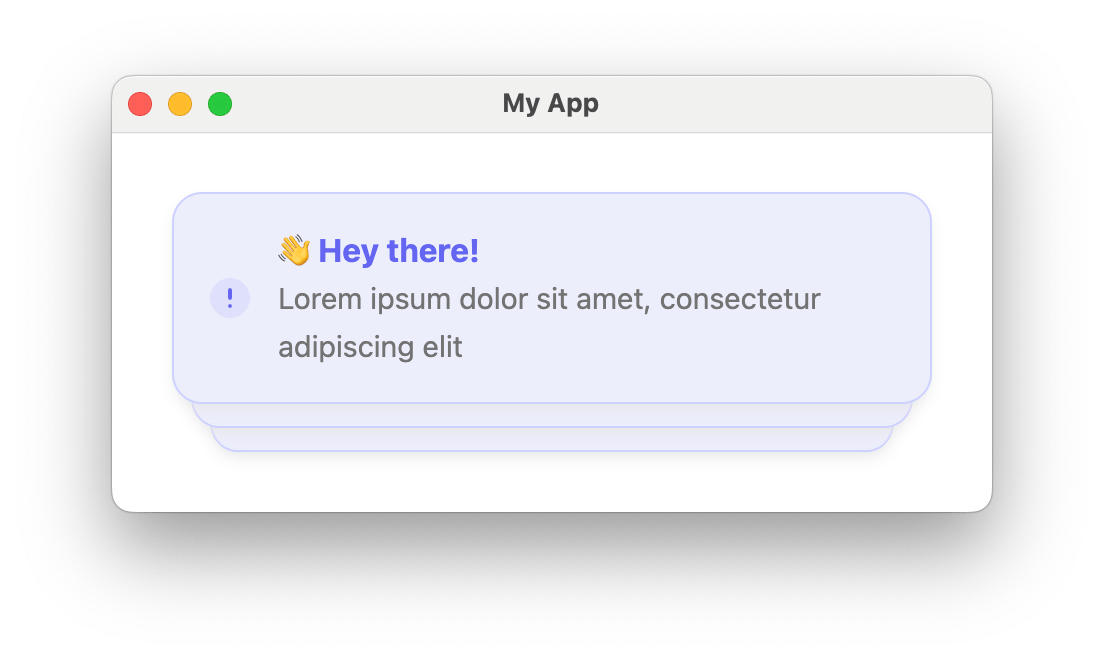
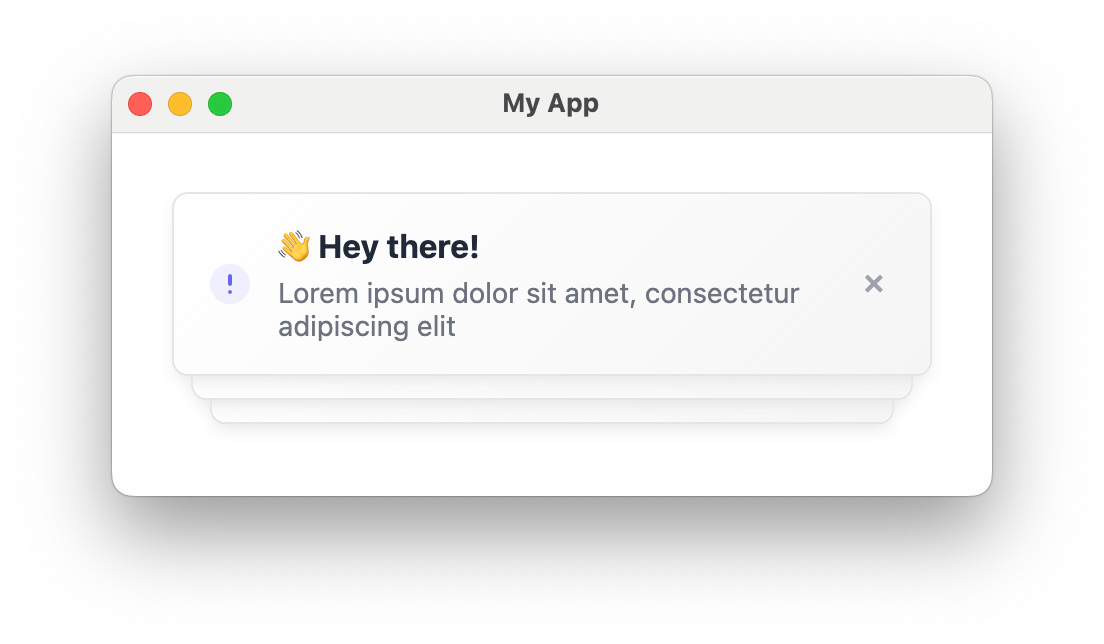
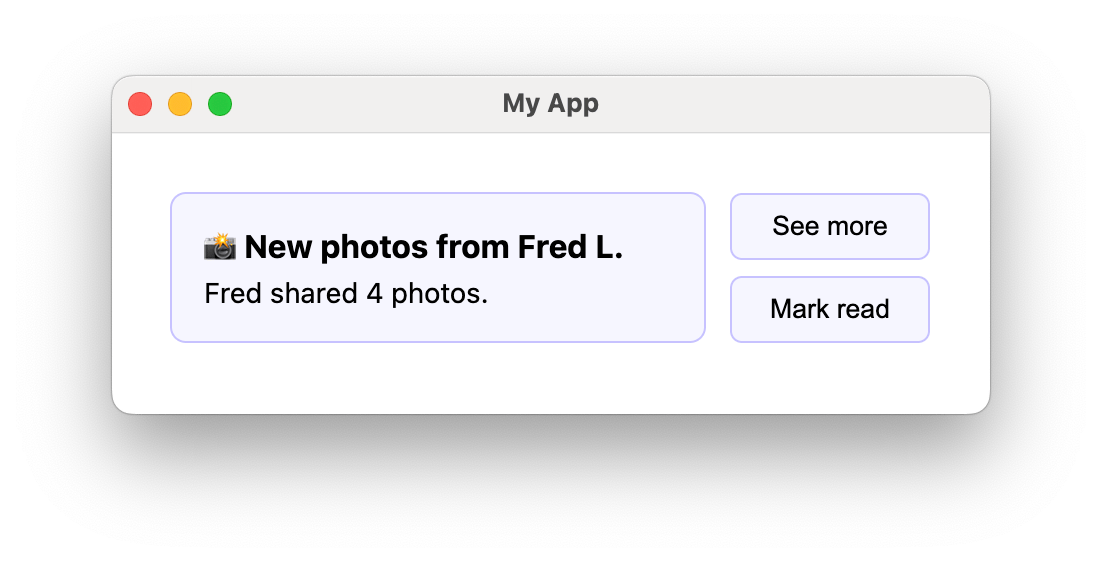
Toasts are short-lived notifications that notify users and prompt them to take action.
The Toast component is connected to the feed of Courier Inbox messages.
Toasts are synced with the Inbox message feed. You can use both components together to provide persistent and temporary notifications.
Importing @trycourier/courier-ui-toast registers Courier’s Web Components (<courier-toast>).
<body> <courier-toast></courier-toast> <script type="module"> import { Courier } from "@trycourier/courier-ui-toast"; // Generate a JWT for your user on your backend server const jwt = "eyJhbGciOiJIUzI1NiIsInR5cCI6IkpXVCJ9..."; // Authenticate the user Courier.shared.signIn({ userId: $YOUR_USER_ID, jwt: jwt }); </script></body>
A note on terminology: toast refers to the entire stack of toasts managed by <courier-toast>, while toast item refers to a single toast displayed for a message.
Attribute
Type
Default
Description
auto-dismiss
boolean
false
Whether toast items should auto-dismiss.
auto-dismiss-timeout-ms
integer
5000
If auto-dismiss is enabled, the timeout in milliseconds before dismissal.
dismiss-button
"visible" | "hidden" | "hover" | "auto"
"auto"
Display option for the dismiss button. "auto" makes the button always visible if auto-dismiss is false, and visible on hover if auto-dismiss is true.
light-theme
json
undefined
JSON-stringified CourierToastTheme applied in light mode. Merged with defaults.
dark-theme
json
undefined
JSON-stringified CourierToastTheme applied in dark mode. Merged with defaults.
mode
"light" | "dark" | "system"
"system"
Theme mode for the toast component.
If the auto-dismiss attribute is set, the dismiss button (x) will only be visible on hover
and each toast item will automatically be dismissed. A countdown bar is shown to indicate the time
remaining before the toast disappears.
auto-dismiss and auto-dismiss-timeout-ms remain valid when using custom items. If auto-dismiss is true, custom items are automatically removed after the timeout.
CourierToastDatastore is the central repository of Inbox messages from which
<courier-toast> listens for messages to display and dismiss. It is a singleton accessed through CourierToastDatastore.shared.
Method
Description
addMessage(message)
Add a message to display as a toast. Messages must include messageId.
removeMessage(message)
Remove a message, dismissing any displayed toast for it.
import { CourierToastDatastore } from "@trycourier/courier-ui-toast";// Add a test message (useful for prototyping)CourierToastDatastore.shared.addMessage({ title: "Lorem ipsum dolor sit", body: "Lorem ipsum dolor sit amet", messageId: "abcd-1234-abcd-1234", actions: [{ "content": "Click me!" }]});// Remove a message (dismiss its toast)CourierToastDatastore.shared.removeMessage(message);
The Preferences component lets your users manage which topics they’re subscribed to and how each topic is delivered (per-channel routing and digest schedules), directly inside your app.
Preferences ship in a separate package, @trycourier/courier-ui-preferences. Install it alongside the inbox package:
Importing @trycourier/courier-ui-preferences registers the <courier-preferences> Web Component.
<body> <courier-preferences id="preferences"></courier-preferences> <script type="module"> import { Courier } from "@trycourier/courier-ui-preferences"; // Generate a JWT for your user on your backend server const jwt = "eyJhbGciOiJIUzI1NiIsInR5cCI6IkpXVCJ9..."; // Authenticate the user Courier.shared.signIn({ userId: $YOUR_USER_ID, jwt: jwt }); </script></body>
Preferences use the same authentication mechanism as the inbox, but the JWT must include the read:preferences and write:preferences scopes.
Set themes programmatically with setLightTheme(), setDarkTheme(), and setMode(). Themes are merged with the defaults, so you only need to specify what you want to override. The default accent color matches the Inbox component for a consistent look.
Theme utilities are also exported: defaultLightTheme / defaultDarkTheme for the defaults, and mergeTheme(mode, overrideTheme) to merge a partial theme.
Only if your workspace uses the EU datacenter: pass EU URLs in Courier.shared.signIn. This package re-exports EU_COURIER_API_URLS and getCourierApiUrlsForRegion from @trycourier/courier-js.