

Template Designer
Courier’s Template Designer is a drag-and-drop editor for building multi-channel notification templates. Add content blocks, configure channel-specific layouts, preview renders, and publish; no code required.Create Templates
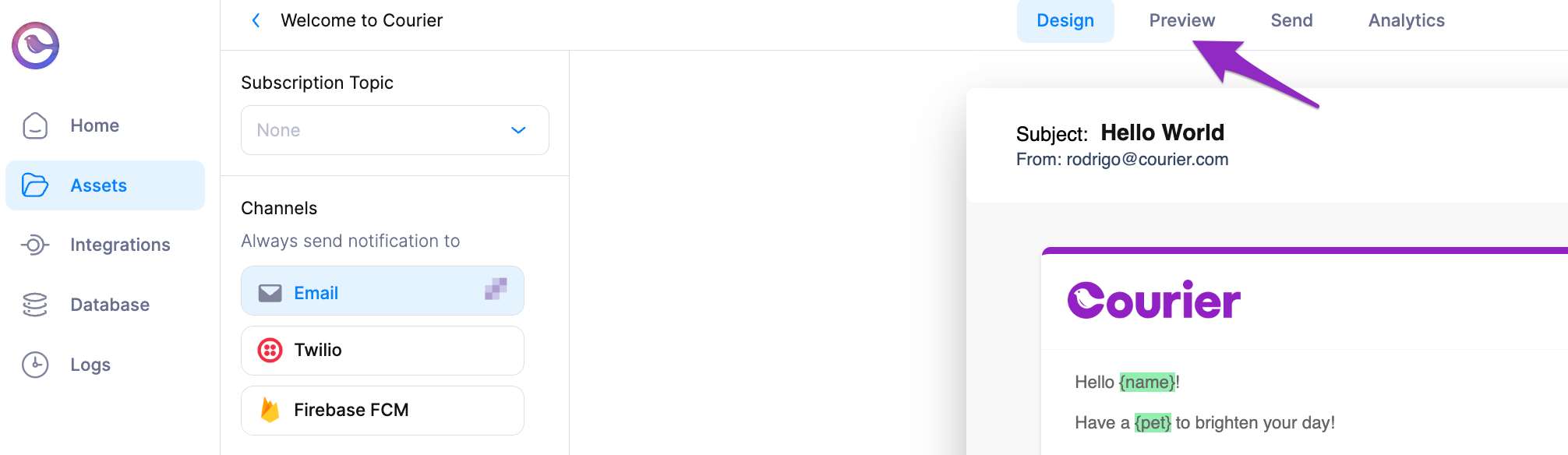
Add and Prioritize Channels
Add new channels to a Template with a single click then drag them to reorder their send priority.Reusable, Drag and Drop Content
Every channel allows you to use drag and drop content blocks to place content without writing any code. Content you create in one channel is available in the Content Library for use in other channels.- Consistent rendering across every email client.
- Reuse content in any channel.
Preview Your Templates
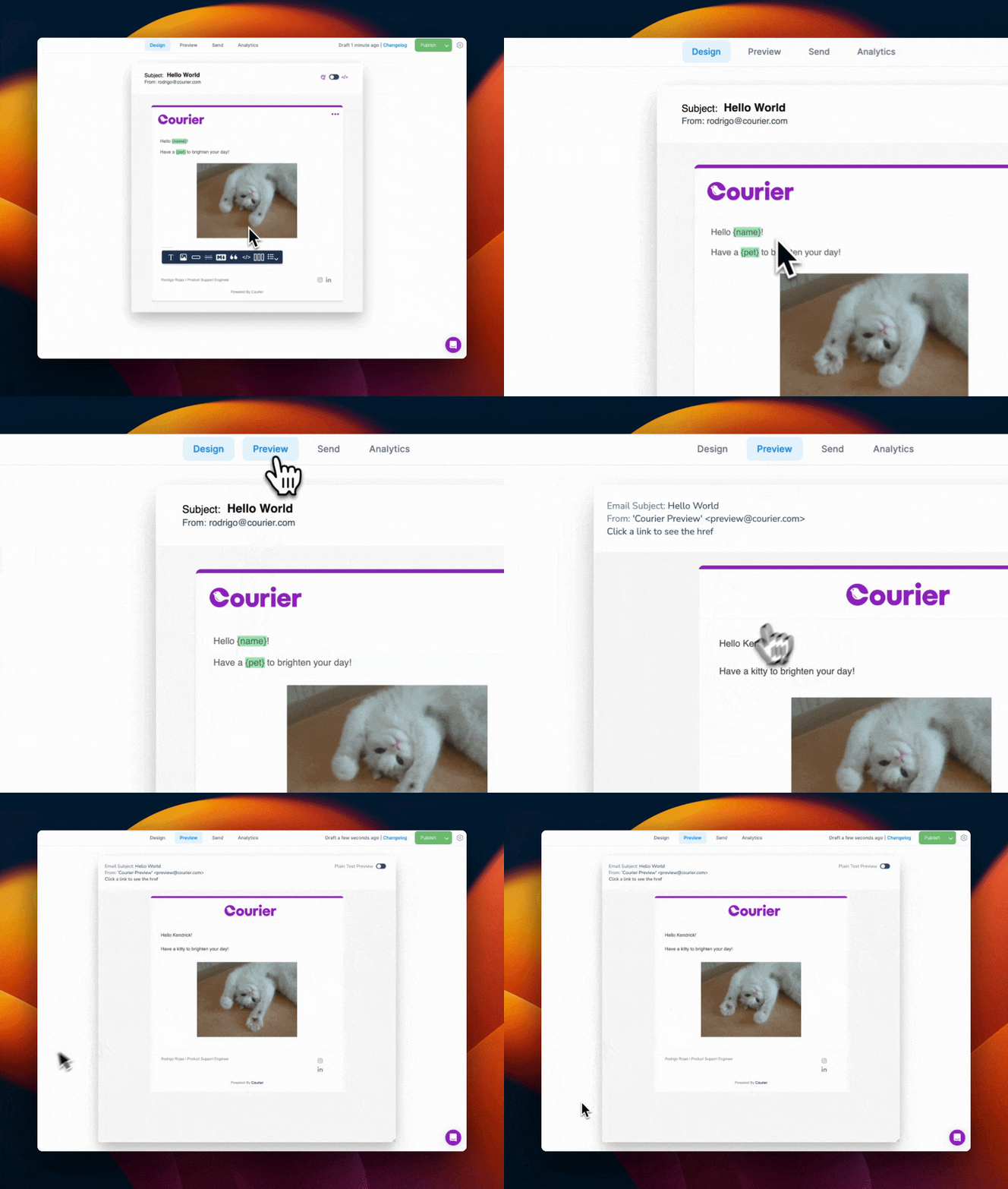
- Create Test Events to validate your dynamic variables.
- Preview Emails in multiple brands.
- Send preview emails.
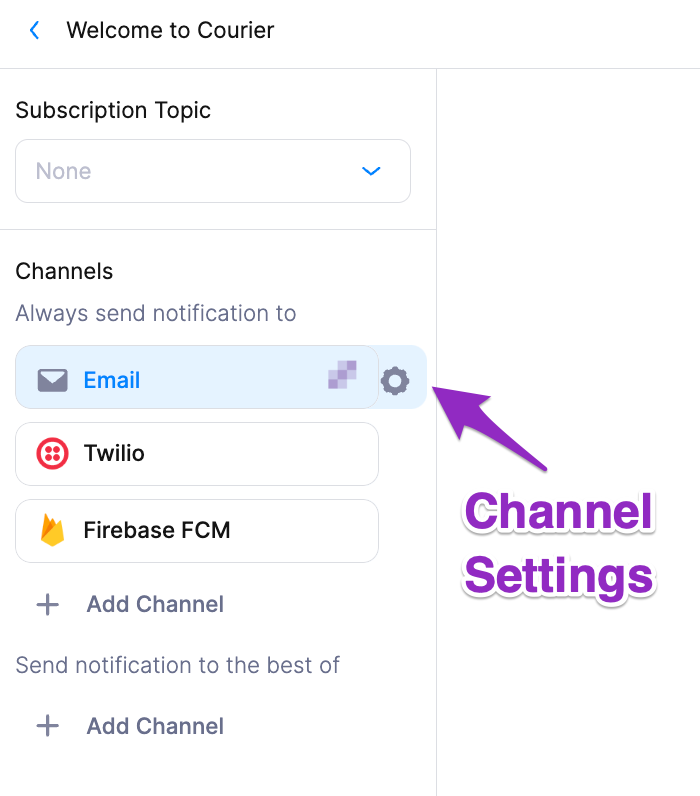
Access Template and Channel Settings
Access the template settings to set send conditions, configure Brands, view publish history and more.
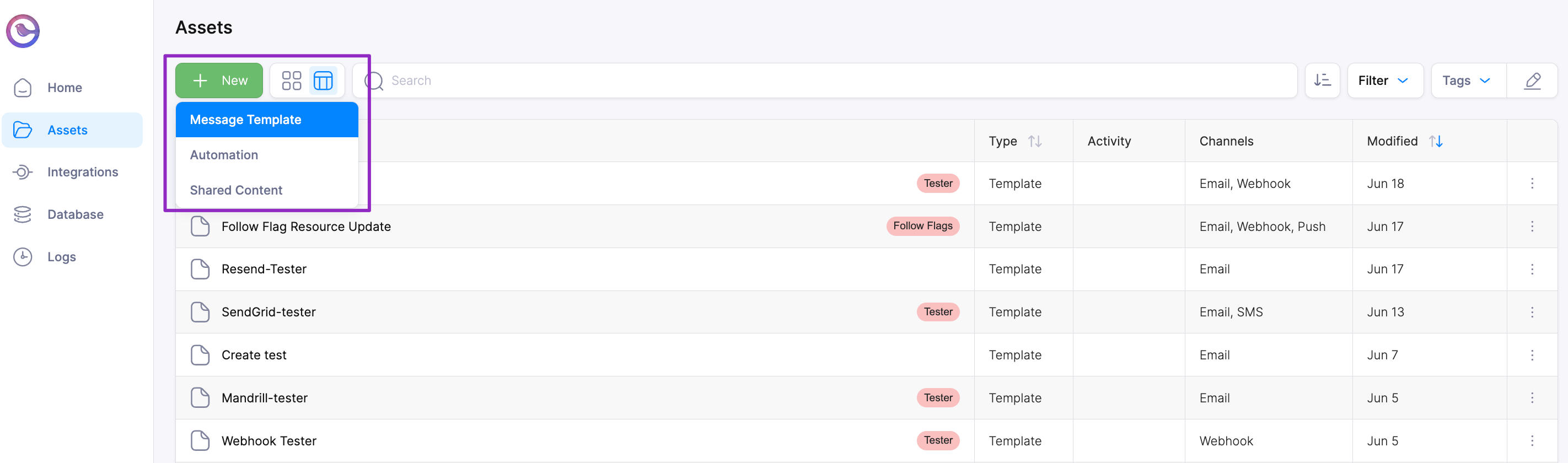
View, Search, and Filter Your Template List
Use the search field to locate a Template by name, channel or tag. Create tags and then use the tag filter to narrow your list view.Organizing Templates
Each template has a unique identifier (Notification ID) that your application uses to reference it when sending notifications. You can also assign event aliases to templates for more readable API calls. Templates can be organized by:- Function: User onboarding, transactional notifications, marketing campaigns
- Channel type: Email-only, SMS-only, multi-channel
- Tags: Custom categories that match your business needs
Brand Designer
The Brand Designer lets you give your email notifications a consistent look and feel for you and your customers.Create and Apply Consistent Branding Across Templates
- Branded email templates
- Reusable brand code snippets
- White-labeled email branding
