

- Inbox — prebuilt notification center with theming and custom rendering
- Push Notifications — automatic token syncing and delivery tracking for APNS and FCM
- Preferences — prebuilt UI for users to manage their notification settings
| Requirement | Value |
|---|---|
| Min iOS version | 15.0 |
| Min Android SDK | 23 |
| Gradle | 8.4+ |
Installation
iOS Setup
Android Setup
Authentication
All SDK features (Inbox, Push, Preferences) require a signed-in user. Authentication is JWT-based; your backend generates a token and the SDK manages credentials across app sessions.For a full walkthrough of JWT generation, see the Inbox Authentication guide.
Generate a JWT on your backend
Call the Issue Token endpoint from your server:
Sign in the user
Pass the JWT to the SDK where you manage user state. Credentials persist across app sessions. If the token expires, generate a new one from your backend and call
signIn again; the SDK does not handle token refresh automatically.EU-hosted workspaces
For EU-hosted Courier workspaces, pass the built-in EU preset throughapiUrls:
Authentication state
Inbox
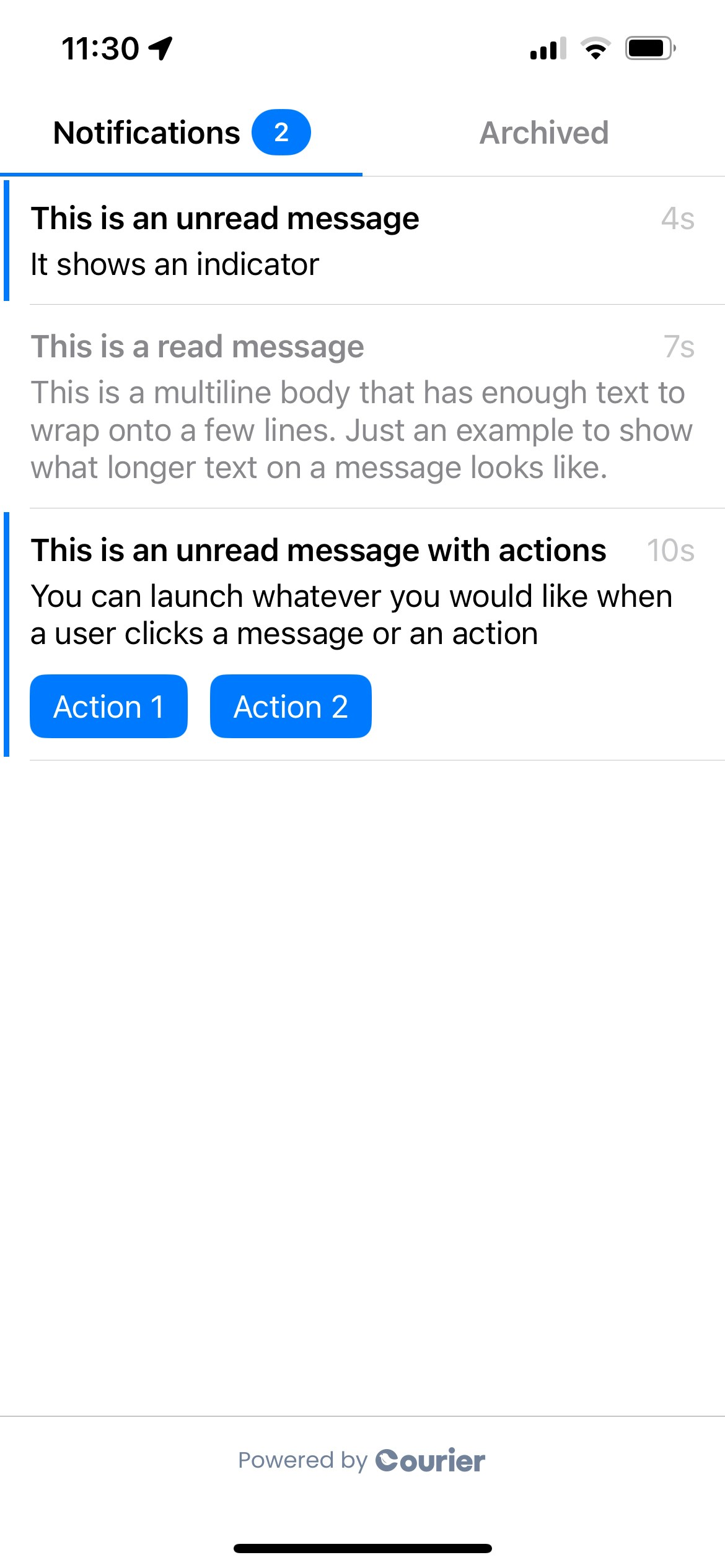
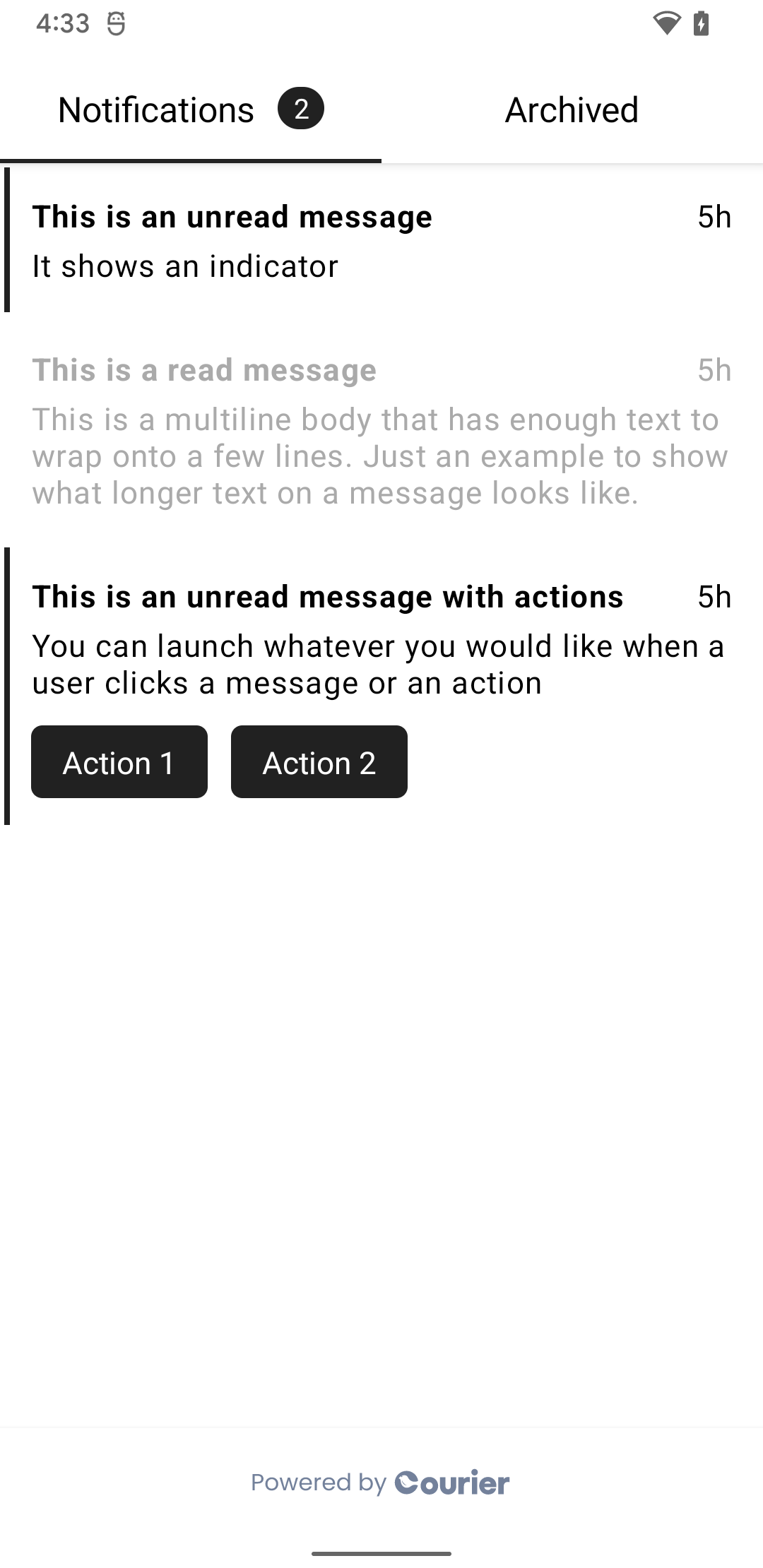
Courier Inbox provides a prebuilt notification center component. It supports theming and real-time updates on both iOS and Android.Inbox requires the Courier Inbox provider to be enabled in your workspace. If using JWT authentication, enable JWT support in the provider settings.
On Android, your app theme must extend
Theme.MaterialComponents for the prebuilt UI to render correctly. Set this in your res/values/styles.xml.For an overview of how Courier Inbox works and how to send messages to it from your backend, see Get Started with Inbox and Send an Inbox Message.
Prebuilt Component
Theming
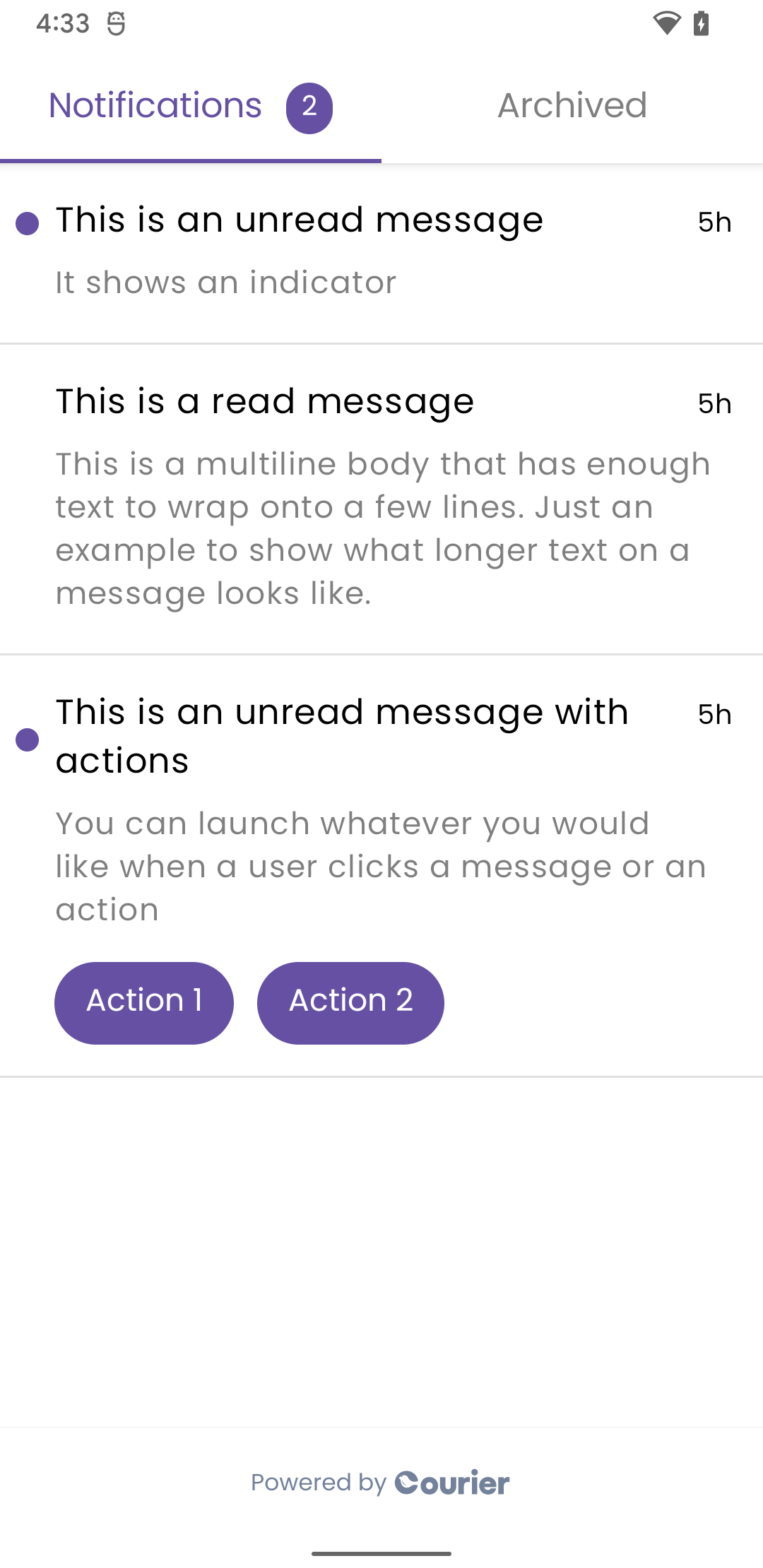
Pass a theme object to customize the inbox appearance. The theme supports separate iOS and Android style properties, custom fonts, colors, and button styles.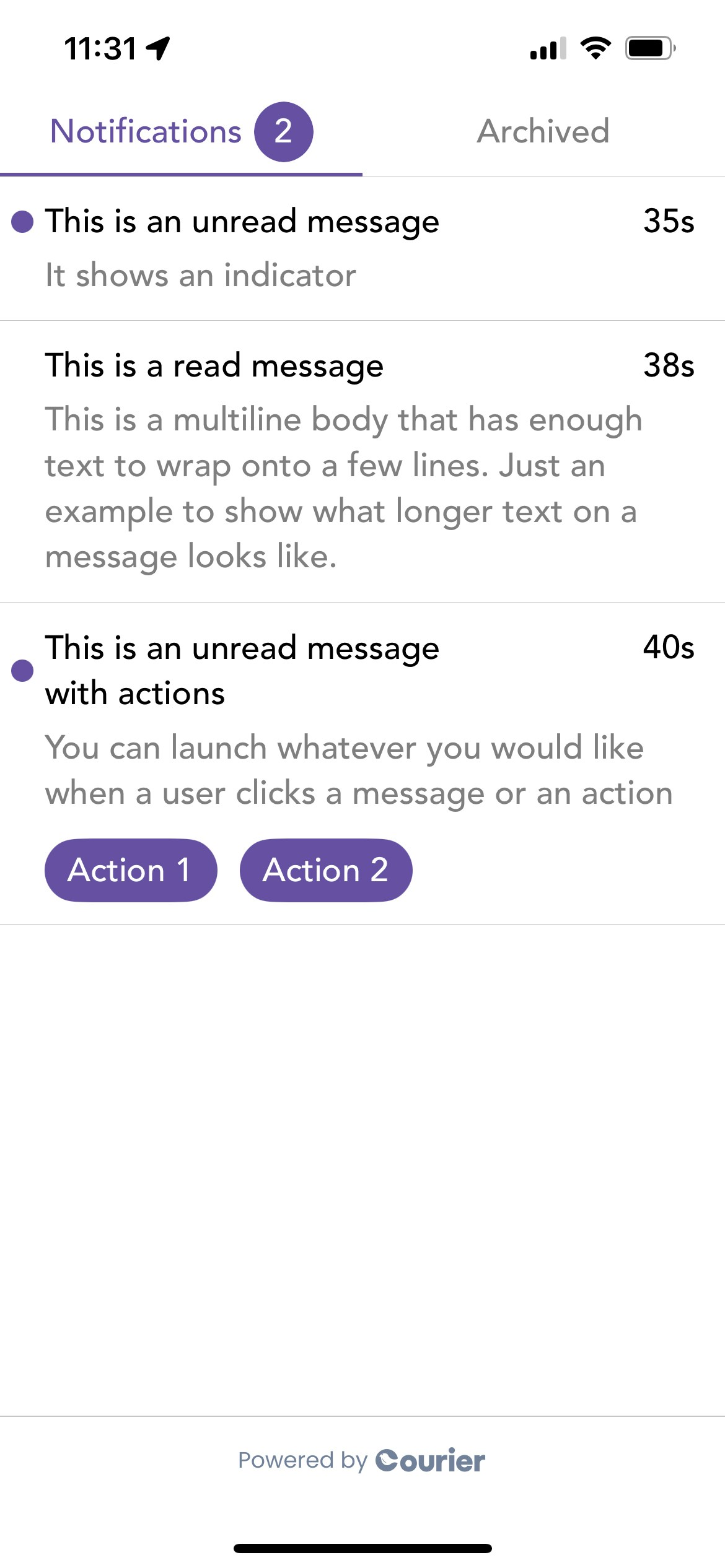
Custom Inbox UI
For full control over rendering, useaddInboxListener to receive raw message data and build your own UI:
Message Actions
Track every event a Courier message can receive:Reading the feed
Push Notifications
The SDK simplifies push notification setup with automatic token syncing and delivery tracking for both APNS (iOS) and FCM (Android).Push notifications require a physical device. Simulators and emulators do not reliably support push token registration or notification delivery.
| Feature | iOS | Android |
|---|---|---|
| Automatic token management | Yes | Yes |
| Notification tracking | Yes | Yes |
| Permission requests | Yes | Yes |
Provider Setup
Configure your push provider in the Courier dashboard:For step-by-step provider credential setup, see the APNS integration guide or FCM integration guide.
iOS Push Setup
Enable the Push Notifications capability
In Xcode: select your target > Signing & Capabilities > add Push Notifications.
Forward APNS callbacks to Courier
Update your If you are using Expo, see the Expo section below for the Swift / Objective-C bridge that wires Courier into
AppDelegate.h so it inherits from CourierReactNativeDelegate. The SDK registers for remote notifications, syncs the APNS token to Courier, and forwards delivery / click events to your JavaScript listeners.ExpoAppDelegate.Add a Notification Service Extension (recommended)
Required for tracking delivery when the app is not running. See the iOS SDK push setup for the full steps; the same template applies to React Native.
Android Push Setup
Set up Firebase
Register your app in Firebase, download In
google-services.json, and place it in android/app/. Follow the Firebase Android setup guide for the rest.In android/build.gradle:android/app/build.gradle:Extend CourierReactNativeActivity
Update your
MainActivity so the SDK can receive push delivery and click events while the app is in foreground.Create a FirebaseMessagingService
Subclass Firebase’s
FirebaseMessagingService directly and forward both callbacks to Courier. The SDK caches the FCM token, uploads it to Courier when a user is signed in, and broadcasts delivery events through its event bus.Manual Token Syncing
Use this for any provider Courier doesn’t sync automatically (Expo, OneSignal, Pusher Beams, etc.) or to push tokens you obtain elsewhere:Handling Push Events
Register a listener to respond when notifications are delivered or tapped. This is useful for deep linking, analytics, or showing in-app alerts.Requesting Permission
Prompt the user to allow notifications (iOS shows a system dialog; Android 13+ requires runtime permission). You can also check the current permission status without prompting.Send a Test Notification
Once you’ve completed the setup above, send a test push using the Send API withpush as the routing channel. See the APNS sending guide or FCM sending guide for complete examples.
Preferences
Courier Preferences provides a prebuilt component for users to manage which notification topics and channels they subscribe to.Topics and sections are configured in the Preferences Editor. See Preferences Overview for how preference enforcement works at send time.
Preference Modes
- Topic mode (
{ type: "topic" }): shows subscription topics the user can toggle on or off - Channels mode (
{ type: "channels", channels: ["push", "sms", "email"] }): shows per-channel controls for each topic
Theming
Pass a theme object with platform-specific style properties to customize fonts, colors, and toggle styles.Expo
If you are using Expo, additional setup is required for push notification token syncing. You’ll need to update yourAppDelegate (iOS) and MainActivity (Android) with Courier-specific code since Expo manages these files differently.
See the full Expo setup guide on GitHub for step-by-step instructions for both platforms.
CourierClient
For advanced use cases,CourierClient is a low-level wrapper around the Courier API. Each client holds its own credentials, so you can spin up as many as you need.
Initialization
Token Management
Inbox
Preferences
Branding
URL Tracking
Pass any tracking URL found inside a push notification payload or inbox message:Inbox Overview
Learn about Courier Inbox and how to set it up
Push Integrations
Configure APNS, FCM, and other push providers
Preferences
Set up notification preference topics and channels
GitHub
Source code, examples, and changelog