

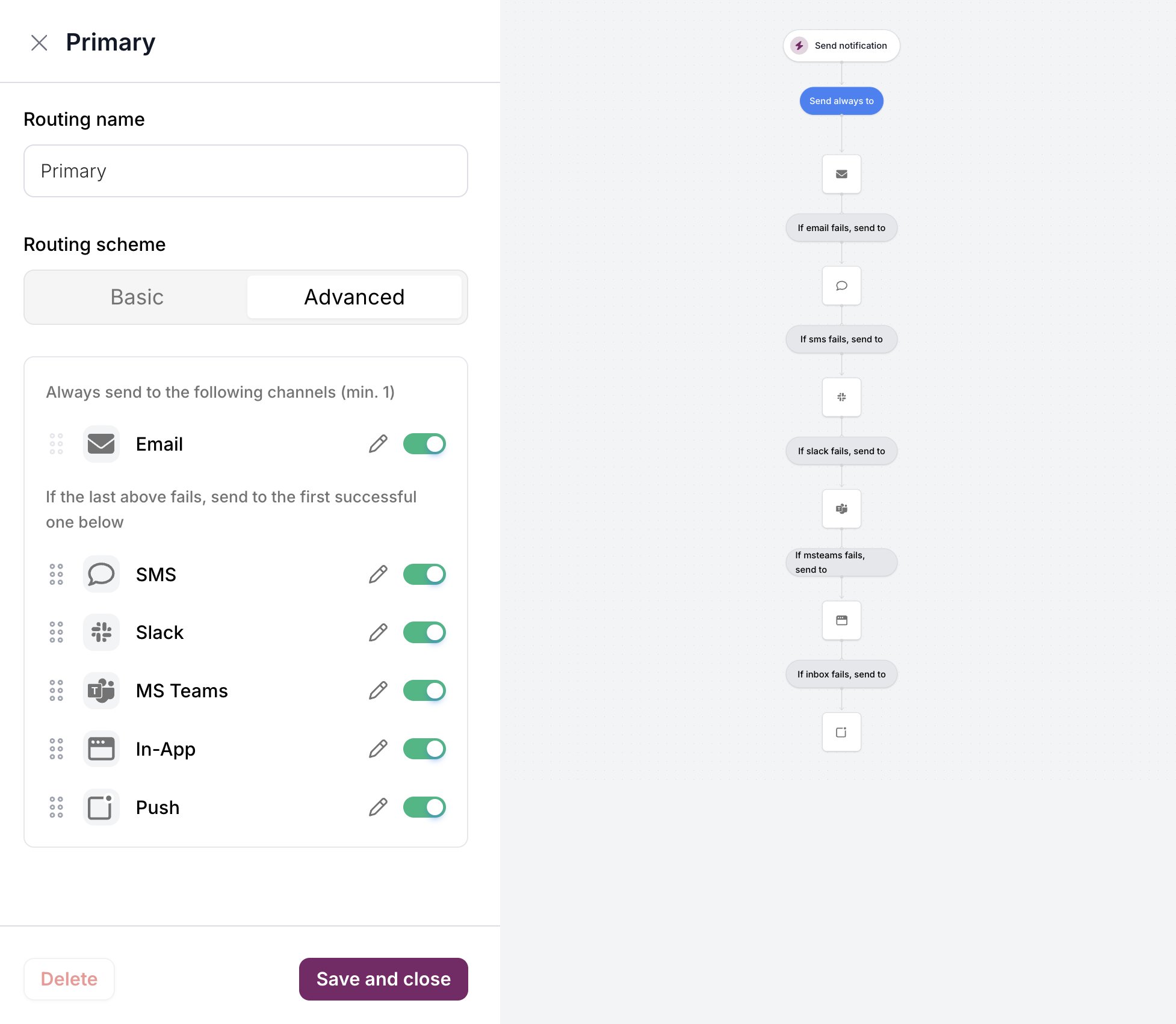
What a strategy holds
A strategy carries the samerouting object you’d pass on a send, plus the per-channel and per-provider settings around it. Its ID starts with rs_.
Build a strategy in Design Studio
Open a template and click the routing selector in the toolbar. It lists the workspace’s strategies, with a pencil icon to edit each one and Add new routing to create one. Picking a strategy attaches it to the template.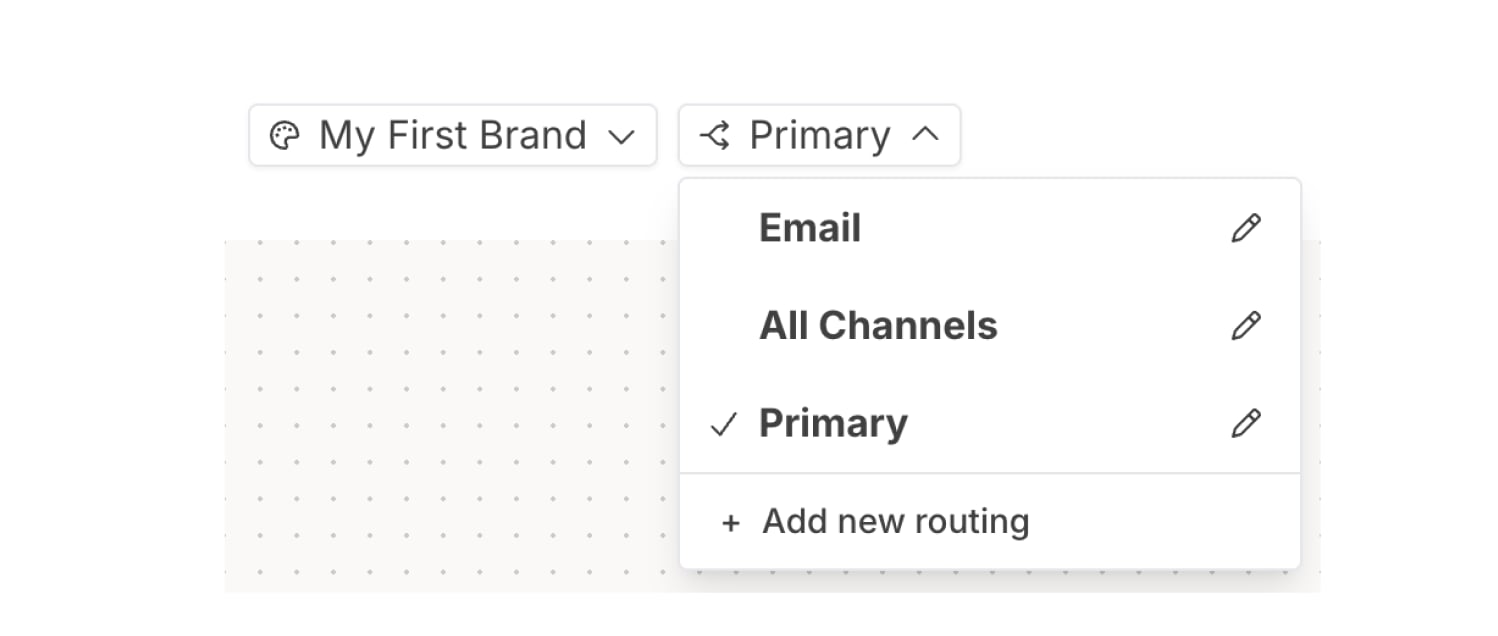
- Basic sends on every channel you switch on, at the same time.
- Advanced splits channels into two lists. Everything under Always send to the following channels (min. 1) sends. If the last of those fails, Courier tries the channels under If the last above fails, send to the first successful one below, in order, until one delivers.
Manage strategies with the API
Create a strategy
takes aname and a routing object. This strategy tries email, then SMS, and sends email through SendGrid with SES as the backup:
id. Set it as routing.strategy_id when you create or replace a template, as shown in .
Switch providers on every template at once
Every template that uses a strategy picks up a change on its next send, so one edit moves all of them to a new provider. Courier reads the strategy at send time, so no template needs republishing. To see which templates a change reaches, call first. takes the complete strategy and clears any field you leave out, so send every field you want to keep. This puts SES ahead of SendGrid:List and archive strategies
returns each strategy’s name and tags. returns its full configuration. returns409 while any template still uses the strategy.
FAQ
Do I need to republish templates after editing a routing strategy?
Do I need to republish templates after editing a routing strategy?
Templates don’t need republishing after a strategy edit. A template stores only the strategy’s ID, and Courier reads the strategy on every send, so the next message uses the new configuration.
Can one send use different routing from its template's strategy?
Can one send use different routing from its template's strategy?
A send can pass its own
routing object, which replaces the strategy’s channel list and method for that message. The strategy’s provider order and channel conditions still apply. See .