Email Push Notifications - The Ultimate Guide
Get to know the benefits of email push notifications, why they're important and what you need to know before setting them up.
Updated Jul 10, 2026
Email is the best way to stay in contact with your software users. It's a simple, low-cost, and quick method of communicating with your customers, especially if you're sending transactional emails or event-driven notifications.
In addition to keeping users informed about their account activity, you can also use email to keep them updated on new product releases or features, which helps build customer retention.
This article offers an overview of email push notifications, including benefits, use cases, and best practices. You will also learn how to send email push alerts using Courier.
What Are Email Notifications?
Email alerts are a type of triggered email sent in response to a specific user action or event. These app-generated emails for software-as-a-service (SaaS) apps and websites include activation and welcome messages, activity notifications, account and security warnings, and utilitarian services like password resets.
Such alerts can notify users when a post has been shared on social media, remind them to take action on a personal account, or ask that users confirm payment for items and services.
Benefits of Email Notifications
They help improve record-keeping. Email notifications assist with record keeping because they provide a record of communications. Even if many people from the same firm contact a potential customer, the business name remains the same, keeping communications consistent.
They allow targeted messaging. Businesses can send emails to specific groups of people who would be most interested in their services.
They enable quick communication. Emails can be sent and read instantly, making it easier and faster to share critical information.
They're a low-cost investment. Email services require no or minimal costs, which benefits a business's budget.
They help maximize marketing opportunities. Email alerts allow product teams to engage directly with customers and can entice them to sign up for additional services. They're one of the most effective strategies that product teams can use to enhance customer conversion, retention, and growth. The alerts also help to build long-term relationships between a SaaS firm and its customers by reinforcing trust in services.
Use Cases for Email Notifications
There are multiple situations in which your business can benefit from using email notifications. Some examples include:
Subscription services: The customer can choose from daily, weekly, bimonthly, or monthly subscriptions. This is often used for newsletters, updates, or certain special offers.
Security alerts: Account alerts and security are an important line of defense against identity theft, fraud, and data abuse.
Confirmation emails: These inform the user that their reservation, order, or inquiry has been completed.
Due date notifications: These remind the user of an activity that must be completed by a certain date, such as paying a bill or submitting a form.
Password reset: This alert helps the user reestablish account access as needed. This can make or break a user's ability to access a service.
Pros and Cons of Email Notifications
Using these notifications carries benefits and disadvantages for your business.
Advantages
- There are no restrictions on the size or duration of communications.
- Customers can save messages for further reference.
- They help keep customers up to date on new features and developments.
Disadvantages
- Email has the potential to overwhelm people with too much information.
- Viruses can be contained in email communications.
- Open rate is low.
There are alternate options for staying in touch with your users. Here is how they compare to email notifications.
Email Notification Best Practices
In order to maximize your email notifications, there are some tips and best practices you should follow.
Subject line: The subject line in email notifications is itself the message and should attract users instantly.
Keep your brand consistent: Notification emails should follow the same design principles as regular emails in terms of your brand's look. In other words, use the same header, footer, and typefaces.
Personalize the email: Personalize your emails wherever possible. If you're warning users about upcoming maintenance, a simple "Hello there" will suffice. However, you should address a user by name when alerting them that their trial is nearly over, prompting them to sign up for an account.
Deliver a single thought at a time: Otherwise, you might overload or confuse your users.
Be as precise as possible: Explain why you're reaching out and how users might be impacted. For instance, if you're alerting them about maintenance, tell them why and for how long your system will be unavailable.
Combining Email Notifications with Other Channels
You can also use third-party channels to deliver enhanced email alerts. For instance, Courier enables you to:
Integrate your channels: All of your notification channels are accessible through a single API, and you can create new ones in minutes.
Design your own notification: Drag and drop content blocks, add custom code, or perform a combination of the two.
Organize your workflow: Notifications can be sent out in reaction to user actions, taking into account their preferences and your policies.
Collect data in real time: Get fast access to critical cross-channel analytics like delivery status and engagement information.
Sending Email Notifications with Courier
Next, you'll learn how to send an email notice using Courier and SendGrid.
You'll need a Courier account and a SendGrid account to do this. You can sign up for Courier here and SendGrid here.
Log in to your Courier account and navigate to the Integrations page; click on the SendGrid integration to customize or configure it.
You need a SendGrid API key and SendGrid Form Address for the SendGrid integration. On your SendGrid dashboard, go to Settings, then API Keys. You can create an API key, give it a name, and set permissions (no access, read access, and full access) here.
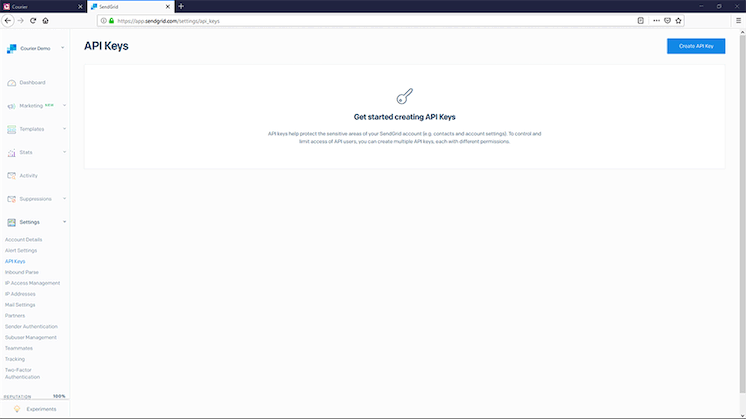
- Your API key just requires Mail Send capabilities to send a message. For now, pick Restricted Access and toggle only this Mail Send setting.
Create a sender identity to accomplish this. Replace test-email@example.com with your test recipient's email address in the To box.
- Copy your SendGrid API key and paste it into the Courier Integration page's API Key box.
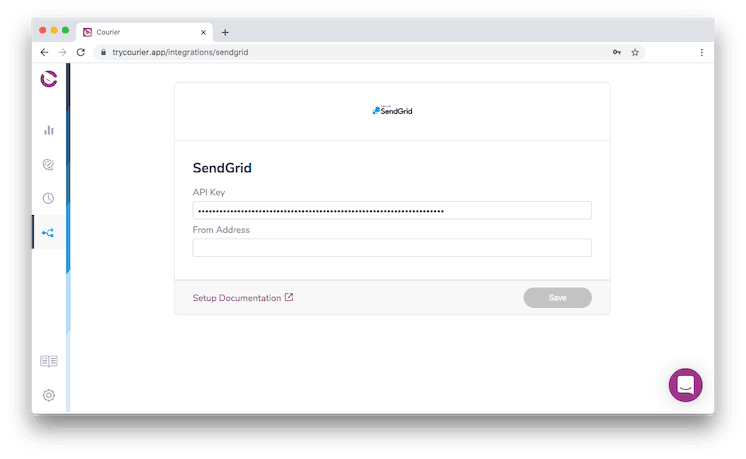
- Fill in the SendGrid form with an email address. This is commonly an address like noreply@mydomain.com, but it may be any address you own. After you've completed both forms, click Add Integration, then Save.
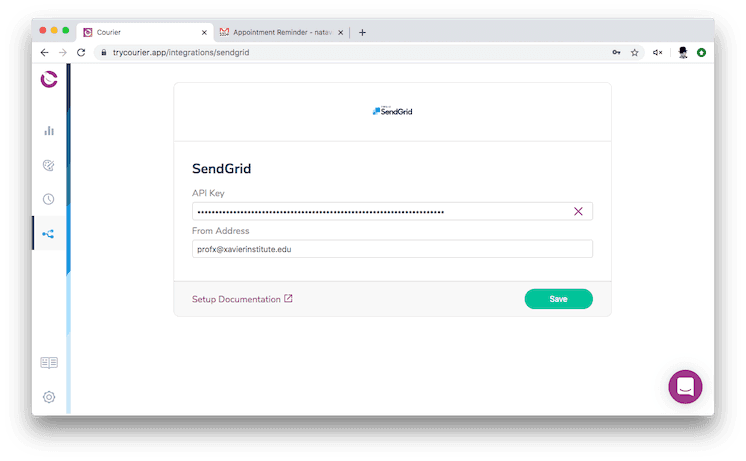
Next, you'll create a Courier notification. Select Create Notification from the Courier notifications page.
Click on the name and change it to "Test Notification."
Click the SendGrid button from your list of configured integrations.
To access an email template, click the SendGrid box in the sidebar.
-To create the email, use Courier's template editor. You can add message blocks, links, and images to the template.
When you're done, click Publish Changes.
Next, you'll use the Courier API to send the message. On the SendGrid dashboard, go to Settings > API Keys, then select your API key.
Select Full Access, then click Save. Make sure you keep a copy of your API key.
Using npm, install the SendGrid JavaScript client:
npm install --save @sendgrid/mail
- Make a file called
sendgridemail.jsin your project directory:
touch sendgridemail.js
- Add the following code to the sendgridemail.js file:
const sendgrid = require('@sendgrid/mail');const SENDGRID_API_KEY = "<SENDGRID_API_KEY>"sendgrid.setApiKey(SENDGRID_API_KEY)const msg = {to: 'test-email@example.com',// Change to your recipientfrom: 'test-email@example.com',// Change to your verified sendersubject: 'Email sent using SendGrid',text: 'This is pretty easy to use',html: '<i>and easy to understand.</i>',}sendgrid.send(msg).then((resp) => {console.log('Email sent\n', resp)}).catch((error) => {console.error(error)})
Make sure that the variable SENDGRID API KEY matches the SendGrid API key you provided earlier and that the email address in the From field has been sent to SendGrid for verification.
- Run the script:
node sendgridtest.js
Check the SendGrid dashboard and click Activity on the sidebar to see if your email was delivered.
Conclusion
You should now have a better understanding of email notifications, as well as the benefits and drawbacks of email alerts, push notifications, and SMS notifications.
You've also seen the benefits of using a service such as Courier. The multi-channel notification service enables a single API to send notifications to users through email, SMS, push notifications, and chat applications like Slack and WhatsApp. For more on what Courier can do for your business, request a demo.
Author: Shittu Olumide
Keep exploring
More guides
One API, every channel
Ship notifications without the boilerplate
Courier gives you one API for email, SMS, push, and chat, with templates, routing, retries, and delivery logs built in.
Last updated Jul 10, 2026. Code samples are illustrative; provider APIs and pricing change over time, so check each provider’s docs before relying on them.