Chapter 3
Best Practices and Optimization
Message design principles that respect user attention, timing and frequency strategies to prevent fatigue, platform-specific optimization for Slack vs Teams threading and formatting. Covers delivery reliability patterns, error handling, monitoring and observability, user preference management, and edge case handling.
Last updated: May 2026
Designing messages that people actually read
Users scan notifications in seconds. Frontload the important information so they can decide quickly whether to act. "Budget approval needed: $45,000 for Q4 marketing" tells someone immediately what they're looking at. "Update on your request" makes them click through to find out what happened.
Specificity helps users prioritize. "Server db-prod-01 connection failed" beats "Error occurred." "Sarah Chen commented on the Q4 roadmap document" beats "New comment on your document." You have the specific information when sending. Include it instead of making users click through for basic context.
Action buttons work when they're obvious and limited. Two or three clear options are fine. Five buttons with ambiguous labels create decision paralysis. "Approve" and "Reject" are immediately clear. "Process," "Review," and "Consider" require thought about what each does.
Tailor content to the recipient's role. A "Deal closed" notification means something different to a sales rep (commission incoming) versus a support engineer (provision the new customer's environment). What matters to them? What action do they need to take?
Preventing notification fatigue
Users tolerate notifications up to a point. Cross that line and they disable notifications entirely or start ignoring everything you send.
Batch similar notifications when it makes sense. If ten people comment on the same document within an hour, send one notification: "10 new comments on Q4 Roadmap" instead of ten separate messages. The information value is nearly identical but the interruption cost is ten times lower.
Implement frequency caps. When one user generates fifty events in an hour, sending fifty notifications trains others to ignore your app. Cap notifications per user per time period. Queue extras for later or batch into a digest.
Timing affects reception. A reminder about tomorrow's meeting sent today is helpful. The same reminder a week early is noise. Non-urgent notifications can wait for business hours in the recipient's timezone instead of arriving at 3am.
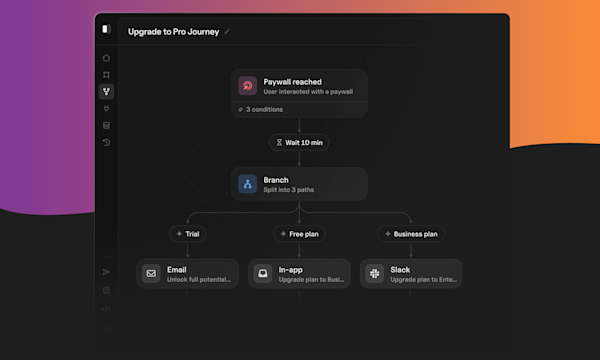
Courier Journeys handles batching and timing through workflow rules. Configure digest windows, add timezone-aware delays, and implement frequency caps without building custom scheduling logic.
Platform-specific optimization
Slack and Teams have different cultures that affect how users receive notifications.
Slack users expect asynchronous communication. Notifications arrive anytime; people respond when convenient. Thread replies work well because threading is central to how Slack organizes conversations. Ephemeral messages let you show information to one person without cluttering channel history.
Teams users expect more structured communication. Teams is built around organizational hierarchy, so notifications relating to ongoing work should go to the appropriate Team's channel. The Office 365 integration means you can link directly to SharePoint documents or Calendar events.
Message formatting differs. Slack's Block Kit includes dividers, context blocks, and specific layouts. Teams' Adaptive Cards support different elements like fact sets for key-value pairs. Design for each platform's constraints rather than forcing identical layouts.
| Capability | Slack Block Kit | Teams Adaptive Cards |
|---|---|---|
| Message format | JSON block arrays | JSON Adaptive Card schema |
| Text block limit | 3,000 characters per section block | ~28 KB total card payload |
| Interactive elements | Buttons, select menus, date pickers | Action.Submit, Action.OpenUrl, Input.Text |
| Message updates | Update via ts timestamp | Update via saved activity ID |
| Key-value display | Context blocks, field sections | FactSet element |
| Thread support | Native; thread_ts parameter | Channel messages only |
Delivery reliability
Notifications that don't arrive are worse than no notification system. Users expect reliability, and failures erode trust.
Implement retry with exponential backoff. When delivery fails due to network issues or temporary outages, retry after a short delay. If it fails again, wait longer. After several failures, give up and log the error. Distinguish between retryable errors (network timeouts) and permanent failures (invalid tokens, channel not found).
Circuit breakers prevent cascading failures. If Slack's API starts failing consistently, stop sending new notifications for a cooldown period. Monitor failure rates and open the circuit breaker when they exceed thresholds.
Queue notifications when delivery fails. Store them for retry when the platform becomes available. Users would rather get an alert fifteen minutes late than not at all.
Fallback channels provide alternatives. If Slack fails after retries, send via email instead. The Courier routing engine handles this with method: "single" and an ordered channel list, trying each until one succeeds.
Monitoring
Track delivery metrics by channel and notification type. What percentage succeed? Which types have highest failure rates? If Slack fails 20% but Teams succeeds 99%, you have a Slack-specific issue.
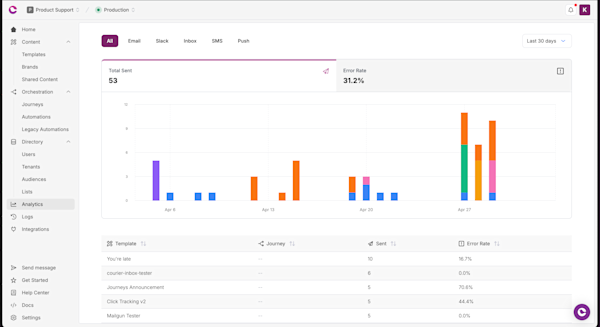
Measure engagement beyond delivery. Which notifications get clicked? Which actions do users take? Low engagement suggests a notification isn't providing value.
Set up alerts for anomalies. If volume drops significantly, something might be broken. If failure rates spike, a platform might be down or authentication failed. Catch problems before customers report them.
The Courier Analytics dashboard provides delivery rates, engagement metrics, and failure patterns across channels with detailed logs for debugging.
User preferences and control
Without preferences, even useful notifications become spam when they're too frequent or poorly timed.
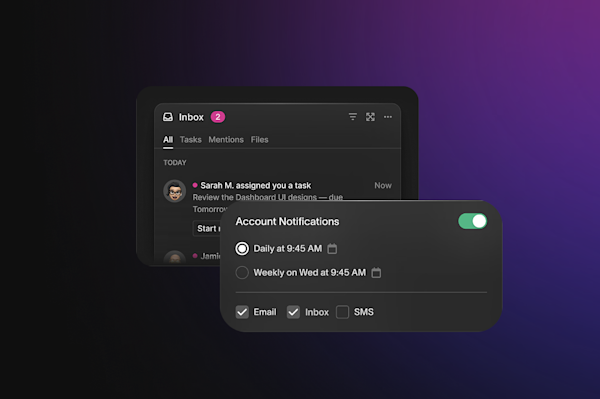
Category opt-outs let users receive task assignments but not routine status updates. Breaking notifications into toggleable categories gives meaningful control without all-or-nothing choices.
Channel preferences matter too. Critical alerts via both Slack and SMS, routine updates only in Slack. Per-category channel selection.
Quiet hours respect work-life boundaries. Non-urgent notifications wait for business hours. Critical alerts might break through; feature announcements can wait.
Frequency preferences help power users. Someone collaborating on fifty documents might prefer a daily digest summarizing all activity. Others want real-time everything.
Courier's preference management provides a hosted preference center that automatically filters notifications based on user settings.
Platform-specific tips
For Slack:
- Use ephemeral messages for responses only one person needs to see
- Thread replies keep channels organized. Post first message to channel, updates as replies
- Mention users sparingly. @user triggers additional alerts; use only when you need attention
- Update messages instead of posting separate status updates ("Deployment: 10%", "20%", "30%")
For Teams:
- Understand channel types: standard channels work normally, private channels require bot invitation, shared channels span tenants with additional complexity
- Adaptive Card versioning matters. Use latest version but verify rendering in Teams clients
- Save activity IDs to update messages later, similar to Slack timestamps
Handling edge cases
Production surfaces scenarios that don't appear during development:
- Workspace deletion or reinstallation: Detect when tokens stop working and notify customers to reauthorize. Don't silently fail.
- User deletion: Check for this error and remove users from future notifications instead of continuing failed attempts.
- Channel archiving: Update records to stop targeting archived channels. Notify admins the destination is invalid.
- Permission changes: Handle gracefully when admins remove scopes or restrict bot access.
- Rate limit exhaustion: Queue messages instead of dropping them. Consider batching if you're hitting limits regularly.
- Platform outages: Queue for recovery, provide email fallback for critical notifications, monitor status pages.
Courier's delivery infrastructure handles these through automatic retry logic, error categorization, fallback routing, and queue management.
Frequently asked questions
How do you reduce notification fatigue in Slack?
Batch similar events into a single message using Courier Digests. Configure frequency caps so users don't receive more than a set number of notifications per hour or day. Use threading to keep channel noise low: post the primary notification to the channel, then thread follow-up updates to the same message. Reserve direct messages for notifications that genuinely require one person's attention.
What is the difference between Slack Block Kit and Teams Adaptive Cards?
Block Kit is Slack's native JSON format for rich messages. It uses an array of typed block objects (section, divider, actions, context) and supports interactive elements. Adaptive Cards are Microsoft's format used in Teams, Outlook, and other Microsoft products. They use a body array with typed elements (TextBlock, FactSet, ActionSet) and have different layout constraints. Both support interactive buttons and message updates, but the data structures are incompatible: design templates for each platform separately.
How do you handle failed Slack message delivery?
Distinguish between retryable and permanent failures by examining the error code Slack returns. not_in_channel and channel_not_found are permanent: update your records and stop sending to that destination. timeout and rate_limited are retryable with exponential backoff. Log all failures to a monitoring system. For critical notifications, configure a fallback channel in Courier's routing so messages route to email if Slack fails after retries.
When should you update a message instead of sending a new one in Slack?
Update a message when status changes are sequential and belong to the same event: deployment progress, approval states, order tracking. Save the ts value from the original chat.postMessage response and use chat.update to replace it. This keeps channels clean and gives users a single place to track an event's status. Send new messages when the event is genuinely distinct or when you want the update to appear in the conversation feed.
How do you implement quiet hours for Slack notifications?
Use Courier's Automations to add timezone-aware delays before sending. Store the user's timezone in their Courier profile via an identify call. In the workflow, calculate whether the current time falls within quiet hours for that timezone and add a delay until the next allowed window. For critical alerts that must break through quiet hours, bypass the delay step based on a priority condition.
Start building Slack and Teams notifications with Courier. The free tier includes 10,000 notifications per month and supports both channels without additional configuration. Or talk to a solutions expert to discuss your use case.
Previous chapter
Technical Implementation
Step-by-step setup for Slack OAuth and Teams Bot Framework, then connecting both to Courier. Covers sending notifications through the unified API, designing templates in the visual editor, targeting users and channels, adding interactive buttons, handling webhooks, managing rate limits, and debugging delivery issues.
Next chapter
Evaluating Your Options
Platform landscape comparison covering Courier, Knock, Novu, SuprSend, MagicBell, and others with focus on Teams support gaps. Includes ROI expectations, pilot program guidance, build vs buy cost analysis, migration strategies from custom integrations, and customer examples from DroneDeploy, LaunchDarkly, HiPages, and Twilio.