How to Use Claude Code on Mobile to Design, Test, and Ship Multichannel Notifications
 Kyle SeylerApril 06, 2026
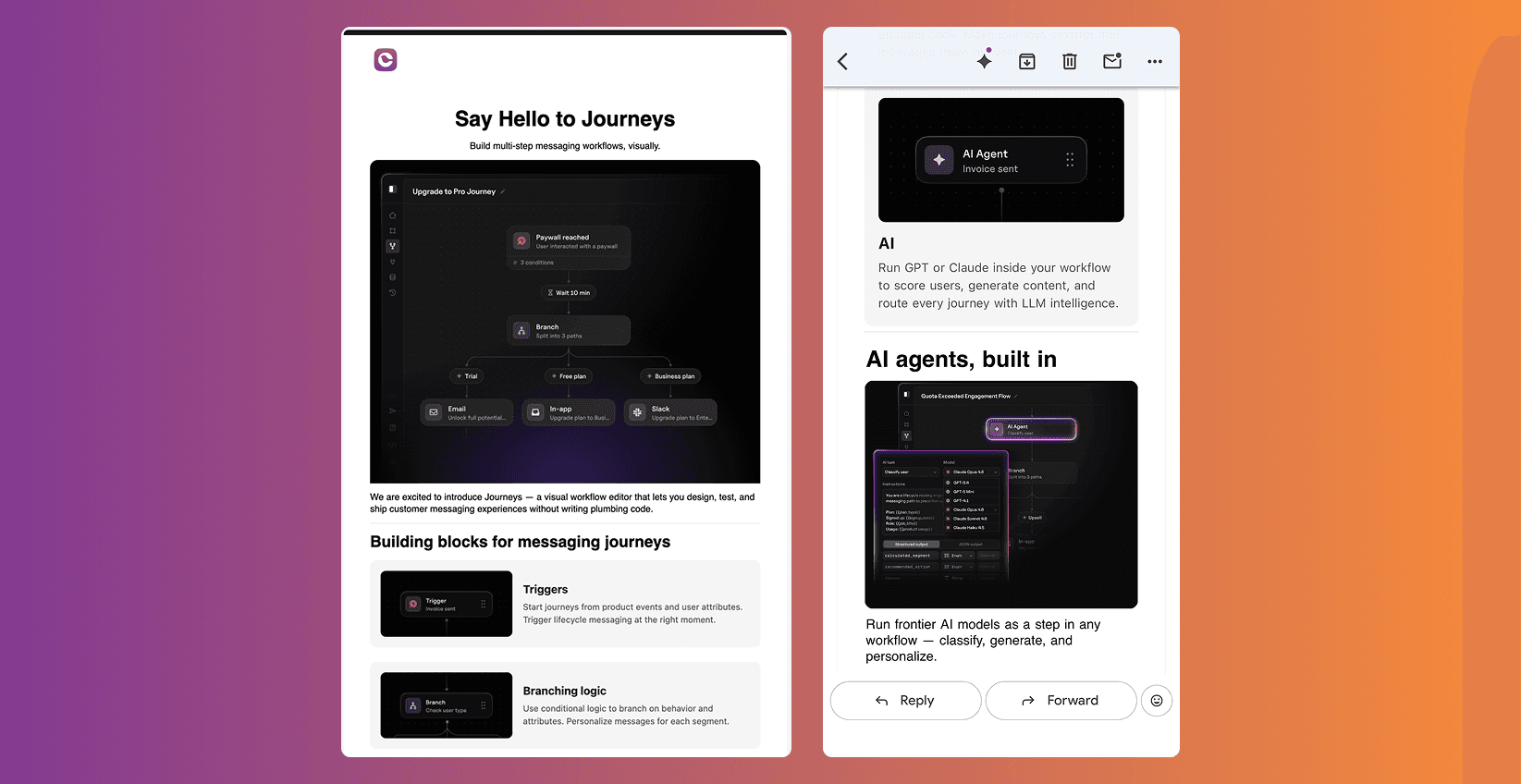
I designed, tested, and shipped a multichannel product update notification across email, Slack, push, and SMS from my phone. Sitting in Salesforce Park in San Francisco, talking to Claude Code's mobile app using voice, with Courier's MCP server and CLI connected. It took a couple hours.
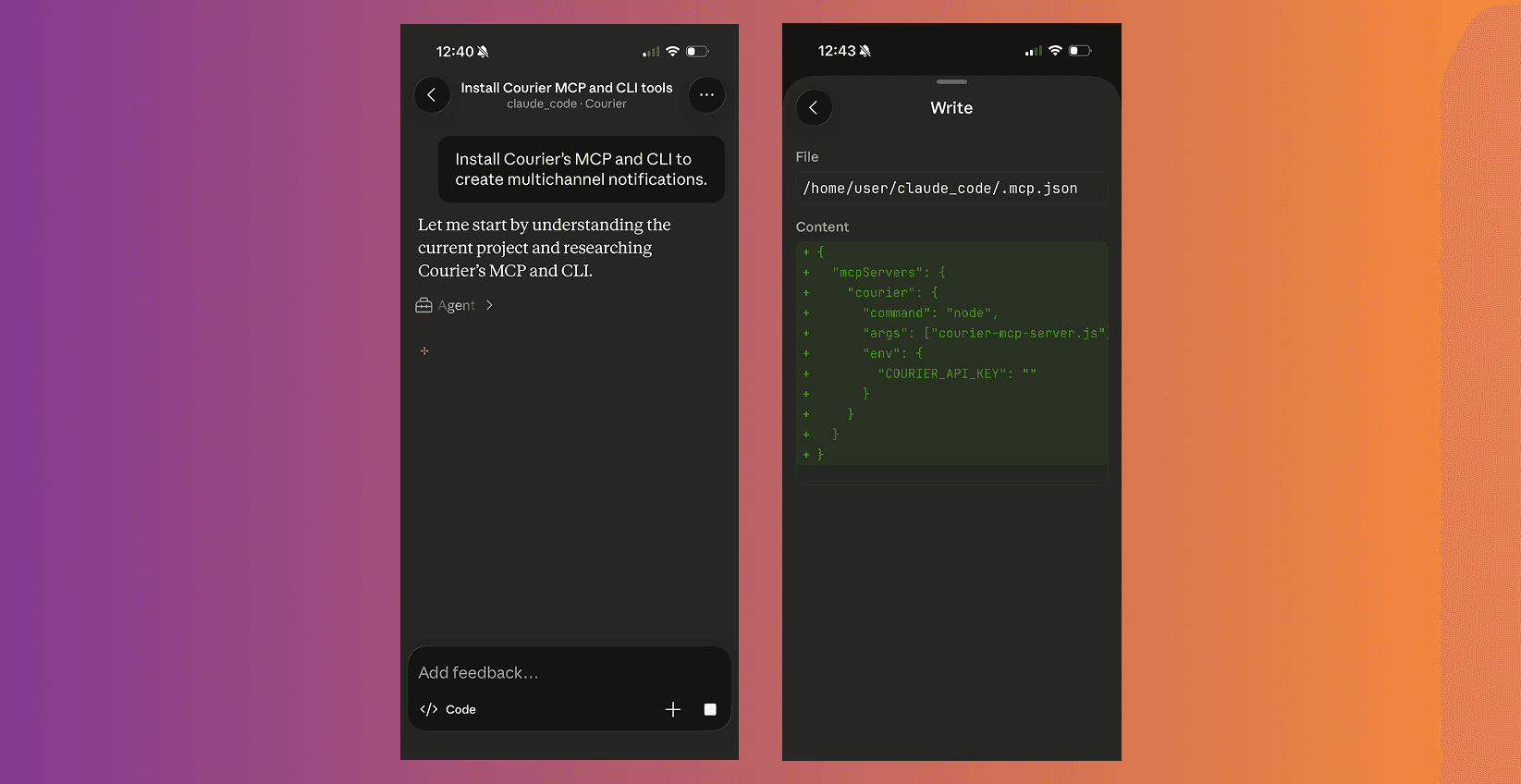
I wanted to see how far I could push the tooling. At my last company, shipping a single email series took weeks. Not because the content was hard, but because of the separation of functions. The design team owned the creative. PMM owned the messaging. A dedicated team configured things in the email platform. Engineers handled the in-app and push notification setup. Product management had to review. Front-end eng built the creative assets. Each handoff added days. That was a larger org with more layers, but the pattern is common. The people who knew what the message should say weren't the people who could ship it.
So the question was: could I go from idea to live multichannel notification, across four channels, with custom routing, without opening a laptop? Here's what I did, step by step.
What I used
- Claude Code mobile app with voice input (this was the entire interface for the project)
- Courier MCP server (connected to Claude Code, gives it access to the full Courier API)
- Courier CLI (Claude Code used this alongside the MCP tools for certain operations)
- A Courier account with API keys and providers connected for each channel you want to use
One thing worth noting: the MCP server includes the API reference as context, which meant Claude Code understood Courier's full primitive structure (templates, brands, users, routing, sends) from the start. That mattered. It wasn't guessing at API shapes or hallucinating endpoints. It knew what was available and how things connected.
Step 1: Drafting the content outline
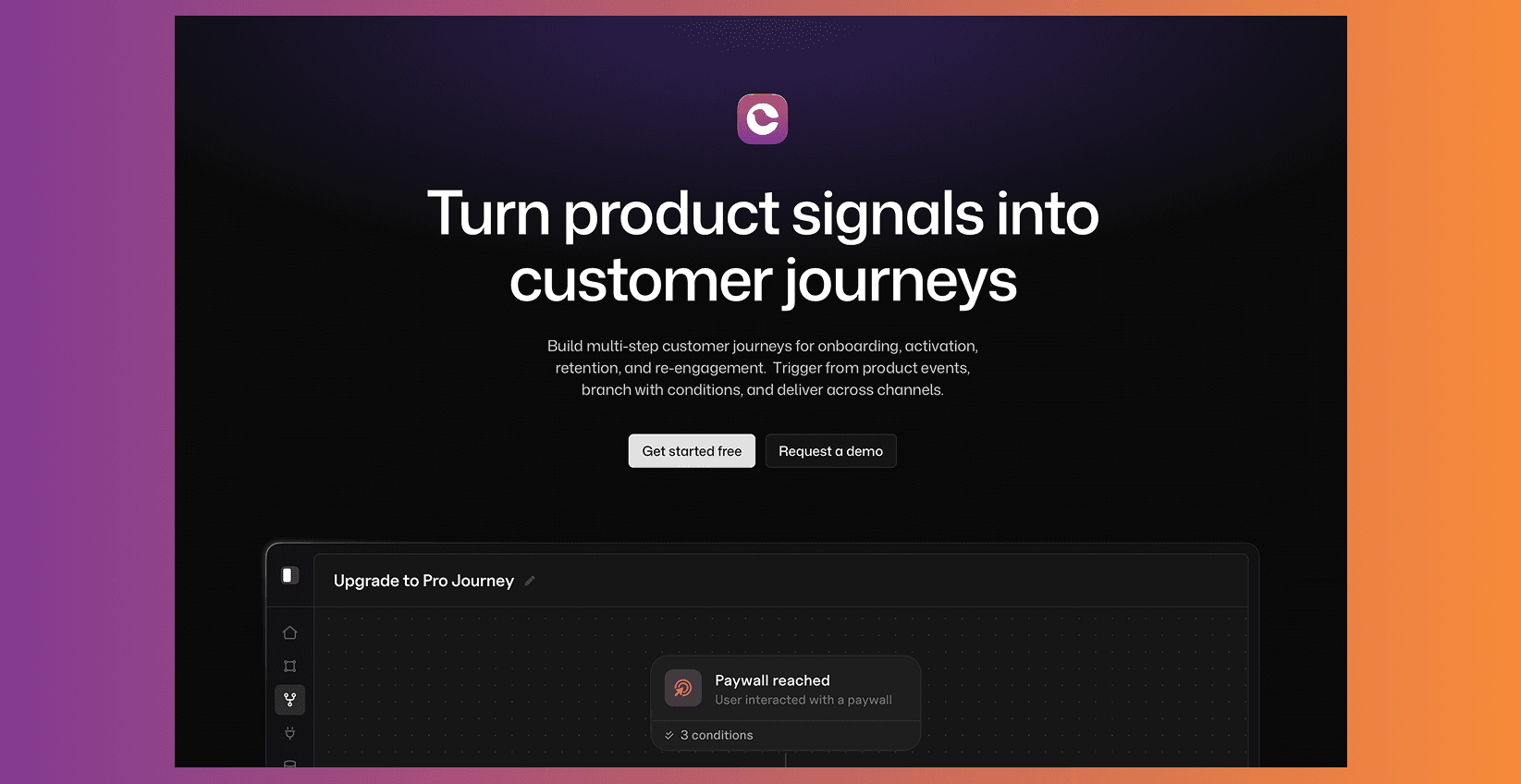
The notification was a product update about Journeys, our visual workflow builder. I told Claude Code what I was announcing and asked it to create an outline for a good product announcement. I pointed it to reallygoodemails.com and our own top notification design roundup so it had examples of what works structurally.
Claude Code came back with an outline: what's new, why it matters, what you can do with it, and a call to action. Straightforward hierarchy.
Step 2: Pulling in the actual product messaging
I pointed Claude Code to the Journeys product page to get our messaging, feature descriptions, image links, and the HTML/CSS for visual style reference. The point was to use the language and positioning we'd already aligned on, not to have Claude Code freelance new copy.
Step 3: Creating the notification in Courier
This is where it gets interesting. I had Claude Code create the notification template directly in the Courier platform. The MCP server gave Claude Code the API reference to understand the endpoint, and it made the API call through the CLI. I made a deliberate choice here: instead of having Claude Code generate raw email HTML, I had it use Courier's elemental format. Elemental is a JSON-based markup for notification content, with structured elements (text, image, action, divider) that map to the drag-and-drop blocks in Design Studio. The notification shows up in the visual editor as blocks that anyone can edit later.
That tradeoff matters if you're building something other people will need to update. Elemental takes a bit more structure upfront, but the result is a template that lives in the editor like any other.
Claude Code created the template structure through the CLI, and I had it send me a test email with the outline so I could see the bones.
Step 4: Adding Slack, push, and SMS
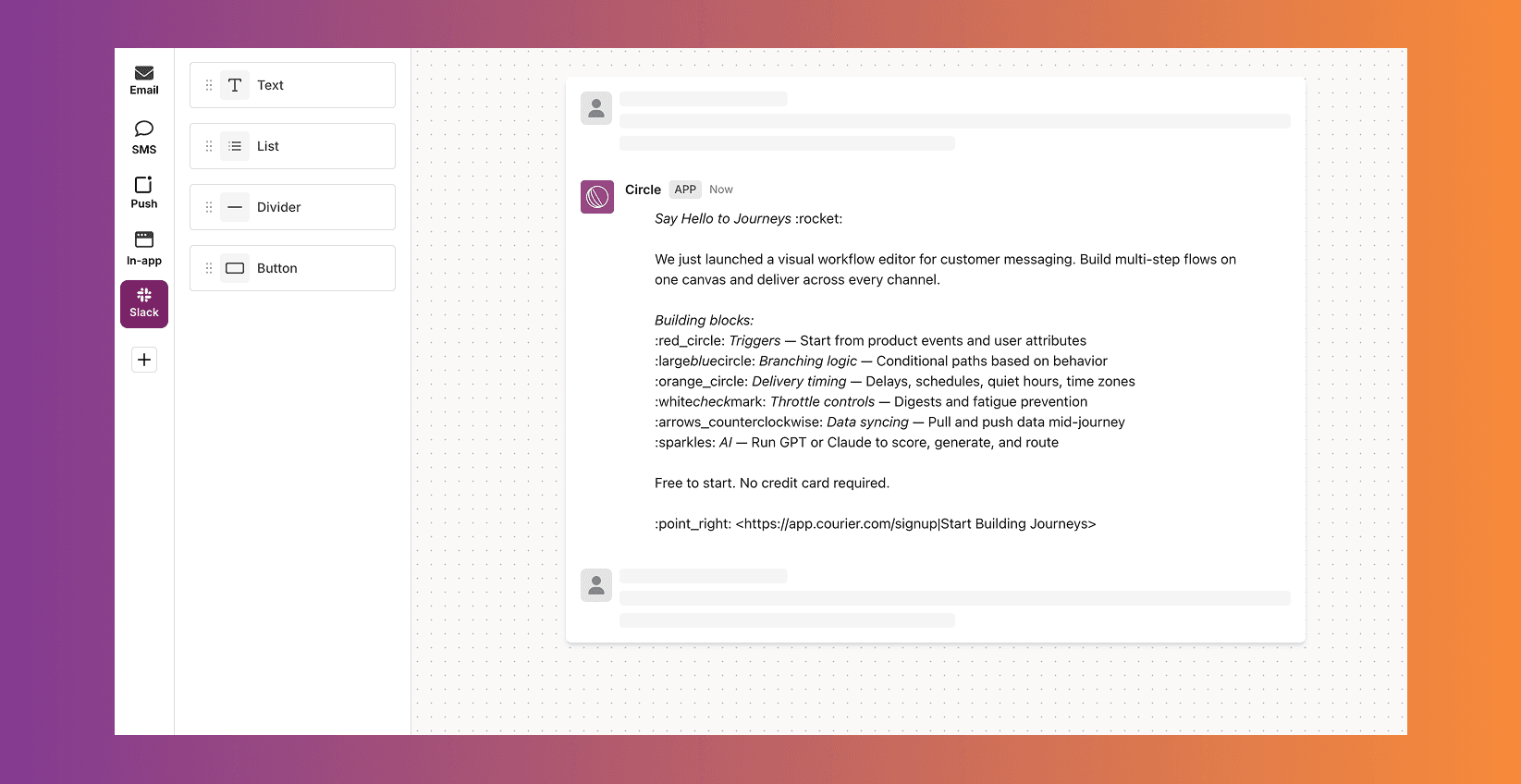
I had Claude Code create channel variants in the same conversation. Each one shaped to how the channel actually works:
Email got the full treatment: feature sections with images, a styled header, and a CTA button.
Slack got a tighter version. Short context, a couple of highlights, and a link to the full announcement.
Push was one sentence and a tap target.
SMS was even shorter. A sentence and a link.
All four variants live inside the same Courier notification. One event triggers the routing logic, which decides what actually fires and in what order.
Step 5: Customizing the design
I started asking Claude Code for customization using our website design as the reference. It used the custom HTML block in Design Studio for the feature sections where the standard blocks weren't quite enough. I also had Claude Code customize the brand through the Brands API to match the look of the Journeys webpage: colors, header, footer, the whole thing.
This part took the most time. I'd describe a change, Claude Code would make it and send me a test, I'd look at it on my phone, and tell it what to adjust. More padding here. Wrong color there. Move this. Send another test. Repeat.
Step 6: Iterating and getting approval
Once I was happy with all four channels, I sent test shots to my colleagues. Not screenshots of a preview pane. The actual email in their inbox, the Slack message in our channel, a push notification on their phone, an SMS as a text. The real experience.
Feedback came back in Slack. A couple of copy tweaks. One formatting adjustment on the email. I made the changes through Claude Code, sent another round of tests, and got the thumbs up.
Step 7: Publishing with routing rules
Last step. I set up the channel priority and routing. Courier's routing model lets you put channels into an "always send" list (these always fire) and a "best of" list (Courier picks the first channel where the user's profile data is complete). I put email, Slack, and push in the "always send" list so all three go out on every trigger. SMS went into the "best of" list as a fallback, so it only fires if the other channels can't deliver.
Published it. Done.
What I'd do differently
The whole thing took about two hours. Most of that was cold-start overhead: getting Claude Code configured with the MCP server the first time, figuring out the right way to prompt for elemental format, and the design iteration loop. Now that the patterns are established and the brand is configured, the second time would be maybe 30 minutes.
Should you do this from your phone? I wouldn't recommend it as your default workflow. You can't see the desktop email rendering without sending yourself a test and checking on a laptop, and you'll want to verify the desktop view at some point. But I used voice the entire time, so I wasn't typing on a phone keyboard. I was just talking to Claude Code and reviewing the test sends as they came in. That part actually worked well.
But the fact that it's possible is the point. I was sitting on a bench in Salesforce Park, not at a desk, and I shipped a production notification across four channels with custom routing. No waiting for engineering. No deploy pipeline. No three-day review cycle. The same thing that used to take weeks at a larger company took an afternoon.
Try it yourself
What you need:
- Install Claude Code (mobile or desktop)
- Sign up for Courier and grab your API keys
- Connect your providers: email, push, SMS, Slack, whatever channels you use
- Set up the Courier MCP server and CLI in Claude Code
- Open Claude Code and tell it what you want to build
The AI onboarding guide walks through the full setup. The agent quickstart covers building your first notification through an AI agent. The CLI docs cover the full set of operations, and they map to the same primitives the MCP server uses.
Similar resources
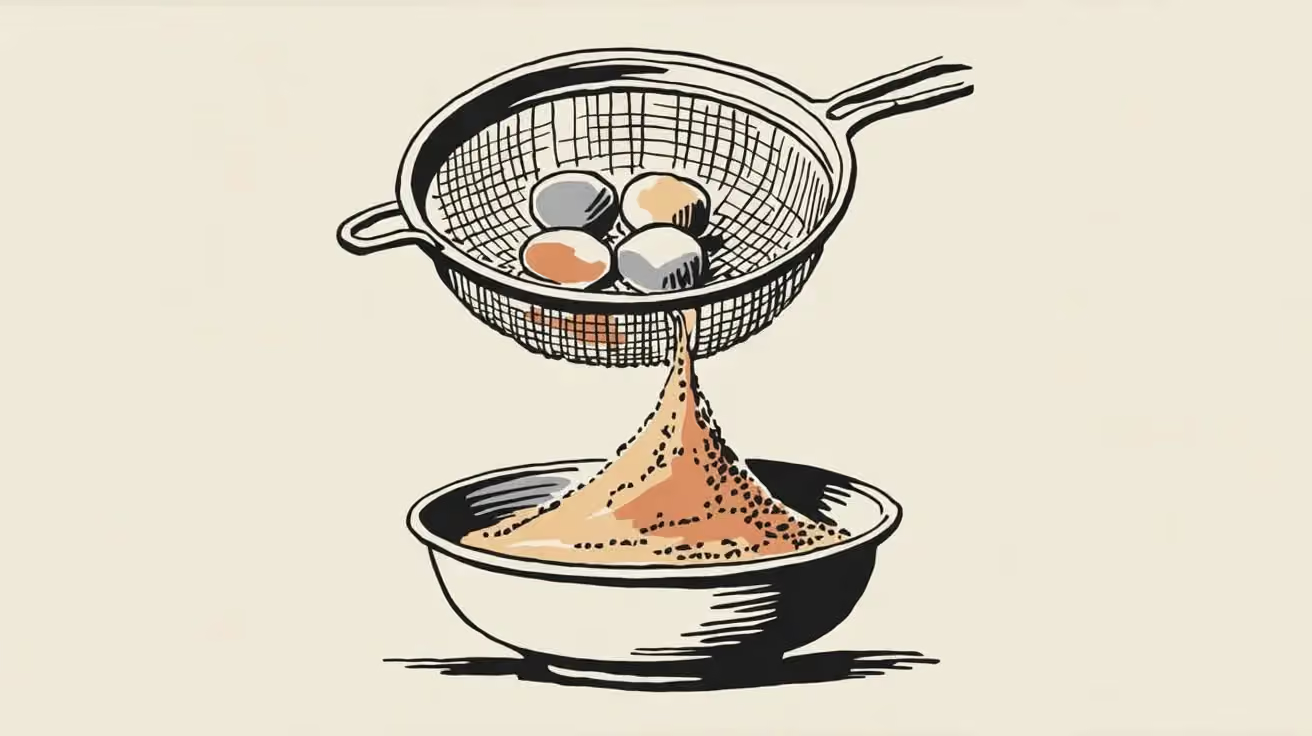
Test Courier emails end to end with your AI agent
Give your coding agent an AgentMail inbox, and it can test your Courier emails the way a user would: send the change, check what arrives, review how it renders, and fix what it finds before the change reaches Production.
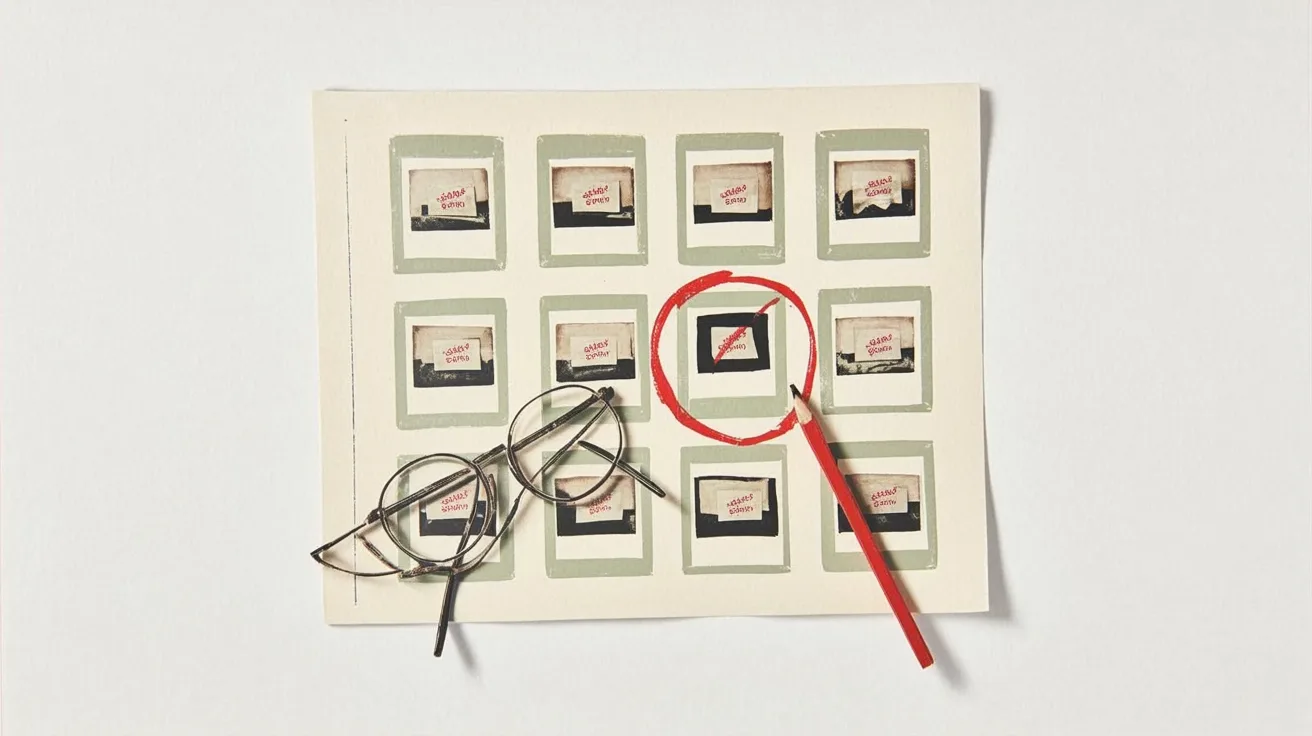
Let your agent check every email before it ships
Courier Device Preview gives your coding agent real screenshots from Outlook, Gmail, and Apple Mail. Here's the prompt and workflow to have it check every email, fix the draft, and check again before you publish.

Courier vs Customer.io: 2026 messaging platform comparison
Courier and Customer.io both send across email, push, SMS, and in-app, but they are not priced or built the same way. Courier bills by the send, puts journeys, experiments, broadcasts, an in-app inbox, preferences, and 50+ delivery providers on one platform, and exposes all of it through an API, a CLI, and an MCP server. Customer.io bills by the number of profiles in your database and fits a marketing team that needs deep behavioral segmentation. This comparison covers pricing, journeys, channels, in-app messaging, localization, and preferences, with every competitor figure linked to Customer.io's own pages.