Twilio Integrations with Courier: SMS, SendGrid, Segment
 Kyle SeylerDecember 10, 2025
Twilio owns some of the most critical infrastructure in the notification space. Their SMS API handles billions of messages. SendGrid processes email at scale. Segment aggregates customer data across your entire stack. But using these tools together? That's where things get complicated.
This guide covers how to integrate all three Twilio products through Courier, turning what would normally be months of integration work into something you can ship this week. For a full list of supported channels and providers, see Courier's integrations page.
What You Get from Twilio's Ecosystem
Before diving into setup, here's what each piece brings to the table:
Twilio SMS handles programmable messaging across SMS, MMS, WhatsApp, and RCS. They've got phone number inventory across 180+ countries and 99.95% monthly uptime. For time-sensitive notifications like OTP codes, delivery updates, and appointment reminders, SMS still beats every other channel for reliability.
SendGrid (acquired by Twilio in 2019) processes billions of emails monthly and has become the default for teams that need high deliverability without managing mail servers. They offer dynamic templating, analytics, and a unified platform for both transactional and marketing messages.
Segment (acquired by Twilio in 2020) is the customer data platform that collects user events and pipes them to your analytics, marketing, and product tools. Instead of building direct integrations with every destination, you instrument once and route everywhere.
The catch: managing these integrations separately means maintaining three different APIs, three sets of credentials, three templating systems, and zero coordination between channels. That's the problem Courier solves.
Twilio knows this better than anyone. When they needed to unify notifications for their own platform serving 10+ million developers, they chose Courier. As Raghav Katyal, Technical Lead at Twilio, put it: "We chose Courier because the depth of the inbox and multi-channel integrations allowed us to choose one notification platform for all products and teams at Twilio." They now use Courier to sync SendGrid email with their in-app notification center, managing everything from onboarding flows to marketplace transactions through a single system.
Twilio Integration: Connecting SMS to Your Notification Stack
Start by connecting your Twilio account to Courier. You'll need three things from your Twilio console (see the full Twilio integration docs for detailed setup):
- Account SID (found on your Twilio Dashboard)
- Auth Token (same location)
- Messaging Service SID (from your Messaging Services configuration)
In Courier, navigate to Integrations, find Twilio under SMS providers, and paste in these credentials.
Buying and Configuring a Twilio Phone Number
If you don't already have an SMS-enabled number, grab one from the Twilio console:
- Go to Phone Numbers > Buy a Number
- Check the SMS box to filter for messaging-capable numbers
- Purchase a number that fits your region
Next, create a Messaging Service to link your number:
- Navigate to Messaging > Services > Create Messaging Service
- Name it something descriptive (like "Production Notifications")
- Select "Notifications, Outbound Only" as the use case
- Add your purchased number to the service
Copy the Service SID and add it to your Courier Twilio configuration. Done.
Sending SMS with Your Twilio Integration
Once configured, sending an SMS through Courier looks like this (see SDK documentation for all supported languages):
const { Courier } = require("@trycourier/courier");const courier = new Courier({ apiKey: "YOUR_AUTH_TOKEN" });await courier.send.message({message: {to: {user_id: "user_123",phone_number: "+15555555555"},content: {body: "Your order #{{order_id}} has shipped. Track it here: {{tracking_url}}"},routing: {method: "single",channels: ["sms"]}}});
The phone_number field in the recipient profile tells Courier where to deliver (see user management docs for all profile options). Variables wrapped in double curly braces get populated from your data payload.
Using Twilio Overrides for Advanced Control
Need to pass specific parameters directly to the Twilio API? Use overrides. Note that using overrides bypasses Courier's status polling, so use them only when necessary:
await courier.send.message({message: {to: {user_id: "user_123",phone_number: "+15555555555"},content: {body: "Your verification code is {{code}}"},routing: {method: "single",channels: ["sms"]},providers: {twilio: {override: {body: {statusCallback: "https://yourapp.com/webhooks/sms-status",validityPeriod: 300}}}}}});
This sends status callbacks to your webhook and sets a 5-minute validity window for the message.
SendGrid Integration: Email Delivery at Scale
SendGrid integration follows a similar pattern. From your SendGrid console (see full SendGrid integration docs):
- Go to Settings > API Keys
- Create a new key with Mail Send permissions (and Email Activity Read access if you want delivery tracking)
- Copy the key before leaving the page (you won't see it again)
In Courier, find SendGrid under Email providers in your Channels configuration and enter:
- Your API key
- A verified From Address (like noreply@yourdomain.com)
Importing Existing SendGrid Templates
If you've already built templates in SendGrid, you don't have to recreate them. Courier can import your SendGrid Dynamic Templates directly from the Courier SendGrid configuration page:
- Ensure your templates are saved as SendGrid Dynamic Templates
- Your API key must have full access permissions for Template Engine
- Click Import Templates and select the templates you want
- They'll appear in your Courier template library, ready to use
This preserves your existing work while giving you Courier's orchestration on top.
Sending Email via Your SendGrid Integration
await courier.send.message({message: {to: {user_id: "user_123",email: "customer@example.com"},template: "ORDER_CONFIRMATION",data: {customer_name: "Alex",order_id: "ORD-78912",order_total: "$149.99",items: [{ name: "Widget Pro", qty: 2 },{ name: "Gadget Max", qty: 1 }]}}});
Courier routes this to SendGrid automatically based on your channel configuration. If you want to send through SendGrid specifically (useful if you have multiple email providers configured), add explicit routing:
routing: {method: "single",channels: ["email"],providers: ["sendgrid"]}
Enabling SendGrid Delivery Tracking
To get delivery events back from SendGrid into Courier (see full setup guide):
- Your API key needs Read Access to Email Activity
- Your SendGrid account needs the Email Activity add-on enabled
- Toggle on "Enable Email Activity Tracking via Polling" in Courier's SendGrid settings
This lets you see delivered, opened, clicked, and bounced events in your Courier logs.
Twilio Segment Integration: Event-Driven Notifications
Segment changes how you think about triggering notifications. Instead of calling Courier's send API from your application code every time something happens, you instrument events in Segment and let those events flow to Courier automatically. See the full Segment integration docs for details.
How to Configure Your Twilio Integration Credentials
- In Segment, go to Destinations > Add Destination
- Search for Courier and select it
- Choose the Source that should send data to Courier
- In the Courier Integrations Page, search for Segment and click on it to access the Courier API Key
- Enter the API Key in the Courier destination settings in Segment
Once connected, three types of Segment events flow into Courier:
Identify calls update Courier recipient profiles. When a user's email or phone number changes in Segment, it automatically syncs to Courier.
analytics.identify('user_123', {email: 'alex@example.com',phone: '+15555555555',name: 'Alex Chen',plan: 'pro'});
Track calls record user actions that can trigger automations. These appear in Courier with a track/ prefix.
analytics.track('Order Completed', {order_id: 'ORD-78912',total: 149.99,items: ['Widget Pro', 'Gadget Max']});
Group calls associate users with organizations, useful for B2B notification logic and tenant-based routing.
Triggering Notifications from Segment Events
Here's where it gets powerful. In Courier, you can create automations that fire when specific Segment events arrive:
- Create an Automation in Courier
- Add a trigger that listens for your Segment event (like
track/Order Completed) - Add a send step that delivers your notification
Now every time that event fires in Segment, Courier sends the notification. No additional code in your app.
Example automation flow:
Trigger: track/Order Completed↓Wait: 2 hours↓Condition: order.total > 100↓Send: "Thanks for your order" (Email via SendGrid)↓Send: "Your order confirmation" (SMS via Twilio)
This sends a follow-up email 2 hours after high-value orders, with an SMS confirmation. All orchestrated from a single Segment event.
Sending Courier Events Back to Segment
The integration works both directions. Courier can send delivery events back to Segment as a Source (see Courier as a Segment Source docs):
- In Segment, add a new Source and select your framework
- Copy the write key from the setup page
- In Courier's Segment configuration, paste your Segment write key
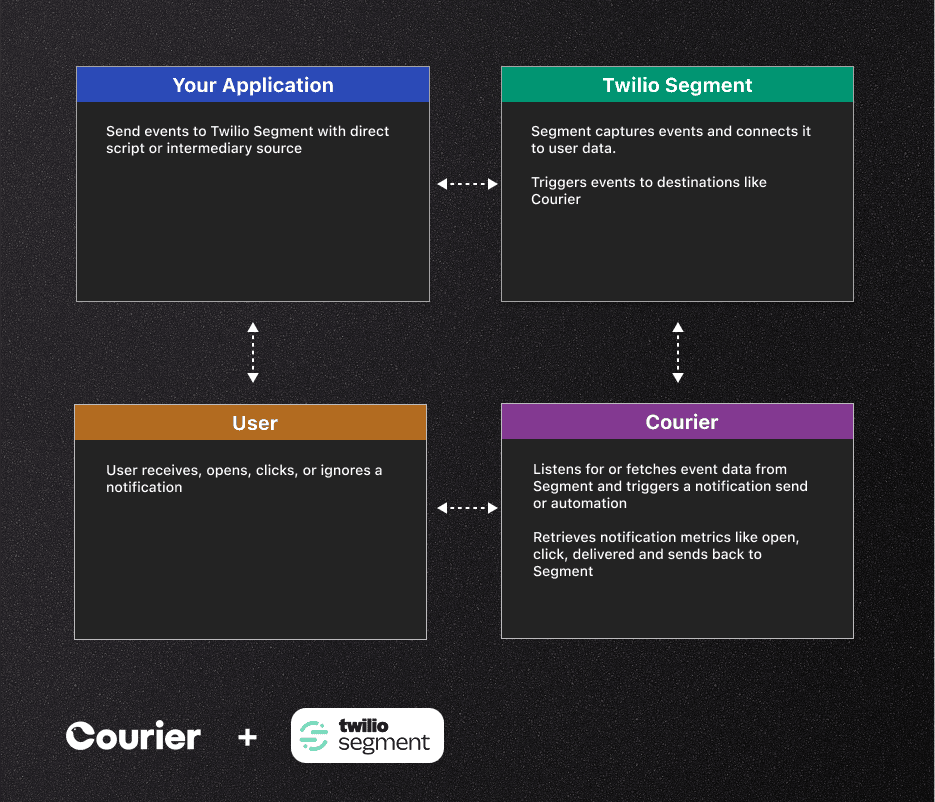
Courier sends these events to Segment:
- Message Sent
- Message Delivered
- Message Opened
- Message Clicked
- Message Undeliverable
- Message Unroutable
This closes the loop. Your analytics tools now know not just that you sent a notification, but whether the user engaged with it. You can build cohorts based on notification engagement, trigger follow-ups based on opens, or feed engagement data into your BI stack.
Putting It All Together: Multi-Channel Orchestration
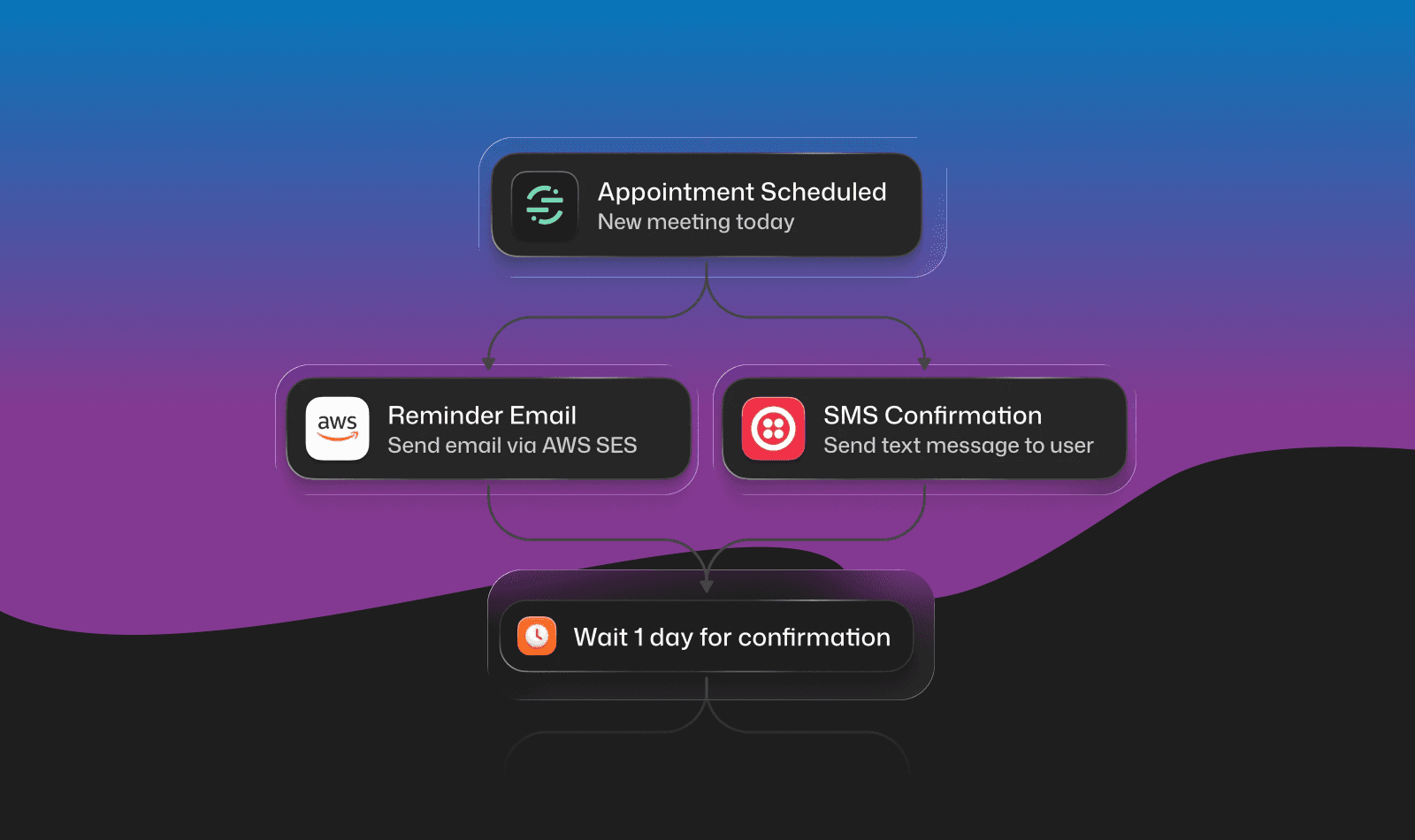
The real value shows up when you combine these integrations. Here's a common pattern using the Courier Send API:
await courier.send.message({message: {to: {user_id: "user_123"},template: "APPOINTMENT_REMINDER",data: {appointment_date: "December 15, 2025",appointment_time: "2:00 PM",location: "123 Main St"},routing: {method: "all",channels: ["email", "sms"]}}});
This sends to both email (via SendGrid) and SMS (via Twilio) in parallel. User profile data determines where messages go: the email field routes to SendGrid, phone_number routes to Twilio.
For priority-based delivery with fallback, use the priority routing method:
routing: {method: "priority",channels: ["push", "email", "sms"]}
Courier tries each channel in order until one succeeds. If push fails or the user doesn't have a device token, it falls back to email, then SMS. You can also configure channel priority settings globally in your workspace.
Why This Matters
Building direct integrations with Twilio, SendGrid, and Segment yourself isn't impossible. But you end up maintaining three separate codepaths, three sets of error handling, three retry mechanisms, and zero coordination between them.
When you need to add batching (so users don't get 50 separate notifications for 50 events), you build it. When you need scheduling or digest emails, you build it. When you need to honor user preferences across channels, you build that too.
This is exactly why Twilio chose Courier for their own platform. Rather than building custom notification infrastructure on top of their own products, they use Courier to orchestrate it all. See the full Twilio case study for details on how they unified notifications for 10+ million developers.
Courier handles all of this out of the box. You get:
- Single API for all three Twilio products (plus 50+ other providers)
- Visual template editor that works across channels
- Automations for sequencing, delays, and conditional logic
- User preference management built in
- Provider failover if Twilio or SendGrid has issues
The Twilio ecosystem is powerful. Courier makes it practical to use the whole thing without drowning in integration complexity.
Ready to connect your Twilio stack? Sign up for Courier and send your first notification in under 5 minutes. Free tier includes 10,000 notifications per month.
Similar resources

HIPAA-compliant notifications: where PHI should live
A practical guide to HIPAA-compliant notifications across SMS, push, email, and an in-app inbox. One rule, applied to every channel and every place PHI gets stored, including the systems most teams forget are in scope.
How to get your logo in Gmail and Apple Mail
BIMI puts your logo next to your emails in Gmail and Apple Mail, but there is no upload form. It is earned by locking your domain down. Here is the whole project: what it costs, how long it takes, and the five ways it fails silently.

Email preview tools compared: 6 that render on real devices
Most "email preview" features are simulations. These six open your email in the actual client and send back a screenshot. Here’s what each costs per preview, how much work sits between your template and the result, and which ones you can drive from code.