

- In the editor: check a template while you design it. Pick a set of clients in Design Studio, run the preview, and fix what breaks before you publish.
- With the API: run the same previews from code. An AI agent can preview a template, review the screenshots, and fix what it finds. You can also show the screenshots in your own product, such as next to an email editor your customers use.
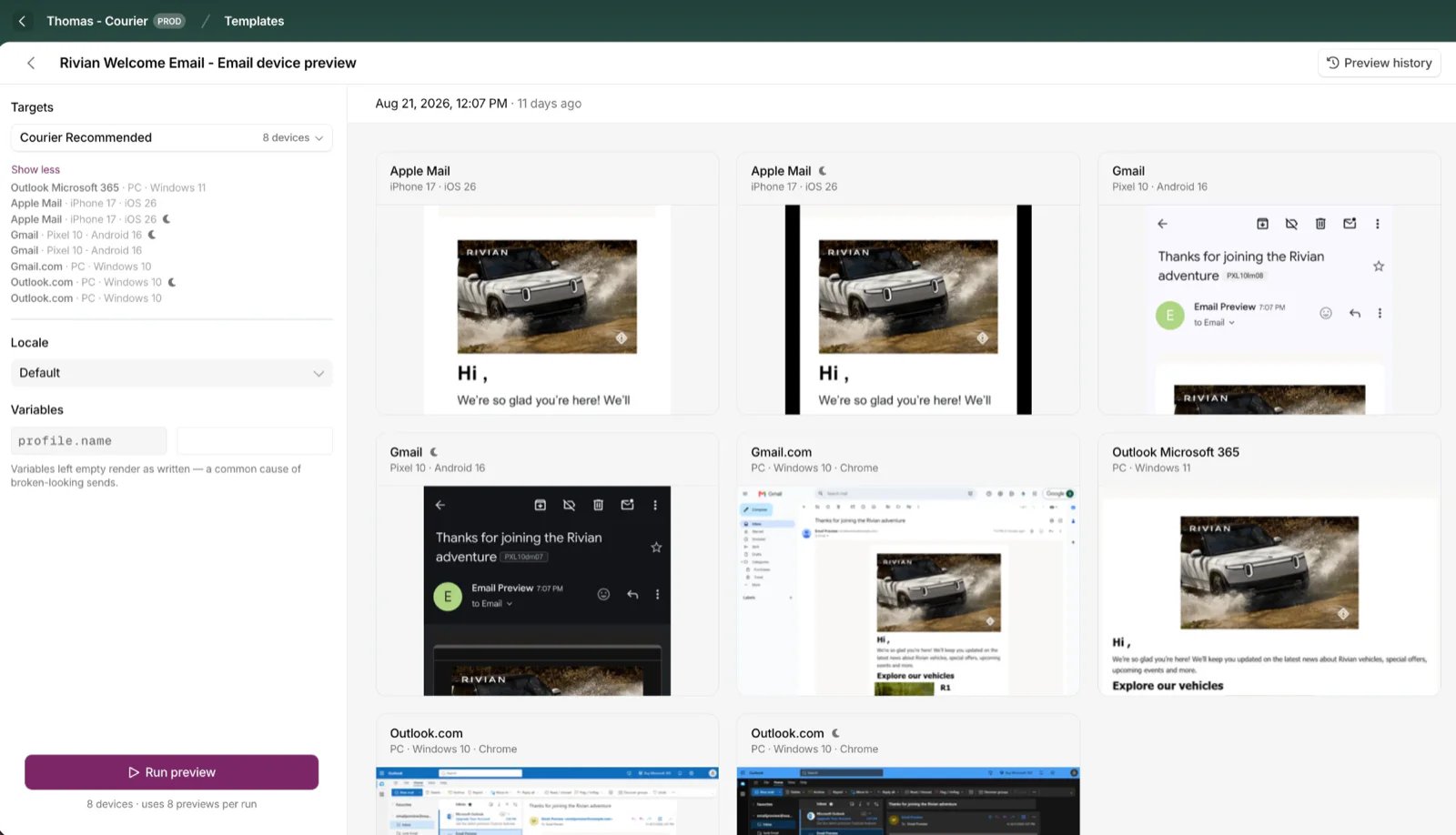
A Device Preview run across desktop, mobile, and webmail clients
Run a preview in the editor
Open a template in and click the device icon in the toolbar. Previews render whatever is in the editor right now, including unpublished changes. Choose a target set, the group of clients you want to render on. Every workspace starts with Courier Recommended, an 8-client set spanning desktop, mobile, and webmail in both light and dark mode. Build your own from the full catalog. If your template is , choose which translation to render. Set test values for any variables, such asprofile.name.
A variable without a test value renders as nothing, so a greeting reads “Hi , your order has shipped.” That’s the most common reason a preview looks broken when the template is fine.
Review the results
Click a screenshot to open it full size, then use the arrows to move through the run. Download any screenshot from the results page.Find past runs
Click Preview history for past runs, including runs started from the API. Each shows when it ran, how many clients it covered, and which template version it rendered. Use it to see whether a rendering problem is new or shipped several versions ago.Build a target set
Create your own target sets to focus on the variations you care about. You might keep one for Outlook versions, another for dark mode across mobile, and a third for the clients most of your users are on. Open the Targets dropdown and click Create new set. Name it, filter the catalog by Mobile, Web, or Application, then add the clients you want. Use the pencil icon to edit a set later. Sets are shared with your workspace and scoped to the you’re in. The API calls them device sets, and calls each client a device.Run a preview with the API
The API runs the same previews as the editor: start a run on a template, check it until every device has reported, then download the screenshots. The template must be a Design Studio template with an email channel. Runs use the API key’s environment, the same way target sets do.Start a run
List your device sets with and take theid of the set named Courier Recommended. Every workspace has one, with its own ID in each environment, so look it up by name:
Idempotency-Key so a retried request returns the same run instead of starting a second one. Use a new key for each run: a repeated key within 25 hours returns the earlier run.
Pass test values in data:
data.profilefills{{profile.*}}variables, such as{{profile.name}}.data.tenantfills{{tenant.*}}variables, such as{{tenant.name}}.- Every other key fills your template’s own data variables, such as
order_id.
PENDING and the devices it will render on:
template_version: published for the live version, or a published version such as v002. A locale renders that translation.
Get the results
A run takes 10 to 120 seconds, and screenshots come back one device at a time. Read the run with every 10 seconds, for up to 5 minutes.results, in no fixed order, so match entries by device_id. A finished device carries a screenshot_url and a thumbnail_url, and one still rendering has both set to null. This run was read partway through, with 2 of its 8 results shown:
status is COMPLETED or FAILED. Each device settles on its own, and one device failing doesn’t fail the run:
This loop checks every 10 seconds for up to 5 minutes, then prints each device’s screenshot:
screenshot_url and thumbnail_url are temporary signed links, so read the run again for fresh ones later. Most screenshots are PNG files, but check each file’s Content-Type rather than its extension.
Check email previews with an AI agent
An agent can run a preview, read the screenshots, and fix what it finds. Connect it through the when it works in a chat or code editor, or have it call the API above when it runs in your own code or CI. With MCP, ask for the preview and the review in one prompt:Customize the devices
Courier Recommended covers the common clients. To focus on others, list the full catalog with . Each device has apvd_ ID and fields to filter on: category, app, platform, os, os_version, and theme.
For a one-off run, pass device_ids instead of device_set_id. Send exactly one of the two.
To reuse a list, save it with . It shows up in the editor’s Targets dropdown too:
Errors
Courier checks a run request before the run exists, so a rejected request isn’t billed.Preview HTML you already have
You don’t need to send through Courier to use Device Preview. Bring the HTML email you send from any platform, turn it into a template, and preview it like any other. In the editor, create an email template, open the , paste your markup, and run a preview. With the API, create the template with . Put ameta element for the subject and an html element for the markup inside the email channel. Reference test values by name, such as {{profile.name}} and {{order_id}}:
id.
Pricing
Device Preview is a paid monthly add-on. Enable it in the console under Settings → Billing. Each device in a run is one preview. The add-on comes in three tiers. Each includes a set number of previews per month, and anything beyond that is billed per preview. Included previews reset each month and don’t roll over.Supported clients
A client is one combination of app, device, OS, browser, and color mode. The tables below list the current catalog, and always returns the latest one as new devices and OS versions are added.Desktop applications
Mobile applications
Webmail
Limits & behavior
- Each run records the version it rendered. That’s the published version if your draft matches it, or
draftif the draft has unpublished changes. - Preview history is kept for one year. Runs can’t be cancelled or deleted.
- Screenshots vary by client. Some show the full inbox, others only the email body.