

Opening Version History
In the journey editor, click the history button (the clock-with-arrow icon next to the Publish button) to open the version history page. The button is disabled if the journey has never been published. This opens the version history panel on the right side with a list of all previously published versions, each labeled with a version number (v1, v2, …) and a relative timestamp. The most recent version is marked Current.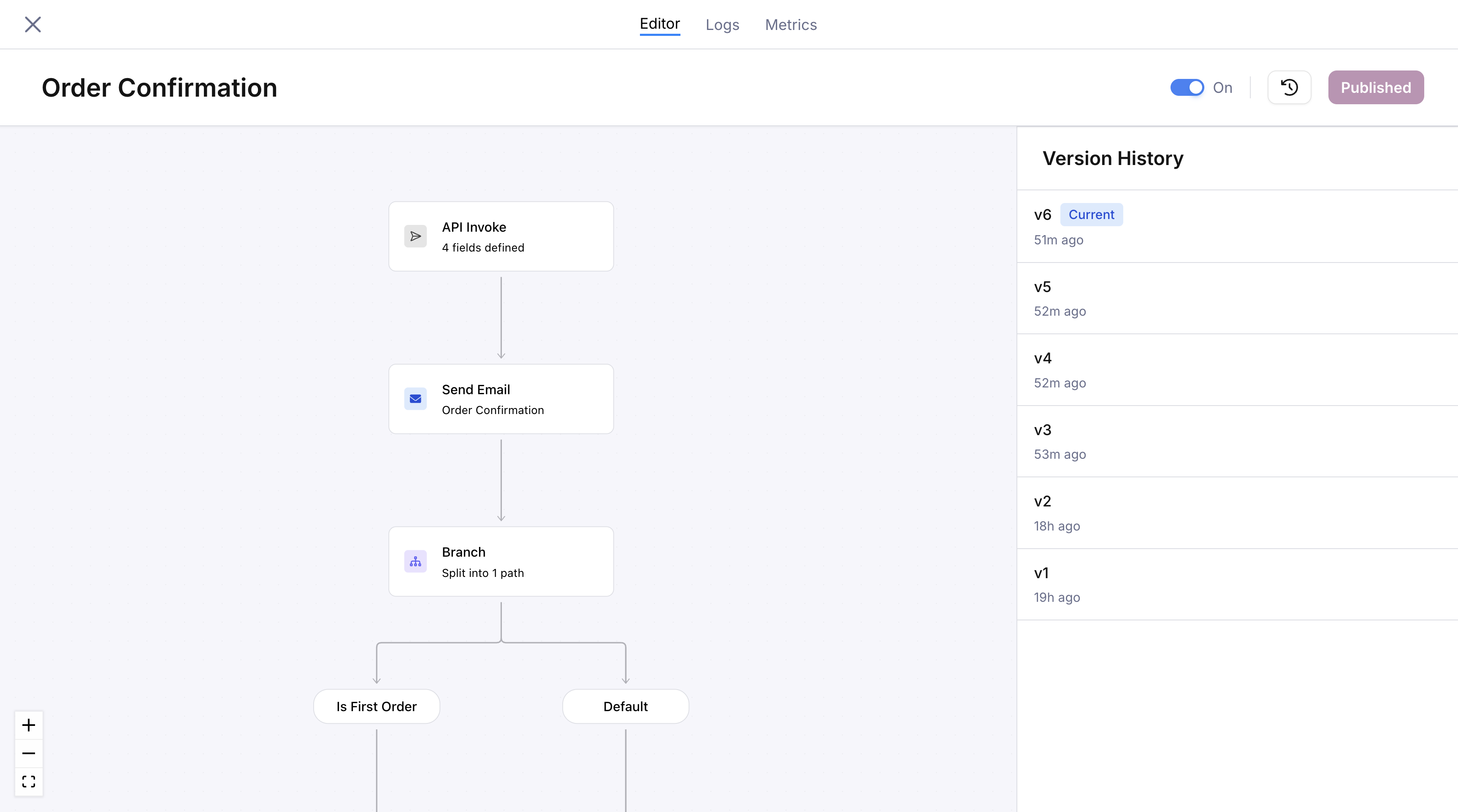
Version history page showing a list of published versions
Comparing Versions
Click any version in the list to see a side-by-side comparison: the selected version on the left and the current draft on the right. Both canvases are read-only. A banner at the top confirms which version you’re comparing (e.g., “Comparing Version v2 with Current Draft - Read Only”).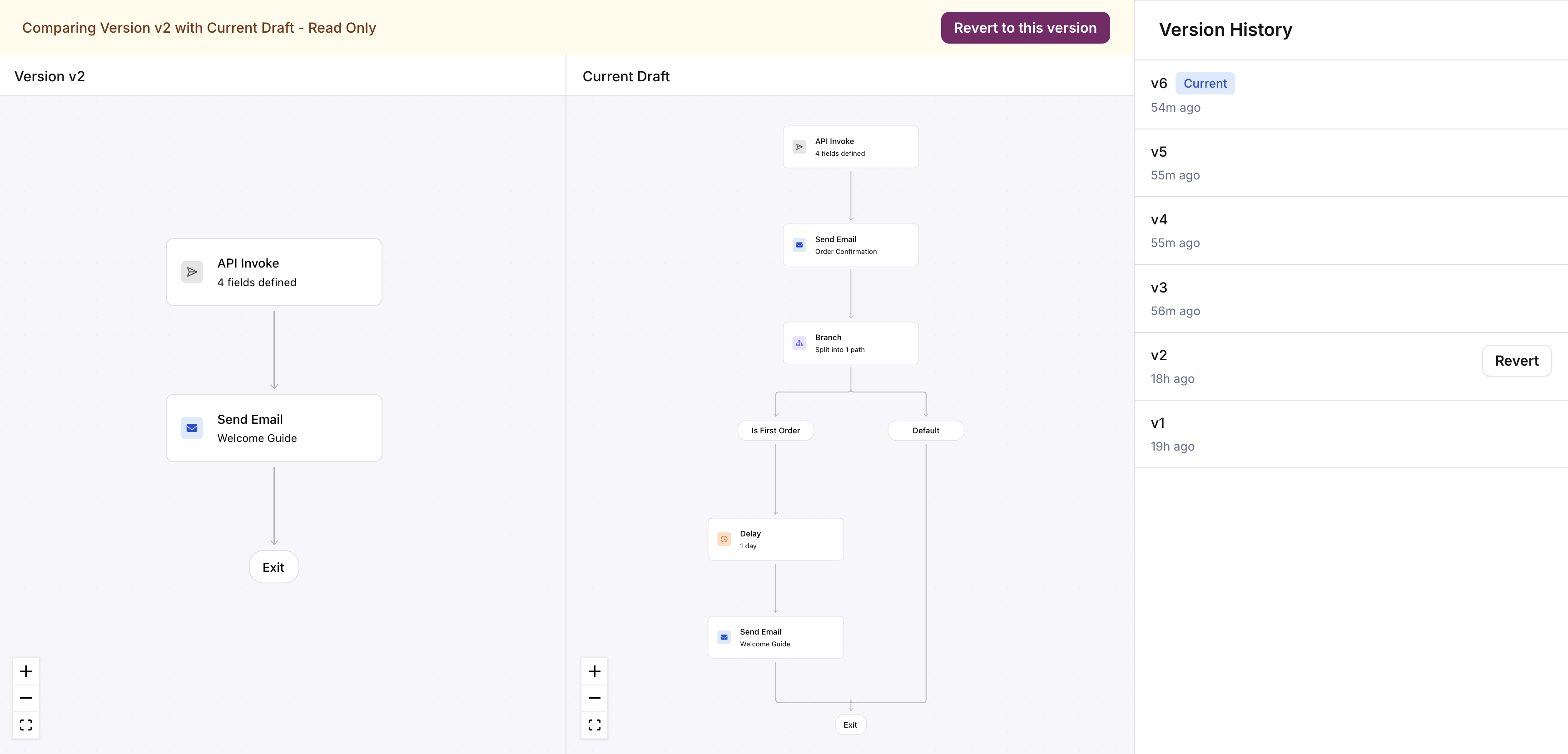
Side-by-side comparison of version v2 (left) against the current draft (right)
Reverting to a Previous Version
Hover over any previous version in the list to reveal the Revert button. Click it, or click Revert to this version in the comparison banner at the top. This loads that version’s configuration into the editor as a new draft. You still need to publish the restored version for it to take effect. Reverting does not delete any versions. It creates a new draft based on the selected version; publishing it creates a new version entry in the history. The full audit trail is preserved.Runs that started on a previous version continue executing against that version’s configuration. Reverting and re-publishing only affects new invocations.