Let your agent check every email before it ships
 Mike MillerSeptember 25, 2026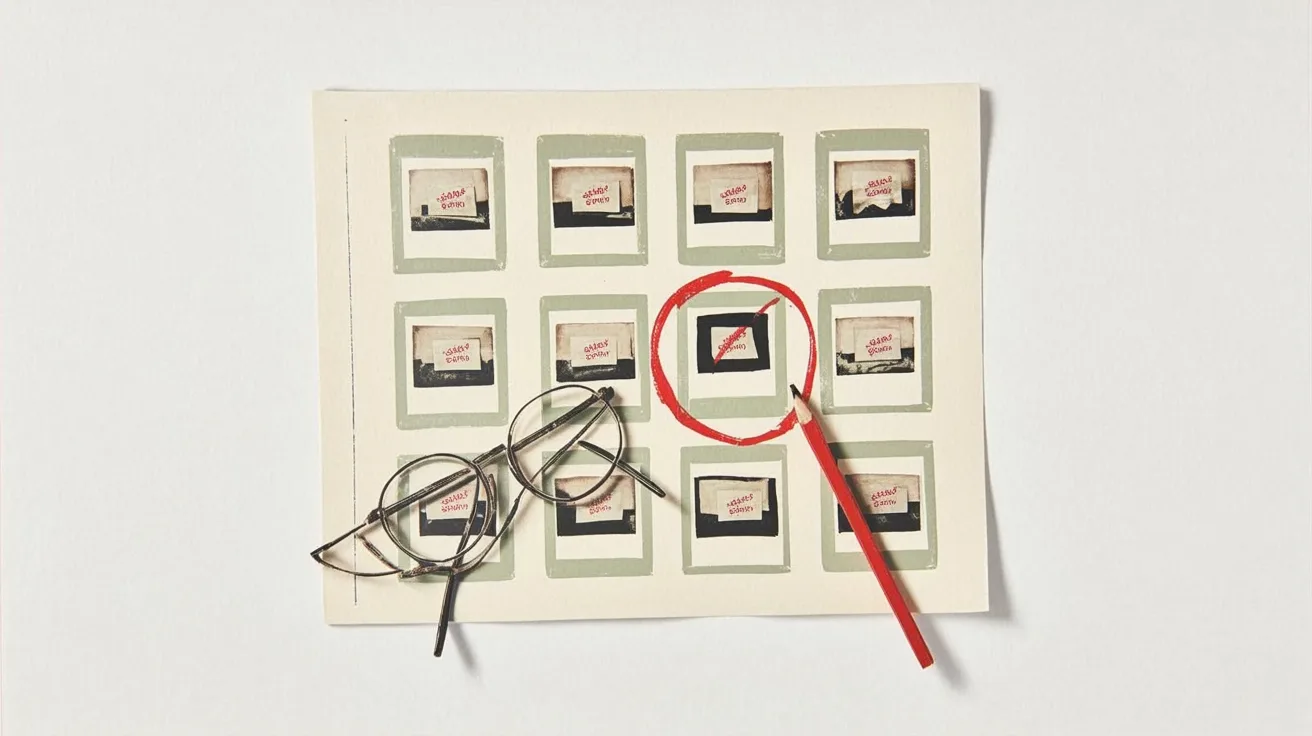
Your coding agent can write an email template in a minute. What it can't do is tell you that the button disappears in Outlook, or that the greeting reads "Hi ," for everyone without a first name. It reads HTML. Your customers see pixels, and until now your agent never saw them.
Courier Device Preview fixes that. It renders your template on real email clients (Outlook on Windows, Gmail on Android, Apple Mail on iPhone, webmail in light and dark mode) and returns a screenshot from each one. Install Courier Skills so your coding agent knows the right Courier APIs and SDK shapes, then let it run the preview, inspect every screenshot, fix the draft, and check again before anything goes live.
How the loop works
- Build the expected email. The agent reads the draft, finds every variable, makes realistic test data, and records the subject, sections, images, CTAs, and intended reading order. That record is the contract the screenshots get checked against.
- Start a preview. It runs the draft on the Courier Recommended set: 8 clients across desktop, mobile, and webmail, in light and dark mode.
- Collect the screenshots. It checks the run every 10 seconds and downloads each screenshot as it lands. A full run takes 10 to 120 seconds, and Outlook is usually last.
- Look at every one. It looks at the full screenshot first for structure, then at full-resolution tiles for text and detail.
- Verify, don't critique. For every client, it decides whether the rendering matches the expected content, section relationships, reading order, and usability. Every check is PASS, FAIL, REVIEW, or N/A.
- Report with evidence. Every failure includes what was expected, what actually rendered, and the exact visible evidence.
- Fix and check again. It fixes confirmed template-wide problems in the draft and re-runs the preview on only the affected clients.
The fix loop stays on the draft. Previews render the latest draft by default, and publishing is a separate call that the prompt tells the agent never to make.
Set it up
You need four things:
- The Device Preview add-on. Turn it on in Settings → Billing. Each client in a run counts as one preview.
Courier Skills. Install the official Courier skill in your project so your agent works from the current API shapes, template rules, and common mistakes instead of guessing payloads from memory. It works with Claude Code, Cursor, Codex, and any tool that supports agent skills, and it includes a Device Preview guide with an agent review loop:
npx skills add trycourier/courier-skills- A Courier API key in
COURIER_API_KEY. The agent uses Courier's SDK or API to read the draft, start previews, download results, and write draft fixes. - A model that can see. We recommend GPT-6 Luna with reasoning effort set to
highfor the screenshot review.
Courier Skills covers the Courier side, so the prompt only needs the review rules.
Why GPT-6 Luna on high
OpenAI describes GPT-6 Luna as its most efficient model for focused, high-volume tasks. It takes image input and costs $0.10 per million input tokens, $0.01 per million cached input tokens, and $0.50 per million output tokens (announcement). Reviewing eight screenshots per run, plus re-checks, is exactly that kind of task.
We recommend it over Claude Sonnet 5 as the default reviewer here. On Roboflow's vision evaluation, Luna scores higher overall (68.6% vs. 66.4%) and on visual reasoning (52.1% vs. 43.0%), and reaches 60.7% on visual reasoning at high effort, where Sonnet 5 stays at 43.0%. It also costs far less per sample ($0.0004 vs. $0.0064). Sonnet 5 is stronger at OCR and data extraction, so test it if your review leans on reading dense text more than judging layout. Neither benchmark uses email screenshots, so check the choice against a few of your own labeled runs.
The prompt
Run it on GPT-6 Luna (gpt-6-luna) with reasoning effort high:
Use the Courier skill installed in this project to review my email template before I publish it. If I haven't said which template, list my templates and ask me. Use Courier's SDK/API directly. Never publish.Your job is to verify that the rendered email is correct, not to critique its design.1. READ THE DRAFT- Find every variable and create realistic, distinctive test values for each one.- Record the expected subject/preheader, section order, important text, images, CTAs, and which elements belong together.- Treat this as the expected email.2. RUN DEVICE PREVIEW- Run the Courier Recommended device set using the same test data for every client.- Download every screenshot as it becomes available.- For screenshots taller than 2,000 px, keep the full screenshot and also make overlapping full-resolution tiles. Review the full image first, then the tiles.3. CHECK EACH CLIENTVerify:- personalization and important text are correct and complete;- sections appear in the right order and headings, images, copy, and CTAs still belong to the right section;- CTAs are visible, readable, correctly labeled, and point to the expected destination when available;- images render without broken states, severe distortion, or important cropping;- nothing important overlaps, disappears, clips, or breaks out of the layout;- dark mode keeps important content readable and visible;- mobile keeps the reading order coherent and text/CTAs usable;- subject/preheader are correct when visible.Ignore the preview sender, mail-app UI, normal font substitution, harmless wrapping, and small spacing differences.4. BE STRICT ABOUT EVIDENCEFor every check use: PASS, FAIL, REVIEW, or N/A.Only mark FAIL when you can point to a specific visible problem. For every FAIL give:- Expected- Observed- Evidence- ImpactNever turn uncertainty into a failure. Use REVIEW when the screenshot is not clear enough.Classify each failure as TEMPLATE, CLIENT, or UNKNOWN, and as BLOCKER, MAJOR, or MINOR.5. REPORTFirst say how many screenshots were expected, inspected, and missing.Then give one table:| Severity | Problem | Expected | Observed / evidence | Clients | Scope | Fix || --- | --- | --- | --- | --- | --- | --- |Finish with exactly one result:- PASS: everything required was checked and no confirmed failures remain.- NEEDS_FIX: at least one confirmed failure exists.- NEEDS_REVIEW: no confirmed failure exists, but something required could not be judged reliably.6. FIX AND RECHECK- Fix confirmed TEMPLATE failures in the draft only.- Re-run only the affected clients, then one final run on the full set.- Reuse the same test data and expected email.- Mark each previous failure FIXED, STILL_FAILING, or REVIEW.- Never publish.Do not declare a rendering bug fixed until the affected client has been rendered and checked again.
What to ask your agent to look for
A vague "does this look OK?" gets you vague answers. Ask instead: does this rendering preserve the intended email? The draft gives the agent the expected content and relationships, and the screenshot shows whether they survived rendering.
The checks that catch real problems:
- Personalization: blank gaps where a value should be ("Hi ,"), raw tags like
{{name}}, placeholder text, or values that don't match the test data. - Completeness: required headings, body copy, images, CTAs, prices, dates, codes, or other important content that disappears.
- Section association: an image, paragraph, or CTA that looks like it belongs to the wrong heading or the section next to it.
- Reading order: responsive stacking that changes the intended order of sections or elements.
- CTA correctness: the wrong label, the wrong destination when the template shows it, a missing CTA, or a button that loses enough styling to stop reading as an action.
- Images: broken image icons, empty boxes, unintended alt text, severe stretching, bad cropping, or an image separated from its section.
- Layout integrity: content clipped at the edge, overlapping elements, content escaping the email width, or structure that collapses into the wrong grouping.
- Dark mode: important text that becomes unreadable, logos or meaningful images that disappear, or color changes that damage readability or hierarchy.
- Mobile: text you can't read without zooming, CTAs that are hard to find or tap, horizontal clipping, desktop layouts shrunk to fit, or columns that stack in a confusing order.
- Subject and preheader: wrong or missing text. Normal inbox truncation isn't a template defect.
Section association and reading order catch the bugs the other checks miss. A screenshot can contain every piece of content and still be wrong if stacking makes an image look like it belongs to the wrong heading, or separates a CTA from the section it's for.
Tell the agent what to skip, too. Every preview comes from the preview service's own sender address, not yours, so the sender isn't worth checking. Neither are the mail app's toolbars and ads, font substitution, antialiasing, harmless wrapping, or small spacing differences that don't change meaning or usability.
Then make it prove every finding. "Quote the exact text or element" turns "the layout looks off on mobile" into "the second product's photo sits directly on top of the third product's photo, with no heading between them." You can check the second one in two seconds. You can't check the first one at all.
And uncertainty isn't a bug. If a screenshot doesn't give the agent enough to decide, it should say REVIEW instead of inventing a failure. Forcing a yes-or-no answer is how you get false positives.
What it caught
From a real 5-client run of a welcome email, with no test data passed:
| Severity | Problem | Clients | Scope | Fix |
|---|---|---|---|---|
| Blocker | Greeting reads "Hi ," | All 5 | Template | Pass profile.name in test data, and add a fallback for sends without one |
| Blocker | The first product's button names a different product | All 5 | Template | Change the label to match its section |
| Major | One product's photo stacks directly on the next product's photo with no heading between them | Gmail Android, Apple Mail iPhone, Outlook 2019 | Client | Keep image-then-text order in every row |
| Major | Email ignores its 600px width and runs the full window | Outlook 2019 | Client | Wrap the layout in a fixed-width table |
| Major | Brown band around the email in dark mode | Yahoo.com (dark) | Client | Set an explicit background on the outer wrapper |
| Minor | Forced line break in the first product's copy | All 5 | Template | Remove the hard break |
Three of these are in the template and show up on every client. The other three only happen on certain clients, so reading the HTML would never find them.
Fix it and check again
The agent fixes template-wide problems in the draft. The safe way to change one element is the one Courier Skills teaches: read the draft with client.notifications.retrieveContent(id, { version: "draft" }), change the element, and write the whole tree back with client.notifications.putContent(...), keeping every element's id and locales so translations survive. Leave state as "DRAFT" so the fix stays unpublished.
Then it previews again on only the clients that failed. Pass their IDs as device_ids instead of the full set, so checking one Outlook fix costs one preview instead of eight:
const recheck = await client.notifications.previews.runs.create(templateId, {device_ids: ["pvd_4s7rvnng7hbjn8eca8npw4b9pq"],data: testData,"Idempotency-Key": crypto.randomUUID(),});
Once the targeted re-checks pass, one final run on the full set confirms the fix didn't break another client.
When the report comes back PASS, you publish. Runs started by the agent also show up in Preview history in Design Studio, so anyone on your team can open the same screenshots the agent reviewed.
Run it from your own code
If your agent runs in CI or your own tooling, this script starts a run, checks it every 10 seconds for up to 5 minutes, and saves each screenshot as it lands, with a manifest describing each client:
// Run a Device Preview and save every screenshot to previews/<run id>/.// node preview.mjs <template id> [data.json] [--devices pvd_a,pvd_b]import fs from "node:fs";import crypto from "node:crypto";import Courier from "@trycourier/courier";const [templateId, dataFile] = process.argv.slice(2).filter((a) => !a.startsWith("--") && !a.startsWith("pvd_"));const devicesFlag = process.argv.indexOf("--devices");const client = new Courier({ apiKey: process.env.COURIER_API_KEY });const wait = (ms) => new Promise((resolve) => setTimeout(resolve, ms));const catalog = new Map((await client.previews.listDevices()).results.map((d) => [d.id, d]));const target = {};if (devicesFlag > -1) {target.device_ids = process.argv[devicesFlag + 1].split(",");} else {const sets = await client.previews.listDeviceSets();target.device_set_id = sets.results.find((s) => s.name === "Courier Recommended").id;}const run = await client.notifications.previews.runs.create(templateId, {...target,data: dataFile ? JSON.parse(fs.readFileSync(dataFile, "utf8")) : {},"Idempotency-Key": crypto.randomUUID(),});const dir = `previews/${run.id}`;fs.mkdirSync(dir, { recursive: true });console.log(`${run.id}: rendering on ${run.device_ids.length} clients`);// Check every 10 seconds for up to 5 minutes, and download each screenshot as soon as it lands.const saved = [];const deadline = Date.now() + 5 * 60 * 1000;let detail;do {await wait(10_000);detail = await client.notifications.previews.runs.retrieve(run.id, { id: templateId });for (const result of detail.results) {if (result.status !== "COMPLETED" || saved.some((s) => s.id === result.device_id)) continue;const device = catalog.get(result.device_id);const response = await fetch(result.screenshot_url);const ext = response.headers.get("content-type")?.includes("jpeg") ? "jpg" : "png";const file = `${dir}/${device.name.replace(/\W+/g, "_")}.${ext}`;fs.writeFileSync(file, Buffer.from(await response.arrayBuffer()));saved.push({ ...device, file });console.log(` ${device.name}`);}} while (!["COMPLETED", "FAILED"].includes(detail.status) && Date.now() < deadline);for (const result of detail.results.filter((r) => r.status !== "COMPLETED")) {console.log(` ${catalog.get(result.device_id)?.name ?? result.device_id}: ${result.status}`);}fs.writeFileSync(`${dir}/manifest.json`, JSON.stringify({ run: detail.id, template: templateId, version: detail.template_version, clients: saved }, null, 2));console.log(`Saved ${saved.length} screenshots to ${dir}`);
Point your agent at the folder with the prompt above, and it has everything it needs: the screenshots plus each client's name, platform, and light or dark theme. The Device Preview docs cover every endpoint, status, and error.
Make the review reliable
Look at the whole screenshot, then the tiles. The full screenshot shows hierarchy, section boundaries, and reading order. But a Gmail on Android screenshot can be 1080 x 7157 px, and agents shrink an image that size to fit: in our test it came through at 302 px wide, with body text a few pixels tall. Keep the full screenshot for structure, then cut it into overlapping tiles for exact text. This does it with Pillow:
# Cut tall screenshots into overlapping tiles: python3 slice.py previews/<run id>import sysfrom pathlib import Pathfrom PIL import Imagesrc = Path(sys.argv[1])out = src / "tiles"out.mkdir(exist_ok=True)for path in sorted(p for p in src.iterdir() if p.suffix in (".png", ".jpg")):img = Image.open(path).convert("RGBA").convert("RGB")w, h = img.sizetile = min(max(int(w * 1.3), 1600), 2000)overlap = int(tile * 0.1) # a line split across two tiles appears whole in onetop, n = 0, 1while True:img.crop((0, top, w, min(top + tile, h))).save(out / f"{path.stem}-{n:02d}.png")if top + tile >= h:breaktop, n = top + tile - overlap, n + 1- Use distinctive test values.
Avery Chen,INV-48217, or$184.37are much easier to verify in a screenshot thanTest,123, or$100. Reuse the same test data across every client and every re-check, so before and after compare cleanly. - Download screenshots when they land. The links are temporary. If the agent saves URLs to look at later, they'll have expired by the time it gets to them.
- Don't treat differences as defects. Outlook, Gmail, and Apple Mail don't render pixel for pixel alike. A difference is a defect only when it breaks the expected email or hurts meaning, readability, hierarchy, or usability.
- Verify the render, not the code. A source edit doesn't prove a rendering bug is fixed. The affected client has to render again and the failed check has to pass.
Frequently asked questions
Can an AI agent test how an email renders in Outlook?
Yes. Courier Device Preview renders your template in real Outlook desktop versions, including Outlook 2016, 2019, 2021, 2024, and Microsoft 365 on Windows, and returns a screenshot of each. With Courier Skills installed, an agent can use the Courier SDK or API to start the run, download the screenshots, and review them for layout breaks, lost button styling, and dark mode problems.
Does the agent need access to my production email sends?
No. The agent works on the template's draft and renders it with made-up test data. Draft fixes go through Courier's Notification Templates API with state: "DRAFT", and publishing is a separate step you control, so nothing reaches customers until you publish.
How many previews does one review use?
One per client in the run. A full run on Courier Recommended is 8 previews. Re-checking a fix on only the clients that failed usually takes one or two more, plus one final full run.
Which email clients can the agent check?
Device Preview covers over 100 combinations of app, device, OS, and light or dark mode across desktop, mobile, and webmail. Your agent can list the full catalog with GET /previews/devices and build its own device set, or use Courier Recommended.
Wrapping up
Your agent already writes and edits your email templates. With Device Preview, it can also see them on the clients your customers use and fix what breaks before anyone opens it.
To try it:
- Turn on Device Preview in Settings → Billing.
- Install Courier Skills:
npx skills add trycourier/courier-skills. - Set
COURIER_API_KEYfor the workspace and environment you want to test. - Pick GPT-6 Luna with reasoning set to
high, then paste the prompt above.
For more on the feature itself, read the Cross-Device Email Preview launch post, or see how it compares in email preview tools, compared.
Similar resources
Courier vs Customer.io: 2026 messaging platform comparison
Courier and Customer.io both send across email, push, SMS, and in-app, but they are not priced or built the same way. Courier bills by the send, puts journeys, experiments, broadcasts, an in-app inbox, preferences, and 50+ delivery providers on one platform, and exposes all of it through an API, a CLI, and an MCP server. Customer.io bills by the number of profiles in your database and fits a marketing team that needs deep behavioral segmentation. This comparison covers pricing, journeys, channels, in-app messaging, localization, and preferences, with every competitor figure linked to Customer.io's own pages.

Customer messaging tools that don't need engineers
Most companies run two systems: a marketing tool for campaigns, and something else for product notifications. Here are nine tools product and growth teams can run without engineering, what still needs a developer, and what each one costs.
Courier Skills: teach your AI agent to build with Courier
Courier Skills is a free, open-source knowledge base that teaches your AI coding agent how to build and debug notifications with Courier: the right primitive for each use case, the exact payload shapes, and the mistakes that produce unhelpful errors. The rebuilt version is smaller, leads every reference with the failure modes, and installs on any agent that reads skills with one command: `npx skills add trycourier/courier-skills`.