Introducing Cross-Device Email Preview: see your email on real devices before you send
 Emily LaneSeptember 01, 2026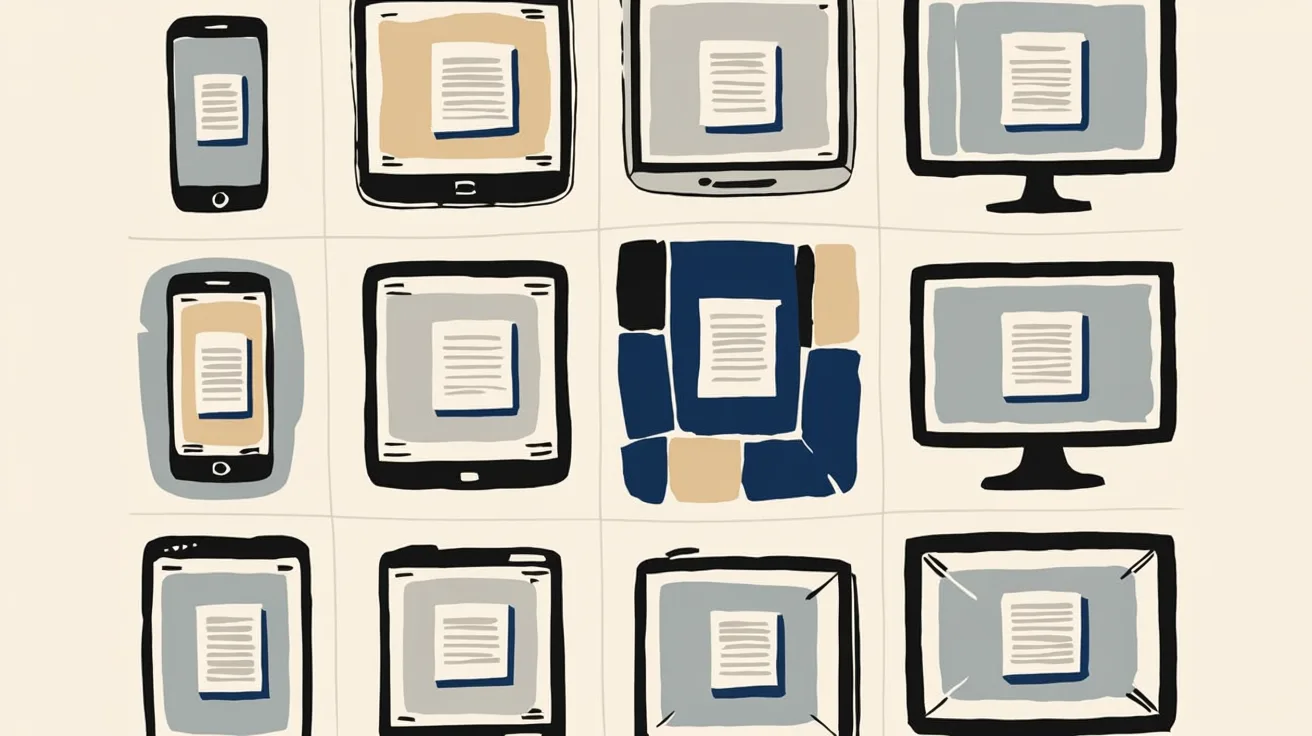
Render any template on 96 real email clients, including Outlook on Windows and dark mode on iPhone, without leaving Design Studio.
You build one email template, and it renders differently in every inbox it reaches. Outlook on Windows still uses Word to render HTML. Gmail clips messages over 102KB. Dark mode inverts some colors and leaves others alone, and every client does it differently. The usual fix is sending test emails to a drawer full of devices, or pasting your HTML into a separate email testing tool and hoping it matches what Courier actually sends.
Cross-Device Email Preview shows you exactly what your email looks like on real devices, right inside Courier's Design Studio. It takes the template in your editor, opens it on the clients you pick, and returns a screenshot of each one. Not a simulation of Outlook, but Outlook itself on Windows, opening your message.
How it works
Open a template in Design Studio and click the device icon in the toolbar. Previews run against your current draft, so you can check a fix before it ships.
Pick the clients you want, click Run preview, and screenshots load as they come back. A full run takes 10 to 60 seconds depending on how many clients you picked. Each screenshot shows the full inbox view, so you can check the subject line and sender name along with the email itself. Click any screenshot to open it full size, arrow through the run, and download the ones you need.
Create and save your own target sets
A target set is a saved list of clients to preview against. Open the Targets dropdown, click Create new set, name it, and add clients from the catalog of 96 across 21 apps, filtering by Mobile, Web, or Application. Sets are saved to your workspace, so the whole team tests against the same lists. The catalog covers:
- Desktop: Apple Mail on macOS and every Outlook from 2016 through 2024, including Microsoft 365 on Mac and Windows
- Mobile: Apple Mail on iPhone from iOS 16 through iOS 26, Gmail on iPhone and five generations of Pixel, and Outlook on iOS
- Webmail: Gmail, Outlook.com, Yahoo, AOL, Microsoft 365, and regional providers like GMX, Web.de, and Free.fr, across Chrome, Edge, and Firefox
Most clients render in both light and dark mode, so you can see exactly what dark mode does to your colors instead of guessing. Keep one set for Outlook versions, another for dark mode on mobile, and a third for the clients your users actually open. There's also a built-in Courier Recommended set, 8 clients spanning desktop, mobile, and webmail, when you want a quick default.
Pricing
Cross-Device Email Preview is a monthly add-on you enable in Settings under Billing. One preview is one client screenshot, so a run against 8 clients uses 8 previews. Included previews reset each month and don't roll over.
| Plan | Monthly price | Previews included | Overage per preview |
|---|---|---|---|
| Starter | $20 | 100 | $0.20 |
| Growth | $50 | 400 | $0.15 |
| Scale | $100 | 1,000 | $0.12 |
Ready to try it?
Cross-Device Email Preview is available today:
- Add it to your workspace in Settings under Billing.
- Open a template in Design Studio and click the device icon in the toolbar.
- Pick your clients and run your first preview.
The Cross-Device Email Preview docs cover the full client catalog, target sets, and pricing.
Frequently asked questions
What is Cross-Device Email Preview?
Cross-Device Email Preview is a Design Studio feature that shows you exactly how your email renders on real devices before you send. It opens your template on the clients you pick, 96 in total across 21 apps, and returns a screenshot of how each one displays it.
Are the previews real clients or simulations?
Real clients. Each screenshot comes from the actual app opening your message: Outlook on a Windows machine, Apple Mail on an iPhone, Gmail in Chrome. That's why results catch quirks that CSS-based simulators miss.
How do I test my email in dark mode?
Run a preview against clients with dark mode variants. Most of the 96 supported clients render in both light and dark mode, so you can see each client's actual dark mode handling, including partial color inversion.
Do I have to publish my template first?
No. Previews render your current draft, published or not.
Which email clients are supported?
96 clients across 21 apps: Apple Mail on macOS and iOS, every Outlook from 2016 through 2024 plus Microsoft 365, Gmail on iPhone and Android, and webmail like Gmail.com, Outlook.com, Yahoo, and AOL in Chrome, Edge, and Firefox. New devices and OS versions are added over time.
How long does a preview run take?
10 to 60 seconds depending on how many clients you picked. Screenshots load as they come back, so you can start reviewing before the run finishes.
How is usage counted?
One preview is one client screenshot. A run against 8 clients uses 8 previews. Included previews reset each month and don't roll over.
Can I check the subject line and sender name too?
Yes. Each screenshot shows the full inbox view, so you can verify the subject line and sender name in every client along with the email body.
How long are past runs kept?
One year. Each run in your preview history shows when it ran, how many clients it covered, and which template version was live at the time.
Similar resources
New settings page, easier to use, with new background colors
Courier settings has been redesigned. Workspace pages and developer pages are grouped separately, every page says what it's for, and the app now comes in light or dark with nine background colors.

Broadcasts: send one-time messages to your users, right from Courier
Broadcasts lets you send a one-time message to a group of your users, now or on a schedule, without leaving Courier.
Build and launch a hosted preference center that looks great on web and mobile
Courier's redesigned Preferences Editor and hosted preference center let you build, preview, and launch a branded notification preference center with no frontend code, plus new bulk APIs to migrate preferences.