Chapter 2
How to Add a Notification Center to Your App
How to add an in-app notification center to a web app or mobile app: the three-layer architecture, then working React, iOS, Android, and React Native setup with the constraints of each.
Last updated: July 2026
Key takeaways
- An in-app notification center is three layers working together: a backend that decides what to send, a delivery layer that gets it there in real time, and a frontend that renders the inbox.
- Real-time delivery means WebSockets, not polling. That's where most of the hard engineering lives: reconnection, offline sync, and connection health.
- With Courier, you install one SDK, call
signInwith a user ID and a backend-generated token, and render the inbox component. The same pattern holds across React, iOS, Android, React Native, and Flutter. - One API call sends the same notification to the in-app inbox, email, push, SMS, and chat, and adapts the content to each.
- A web app and a mobile app follow the same install, sign-in, render pattern, but under different constraints: browser tab lifecycle and optional web push on web; OS app suspension, push permission, and native rendering on mobile.
Architecture overview
Adding an in-app notification center means coordinating three layers that have to work together smoothly enough that users never think about the complexity underneath.

The backend layer is where everything starts. Your app triggers an event whenever something happens that users might care about: someone comments, an order ships, a payment fails. The notification API receives that event and works out who should get it, what it should say, and where it should go. Routing decides which channels to use based on your rules and each user's preferences. This layer is mission control, handling the logic before anything reaches a user.
The delivery layer is all infrastructure. WebSocket connections handle real-time delivery, because HTTP polling is too slow for what users expect now. Message persistence makes sure nothing is lost if a user is offline when the notification fires. State synchronization keeps everything consistent across devices. And integration with APNs and FCM handles mobile push. This layer doesn't make decisions, it executes on them reliably.
The frontend layer is what users see and touch, across your web app and your mobile apps. UI components render the inbox, toasts, and badges. State management tracks which notifications are read, unread, or archived. Authentication keeps it secure. Real-time updates make new notifications appear without any action from the user.
Every layer has failure modes. WebSockets drop. Databases go down. Users lose connectivity. Mobile apps get suspended by the OS. A reliable notification center needs retry logic, queuing, fallbacks, and more monitoring than you'd expect. This is why teams who start building in-house often either abandon the project or ship something that technically works but doesn't feel reliable.
SDK and platform support
Courier ships native SDKs for every major platform, so the same in-app notification center works across your web app, iOS app, and Android app. Install method and minimum versions vary.
| Platform | Package | Install method | Minimum version |
|---|---|---|---|
| Web (React) | @trycourier/courier-react | npm | React 18+ |
| Web (vanilla JS) | @trycourier/courier-ui-inbox | npm | Any framework |
| iOS | courier-ios | Swift Package Manager | iOS 15+ |
| Android | courier-android | Gradle via JitPack | Android 6.0+ |
| React Native | @trycourier/courier-react-native | npm + CocoaPods | iOS 15+, Android 6.0+ |
| Flutter | courier_flutter | pub.dev | Flutter 3.0+ |
Each SDK ships the same core capabilities: real-time delivery over WebSockets, cross-device state sync, and the pre-built inbox component. The component renders with a default theme and accepts configuration objects for custom styling.
Core capabilities
Real-time delivery
Real-time delivery is non-negotiable for a modern in-app notification center, and it means WebSocket connections, not HTTP polling. The moment someone comments on a post or approves a request, the notification should show up with no action from the user.
The catch is that WebSockets are stateful connections, so they break in ways HTTP requests don't. Users lose connectivity constantly: elevators, tunnels, switching from WiFi to cellular, apps backgrounding. Your code needs connection recovery with automatic reconnection, re-authentication, and syncing whatever arrived while disconnected. Connection health becomes its own job, with heartbeats, timeouts, and exponential backoff on reconnection.
Cross-channel state sync
Cross-channel state sync sounds simple until you build it. You send a notification over inbox and email at the same time. The user sees the email first, opens it, reads it. Then they open your mobile app, and the inbox notification is already marked as read, because the system knows they handled it over email.
The same has to work for SMS and push. A user taps a link in an SMS, the inbox message updates. They dismiss a push, the inbox archives. The goal is making the whole thing feel like one coherent system instead of separate channels sending similar messages. Courier does this automatically: when a notification goes out over multiple channels, the backend tracks interaction events from all of them, flows them into a central state store, and propagates any change everywhere.
Multi-device sync
Users switch between your web app, iOS app, and Android app throughout the day, and the in-app inbox needs to stay in sync across all of them without anyone thinking about it. Read something on your phone during your commute, and it's marked read on your laptop when you get to the office.
The hard part is keeping a single source of truth while devices aren't always connected, clocks aren't perfectly synced, and a user might act on two devices in quick succession. That takes conflict resolution, offline queuing for actions taken while disconnected, and an efficient sync protocol.
Preferences
Preference management is essential, and plenty of systems get it wrong. Users need control over what they receive and how:
- Choose the notification types they care about (mentions yes, routine updates no)
- Pick channels per type (approvals over inbox and email, updates over inbox only)
- Set global rules ("nothing after 8pm")
- Manage subscription topics (billing yes, marketing no)
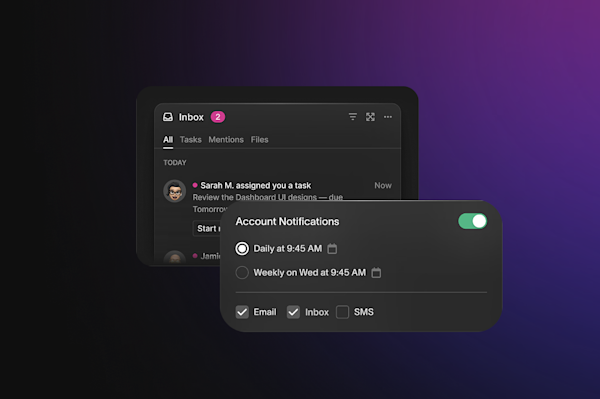
Courier's preference center is hosted, so you don't build and maintain the preference UI yourself. The backend enforces these preferences automatically when it routes a notification, and it handles GDPR and CCPA requirements.
Adding it to your app
The pattern is the same everywhere: install the SDK, sign in with a user ID and a backend-generated token, and render the component. What changes between a web app and a mobile app is the constraints around that pattern. One detail to know up front: the web SDKs take the token as jwt, the native SDKs (iOS, Android, React Native) take it as accessToken. Either way it's a backend-signed token.
Web app
In a web app the notification center renders in the browser, as a dropdown from the bell or a full page, styled with your theme or CSS. Real-time delivery runs over a WebSocket (WSS) that the tab holds while it's open, and the SDK reconnects when the tab wakes or regains focus. There's no OS push registration for the in-app inbox itself; browser push, for when the tab is closed, is a separate opt-in.
React
React is the fastest path. Install the package:
npm install @trycourier/courier-react
Add the inbox component:
import { CourierInbox, useCourier } from "@trycourier/courier-react";import { useEffect } from "react";export default function NotificationCenter() {const courier = useCourier();useEffect(() => {// Generate the JWT on your backend, never in client-side codecourier.shared.signIn({userId: "user_123",jwt: "your_jwt_token",});}, []);return (<div><h1>Notifications</h1><CourierInbox /></div>);}
Sign in once, whether you're using the inbox, toasts, or other SDK attributes. The SDK handles state, real-time sync, and backend communication.
Vanilla JavaScript
Not on React? The web components SDK works with any framework, or none:
npm install @trycourier/courier-ui-inbox
<body><courier-inbox></courier-inbox><script type="module">import { Courier } from "@trycourier/courier-js";// JWT generated on your backendCourier.shared.signIn({userId: "user_123",jwt: "your_jwt_token",});</script></body>
Mobile app
In a mobile app the inbox renders as a native view, with native scrolling, theming, and performance, not a web view. Two constraints shape the setup. First, the OS suspends backgrounded apps, so the SDK manages the connection lifecycle: reconnecting on foreground, restoring state, and refreshing the feed. Second, to alert users when the app is closed you register for push through APNs on iOS or FCM on Android, and the in-app inbox and push share read state. Minimum versions are iOS 15+ and Android 6.0+.
iOS
Add the package over Swift Package Manager:
dependencies: [.package(url: "https://github.com/trycourier/courier-ios",from: "5.0.0")]
Then authenticate and display. signIn is async, and the token is passed as accessToken:
import Courier_iOS// Token generated on your backendTask {await Courier.shared.signIn(userId: "user_123",accessToken: "your_access_token")}// SwiftUIstruct ContentView: View {var body: some View {VStack {Text("Notifications")CourierInboxView()}}}
Recent iOS releases added long-press gestures with haptic feedback, pull-to-refresh on an empty inbox, and steadier WebSocket handling across background and foreground transitions.
Android
Add the SDK to your Gradle dependencies, pinning a version rather than tracking latest:
repositories {google()mavenCentral()maven { url 'https://www.jitpack.io' }}dependencies {implementation 'com.github.trycourier:courier-android:6.1.2'}
Call Courier.initialize(this) once in your Application class, then authenticate and render the inbox. The token is passed as accessToken. CourierInbox is a Compose component, so host it from a ComponentActivity with setContent:
import androidx.activity.ComponentActivityimport androidx.activity.compose.setContentimport com.courier.android.Courierclass MainActivity : ComponentActivity() {override fun onCreate(savedInstanceState: Bundle?) {super.onCreate(savedInstanceState)// Token generated on your backendCourier.shared.signIn(accessToken = "your_access_token",userId = "user_123")setContent {CourierInbox()}}}
React Native
One codebase for both an iOS app and an Android app. Install the package and native dependencies:
npm install @trycourier/courier-react-nativecd ios && pod install
Then use it in your components. Courier is the default export, the inbox view is CourierInboxView, and the token is passed as accessToken:
import Courier, { CourierInboxView } from "@trycourier/courier-react-native";import { useEffect } from "react";export default function NotificationScreen() {useEffect(() => {// Token generated on your backendCourier.shared.signIn({userId: "user_123",accessToken: "your_access_token",});}, []);return <CourierInboxView />;}
Sending notifications
A rendered inbox is empty until you send notifications to it. Sends run on your server with your secret API key, never in the browser, through the Node SDK (@trycourier/courier). The simplest is an API call with a recipient, content, and routing:
import Courier from "@trycourier/courier";// Runs on your backend, authenticated with your Courier API key// (the client also reads COURIER_API_KEY from the environment)const client = new Courier({ apiKey: process.env.COURIER_API_KEY });const { requestId } = await client.send.message({message: {to: { user_id: "user_123" },content: {title: "New comment",body: "Sarah commented on your post",},routing: {method: "all",channels: ["inbox"],},},});
Multi-channel delivery
Multi-channel delivery replaces separate per-channel code with one API call that targets all of them:
const { requestId } = await client.send.message({message: {to: {user_id: "user_123",email: "user@example.com",phone_number: "+1234567890",},content: {title: "Order shipped",body: "Your order #12345 has shipped and arrives tomorrow",},routing: {method: "all",channels: ["inbox", "email", "push", "sms"],},},});
The same content adapts to each channel automatically. The inbox gets rich text and action buttons. Email renders as HTML. Push condenses to a lock-screen format. SMS becomes plain text with shortened links.
The routing engine controls how channels interact. Send to everything at once with all, or try channels in sequence with fallbacks using single:
routing: {method: "single",channels: ["push", "sms", "email"]}
That tries push first, then SMS, then email.
Using templates

When you're sending the same type of notification over and over, templates beat hardcoding content:
const { requestId } = await client.send.message({message: {to: { user_id: "user_123" },template: "comment-notification",data: {commenter: "Sarah",post_title: "Q4 Planning",comment_preview: "Great insights on the roadmap...",},},});
Templates live in Courier's designer, where non-technical teammates can edit content without touching code, and they adapt across channels automatically.
Customization
There are three levels of control, and most teams only need the first. Theme it with colors, fonts, radius, and spacing to match your brand. Extend the pieces that matter by swapping in your own rendering for the rows or states you care about while the SDK handles the rest. Or go fully headless, keeping the SDK's state and real-time delivery while you build the entire UI yourself. Our guide to designing an in-app notification center walks through the design decisions at each level.
Theming works through configuration objects where you set colors, fonts, border radius, and spacing. The inbox component applies them throughout.

Courier also gives you brand settings in the dashboard, so you configure your design system once and apply it across every notification. Dark mode is built in.
The built-in views cover unread, all, and archived. For anything more specific, you can build custom filtered views by tag, category, date, or any other metadata.

Action buttons turn notifications into interactive workflows. An approval notification gets approve and reject; a meeting invite gets accept and decline. Those actions can deep-link to a screen or trigger a custom handler.
Digest notifications help manage volume. Instead of 15 separate notifications about thread comments, you send one that says "15 new comments on Q4 Planning." Courier groups similar notifications by time window, combines them, and sends at a sensible time.
Frequently asked questions
How long does it take to add a notification center with Courier?
The pre-built inbox component can be running in an existing app in a few hours. The React, iOS, Android, Flutter, and React Native SDKs all follow the same pattern: install the package, call signIn with a user ID and a backend-generated token, and render the component. Theming and your first API send usually add another day. The work you'd otherwise own forever, WebSocket infrastructure, state management, and cross-device sync, is handled by the SDK.
How does token authentication work for the notification center?
Each user session needs a signed token generated on your backend with your Courier API key. The token holds the user ID and an expiration, and your app passes it to signIn() on the client (as jwt on web, accessToken on native). Courier validates the token before opening the WebSocket connection. When it expires, you generate a new one on your backend and call signIn again. The authentication docs cover token generation for Node, Python, Go, Ruby, Java, C#, and PHP.
What happens to notifications sent while a user is offline?
They're persisted and delivered when the connection comes back. The inbox loads unread notifications on reconnection, so users see everything they missed with no extra code. State (read, unread, archived) stays consistent because it's managed server-side, not in local storage.
Can I use the notification center alongside push notifications?
Yes. Courier's cross-channel integration means the inbox and push share state. Open a push, and the matching inbox notification is marked read. Read a message in the inbox, and the push badge count updates. It works across iOS, Android, and web push from one API call that targets every channel at once.

How do I customize the appearance of the notification center?
The inbox component takes a theme configuration object where you set colors, fonts, border radius, and spacing, and the dashboard brand settings apply your design system globally. Dark mode is built in. When the config options aren't enough, the SDKs support custom component rendering, so you can replace any part of the UI with your own while keeping the underlying state management and delivery.
Previous chapter
What Is an In-App Notification Center?
What an in-app notification center is, how it differs from push, toast, and email, and the components that separate a basic inbox from a great one.
Next chapter
Notification Center Best Practices
How to design notifications users actually read: content, format, batching, preferences, performance, security, and the different constraints on web and mobile apps.