Control how fast Courier sends to your providers
 Thomas SchiavoneOctober 20, 2026
Notifications rarely go out at an even rate. A product announcement goes to your whole user base at once. A nightly job finishes and produces thousands of reminders in a few seconds. A busy afternoon of signups turns into a spike of welcome emails.
Courier takes all of that as fast as you send it. The providers behind Courier each have their own limit on how fast you can send, and no two are the same. Amazon SES gives each account a maximum send rate. SMS providers limit each sender number. Even two accounts with the same provider can have different limits.
You shouldn't have to keep track of any of that in your code, and now you don't. Tell Courier how fast each provider can take notifications with a send rate limit, and Courier handles the rest. You send as fast as you want, and each provider gets them at the rate it allows.
How it works
A send rate limit sets how many notifications Courier sends to one provider per second, minute, or hour. From then on, Courier accepts every send you make. Anything over the limit is queued, not dropped, and goes out to the provider at the rate you set. You don't batch sends yourself, and you don't write retry logic for a provider that's pushing back.
Each provider you connect has its own limit, so two SES accounts can run at two different rates. Test and Production are set separately too. Your Test environment can match an Amazon SES sandbox account while Production uses your full sending rate.
If you don't set a limit, nothing changes. Courier sends to the provider as fast as it can, the same as it always has.
Setting a provider send rate limit
In the Courier console, open Integrations, click the provider, and click Settings. Enter a number in Send Rate Limit, pick second, minute, or hour under Per, and the limit applies within 60 seconds. Clear the field to remove it.
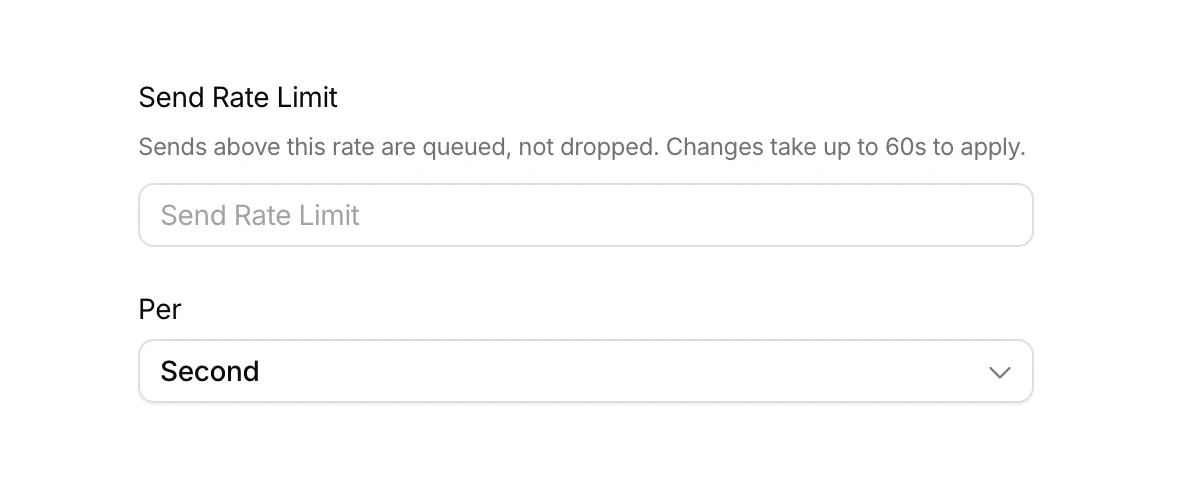
If you manage providers in code, it's the same setting: rate_limit in the provider's settings, on POST /providers and PUT /providers/{id}.
curl -X PUT "https://api.courier.com/providers/$PROVIDER_CONFIG_ID" \-H "Authorization: Bearer $COURIER_API_KEY" \-H "Content-Type: application/json" \-d '{"provider": "sendgrid","settings": {"api_key": "SG.xxxxxxxx","rate_limit": { "rate": 10, "period": "second" }}}'
A PUT replaces all of the provider's settings, so include your credentials along with rate_limit.
Send rate limits are available on every provider today. Read the docs for the details, or open your provider's settings in the Integrations section of the Courier console and set one.
Frequently asked questions
Does Courier drop sends that go over the rate limit?
Courier queues sends that go over the limit and sends them to the provider at the rate you set. None are dropped.
What happens if I don't set a send rate limit?
Courier sends to the provider as fast as it can, the same as before.
Is the send rate limit set per provider or per workspace?
Each provider you connect in Courier has its own send rate limit, and Test and Production are set separately.
How do I stay under my Amazon SES maximum send rate?
Set a send rate limit on your Amazon SES provider in Courier that matches your account's maximum send rate. Courier queues anything above it and sends to SES at that rate.
Can I set a send rate limit with the Courier API?
The Courier API sets it as rate_limit in a provider's settings, with POST /providers or PUT /providers/{id}. It takes a rate and a period of second, minute, or hour.
Similar resources
Know the moment users change notification preferences
Every preference change in Courier now reaches your systems two ways. A `preferences:user:updated` webhook fires the moment a user opts in, opts out, or changes a topic's channels, wherever they made the change. `GET /preferences/logs` returns the history, newest first, with the previous value where Courier knows it. Keep your CRM, warehouse, or marketing tools in step with what users chose.

Test Courier emails end to end with your AI agent
Give your coding agent an AgentMail inbox, and it can test your Courier emails the way a user would: send the change, check what arrives, review how it renders, and fix what it finds before the change reaches Production.

Let your agent check every email before it ships
Courier Device Preview gives your coding agent real screenshots from Outlook, Gmail, and Apple Mail. Here's the prompt and workflow to have it check every email, fix the draft, and check again before you publish.