

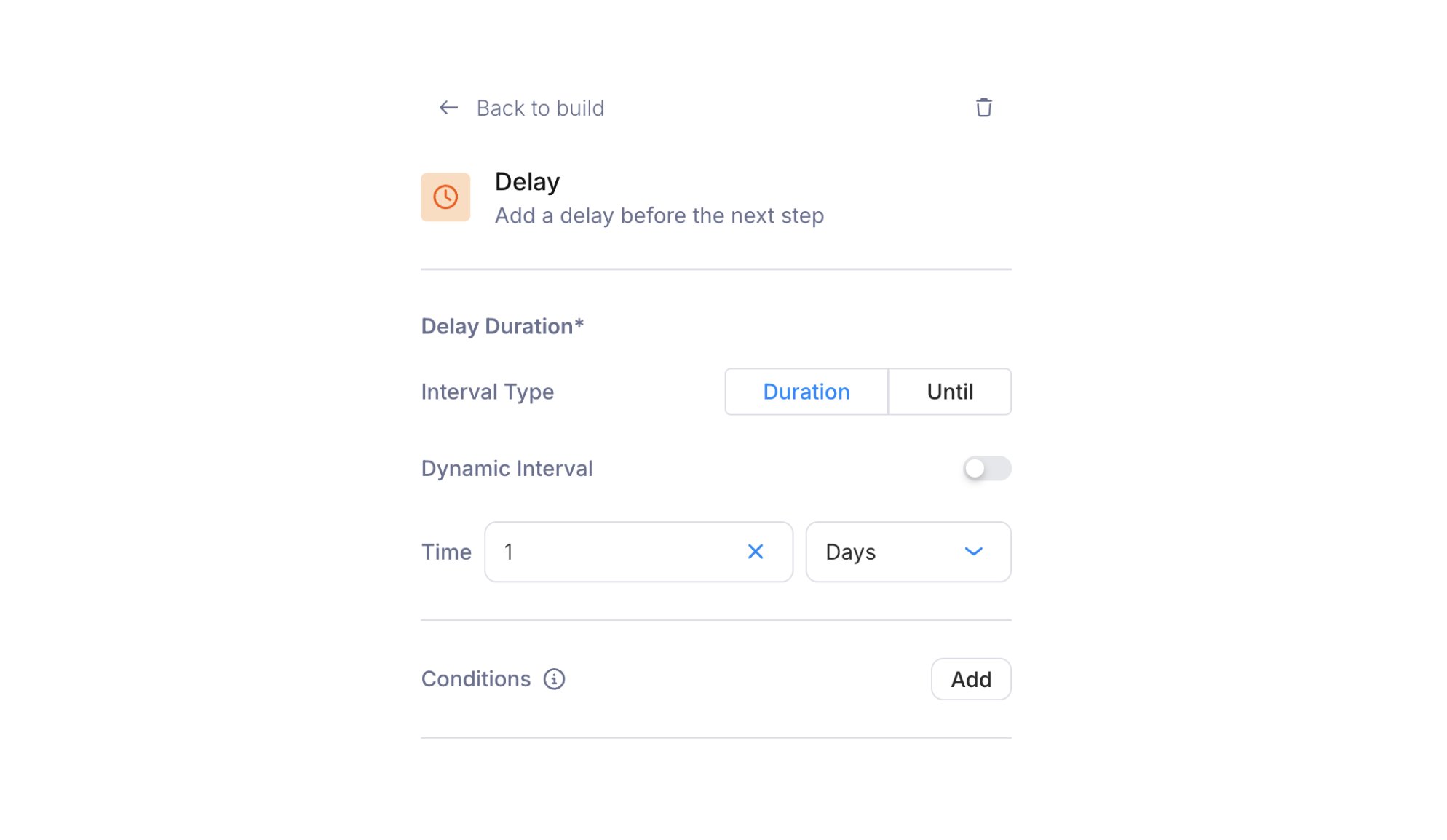
Delay node configuration panel showing interval type, dynamic interval toggle, and time picker
Configuration
Interval type
Toggle between two modes:- Duration: Wait a relative period. Set a numeric value and a unit: Minutes, Hours, Days, or Months. The delay is relative to when the run reaches the node, not when the journey was invoked.
- Until: Wait until a specific date and time, chosen in a date-time picker. Use it to hold messages until a launch date or a scheduled window.
Dynamic interval
Enable the Dynamic Interval toggle to read the delay from a field in the journey context instead of a hardcoded value. The time picker becomes a field selector for a trigger schema, profile, or fetch response field. Your application then controls the delay at runtime. A trigger schema field calledfollow_up_delay could hold an ISO 8601 duration like PT2H (2 hours), or an until field could hold a datetime string.
Conditions
Delay nodes support optional . If they aren’t met when the run reaches the delay, the node is skipped.Common patterns
Onboarding sequences: Send a welcome email immediately, then delay 24 hours before checking whether the user completed setup. Reminder chains: Delay 3 days after an initial notification, then check delivery status or user action before sending a follow-up. Scheduled delivery: Use the “Until” interval type to hold a message until a launch date or event start time. Pair a delay with a to check whether the user took an action during the wait. Delay 24 hours, then branch on whether the user completed onboarding.Run inspection
Open the run in and click a delay node to see its step details:- the delay length, as an ISO 8601 duration like
P1D expectedDelayValue, the exact datetime the delay will release- the started and completed timestamps
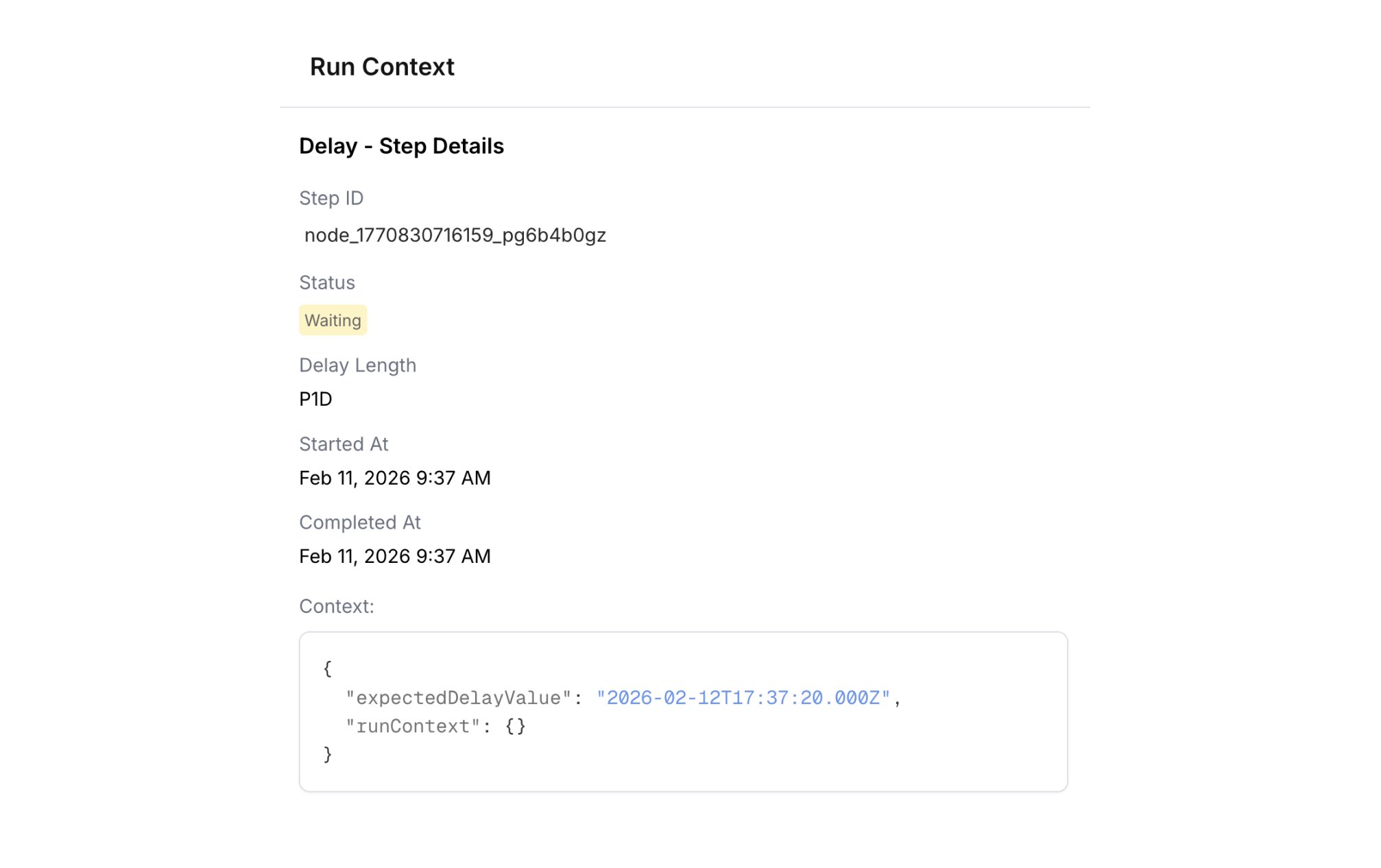
Run context for a delay node showing status, delay length, start/completion times, and the expected release datetime