

Adding a Send Node
Drag a Send node from the Build panel onto the journey canvas, or drop it onto an edge between two existing nodes. When you add a send node, you’ll first choose the channel.Supported Channels
You can send on any channel you’ve added an integration for in Courier.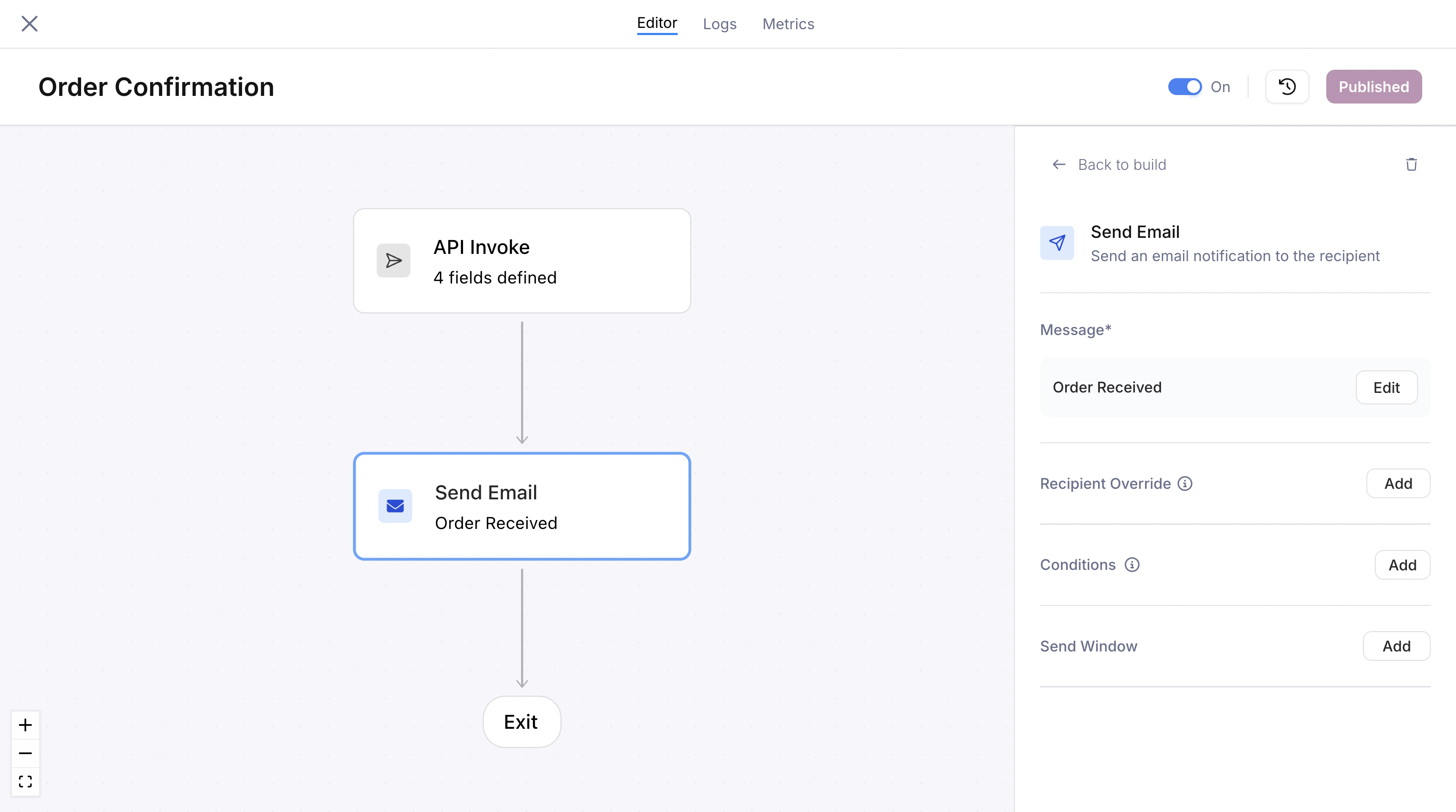
Send node configuration panel with an email channel selected and a linked message template
Setting Field Values
For each address field on a send node, you either point at a path in the journey’s data or type a fixed value.
Use tenant data when one journey serves many customers: store the value once per tenant and every run picks up the right one. Use a fetch response when the destination isn’t known until the run happens.
The dropdown lists the paths Courier can see in your workspace. If a source has no data yet, type the path in yourself and click away to save it.
Recipients
Each channel addresses the recipient with a different field:
For email, SMS, push, and inbox, Courier fills that field in from the journey’s user, identified by the
user_id or profile on the invocation. To send somewhere else, add a Recipient Override and point it at a field in the journey’s data or type a value in.
Slack and Microsoft Teams have no journey user to fall back on, so you always set their fields on the node. Neither offers Recipient Override. Their fields take a path into the journey’s data or a fixed value.
Recipient Overrides
To send to someone other than the journey’s user, click Add next to “Recipient Override” in the send node’s configuration panel. This opens a single field where you can either:- Select a field reference from the dropdown. Courier shows all available fields from the trigger schema, profile, and upstream fetch node responses. At runtime, the field value is resolved and used as the recipient address.
- Type a fixed value directly, like
ops@yourcompany.comor+15551234567. Type it in and click away to save it.
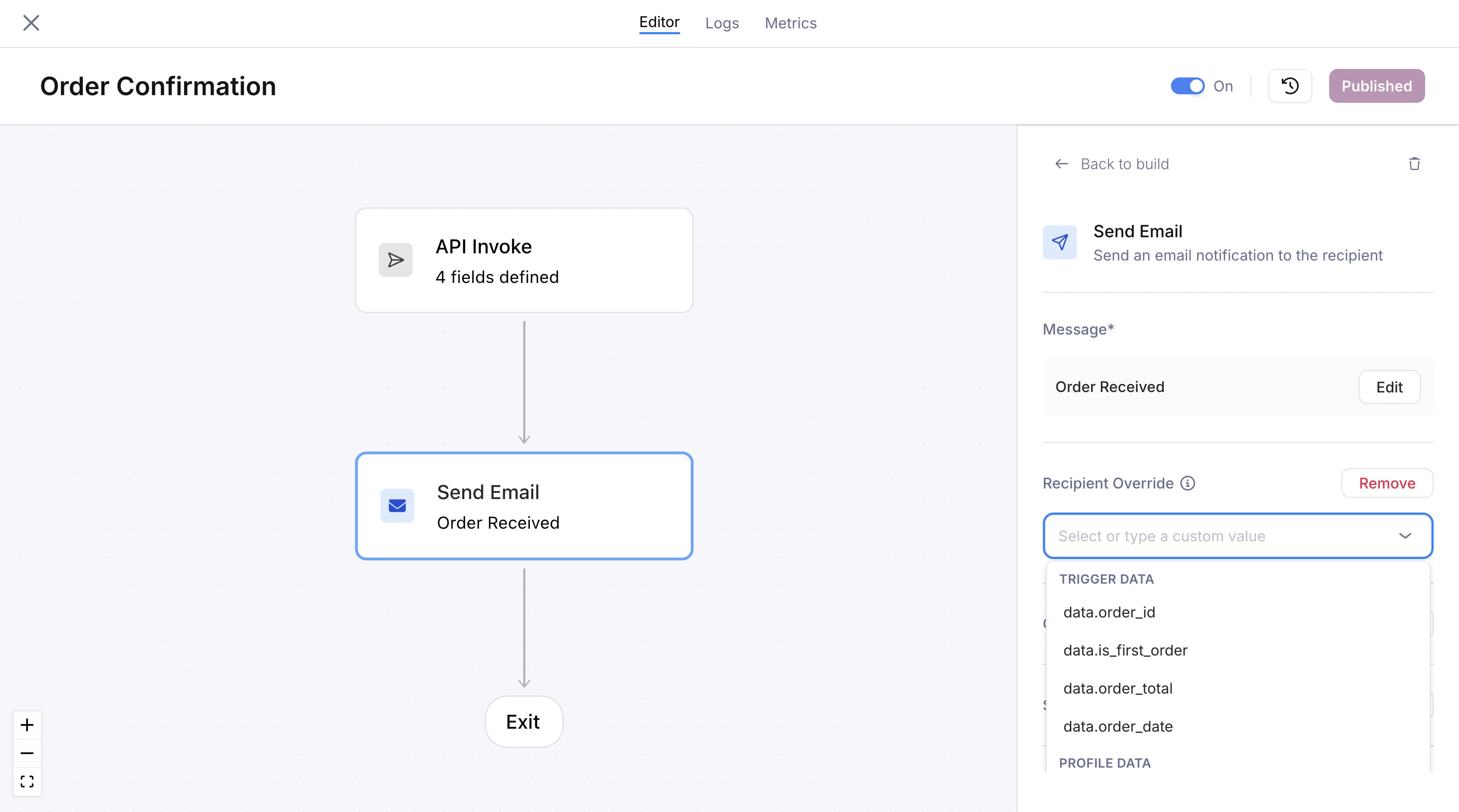
Recipient override with the dropdown showing available schema and profile fields
Slack Recipients
A Slack send node needs a destination and an Access Token for the workspace it posts into. Set the destination with Send to:- Channel posts to a Slack channel. Enter the channel ID, like
C012AB3CD. Courier doesn’t list your Slack channels, so bring the ID from Slack. - Direct message goes to one person, addressed by User ID (like
U01AB2CD3EF) or Email (the address on their Slack account).
xoxb-...) for that workspace. Point it at profile.slack.access_token or a tenant property so each send picks up the right one.
If you’ve sent to Slack from the Send API, these map to the same fields:
For message content, Block Kit layouts, threading, and provider overrides, see the Slack integration.
Microsoft Teams Recipients
A Teams send node needs a destination, a Service URL, and sometimes a Microsoft tenant ID. Set the destination with Send to:- Channel posts to a Teams channel. Under Identify channel by, choose Channel ID, or Channel Name plus the Team ID of the team that channel belongs to.
- Direct message goes to one person. Under Identify user by, choose User ID or Email.
https://smba.trafficmanager.net/amer. Microsoft tenant ID is needed when you address a direct message by User ID or Email, or a channel by Channel Name.
If you’ve sent to Teams from the Send API, these map to the same fields:
For adaptive cards, thread replies, and provider overrides, see the Microsoft Teams integration.
Conditions
Each send node can have conditions that are evaluated at runtime. If the conditions are not met, the node is skipped and the journey continues to the next step. Conditions use the same operators and field references as branch nodes. Common patterns:- Skip a push notification if
profile.push_tokensis empty - Only send an email if
data.notification_preferenceequals"email" - Send only when a fetch node response indicates the user hasn’t completed an action
Send Window
A send window controls when a message is actually delivered. If the journey reaches a send node outside the configured window, delivery is held until the window opens. This is useful for respecting business hours, avoiding late-night messages, or batching sends into a specific time range.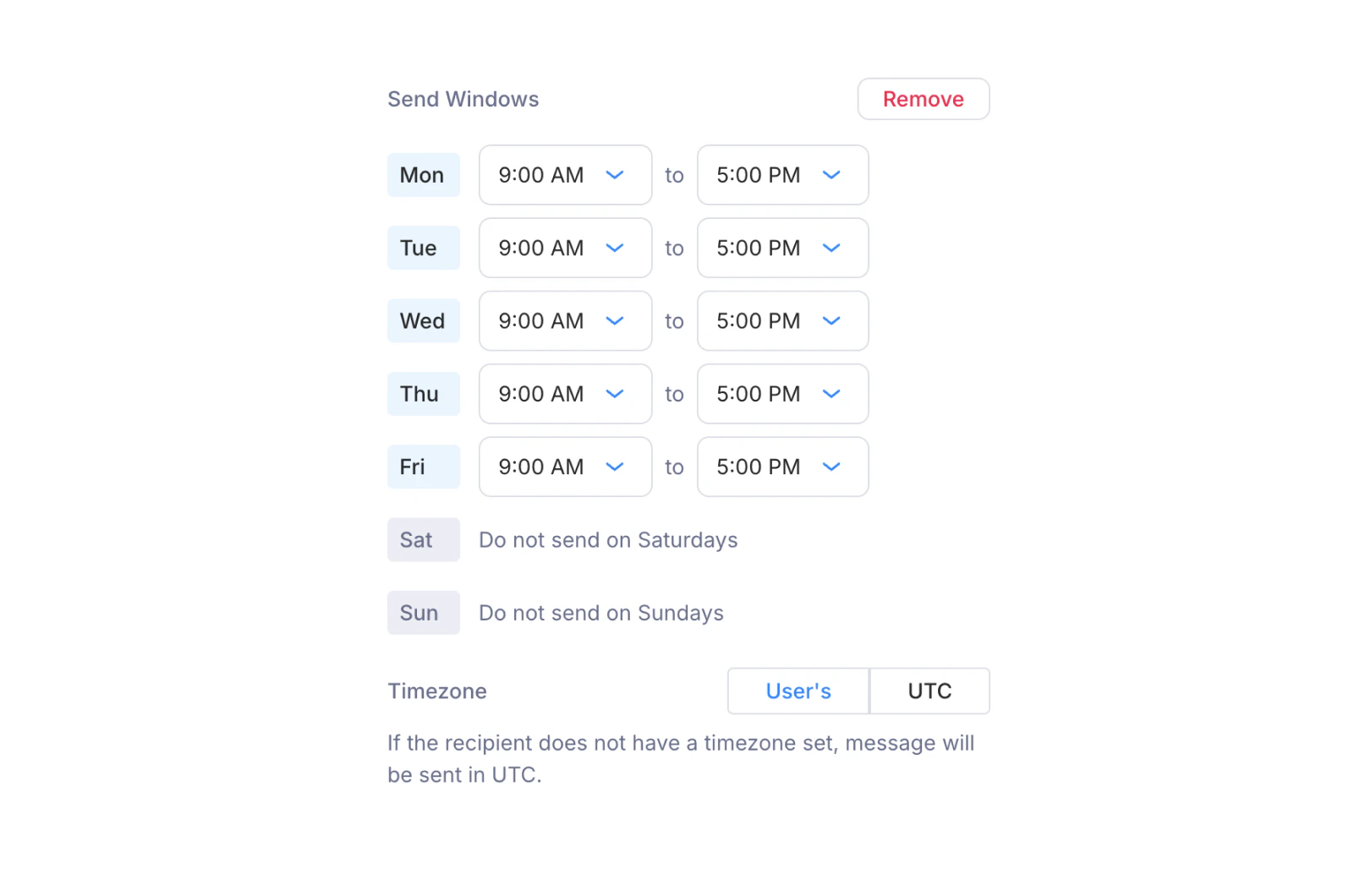
Send window configuration with per-day time ranges and timezone selection
- Day-by-day schedule: each day of the week has its own row with an opening and closing time (e.g., Mon through Fri, 9:00 AM to 5:00 PM). Days without a time range are blocked entirely (e.g., “Do not send on Saturdays”).
- Timezone: choose between User’s timezone (resolved from the recipient’s profile) or UTC. If the recipient doesn’t have a timezone set, messages are sent in UTC.