A marketer's guide to iOS 27 and priority notifications
 Emily LaneNovember 07, 2026
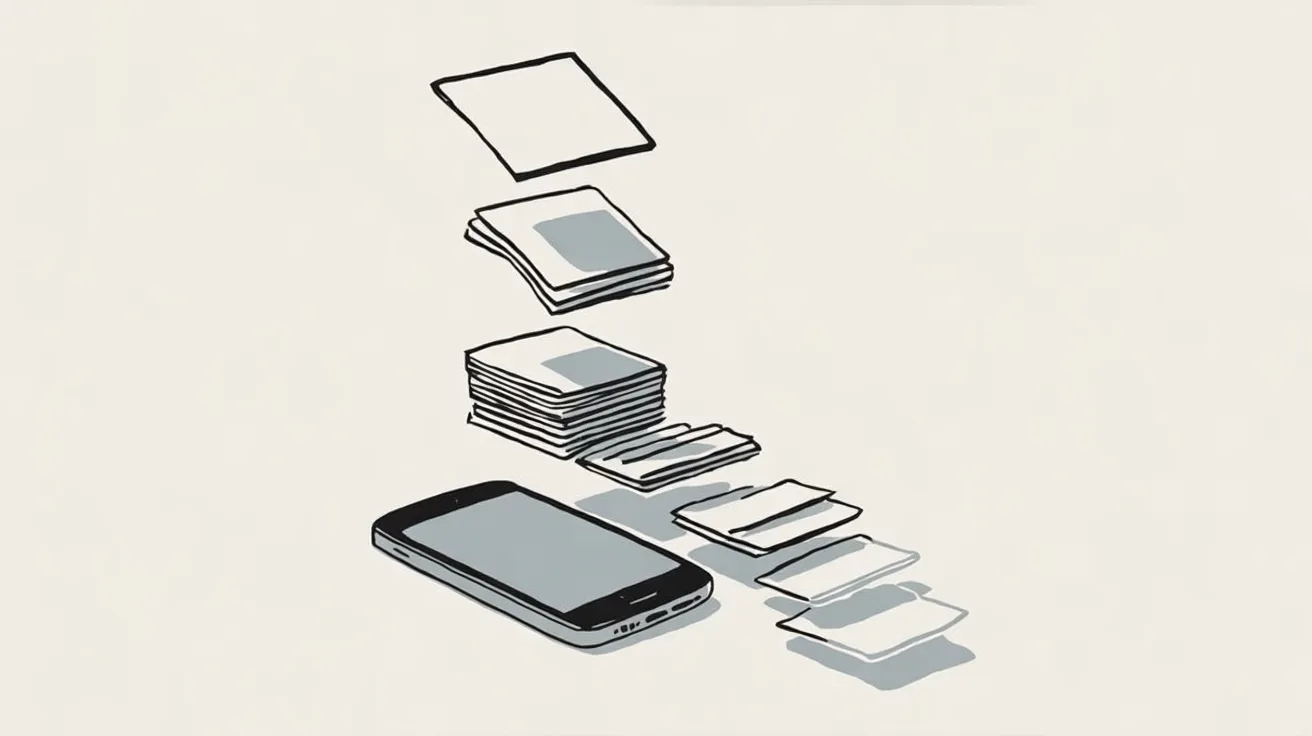
On iOS 27, Apple Intelligence decides the order, the wording, and sometimes the volume of what your customers see. It ranks push notifications and silences the ones it judges unimportant, rewrites long or stacked ones into summaries, and can read urgent ones aloud through AirPods. Mail sorts your email into categories, Messages screens texts from numbers people haven't saved, and apps like Gmail, Slack, and Teams run their own filters on top. If you send iOS 27 notifications as a marketer, delivered no longer means seen.
None of these features is brand new. Priority notifications arrived in iOS 18.4 and summaries in iOS 18.1. What changed is the model behind them. Apple's new foundation models were "custom-built in collaboration with Google and its Gemini models" (Apple Newsroom), and they're better at reading what you send. (Our deep dive on Apple's on-device models covers how they work.)
All of this needs an Apple Intelligence iPhone: an iPhone 15 Pro, iPhone 15 Pro Max, or any iPhone 16 or later, set to a supported language (Apple Support). Older iPhones don't get any of it.
iOS 27 at a glance
| Channel | What iOS does | What you control | First fix |
|---|---|---|---|
| Push | Ranks, silences, summarizes, and may read it aloud | Interruption level and copy | Literal, self-contained copy |
| Live Activities | Shows live status on the Lock Screen, Dynamic Island, Watch, Mac, and CarPlay | Whether you use them | Move order status here |
| Email in Apple Mail | Sorts into categories, summarizes previews, hides opens | Content and how you separate sending | Live text with the fact first |
| Email in Gmail and Outlook | The app's own AI decides first, then iOS | Content | Earn the Primary inbox |
| SMS and RCS | Screens unknown senders and splits Transactions from Promotions | Sender consistency | Get saved as a contact |
| Slack and Teams | The app's notification rules, then iOS's | Message type and mentions | Mention people only for urgent alerts |
Push notifications: ranked, silenced, summarized, and read aloud
Four layers now sit between your push and a person, and only one of them is yours.
1. Prioritize Notifications moves what the iPhone judges important to the top of the Lock Screen stack. It reorders and never hides: "You can still swipe up to view all notifications" (Apple Support). Users control it app by app, and they can turn it off from the Lock Screen by swiping left on a priority notification and tapping Turn Off Prioritization. Apple doesn't say whether it's on by default, and it doesn't publish the signals it ranks on.
2. Reduce Interruptions is the layer that filters. Apple says it "silences notifications that are less important," and its only example of what gets through is "a text about an early pickup from daycare." The same judgment powers Intelligent Breakthrough & Silencing, which any Focus can turn on. The user's explicit choices still win: notifications they've specifically allowed or silenced "will always be allowed or silenced" (Apple Support).
3. Summaries rewrite "long or stacked notifications" into one line, shown in italics. Summaries aren't applied to every app automatically. Users turn them on, then tap Choose Notifications to Summarize and pick apps one by one. If your app is on that list, there's no setting on your side to opt out, so the model's version of your words is what people read. (We covered how summaries rewrite notifications in detail.)
4. Siri reads it aloud. With Announce Notifications turned on, Siri speaks notifications through AirPods and CarPlay. If an app classifies a notification "as time sensitive or as a direct message, Siri plays a tone, then announces the notification automatically" (Apple Support). Your most urgent pushes are the ones most likely to be heard rather than seen.
What you control
One lever is documented: the interruption level. A time-sensitive notification can break through Focus and the Scheduled Summary. Users can switch that off per app, though, so using it for promotions is a fast way to lose it. Apple documents no lever over the AI ranking itself. If you want the payload details, the developer guide to iOS priority notifications walks through them.
What to change
- Lead with the fact. "Your order #4821 arrives today by 6 PM" survives summarizing, ranking, and being read aloud. "Big news about your order! 🎉" survives none of them.
- Make each notification stand on its own. A teaser followed by a reveal is two notifications to the model, and the summary often keeps the wrong half.
- Save
time-sensitivefor real urgency. Delivery today, a failed payment, a security alert. - Back up anything important. If a notification gets silenced, the same facts should be waiting in email or in your app.
The push version and the email version of a notification shouldn't say the same thing in the same words. In Courier's Design Studio, you write the push, email, SMS, and in-app versions of one notification side by side, so the push can be one literal sentence while the email carries the detail.
Android is moving the same way. On Pixel 9 and later, Google's notification organizer "automatically groups and silences your lower-priority notifications," with Promotions and News silenced by default (Google). Writing clear notifications pays off on both platforms.
Live Activities: status updates that skip the stack
For delivery and order status, a Live Activity beats a string of pushes. It's one live, updating view on the Lock Screen instead of five notifications competing for rank.
In iOS 27, Live Activities show in the Dynamic Island in both portrait and landscape, and they "automatically appear" on Apple Watch, the Mac menu bar, and CarPlay (WWDC26). They can start from your app, start by push, or be scheduled to start at a set time, and you update them with push. Apple's own example in that session is an order with a status and a ready time.
Live Activities are for status, not promotions. Apple's App Review Guidelines already say push shouldn't be used for promotions or direct marketing unless customers have explicitly opted in, and a Live Activity full of offers would wear out its welcome fast anyway.
Email in Apple Mail: categorized, summarized, and private
Apple Mail decides which tab you land in, rewrites your preview, and hides whether anyone opened.
Categories sort incoming mail into four tabs (Apple Support):
- Primary for personal messages and time-sensitive information
- Transactions for confirmations, receipts, and shipping notices
- Updates for news, newsletters, and social updates
- Promotions for marketing, coupons, and sales
Two details matter for senders. When a message in Transactions, Updates, or Promotions "includes time-sensitive information, it is also included in the Primary message list." And with categories on, the Home Screen badge counts only unread Primary mail, so a Promotions email doesn't add to the number on the icon. Apple doesn't publish how it decides which category you land in.
Summaries replace the preview line in the message list with an AI summary of the body. Senders can't opt out, and a summary can only work from text the model can read, so an email that's one big image gives it nothing.
Mail Privacy Protection, a user setting since iOS 15, "prevents senders from seeing if you've opened the email message they sent you" (Apple Support). Open rates from Apple Mail stopped meaning much years ago. Summaries make it worse, because a reader can get the point without opening at all.
What to change
- Use live HTML text and put the key fact in the first sentence of the body, not only the subject line.
- Keep transactional and promotional mail apart (different addresses or sending domains). Apple doesn't require it, but it keeps your receipts from being judged alongside your sales.
- Judge email by what people do: clicks, conversions, and replies.
Email in Gmail and Outlook: a second AI on top of iOS
Plenty of iPhone users read email in the Gmail or Outlook app. For them, Google's or Microsoft's filters decide first, and then iOS treats the app's notification like any other push.
Gmail lets people choose a notification level, including High priority only (Google). With that setting, Gmail's own model decides which emails buzz the phone at all. Gemini summaries of email threads are free for everyone (Google), and Manage subscriptions lists senders by volume with a one-click unsubscribe on web, Android, and iOS, with Gmail sending the request for the user (Google).
The effect shows up in the numbers. Validity reported in May 2026 that some senders saw Gmail open rates fall 30% or more quarter over quarter, and that Promotions is now sorted by relevance rather than date (Validity). Validity names AI summaries as a likely but unproven contributor and says clicks and revenue fell less than opens.
Outlook went the other direction on mobile. Microsoft removed the Copilot priority view from Outlook for iOS and Android (Microsoft message center), and Focused Inbox remains the main sorting layer.
What to change
- Earn the Primary inbox with email that reads as personal or transactional, because that's what "high priority" filters reward.
- Make leaving easy and changing preferences easier. Gmail already makes leaving one tap, so give people something better to tap.
SMS and RCS: screened, filtered, and branded
Texts from numbers people haven't saved can be screened out of the main list, and a separate filter sorts transactions from promotions.
Screen Unknown Senders moves texts from unknown numbers into their own filter (Apple Support). Apple defines an unknown sender as "anyone you haven't previously interacted with in Messages or someone who isn't in your contacts." Unless a customer has saved your number or texted with you, your brand counts as unknown. The details are more forgiving than most coverage suggests:
- It's off by default in iOS 26, but it stays on after upgrading for anyone who had the older iOS 18 filter turned on.
- In the US, people choose which unknown-sender notifications they get: Time Sensitive, Personal, Transactions, or Promotions. Time Sensitive notifications, like verification codes, are on by default.
- Allowed messages show in the main list "for eight hours," then move to the Unknown Senders filter.
- Replying once doesn't make you known. Filtering stops for "any sender you've replied to three times or more."
On top of that, a Text Message Filter sorts SMS, MMS, and RCS messages into Transactions and Promotions.
RCS business messaging gives you a branded, verified sender on iPhone where carriers support it. iPhone has its own RCS Business Messages toggle, and Apple notes that "availability varies by carrier and country" (Apple Support). The verified checkmark means Google, the carrier, or a provider has confirmed the business's identity. iOS 27 also added RCS read receipts, typing indicators, Tapbacks, and inline replies (9to5Mac).
What to change
- Send from one consistent number so people learn to recognize you.
- Ask subscribers to save your contact in your opt-in confirmation. A saved contact skips the unknown-sender filter entirely.
- Keep codes and alerts on a different number from promotions. People can allow Time Sensitive and Transactions while muting Promotions, so mixing them puts your alerts at risk.
- Design for replies. Two-way messages get you out of filtering after three replies.
- Look at RCS verified sender if your carrier mix supports it.
Slack and Microsoft Teams: filtered by the app, then by iOS
If your product sends alerts into Slack or Teams, they reach the phone through two sets of rules: the app's, then Apple's.
Slack decides first whether your message becomes a push at all. By default, it holds mobile notifications until you've locked your desktop screen for one minute or been inactive for 10 minutes (Slack). So when someone's at their desk, your bot's alert may never buzz their phone. Slack's in-app Focus mode "silences non-urgent notifications," and its Today view and Activity triage sort what's left (Slack). Mentions, reactions, and thread replies always show in Activity, and on paid plans people can let messages from VIPs through when notifications are paused (Slack).
Teams has its own catch-up layer, with Copilot summaries of chats and threads for people who have a Copilot license.
Then iOS applies everything above. A Slack or Teams push gets prioritized, possibly silenced by Reduce Interruptions, and summarized if the user has added that app to their summary list. Apple's design guidelines give notifications about direct communication a different look, "featuring prominent contact images (or avatars)" (Apple). Neither Slack nor Microsoft documents whether a bot's post is treated differently from a person's DM, so don't count on your alert looking like a message from a colleague.
What to change
- Write bot messages like good notifications: what happened, to what, and what to do next, in the first line.
- Mention people only when they must act. Mentions always reach Activity, so overusing them teaches people to ignore you.
- Keep updates in a thread so a summary sees one conversation instead of five scattered posts.
- Don't rely on Slack alone for critical alerts. Route to push, email, or SMS as a fallback when the alert can't wait.
Courier treats Slack and Microsoft Teams as channels alongside email, SMS, and push. One routing rule can send a critical alert to Slack and push at the same time, or fall back to another channel when one can't deliver (Courier routing).
In-app: the channel Apple doesn't filter
None of the layers above apply inside your app. Prioritization, summaries, Mail categories, and text filters stop at the edge of iOS. An in-app inbox keeps the full version of every important message, in your words, waiting the next time someone opens your product.
That makes it the backstop for everything else in this guide. If a push gets silenced or an email lands in Promotions, the same facts are still where your customer will look. Courier's Inbox is built for exactly this, with routing that sends the same notification to push, email, and the in-app feed from one call.
How to measure when iOS hides the open
Opens were already unreliable. iOS 27 takes away more of the signal:
- Mail Privacy Protection hides opens in Apple Mail.
- Summaries let people get the point without tapping, in Mail and on the Lock Screen.
- High priority only in Gmail means some of your mail never makes a sound.
- Link Tracking Protection in Safari removes "known tracking parameters" from URLs in Private Browsing by default, and people can turn it on for all browsing (Apple Support). WebKit says campaign-level parameters pass through, so standard campaign tags generally survive, while per-user click IDs may not (WebKit).
Measure what people do instead: conversions, replies, unsubscribes, and preference changes. One caveat: nobody has published real data yet on how Apple Intelligence changes push or SMS engagement. Anyone quoting a precise drop is guessing.
Your iOS 27 checklist for this quarter
- Rewrite your top 10 push notifications as literal, self-contained copy that also works read aloud.
- Audit every
time-sensitivenotification and downgrade anything promotional. - Move order and delivery status to Live Activities.
- Check that every email has live text and leads with the fact.
- Separate transactional and promotional sending, for both email and SMS.
- Send SMS from one consistent number and ask subscribers to save your contact.
- Rewrite Slack and Teams bot messages, and cut back on mentions.
- Give every important message a copy in email or your in-app inbox.
- Move reporting from opens to actions.
Wrapping up
iOS 27 puts a capable model between every message you send and the person it's for. It ranks, filters, rewrites, and reads aloud, and Gmail, Slack, and Teams do the same in their own way. You can't switch any of that off. The approach that holds up everywhere is plain: say the specific thing first, keep each message complete on its own, and put anything important in more than one channel.
That's what happens before your customer sees your message. Siri AI changes what happens after, when it searches, acts on, and answers questions from the messages already on the phone. Read what Siri AI means for your email, SMS, and push.
Frequently asked questions
What are priority notifications on iPhone, and what do they mean for marketers?
Priority notifications are an Apple Intelligence feature that moves the notifications the iPhone judges important to the top of the Lock Screen stack. They reorder notifications without hiding any. For marketers, it means generic promotional pushes sink below messages people care about, and users can turn prioritization off for your app entirely.
Can marketers control how iOS 27 prioritizes or summarizes notifications?
Not directly. Apple documents no setting that changes how its AI ranks or summarizes a notification. Your levers are the interruption level (time-sensitive breaks through Focus) and the content itself: clear, specific notifications rank and summarize better.
Does iOS 27 summarize every app's notifications?
No. Users turn on Summarize Notifications and then choose which apps to summarize, one by one. If they pick your app, you can't opt out, so the summary of your notification is what they read.
How do Apple Mail categories decide where an email lands?
Apple Mail sorts email into Primary, Transactions, Updates, and Promotions, and Apple doesn't publish the exact signals. Time-sensitive email from other categories also appears in Primary. Keeping transactional and promotional mail separate makes it easier for each to land where it belongs.
Does Screen Unknown Senders block business texts?
It doesn't block them. It moves texts from numbers people haven't saved or talked to into a separate filter, and it's off by default in iOS 26. People in the US can still allow notifications for Time Sensitive, Transactions, and other categories, and filtering stops once they've replied to you three times.
Do Slack and Teams notifications get prioritized and summarized on iPhone?
Yes, like any app. Slack and Teams first apply their own notification rules, and then iOS ranks, silences, or summarizes the push depending on the user's settings. Write bot messages so they make sense as a one-line summary.
Similar resources

What Siri AI means for your email, SMS, and push
Siri AI shipped with iOS 27 and changes what happens to a message after it's delivered. It reads urgent notifications aloud, searches Apple Mail and Messages, can delete or unsubscribe from your email on request, and will soon answer "where's my order?" through apps. Here's what each change means for your email, SMS, and push, and what to do now.

How to protect your email domain and sending reputation
AI agents have made spoofing cheap, and a DMARC record at p=none won't stop it. Here's how to enforce DMARC without bouncing your own mail, keep password resets apart from newsletters, protect your sending reputation, read Google Postmaster Tools, and audit your domain with six AI prompts.
How to get your logo in Gmail and Apple Mail
BIMI puts your logo next to your emails in Gmail and Apple Mail, but there is no upload form. It is earned by locking your domain down. Here is the whole project: what it costs, how long it takes, and the five ways it fails silently.