

Adding a column block
- In Design Studio, select a channel.
- Add a Column block from the block sidebar, toolbar, or slash menu.
- The block starts as a two-column row with equal widths.
- Drag content blocks (text, image, button, etc.) into each column cell.
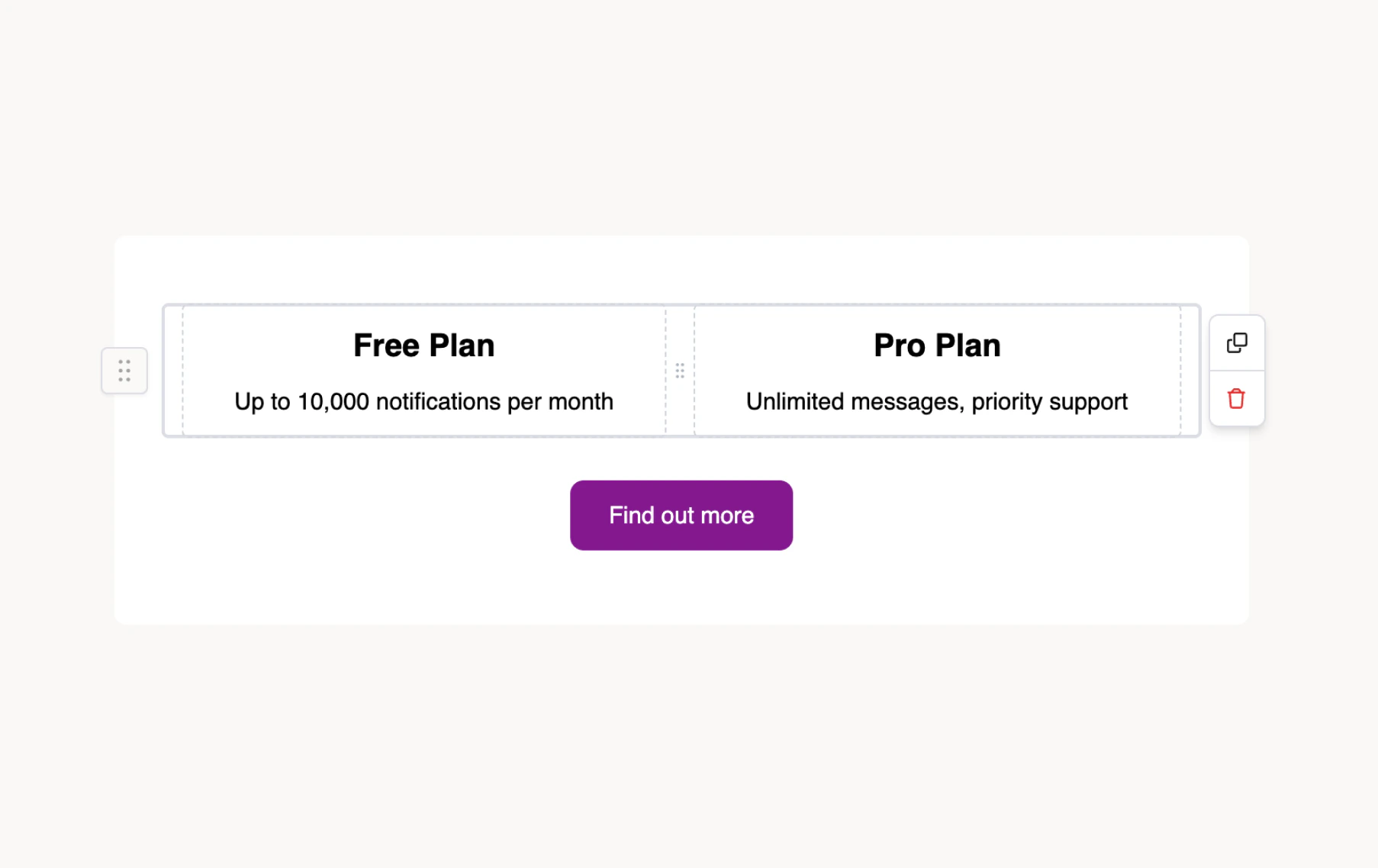
Column Block
Column settings
Select the column block to configure it in the settings panel:- Columns count — choose 1, 2, 3, or 4 columns
- Frame — horizontal/vertical padding (pixels) and background color for each cell
- Border — width, radius, and color for each cell
- Conditions — show or hide the block based on profile or data values
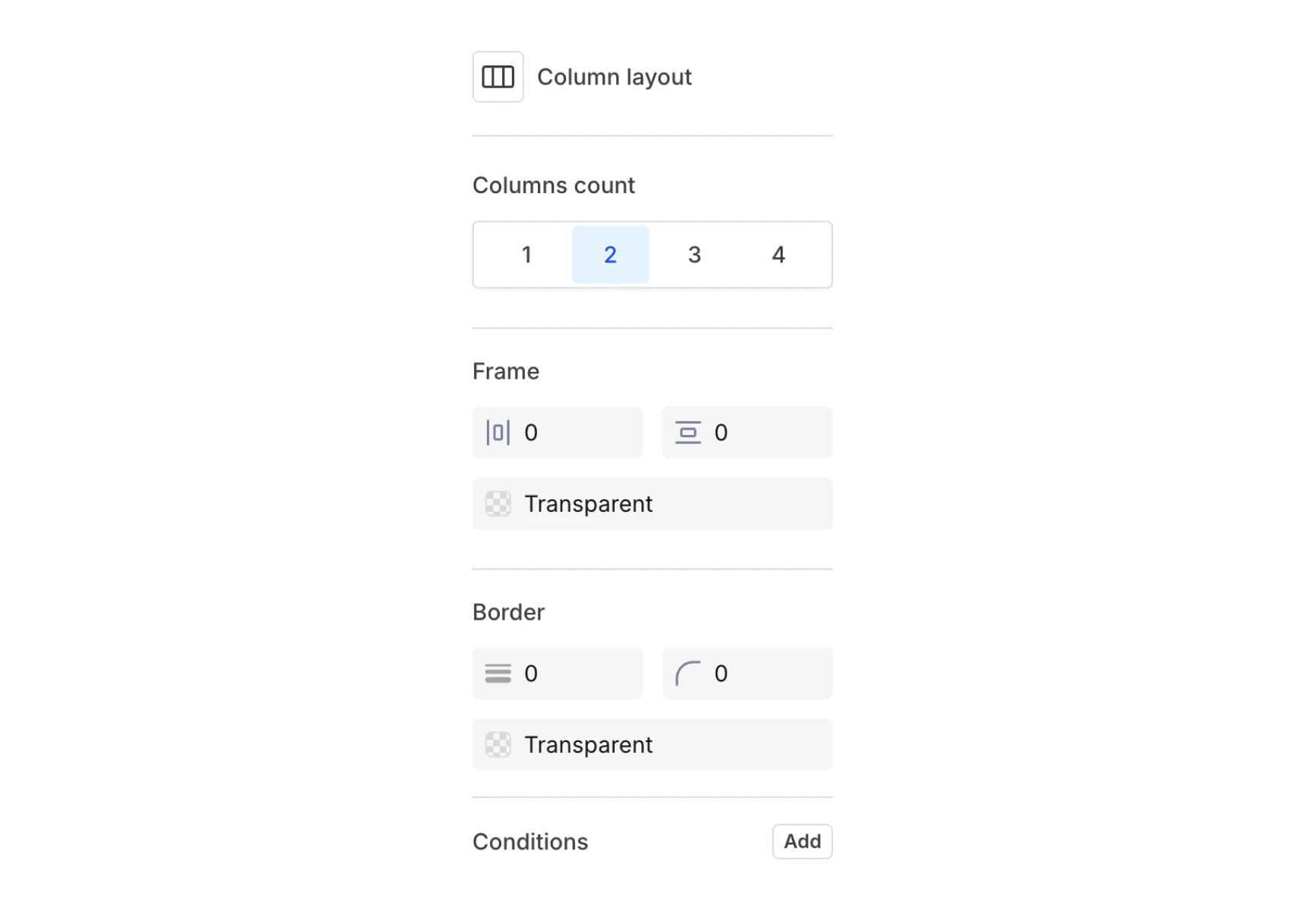
Column Layout Settings
Channel behavior
Column blocks render differently depending on the channel:On mobile email clients, columns typically stack vertically to fit narrow screens. Design your column content so it reads well in both side-by-side and stacked layouts.
Tips
- Keep to 2-3 columns — more columns get cramped, especially on mobile where they stack.
- Balance content height — columns with very different content lengths can look uneven. Use vertical alignment or padding to compensate.
- Test across channels — preview your template in email, push, and inbox to verify the layout works in each context.
- Use for product cards — a common pattern is an image column (30-40% width) alongside a text + button column (60-70% width).