

Available blocks
Additional blocks (column, blockquote, list) may be available depending on your workspace.
Channel availability
Not all blocks are available on every channel. Email supports all block types; Slack and MS Teams support a subset. SMS, Push, and Inbox use simplified text editors. See Channels for details.Adding blocks
- Select a channel from the left sidebar
- Drag a block from the block sidebar onto the canvas
- Drop it where you want it to appear
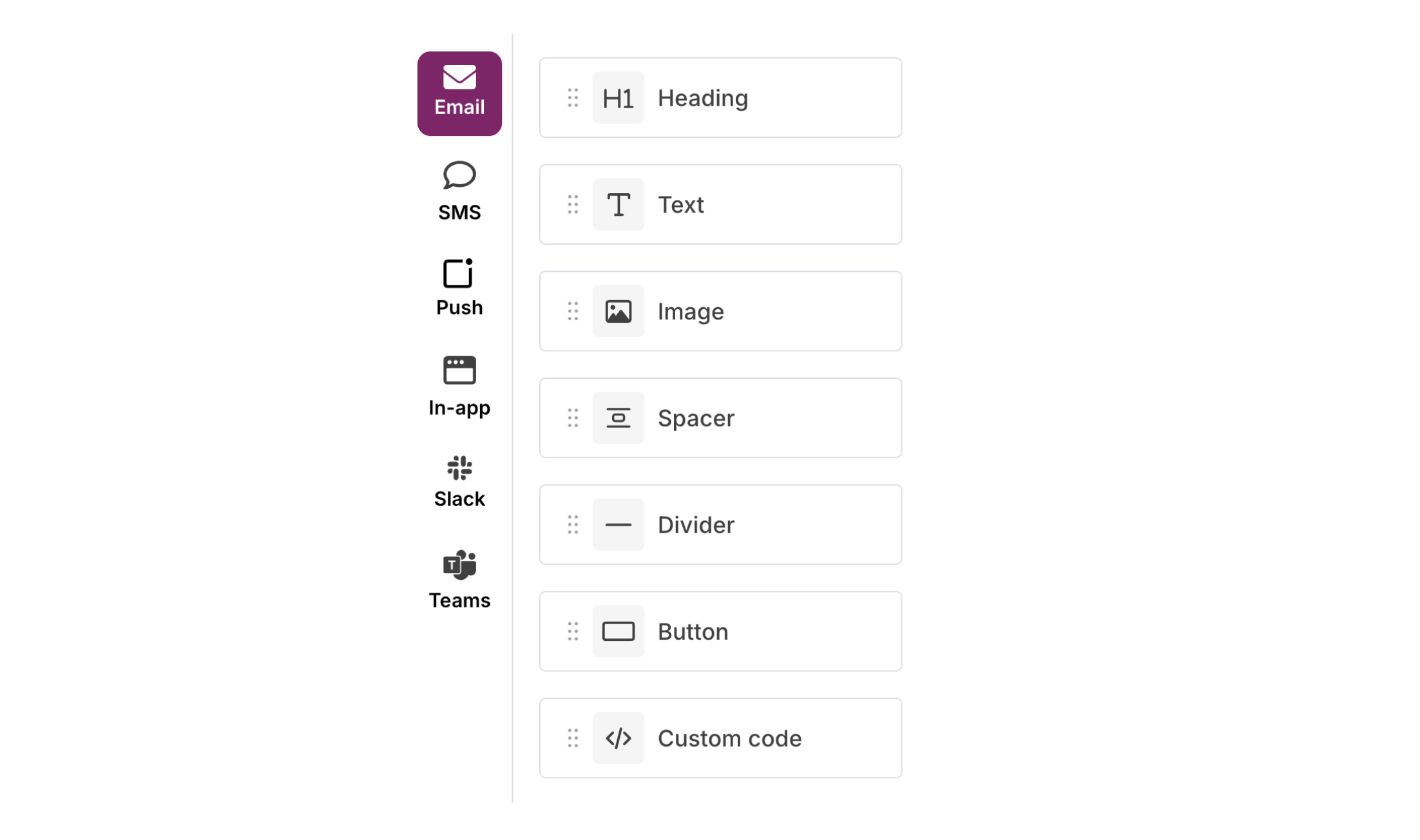
Block Sidebar
Block settings
Click on a block to see its settings in the right panel. Settings vary by block type and may include:- Frame: Padding and margin
- Border: Border style and radius
- Alignment: Text and content alignment
- Colors: Background and text colors
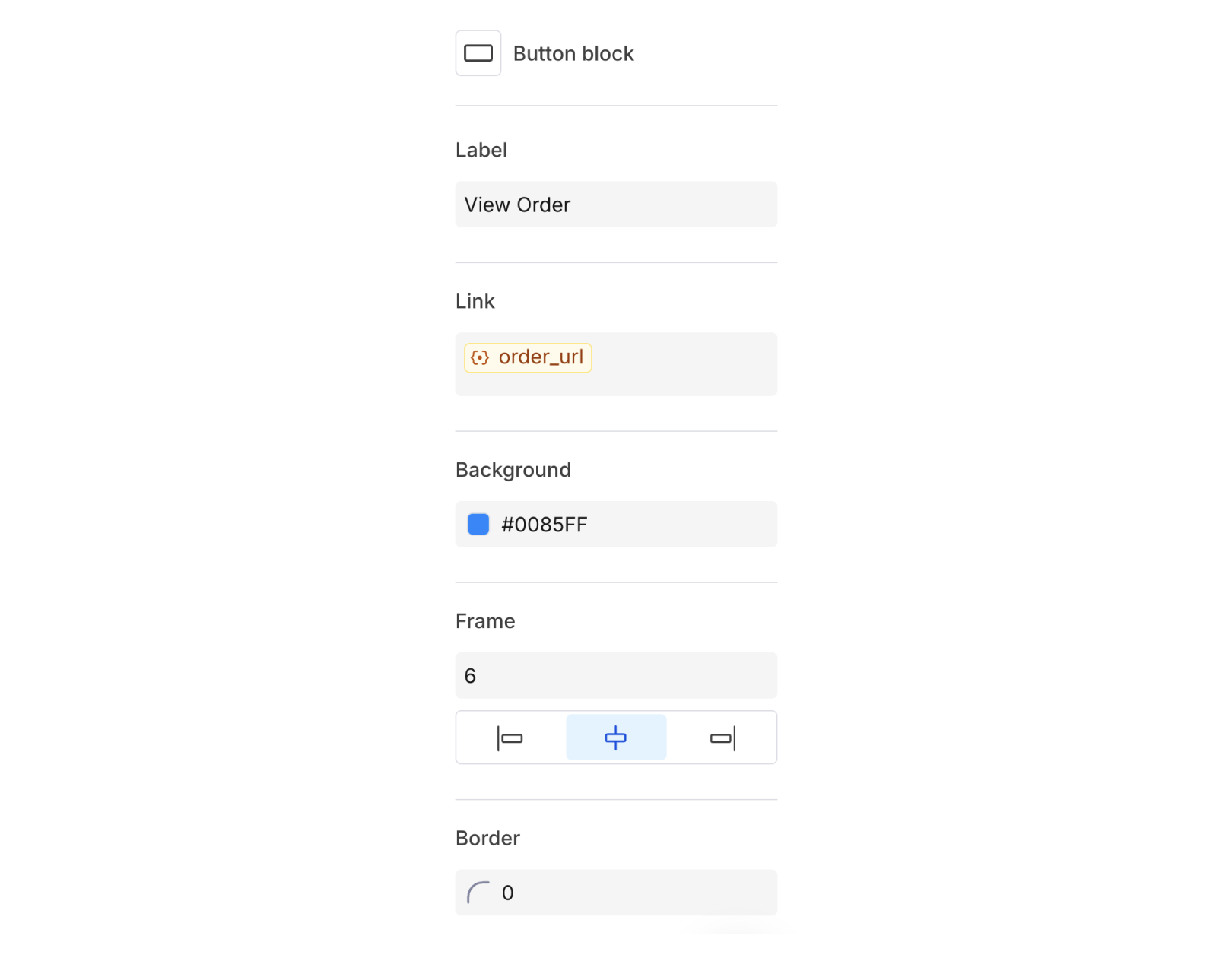
Block Settings
Copying and removing blocks
When you select a block, action icons appear:- Copy: Duplicate the block directly below
- Delete: Remove the block from the canvas
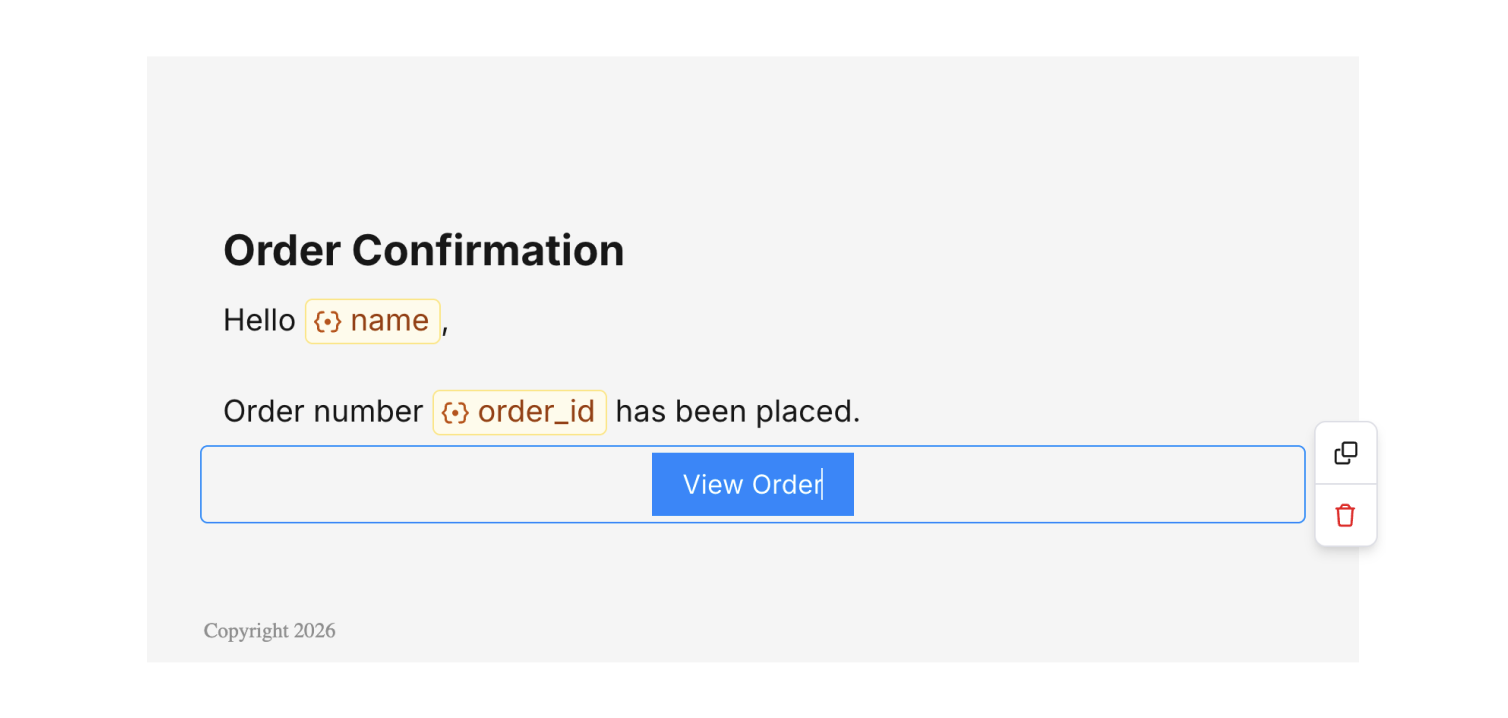
Block Actions