List blocks add bulleted or numbered lists to your notifications. Use them for order details, feature lists, or any content that benefits from a structured list format.

Adding a list block

  1. In Design Studio, select a channel.
  2. Add a List block from the block sidebar, toolbar, or slash menu.
  3. Choose Ordered (numbered) or Unordered (bulleted) from the settings panel.
  4. Add list items and use variables for dynamic content.
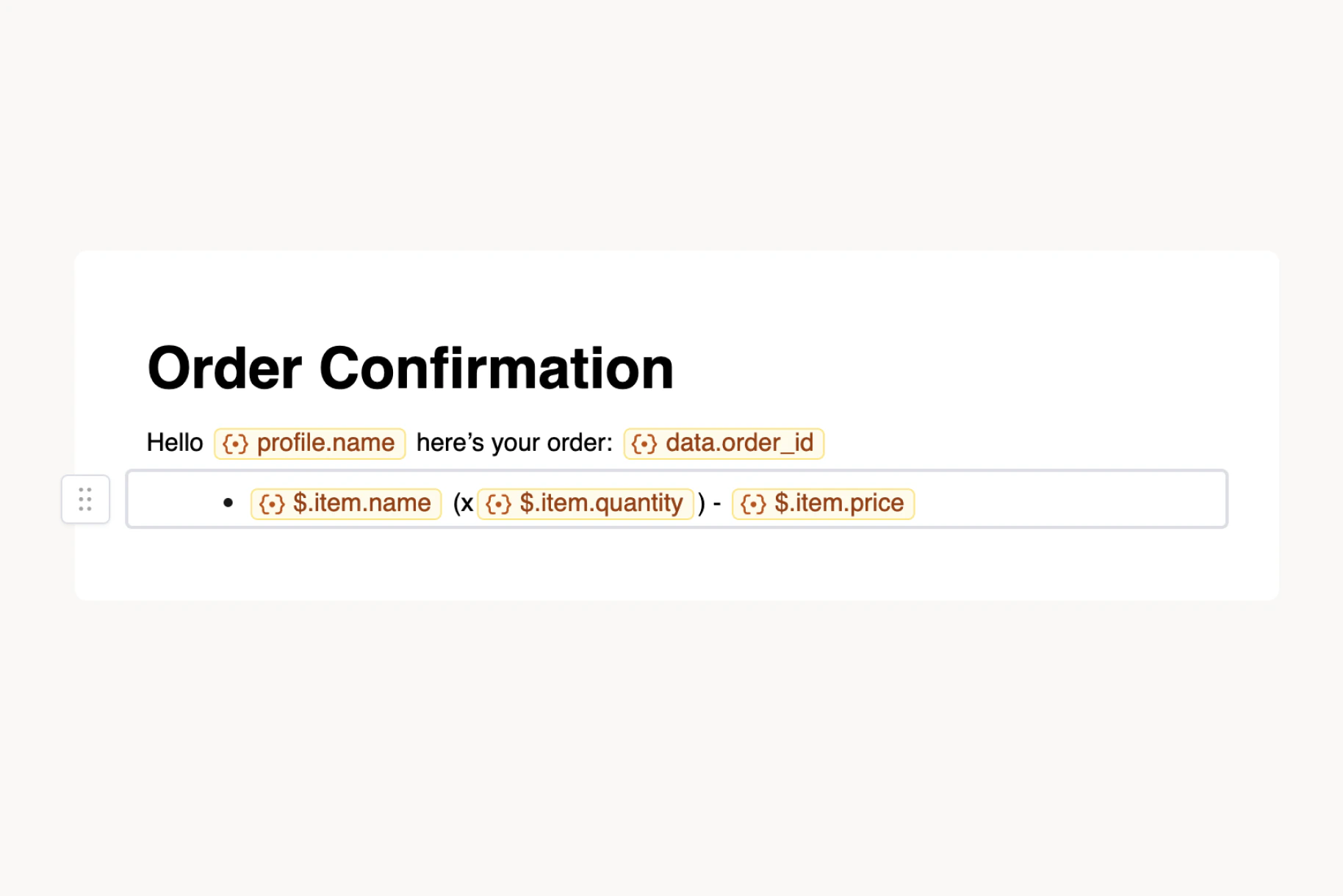
List block in Design Studio

List settings

Select a List block to open the settings panel:
  • Type — toggle between Unordered (bulleted) and Ordered (numbered)
  • Padding — horizontal and vertical padding in pixels
  • Loop on — repeat the list for each item in a data array (see below)
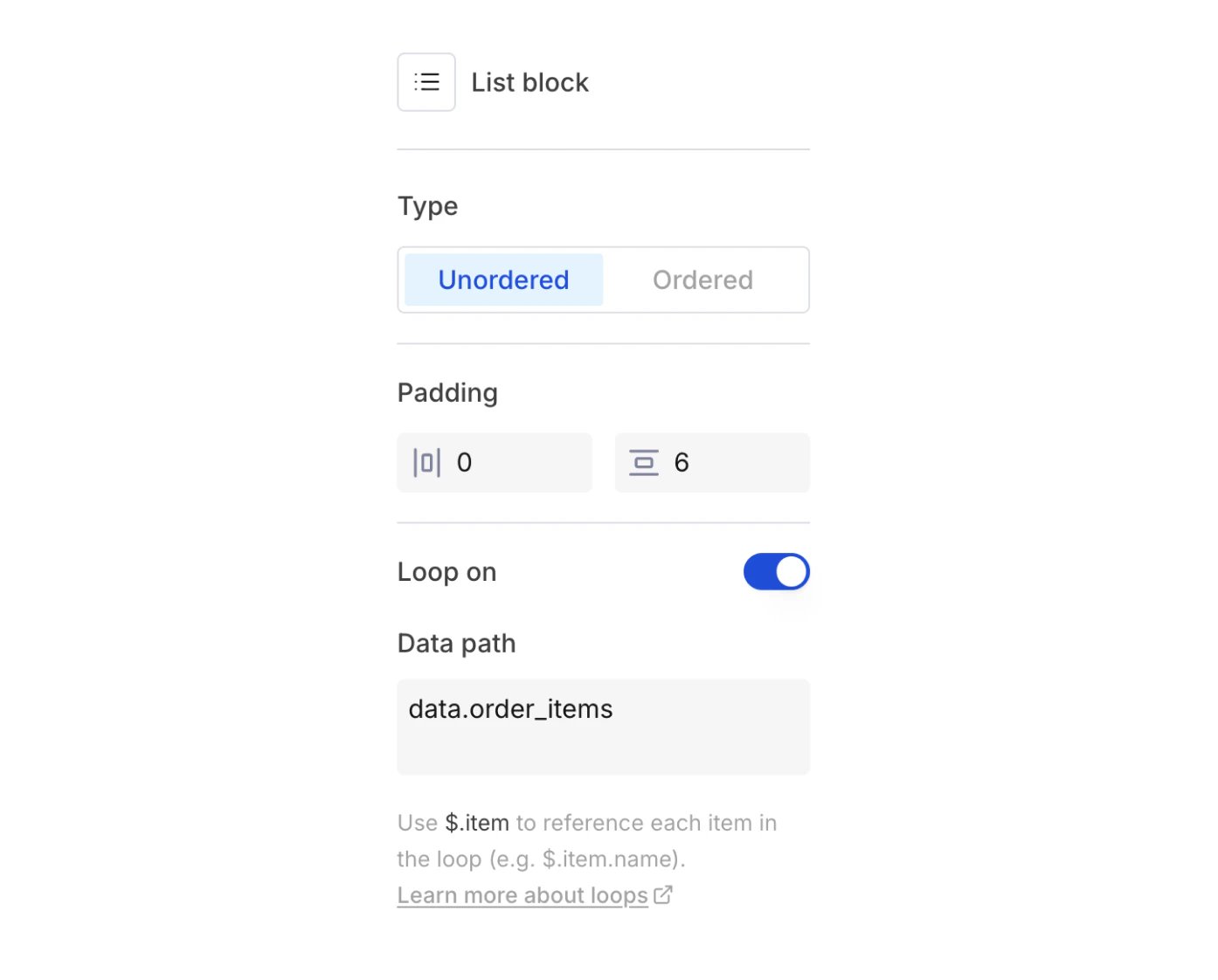
List block settings panel showing type, padding, and loop on toggle

Looping over data

The Loop on toggle repeats the list for each item in a data array you pass via the Send API. This is the primary way to iterate over dynamic collections (order line items, product lists, notification summaries, etc.) in Design Studio. To set up a loop:
  1. Select the List block and open the settings panel.
  2. Enable the Loop on toggle.
  3. Enter a Data path that points to an array in your data payload (e.g. data.order_items).
  4. Inside list item text, reference fields on the current item with $.item (e.g. $.item.name, $.item.price).
For example, given this Send API payload:
{
  "data": {
    "order_items": [
      { "name": "Wireless Mouse", "quantity": 1, "price": "$29.99" },
      { "name": "USB-C Hub", "quantity": 2, "price": "$44.99" },
      { "name": "Laptop Stand", "quantity": 1, "price": "$59.99" }
    ]
  }
}
Set the data path to data.order_items, then use $.item.name, $.item.quantity, and $.item.price in your list item text. Courier expands the list at send time, producing one list item per array entry.
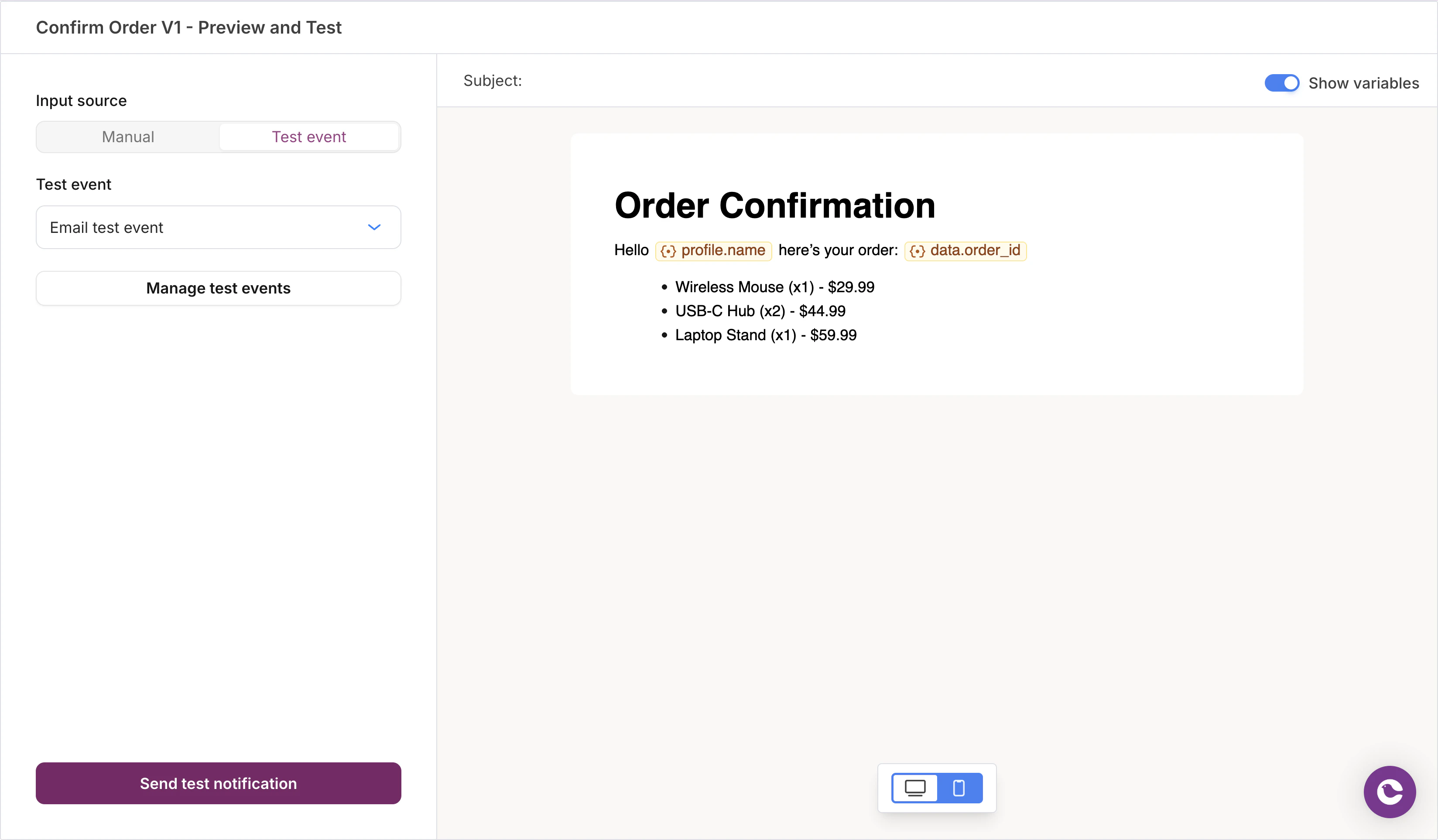
Preview showing expanded list items from a looped data array
The data path must start with data. and point to an array. The designer validates the path against your test event data so you can catch mismatches before sending.
At render time, Courier’s loop evaluation expands each iteration into a single consolidated list block so spacing and formatting stay consistent.

Workaround: Handlebars loops in HTML blocks

If you need loop logic that goes beyond what the List block supports (nested loops, conditional items within each iteration, or custom HTML structure), you can use an HTML block with raw Handlebars:
<ul>
{{#each data.order_items}}
  <li>{{this.name}} (x{{this.quantity}}) — {{this.price}}</li>
{{/each}}
</ul>
Handlebars expressions in HTML blocks compile at send time through the same template pipeline. See Variables and Handlebars for details.

What’s Next

HTML Blocks

Raw Handlebars loops and custom markup

Elemental Loops

Loop control flow in the Elemental JSON format

Variables

Insert dynamic content from your data payload

Column Blocks

Side-by-side layouts for product cards and grids