Overview

When working with multi-tenant applications, you often need to send notifications that reflect tenant-specific configurations—such as custom branding, profile data overrides, or tenant-scoped preferences. This tutorial shows you how to invoke an automation with tenant context so that Courier applies the correct tenant configuration to each recipient.

Use Cases

You might need tenant context in automations when:
  • Custom Branding: Each tenant has their own brand identity that should appear in notifications
  • Profile Overrides: Tenant-specific user data needs to be merged with base user profiles
  • Tenant Preferences: Different tenants have different notification settings or routing rules
  • Data Isolation: Each tenant’s data needs to remain scoped to their organization

An Example

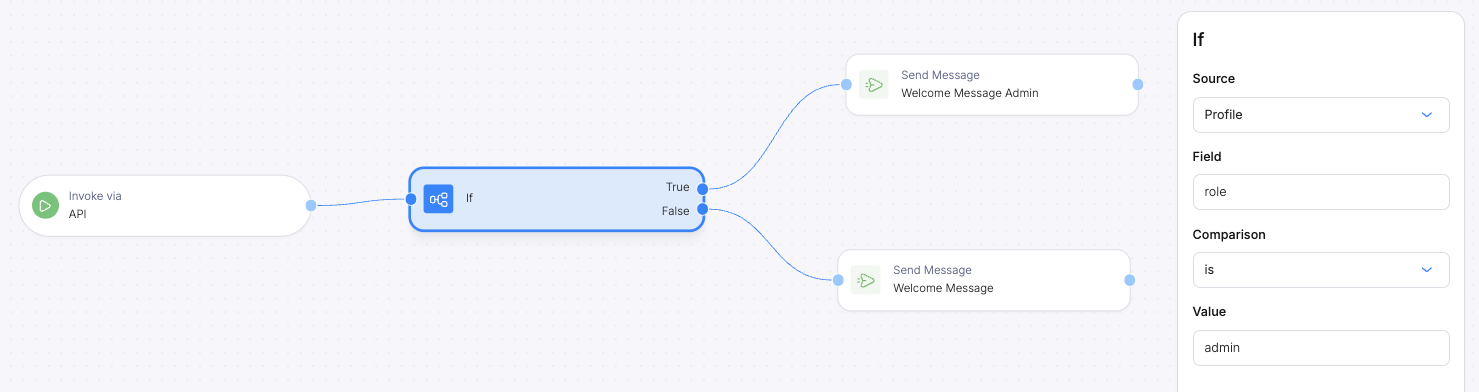
For this example, say we want to invoke an automation for a whole tenant and send admins one message and non-admins a different message. We can create a simple automation that looks at the user’s profile and check the user’s role.
Automation Conditional Flow

Automation Conditional Flow

To send an automation with tenant context, you need to:
  1. Pass the tenant_id in the automation invocation payload (in both profile and data)
  2. Configure the automation’s send node to use the tenant context from the data payload
This ensures that when the automation executes, Courier applies the tenant-specific configuration to the notification.

Step-by-Step Guide

1

Invoke the automation with tenant_id in the payload

When calling the automation, include the tenant_id in both the profile object and the data object.
{
  "recipient": null,
  "profile": {
    "tenant_id": "courier-default"
  },
  "data": {
    "tenant_id": "courier-default"
  }
}
  • profile.tenant_id: Associates the recipient with the tenant for profile lookups
  • data.tenant_id: Makes the tenant ID available as a variable in the automation flow
2

Configure the Send node with tenant context

In your automation, open the Send node’s JSON editor and add a context object that references the tenant_id from your data payload:
Automation's Send Node JSON Editor

Automation's Send Node JSON Editor

{
  "template": "ad2c9305-5bf8-4a8e-9108-aac5e3bdd2ff",
  "context": {
    "tenant_id": "data.tenant_id"
  },
  "to": {},
  "data": {}
}
The context.tenant_id field tells Courier to apply tenant-specific configuration. The value "data.tenant_id" references the tenant ID you passed in the automation invocation.
Use the exact syntax "data.tenant_id" to reference the tenant ID from your payload—this is a variable reference, not a string literal.

Testing Your Configuration

Invoke the automation with a test tenant ID and verify the tenant-specific branding appears in the Data Logs:
curl -X POST https://api.courier.com/automations/invoke \
  -H "Authorization: Bearer $COURIER_AUTH_TOKEN" \
  -H "Content-Type: application/json" \
  -d '{
    "recipient": null,
    "profile": {
      "tenant_id": "your-tenant-id"
    },
    "data": {
      "tenant_id": "your-tenant-id"
    }
  }'

Troubleshooting

If tenant branding isn’t appearing, verify:
  • The tenant_id matches an existing tenant in your workspace (case-sensitive)
  • The tenant has a brand configured
  • The context object is properly set in the Send node JSON with "data.tenant_id" syntax