

Prerequisites
- A Courier workspace with at least one integration configured
- Familiarity with the Send API
Step 1: Build in Test
Switch to the Test environment using the toggle in the lower-left settings menu. Everything you create here; templates, brands, subscription topics; is fully isolated from Production.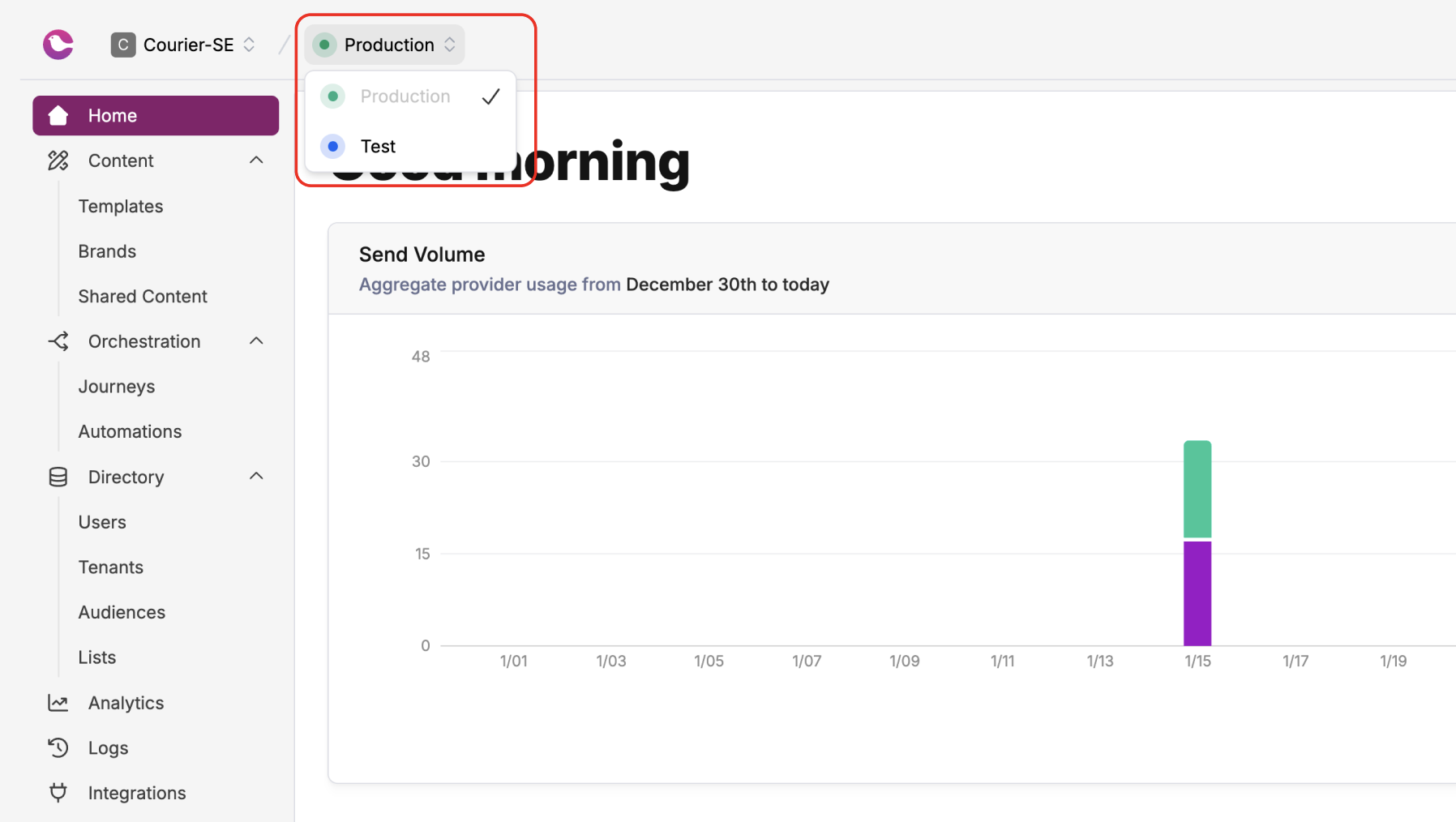
Switch to the Test environment
Step 2: Stage with draft keys
Draft keys let you preview unpublished template changes against real send payloads before publishing. This catches rendering issues early.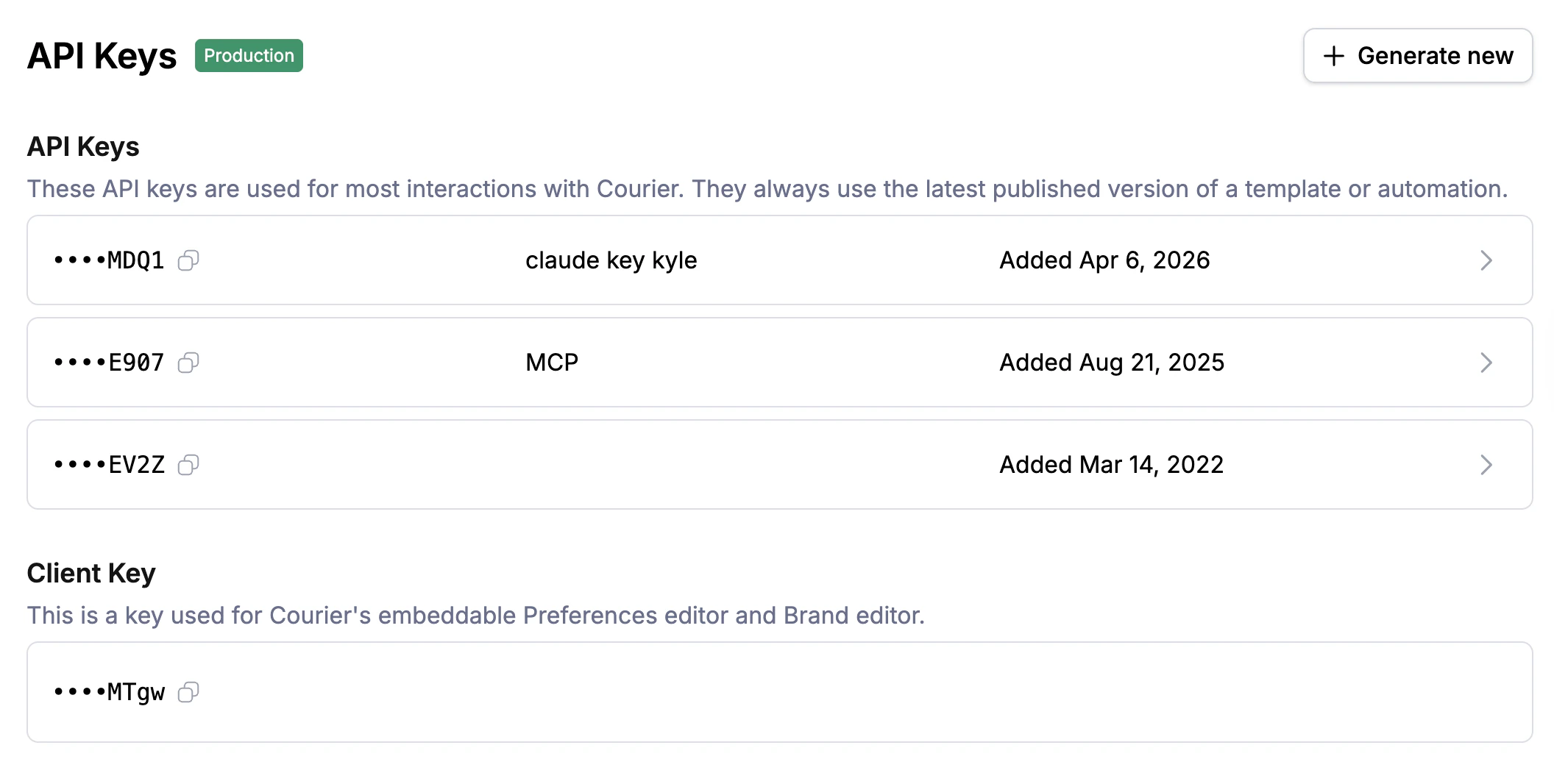
API Keys settings showing key types
Step 3: Get approval (optional)
If your team requires review before publishing, enable the Template Approval Workflow. When enabled, the “Publish Changes” button is replaced with “Send for Review,” and the template enters a read-only state until the submission is resolved via API. This is useful for teams that need compliance review, copy editing, or multi-stakeholder sign-off before changes go live. Skip this step if your team doesn’t need formal approval gates.Step 4: Promote to Production
Once your template is published in Test and validated, migrate it to Production:1
Open the template
Navigate to the notification template you want to promote.
2
Open the migration modal
Click the dropdown on the “Publish Changes” button and select “Migrate Assets.”
3
Review and copy
Courier copies the template and all dependencies (brands, tags, subscription topics) to the destination environment. Choose “Copy Assets” to copy without publishing, or “Copy And Publish” to go live immediately.
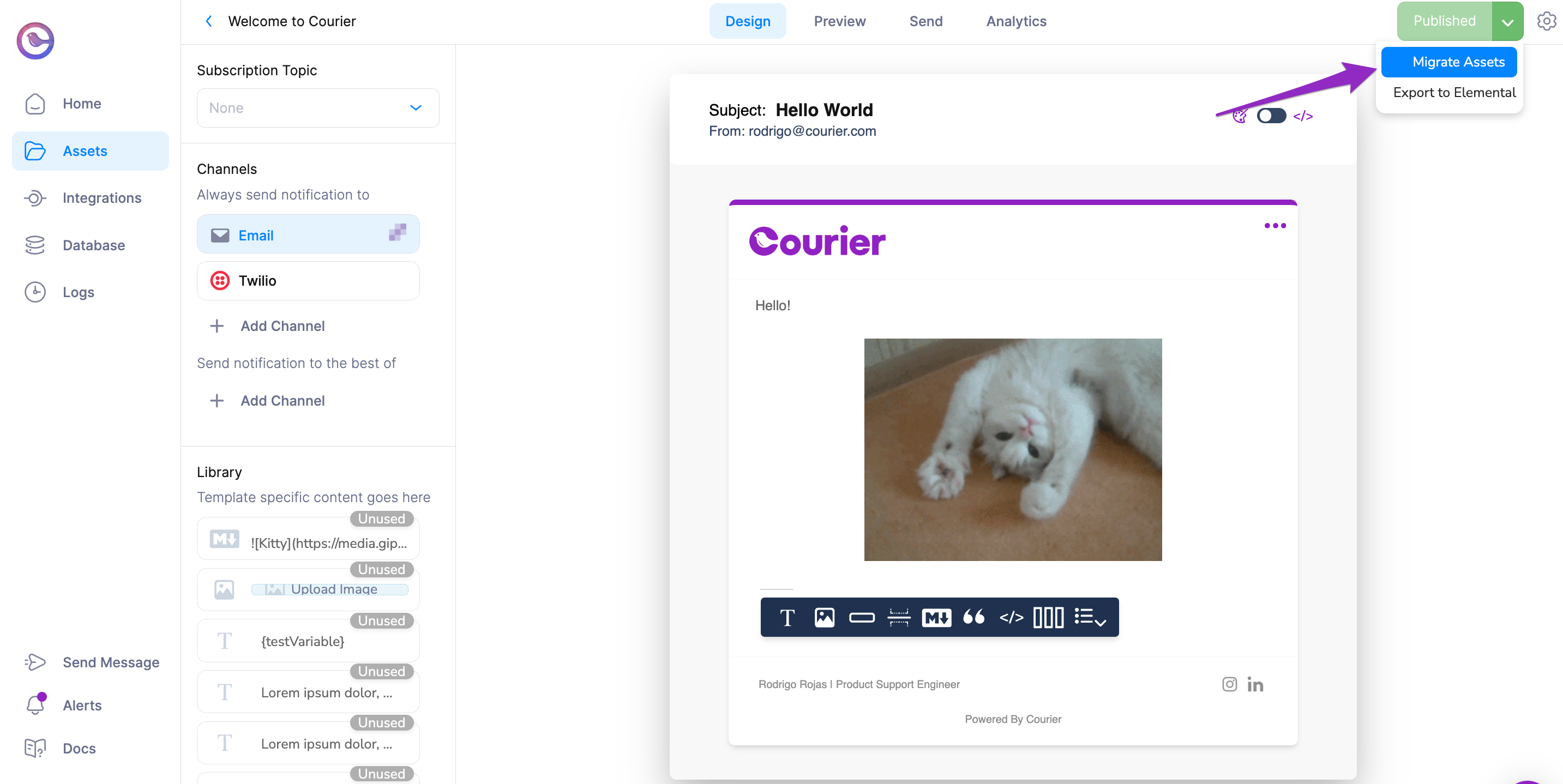
Migrate Assets from Test to Production
Step 5: Verify
After promotion, confirm everything works in Production:- Check Message Logs. Open Message Logs in the Production environment and verify that sends are rendering and delivering as expected.
- Run a smoke test. Use the CLI or API with your Production key to send a test notification to an internal recipient:
- Inspect the timeline. In Message Logs, expand the message and review the timeline to confirm the correct template version was used and the provider accepted the send.
Environments & API Keys
Manage environments, keys, and asset migration
Template Approval Workflow
Require review before publishing template changes
Message Logs
Monitor delivery status and debug issues
Courier CLI
Send, test, and manage notifications from the command line