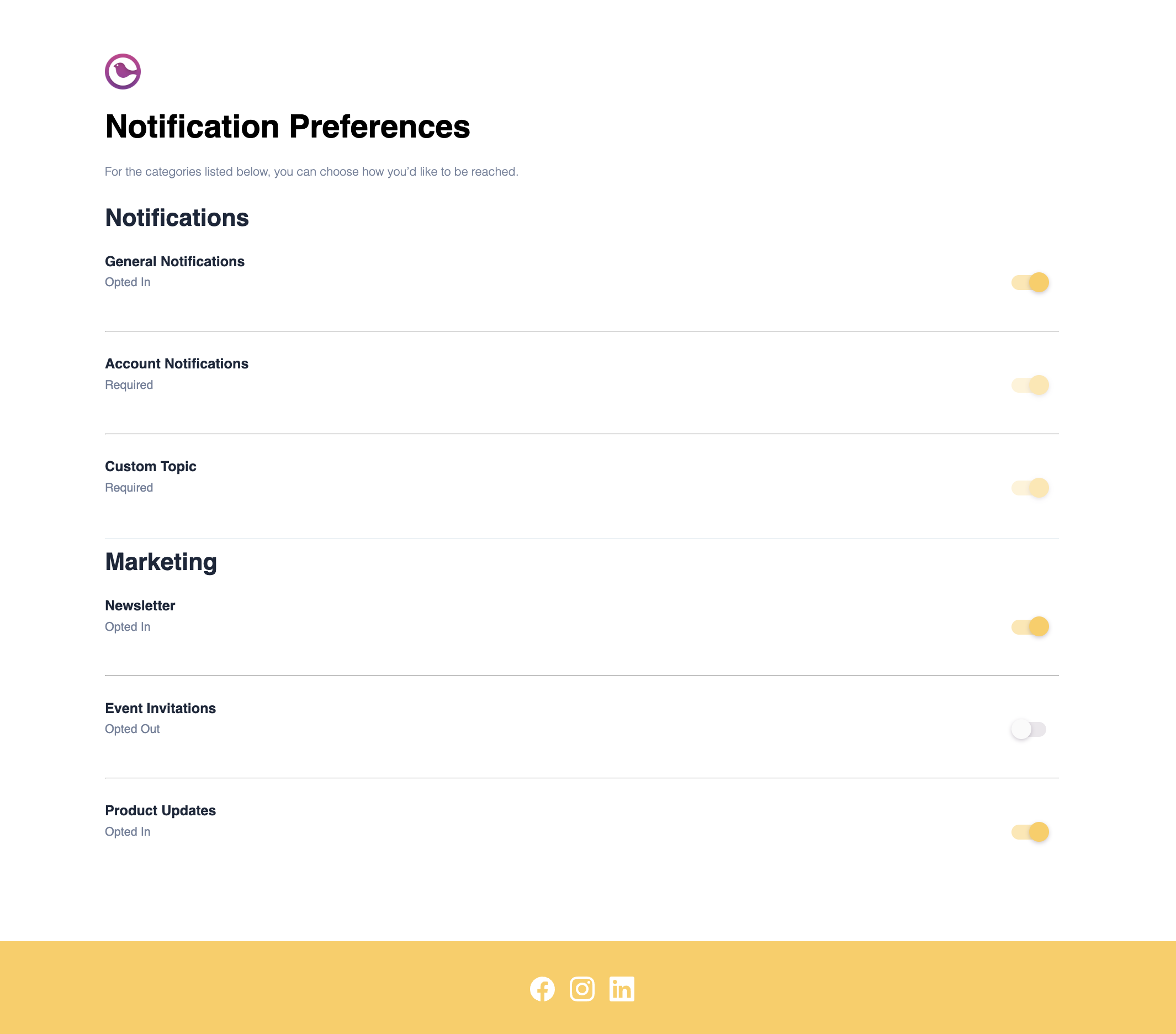
Create subscription topics, link them to templates, and deploy a Courier-hosted preference page. Covers default topic states and unsubscribe headers.
Give your users a branded page where they control which notifications they receive and how. This tutorial walks through the full setup: creating topics in the Preferences Editor, connecting them to templates, and adding preference links to your notifications.By the end, your users will be able to visit a hosted page to opt in/out of notification categories and choose delivery channels.
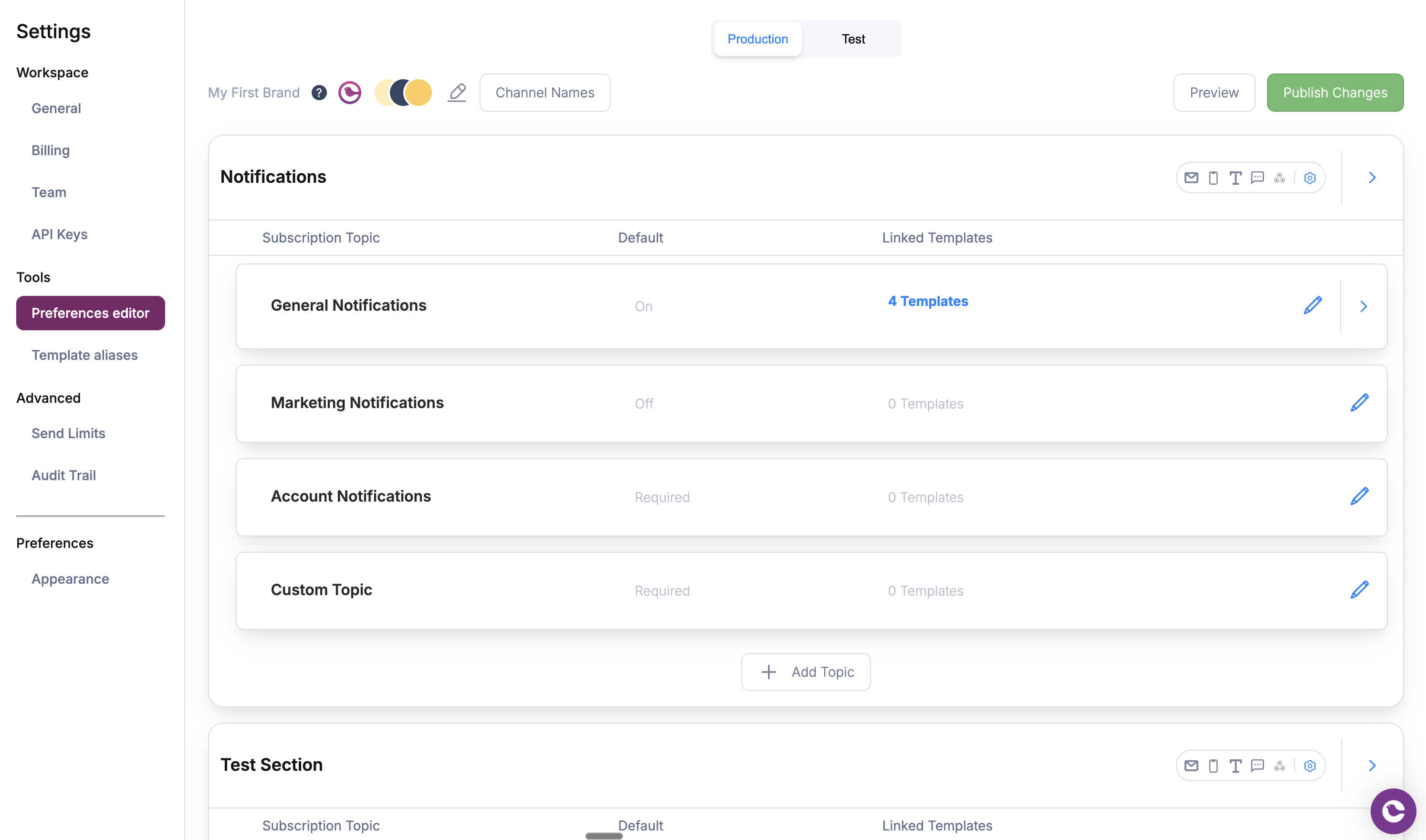
Click Add Topic and give it a user-facing name (e.g. “Product Updates”). This name is what your users will see on the preference page.
Creating a new subscription topic
3
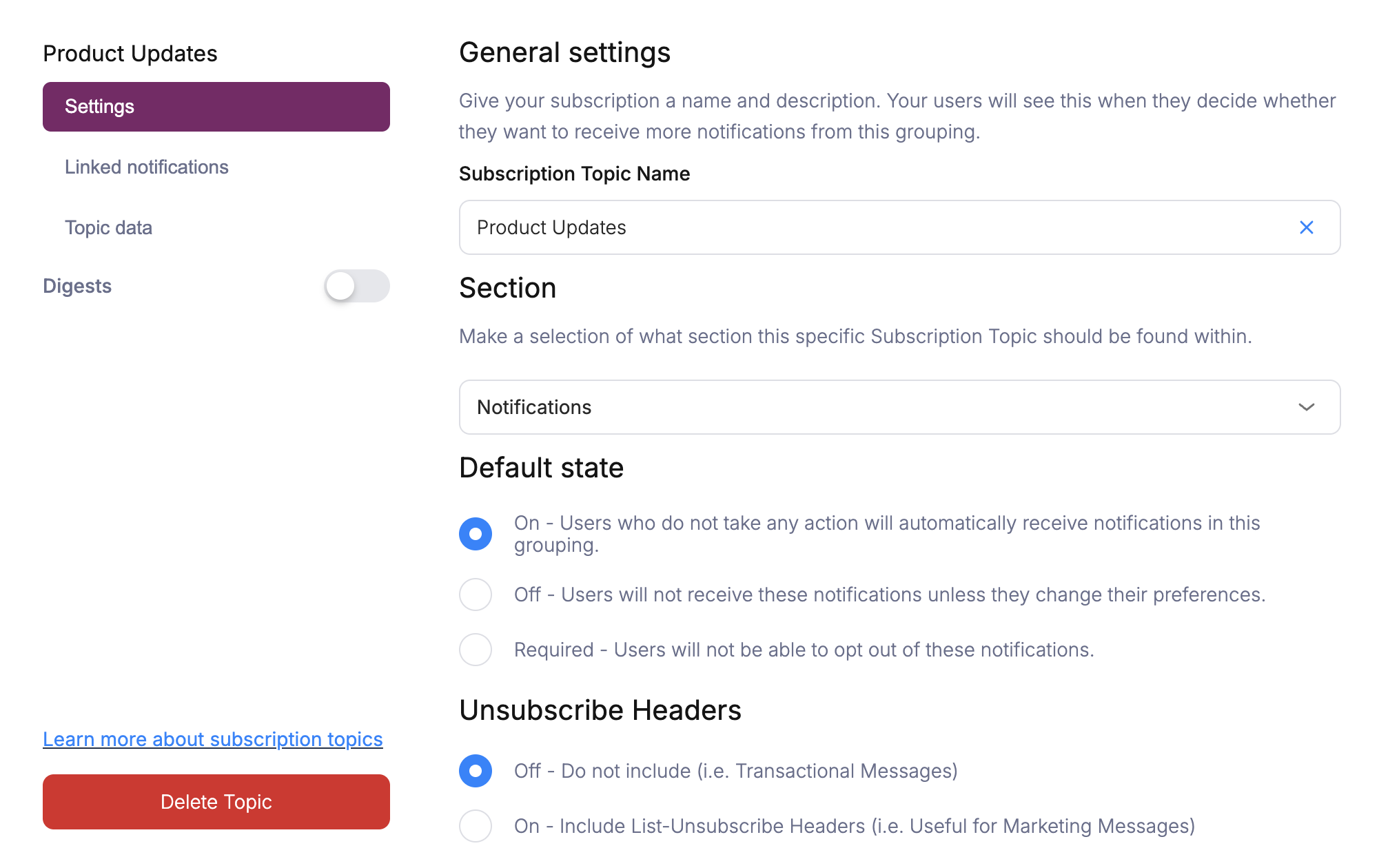
Set the Default State
Choose whether users start opted in, opted out, or are required to receive this topic:
Default State
Behavior
On
Users receive notifications unless they opt out
Off
Users must opt in to receive notifications
Required
Users cannot opt out (e.g. security alerts, billing)
For most notification categories, On is appropriate. Use Required sparingly for critical communications.
4
Configure Unsubscribe Headers
Each topic has an Unsubscribe Headers setting that controls whether Courier includes List-Unsubscribe headers in emails sent for this topic:
Setting
When to use
Off
Transactional messages (order confirmations, password resets) that users should always receive
On
Marketing messages (newsletters, promotions) where email clients should show an unsubscribe option
When enabled, email clients like Gmail and Apple Mail display a native “Unsubscribe” button in the message header, which helps with deliverability and compliance.
5
Create a Preference Section (Optional)
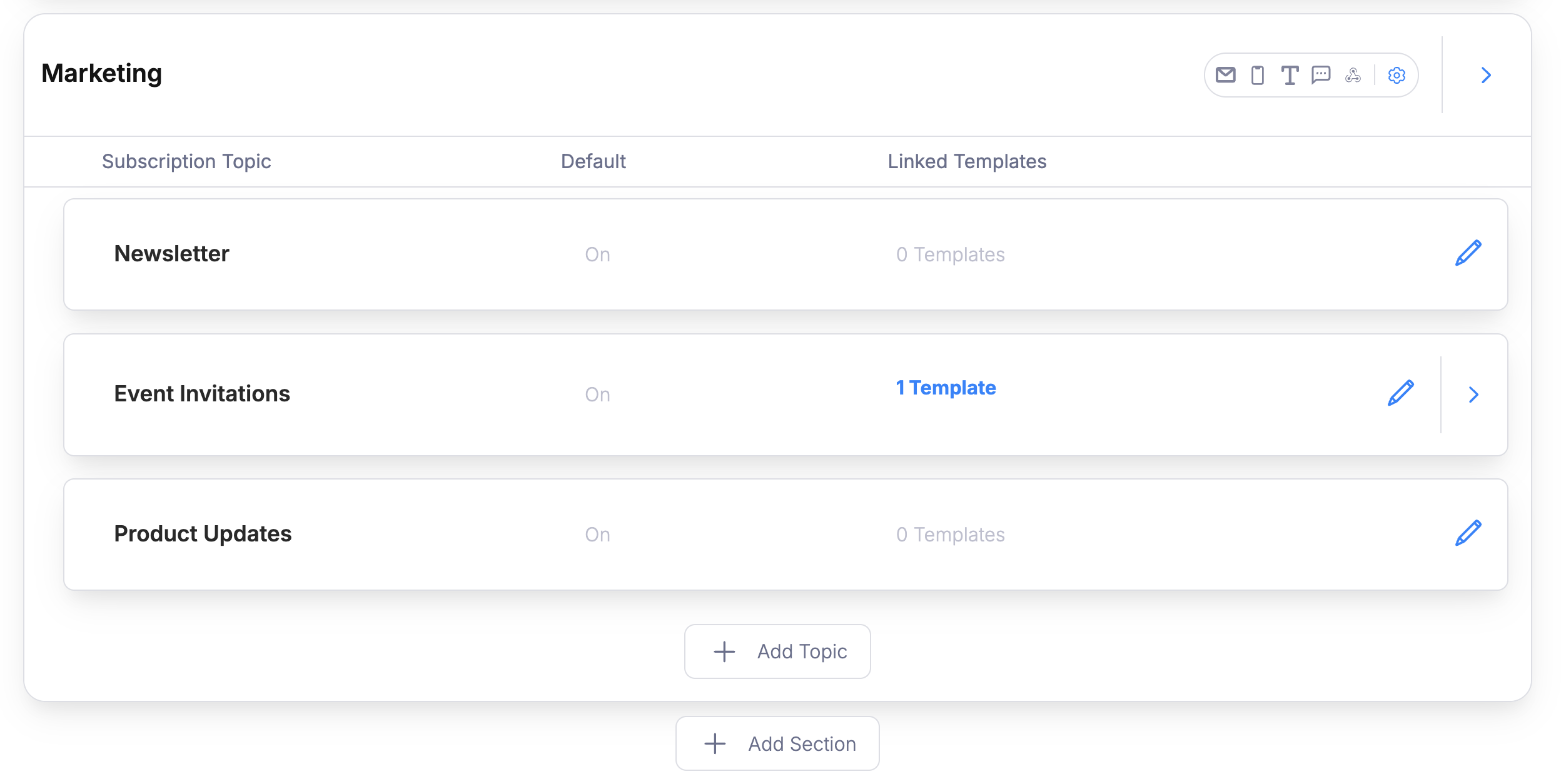
Click Add Section to group related topics together on the preference page. For example, a “Marketing” section might contain “Product Updates”, “Newsletter”, and “Event Invitations”.If you don’t create sections, all topics appear in a flat list.
Preference section grouping related topics
For full details on topic and section configuration, see the Preferences Editor reference.
Connect your notification templates to subscription topics so Courier automatically respects user preferences when sending.
1
Open Topic Settings
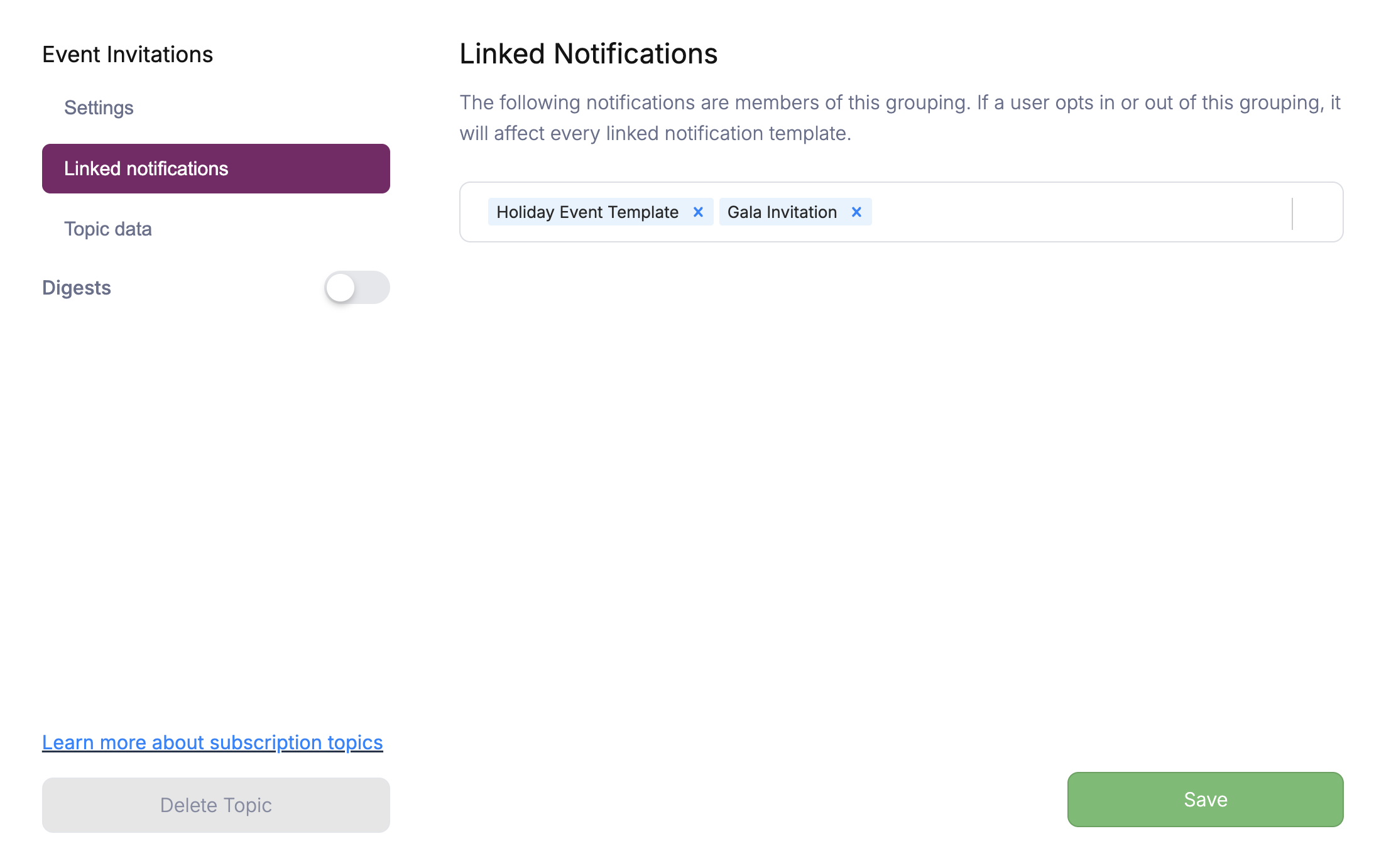
In the Preferences Editor, click the topic you created and look for the Linked Notifications section.
Linked Notifications in topic settings
2
Link Your Templates
Select the notification templates that belong to this topic. When a user opts out of the topic, Courier suppresses all linked templates for that user.
Each template can only be mapped to one subscription topic at a time.
3
Publish Your Changes
Click the Publish button in the Preferences Editor. Changes to topics, sections, and template mappings are saved as a draft until you publish. Your hosted preference page and embedded components will not reflect updates until you publish.
You can also set the topic when creating or editing a template in the Template Designer.
Insert preference center URLs into your notification templates so users can access their settings. Courier generates unique, authenticated URLs per user; no additional auth setup is needed.
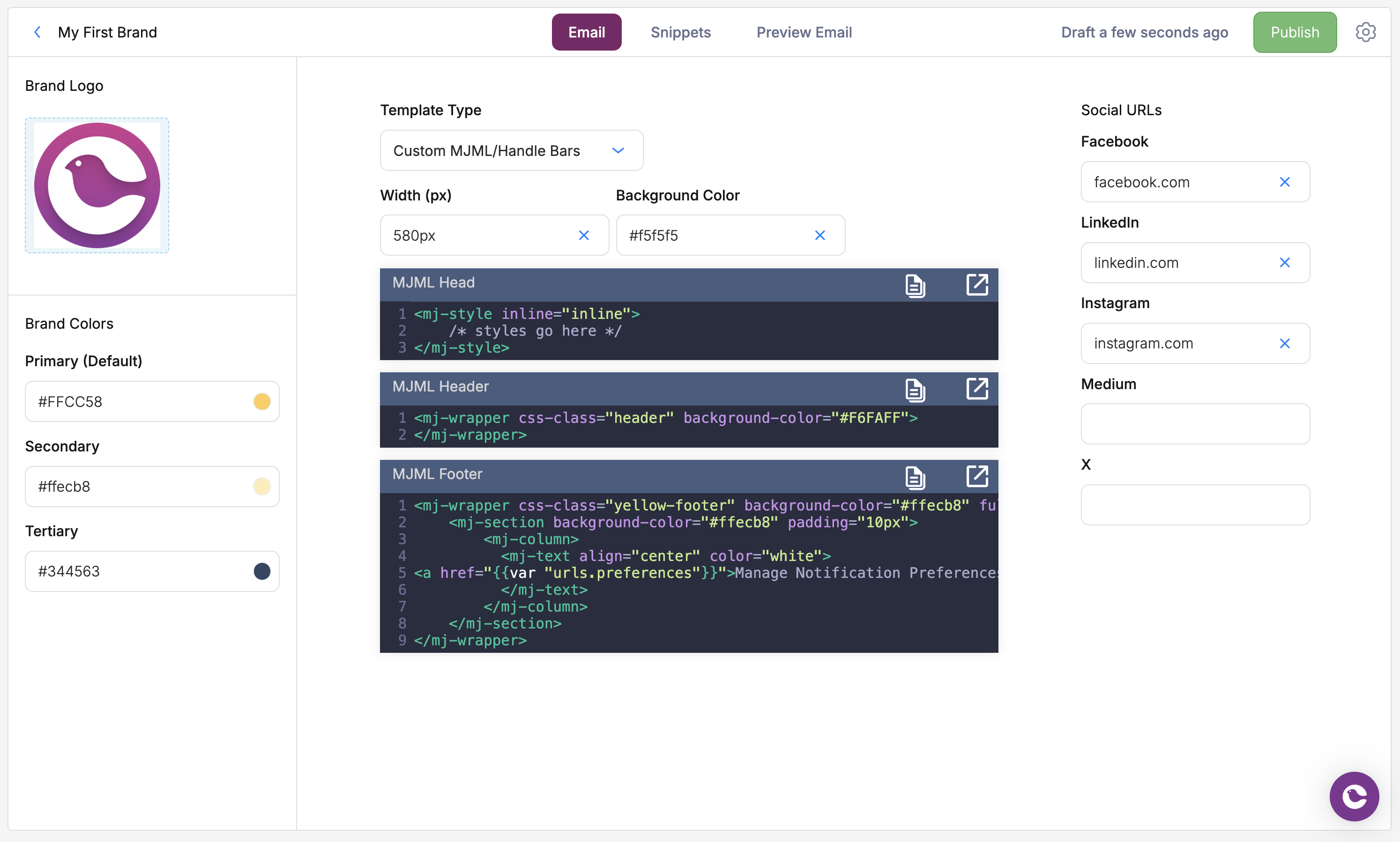
To show the preference link on every notification automatically, add it to your brand footer. This requires a Custom MJML/Handlebars brand template (the standard template only supports social links in the footer).
Add one-click unsubscribe links so users can quickly opt out of a specific topic. This is important for email compliance.The variable syntax matches the preference link pattern:
Context
Syntax
Content blocks
{$.urls.unsubscribe}
Handlebars
{{var "urls.unsubscribe"}}
Elemental JSON
"href": "{$.urls.unsubscribe}"
When a user clicks an unsubscribe link, Courier shows a confirmation page and opts them out of the topic associated with that notification.
You can also read and update user preferences from your backend using the API or SDKs. This is useful for syncing preferences with your own settings UI or importing existing preferences.
For channel preferences to take effect, the notification template must have multiple delivery channels configured and be linked to a subscription topic.