Courier Inbox supports tabbed views that let users filter notifications by type. You tag messages when you send them, then configure the Inbox SDK to display tabs that filter on those tags. This tutorial walks through the full flow: tagging messages at send time, configuring tabs in React (both the <CourierInbox> component and the useCourier hook for custom UIs), and verifying messages route to the right tab.
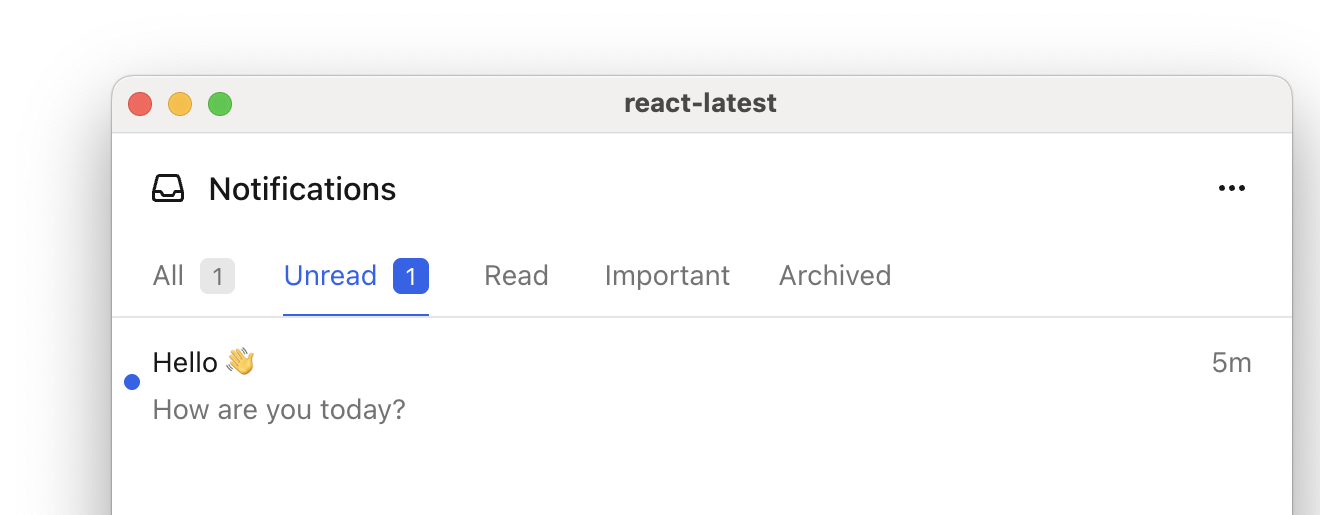
Courier Inbox with tabs

Prerequisites

Before starting, you need:
  • A Courier account with the Inbox provider enabled
  • A working Inbox implementation with JWT authentication (see How to Implement Inbox)
  • @trycourier/courier-react installed in your project

How Tags and Tabs Work

Tags are string labels you attach to messages at send time via metadata.tags. The Inbox SDK uses these tags to filter messages into tabs. When you define a tab with filter: { tags: ["order"] }, the SDK queries Courier for messages that have any of the specified tags. Filter fields are combined with AND logic; for example, { tags: ["order"], status: "unread" } shows only unread messages tagged “order”.
Tags are limited to 9 per message, with each tag up to 30 characters. Only string values are accepted.

Step 1: Send Tagged Messages

Add metadata.tags to your send requests. Each message can have one or more tags that describe its category.
curl -X POST https://api.courier.com/send \
  -H "Authorization: Bearer $COURIER_API_KEY" \
  -H "Content-Type: application/json" \
  -d '{
    "message": {
      "to": { "user_id": "user_123" },
      "content": {
        "title": "Order shipped",
        "body": "Your order #4812 is on its way."
      },
      "routing": {
        "method": "single",
        "channels": ["inbox"]
      },
      "metadata": {
        "tags": ["order"]
      }
    }
  }'
Send a few messages with different tags so you have data to work with. For example, send one with ["order"], one with ["alert"], and one with no tags.

Step 2: Configure Tabs with the CourierInbox Component

Pass a feeds array to <CourierInbox> to define your tab structure. Each feed contains tabs, and each tab has a datasetId, title, and filter.
import { useEffect } from "react";
import {
  CourierInbox,
  useCourier,
  type CourierInboxFeed,
} from "@trycourier/courier-react";

const feeds: CourierInboxFeed[] = [
  {
    feedId: "notifications",
    title: "Notifications",
    tabs: [
      { datasetId: "all", title: "All", filter: {} },
      { datasetId: "unread", title: "Unread", filter: { status: "unread" } },
      { datasetId: "orders", title: "Orders", filter: { tags: ["order"] } },
      { datasetId: "alerts", title: "Alerts", filter: { tags: ["alert"] } },
    ],
  },
];

export default function App() {
  const courier = useCourier();

  useEffect(() => {
    const jwt = "your_jwt_token";
    courier.shared.signIn({ userId: "user_123", jwt });
  }, []);

  return <CourierInbox feeds={feeds} />;
}
A few things to note about this configuration:
  • feedId identifies the feed. If you only have one feed, the feed selector dropdown is hidden automatically.
  • datasetId must be unique across all tabs in all feeds. The SDK uses it as a key to store and retrieve messages for that tab.
  • filter: {} with no properties shows all non-archived messages (archived messages are excluded by default).
  • Tags filter with OR logic: { tags: ["order", "shipment"] } shows messages that have either tag. Combine with other filter fields for AND: { tags: ["order"], status: "unread" }.

Step 3: Build a Custom Inbox with useCourier

If you need full control over the UI, use the useCourier hook to access inbox data directly and render your own components. The hook exposes inbox.feeds, a record keyed by datasetId. Each entry contains the messages, unread count, and pagination state for that tab.
import { useEffect, useState } from "react";
import { useCourier, type CourierInboxFeed } from "@trycourier/courier-react";

const feeds: CourierInboxFeed[] = [
  {
    feedId: "notifications",
    title: "Notifications",
    tabs: [
      { datasetId: "all", title: "All", filter: {} },
      { datasetId: "orders", title: "Orders", filter: { tags: ["order"] } },
      { datasetId: "alerts", title: "Alerts", filter: { tags: ["alert"] } },
    ],
  },
];

export default function CustomInbox() {
  const courier = useCourier();
  const [activeTab, setActiveTab] = useState("all");

  useEffect(() => {
    const jwt = "your_jwt_token";
    courier.shared.signIn({ userId: "user_123", jwt });
  }, []);

  useEffect(() => {
    courier.inbox.registerFeeds(feeds);
    courier.inbox.load();
  }, []);

  const dataset = courier.inbox.feeds?.[activeTab];
  const messages = dataset?.messages ?? [];
  const unreadCount = dataset?.unreadCount ?? 0;

  return (
    <div>
      <nav>
        {feeds[0].tabs.map((tab) => (
          <button
            key={tab.datasetId}
            onClick={() => setActiveTab(tab.datasetId)}
            style={{ fontWeight: activeTab === tab.datasetId ? "bold" : "normal" }}
          >
            {tab.title}
            {courier.inbox.feeds?.[tab.datasetId]?.unreadCount > 0 && (
              <span> ({courier.inbox.feeds[tab.datasetId].unreadCount})</span>
            )}
          </button>
        ))}
      </nav>

      <ul>
        {messages.map((msg) => (
          <li key={msg.messageId}>
            <strong>{msg.title}</strong>
            <p>{msg.preview}</p>
          </li>
        ))}
      </ul>

      {dataset?.canPaginate && (
        <button onClick={() => courier.inbox.fetchNextPageOfMessages({ datasetId: activeTab })}>
          Load more
        </button>
      )}
    </div>
  );
}
The key parts of the useCourier inbox API used here:
Method / PropertyDescription
inbox.registerFeeds(feeds)Registers your feed and tab configuration with the datastore
inbox.load()Fetches messages for all registered datasets
inbox.feeds[datasetId]Returns { messages, unreadCount, canPaginate, paginationCursor } for a tab
inbox.fetchNextPageOfMessages({ datasetId })Loads the next page of messages for a specific tab
inbox.readMessage(messageId)Marks a message as read
inbox.archiveMessage(messageId)Archives a message

Step 4: Test Your Setup

  1. Send messages with different tags using the Send API or the Courier dashboard.
  2. Open your app and verify messages appear under the correct tabs. A message tagged ["order"] should appear in both the “All” tab and the “Orders” tab.
  3. Test edge cases:
    • A message with no tags should only appear in the “All” tab and any status-filtered tabs (like “Unread”).
    • A message with multiple tags (e.g., ["order", "alert"]) appears in every tab whose filter matches at least one of those tags.
    • Switching tabs should load the correct subset of messages without a full page reload.
datasetId values must be unique across all tabs in all feeds. If two tabs share the same datasetId, the second one’s filter overwrites the first.

Multiple Feeds

For apps with distinct notification categories, you can define multiple feeds. Each feed appears as a selectable option in the inbox header dropdown.
const feeds: CourierInboxFeed[] = [
  {
    feedId: "all",
    title: "All",
    tabs: [{ datasetId: "everything", title: "All", filter: {} }],
  },
  {
    feedId: "orders",
    title: "Orders",
    tabs: [
      { datasetId: "all-orders", title: "All", filter: { tags: ["order"] } },
      { datasetId: "shipped", title: "Shipped", filter: { tags: ["shipped"] } },
      { datasetId: "delivered", title: "Delivered", filter: { tags: ["delivered"] } },
    ],
  },
  {
    feedId: "social",
    title: "Social",
    tabs: [
      { datasetId: "comments", title: "Comments", filter: { tags: ["comment"] } },
      { datasetId: "mentions", title: "Mentions", filter: { tags: ["mention"] } },
    ],
  },
];
If you have only one feed, the feed dropdown is hidden and only the tab bar is shown. If a feed has only one tab, the tab bar is hidden and the unread count appears next to the feed title.

What’s Next

Organize with Tabs

Tabs and feeds concept reference

React SDK Reference

Full tabs, feeds, and theming API for React

Send a Message to Inbox

Send API examples for Inbox messages

Implement Courier Inbox

Set up Inbox from scratch with JWT auth