

Build in the canvas
1
Create the Journey
Open , select New Journey, and name it. Choose the API Invoke trigger so your code starts each run.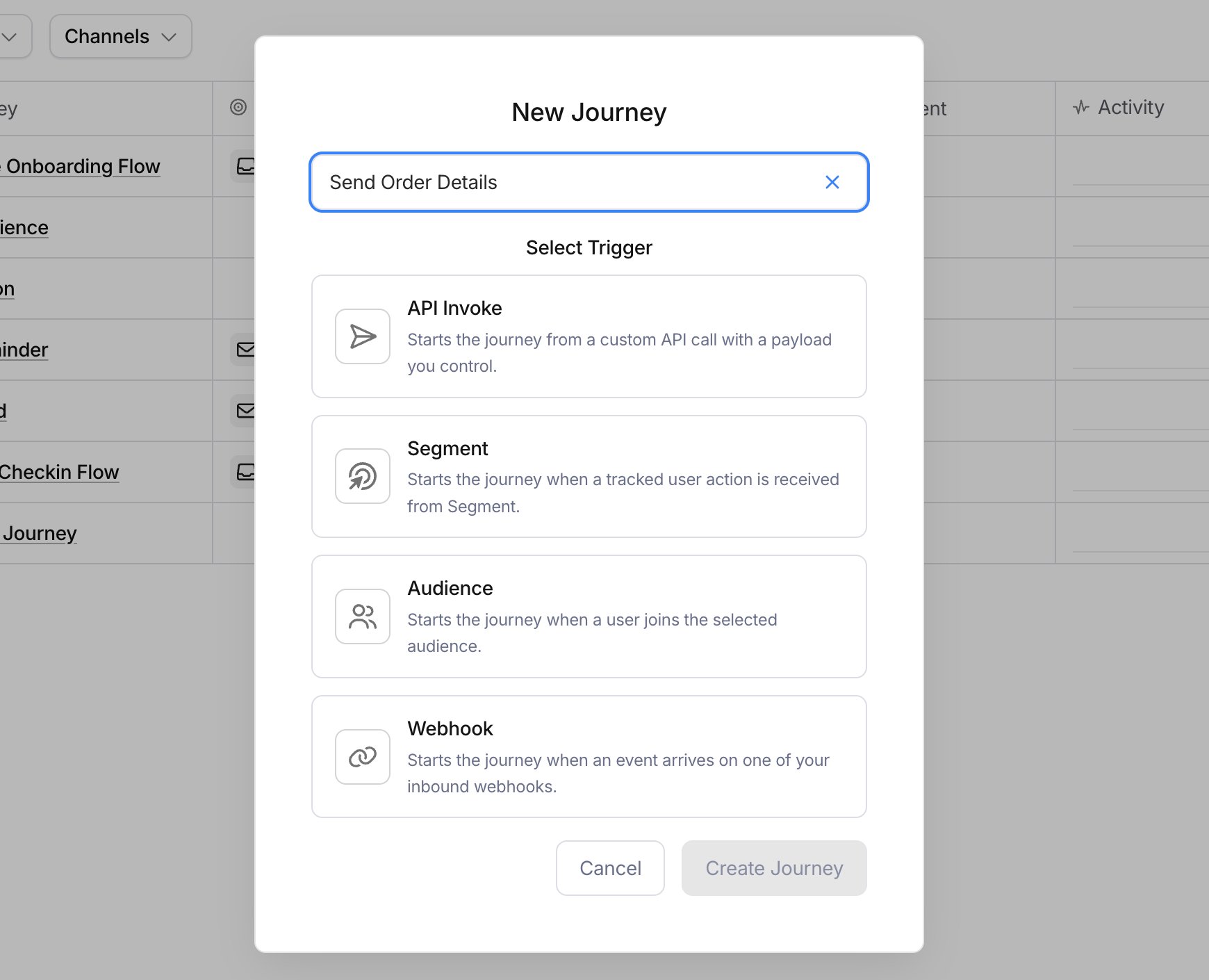
2
Add a send node
Drop a send node on the canvas, pick a channel, and select + Create to build its content inline. Each send node owns one Template scoped to this Journey.
3
Add a delay
Drag a delay node between the trigger and the send. Set it to wait a day. Journeys also offer branch, fetch data, throttle, batch, and digest nodes.
4
Publish
Select Publish to lock the draft as a version. New runs use it. Runs already in flight finish on the version they started with.Copy the Journey ID from the editor.
Build with the API
1
Create the Journey
takes a name and the node list. The list starts with a trigger and ends with an exit, and node ids are left out because the API assigns them. It returns the Journey ID.
2
Add a scoped Template
creates the content a send node uses. These Templates belong to the Journey, separate from your workspace Templates. A run sends each Template’s published version, so pass
state: "PUBLISHED" on create, or publish it later with .3
Wire the graph
takes the full node list, in the same body shape as the create call:
- the trigger
- a
sendnode referencing the Template ID - any
delayorbranchnodes
4
Publish
snapshots the draft as the active version. It doesn’t publish the Journey’s Templates, so publish those first.
Invoke a run
Either path ends the same way. Publishing makes the journey live, and a run starts when your app invokes it by ID or alias. covers the call in every language. It also covers theIdempotency-Key that stops a retry starting a second run, and how to inspect or cancel a run by its runId.
Editing a send node’s content after publishing saves a new template draft. A run sends each template’s published version, so the edit takes effect once you publish that template. Publishing the journey doesn’t publish its templates.