

Prerequisites
- A Courier account with at least one configured provider (e.g. SendGrid)
- Two published notification templates:
- WELCOME_EMAIL - the welcome message sent immediately
- ONBOARDING_NUDGE - the follow-up sent to users who haven’t completed setup
- Your Courier API key (found in Settings > API Keys)
- An endpoint that returns onboarding status for a user (e.g.
GET https://api.example.com/users/:id/onboarding)
What You’ll Build
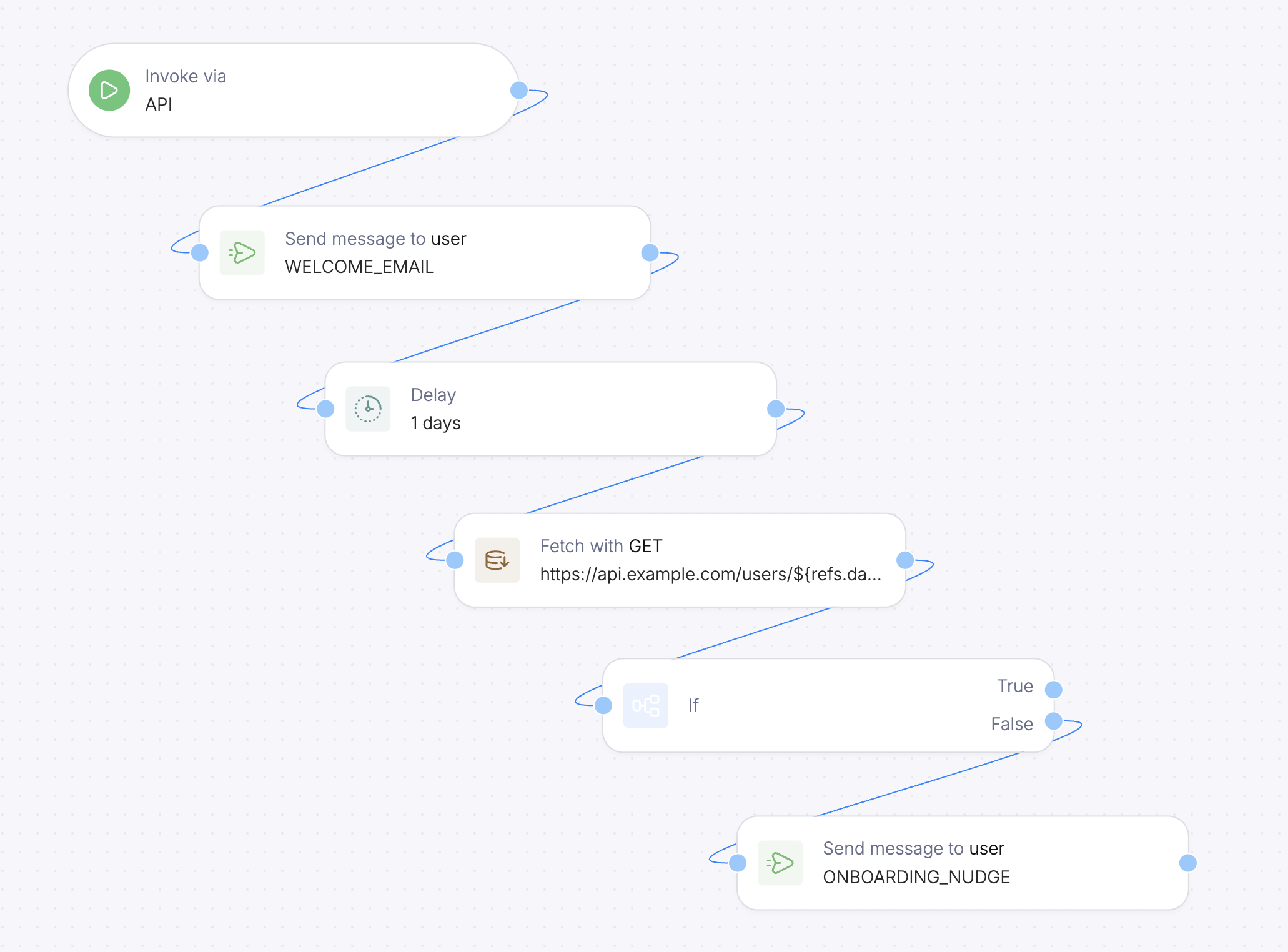
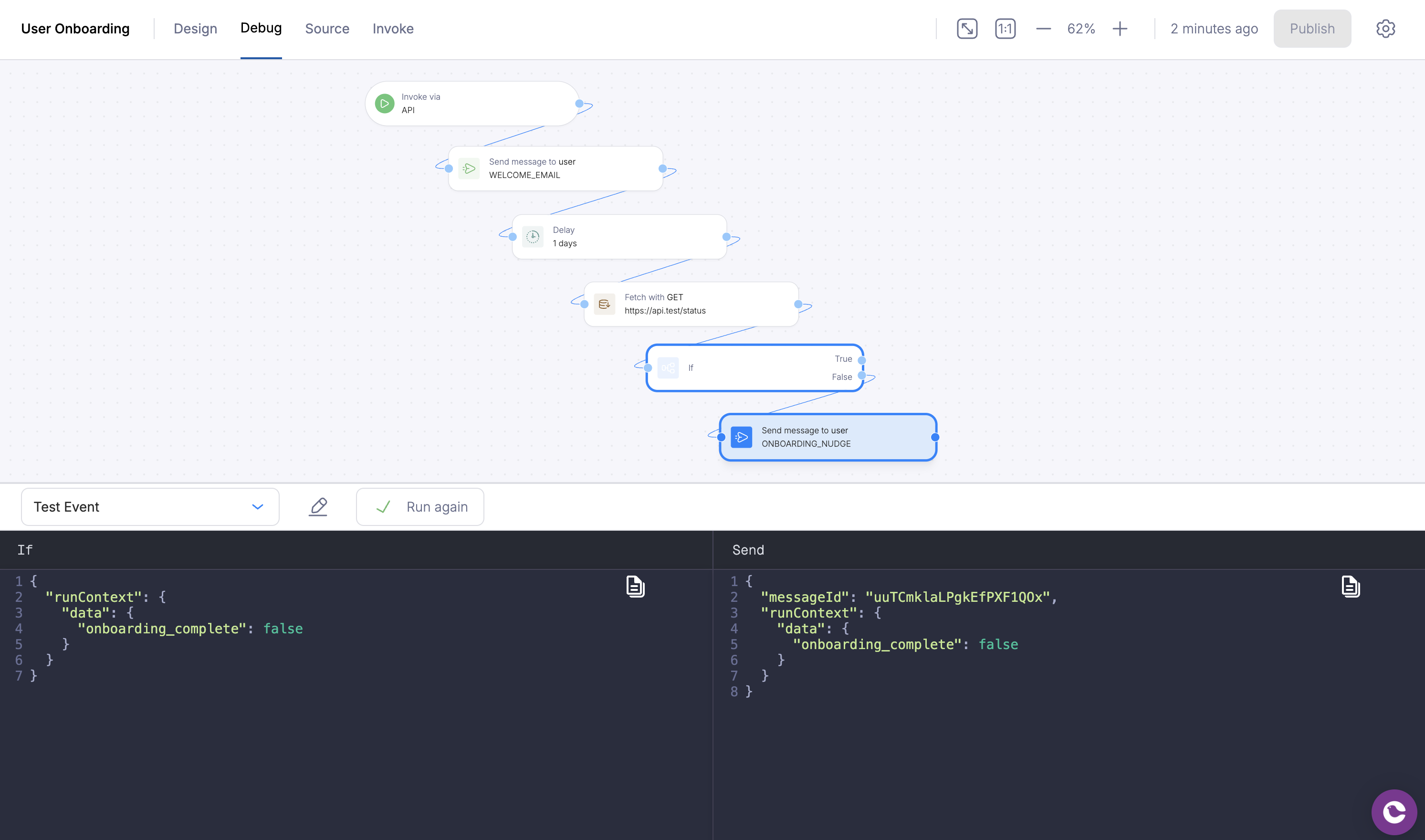
The finished automation looks like this:- API Invoke trigger - starts the workflow when you call the API
- Send node - delivers the welcome email
- Delay node - waits 1 day
- Fetch Data node - calls your API to check onboarding status
- If node - branches on
data.onboarding_complete- True branch - user finished setup, automation ends
- False branch - Send node delivers the follow-up nudge
Build the Automation
Create a new automation
Navigate to Orchestration > Automations and click + New. Rename it from “Untitled Automation” to something descriptive like “User Onboarding”.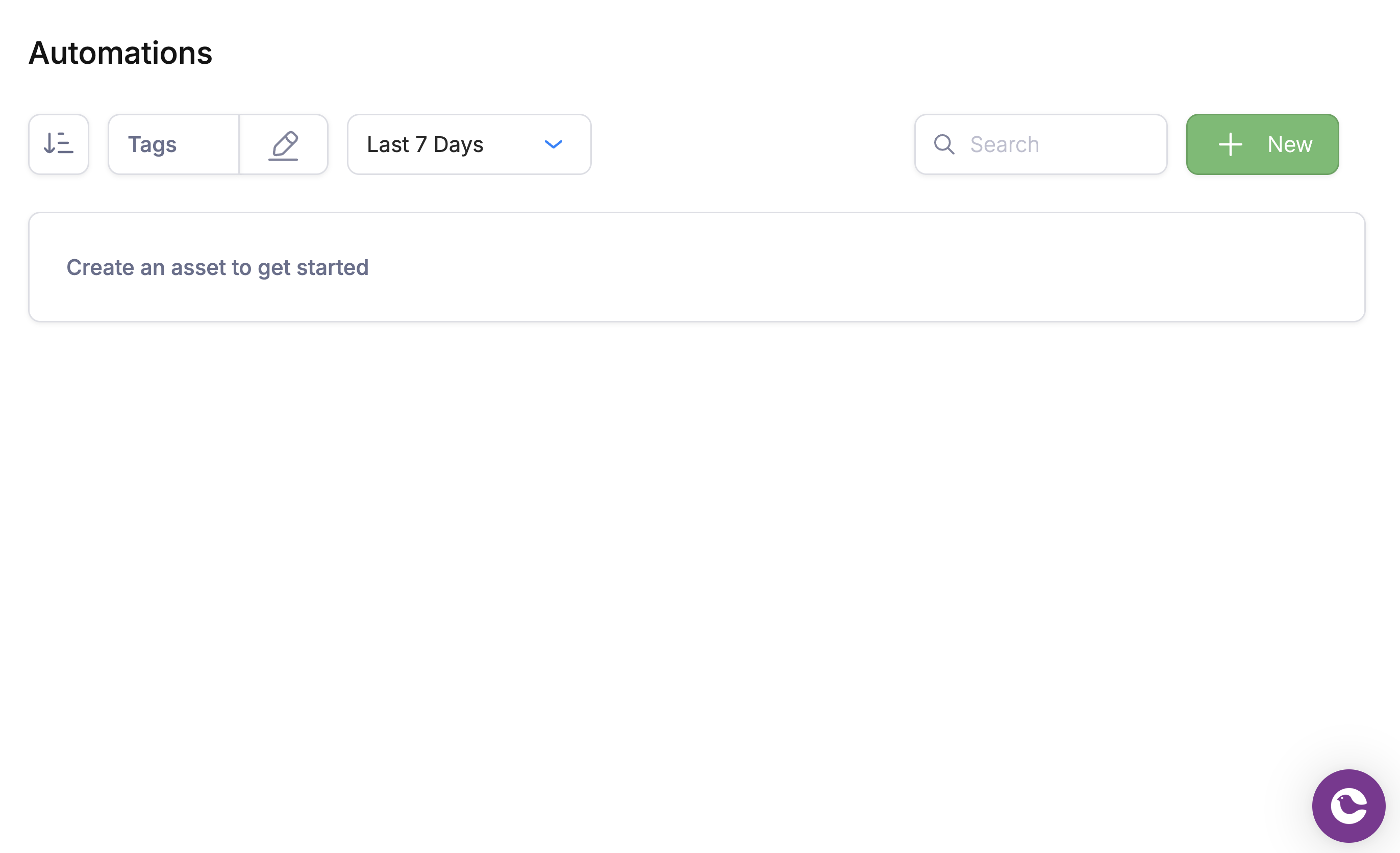
Configure the API Invoke trigger
The default trigger is API Invoke, which is what we want. This means the automation runs when you call 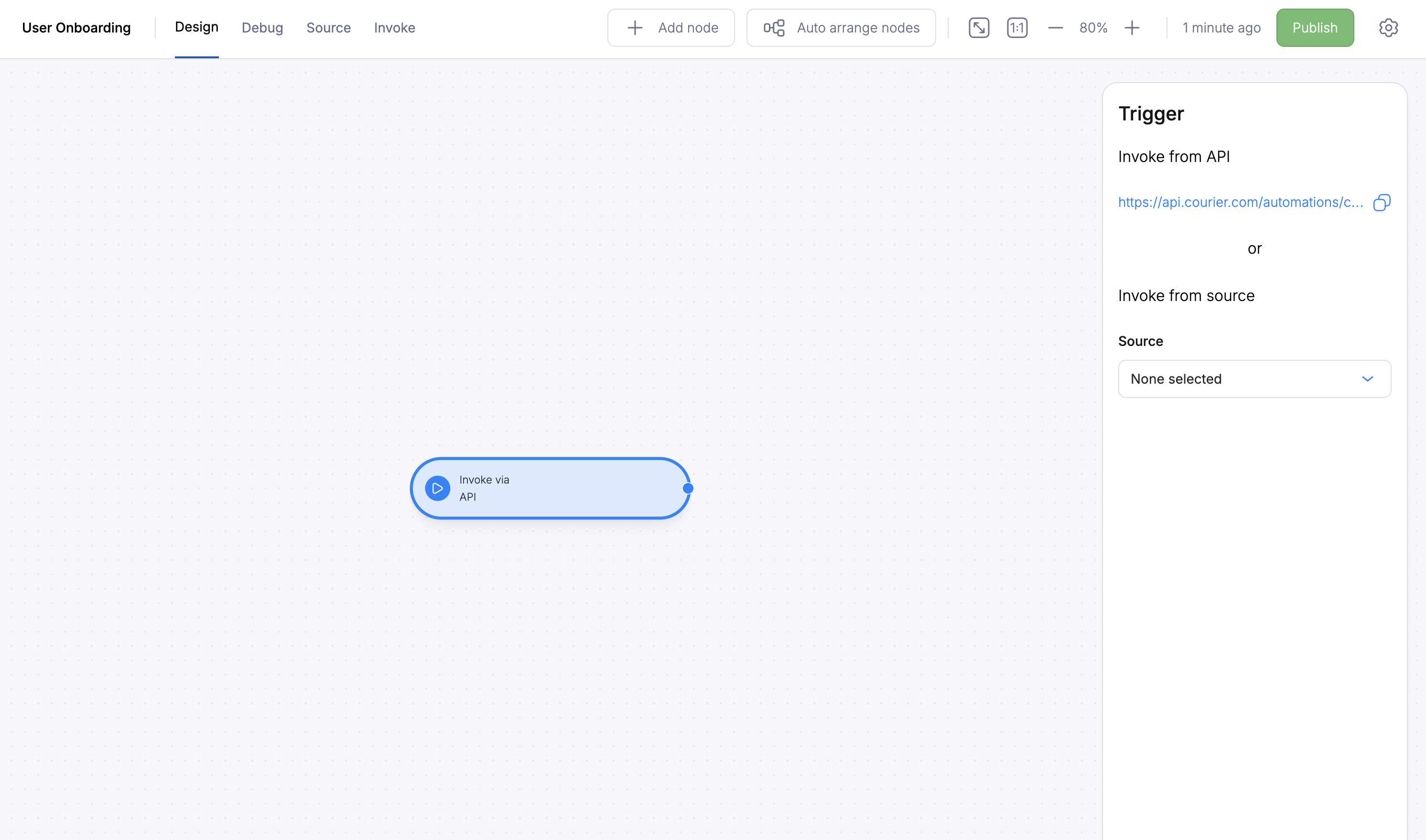
POST /automations/:template_id/invoke.Click the trigger node to open its configuration. No changes are needed for the default API invoke; just confirm it’s selected.Add a Send node for the welcome email
From the node palette on the left, drag a Send node onto the canvas. Then connect it to the trigger node by clicking and dragging from the dot on the side of the Invoke node to the dot on the side of the Send node.Click the Send node to configure it: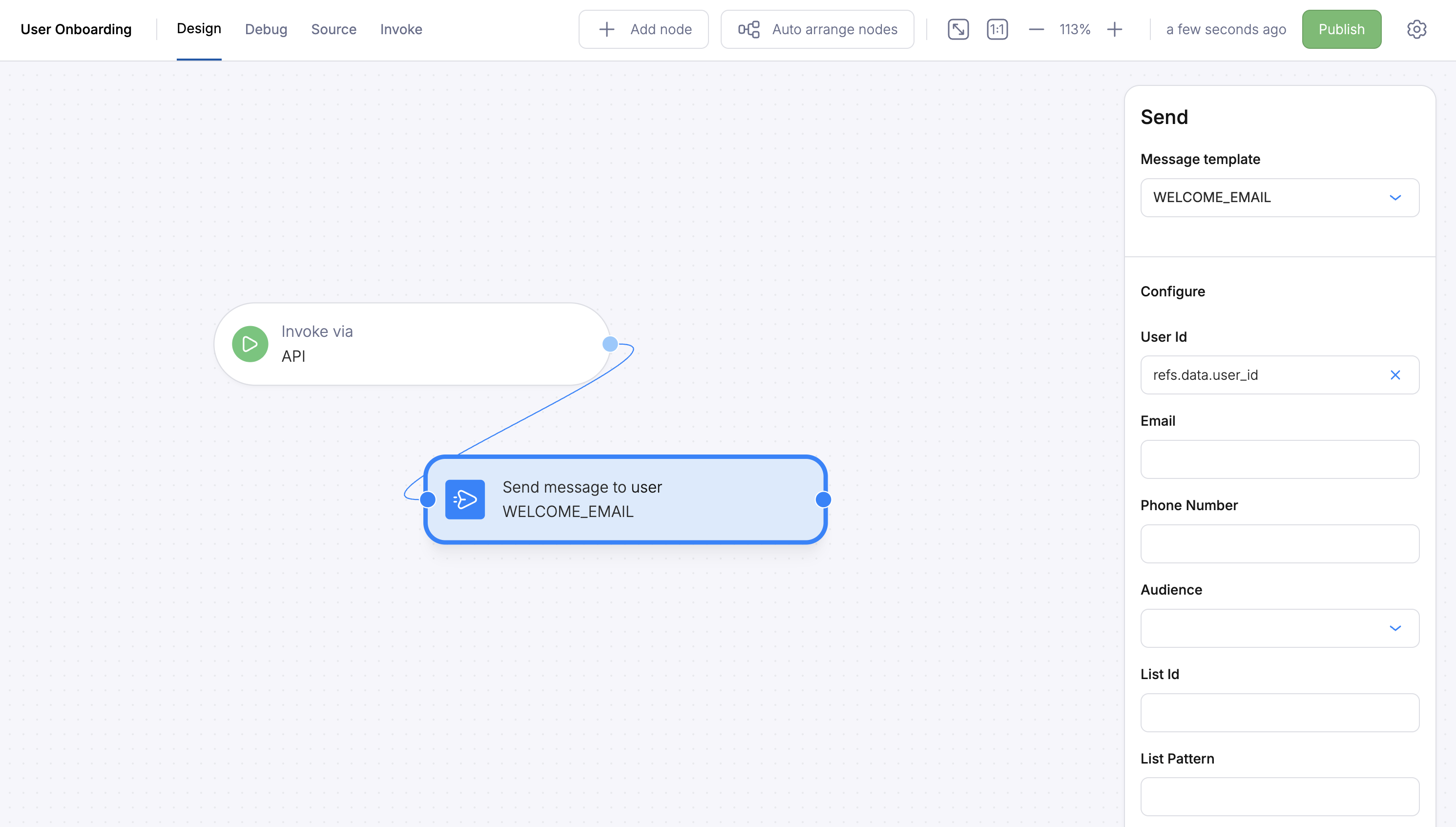
- Template: Select your
WELCOME_EMAILtemplated - To: Set the recipient to
refs.data.user_id(this references theuser_idpassed in the API call) - Ref: Set to
welcome(optional; lets later nodes reference this send’s status)
Add a Delay node
Drag a Delay node onto the canvas and connect it to the Send node by clicking and dragging between the dots on the sides of each node.Click the Delay node and set: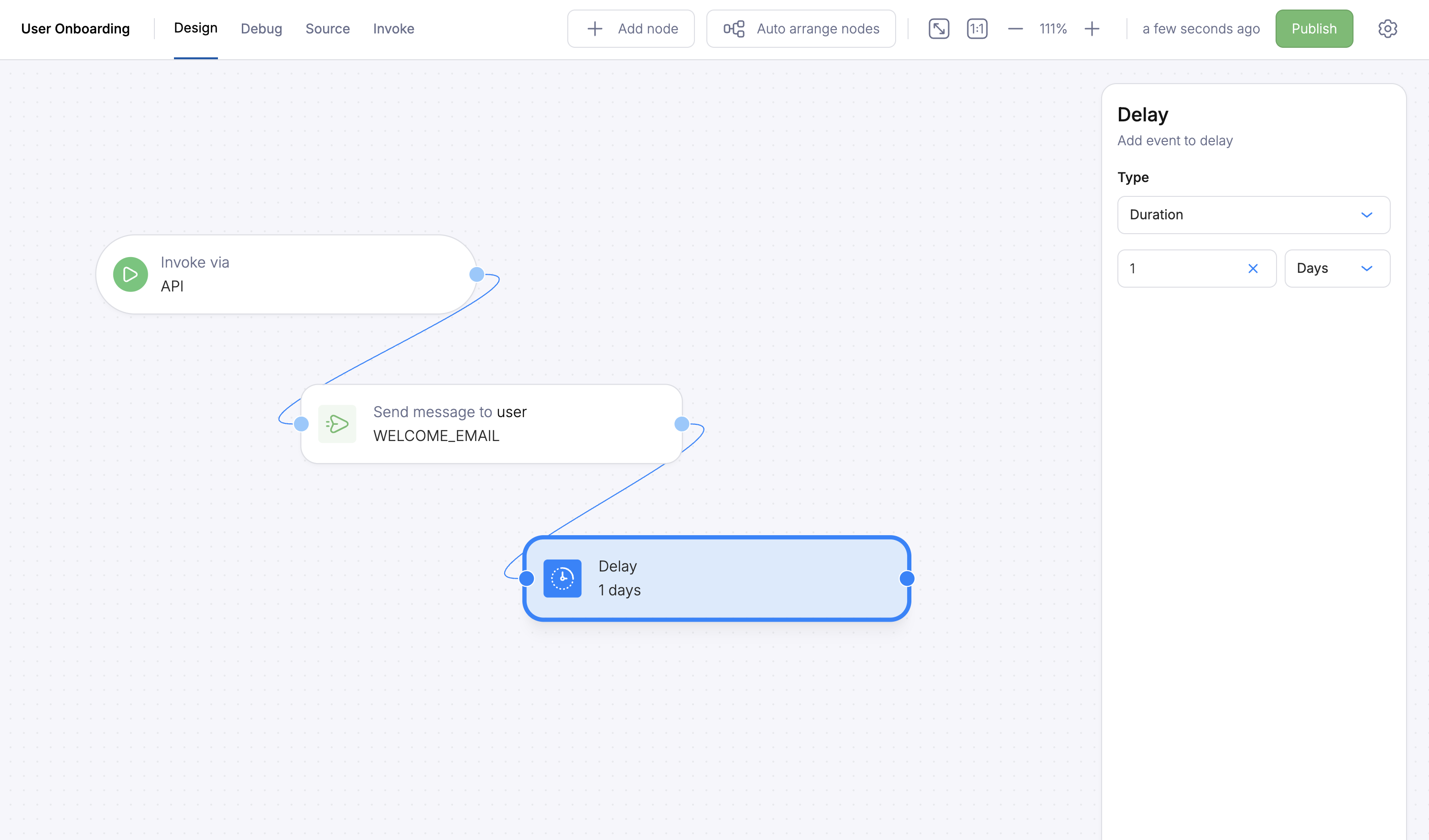
- Duration:
1 day
Delay steps have a 5-15 minute variance in processing time. For precise scheduling, you can use the
until field with an ISO 8601 timestamp instead.Add a Fetch Data node to check onboarding status
Drag a Fetch Data node below the Delay node and connect them.Click the Fetch Data node and configure: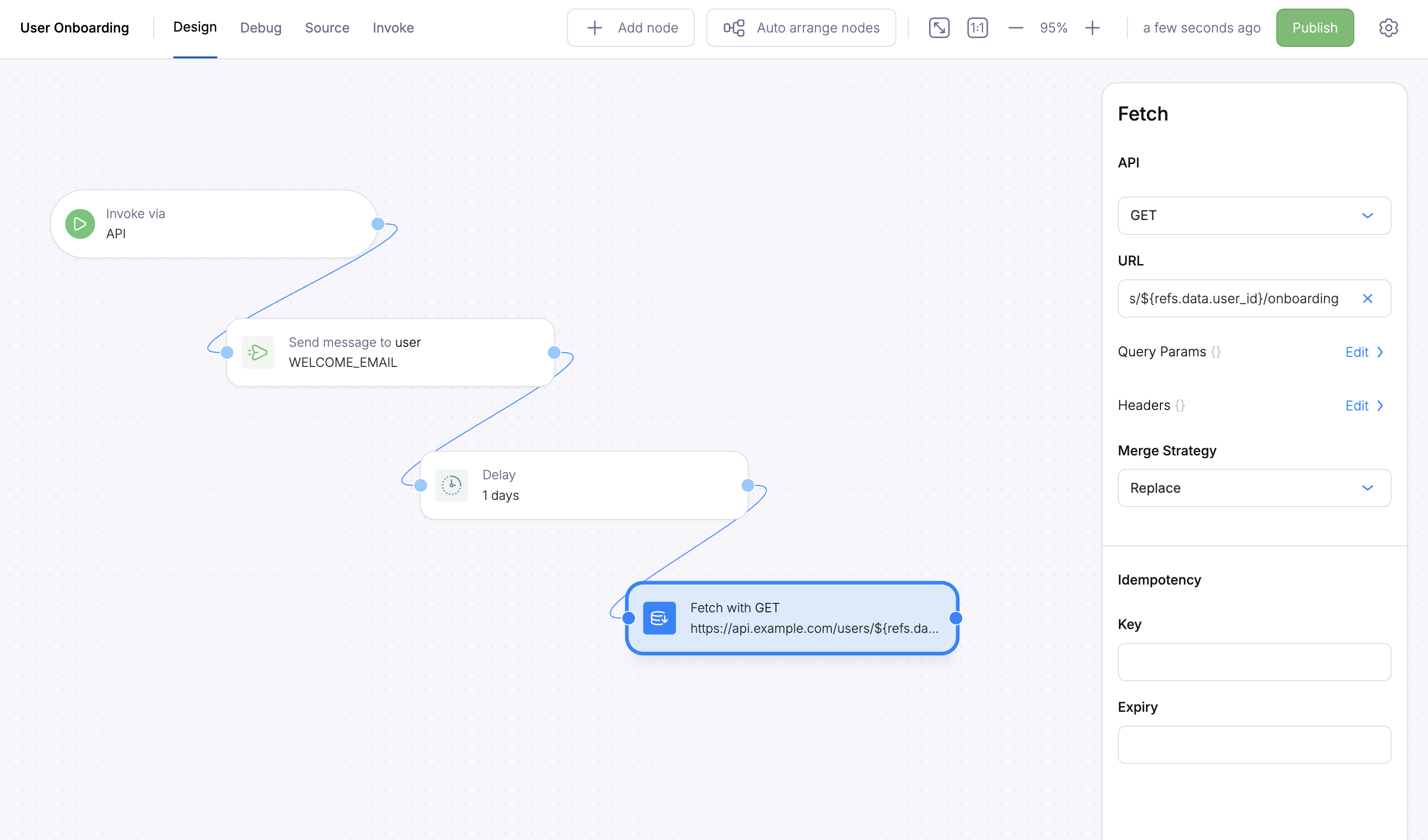
- URL: Your API endpoint with the user ID interpolated from run context, e.g.
https://api.example.com/users/USER_ID/onboarding. Use Courier’s interpolation syntax to injectrefs.data.user_idinto the URL. - Method:
GET - Merge Strategy:
overwrite(writes the API response into the automation’s data context)
Authorization header (e.g. Bearer YOUR_API_KEY). See Fetch Data authentication patterns for options.data.onboarding_complete is available to subsequent nodes.Add an If node to branch on onboarding status
Drag an If node below the Fetch Data node and connect them.Click the If node and configure the condition: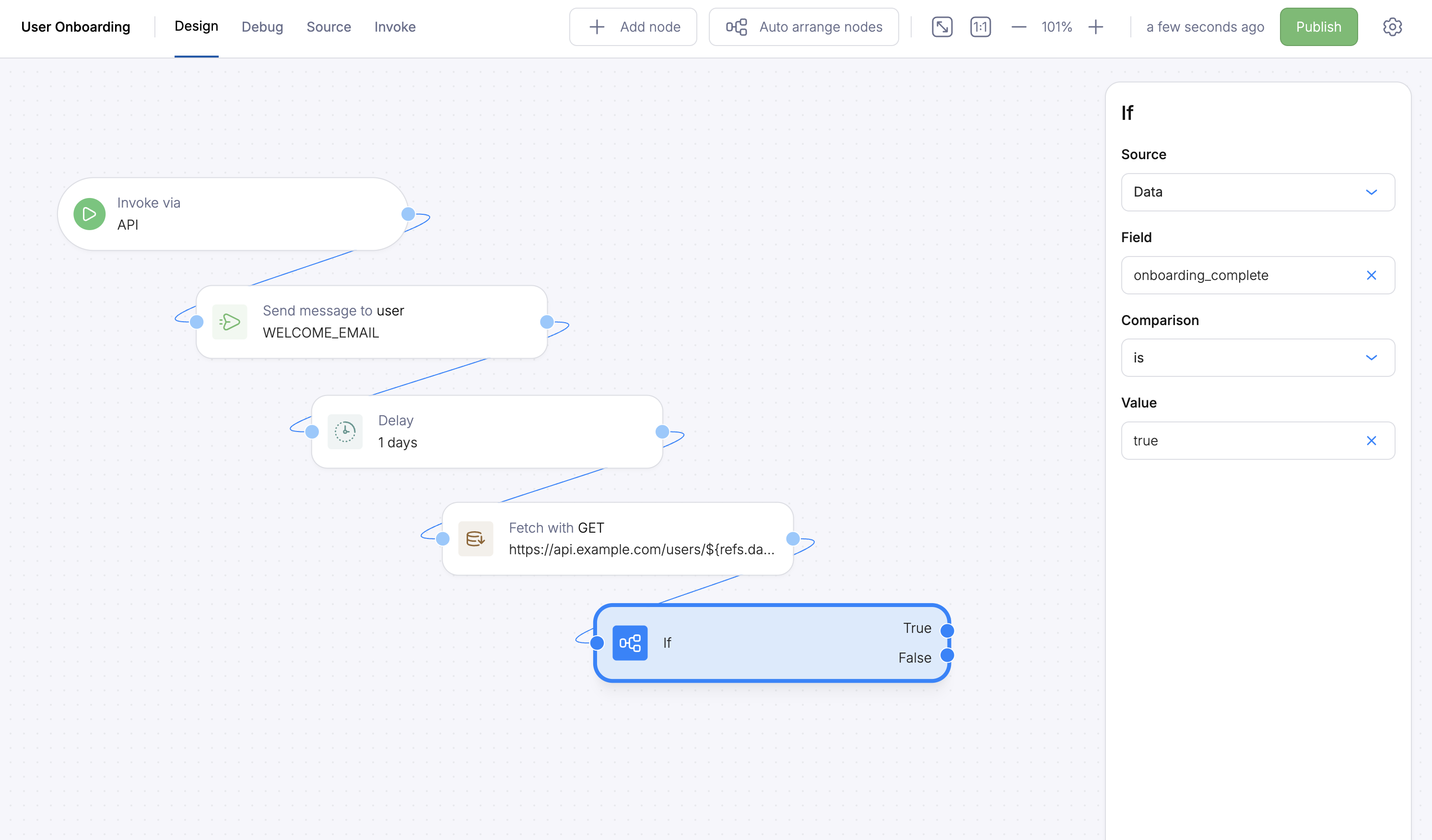
- Source: Data
- Field:
onboarding_complete - Comparison:
is - Value:
true
Add a Send node to the False branch
Drag another Send node onto the canvas and connect it to the False output of the If node.Configure this Send node: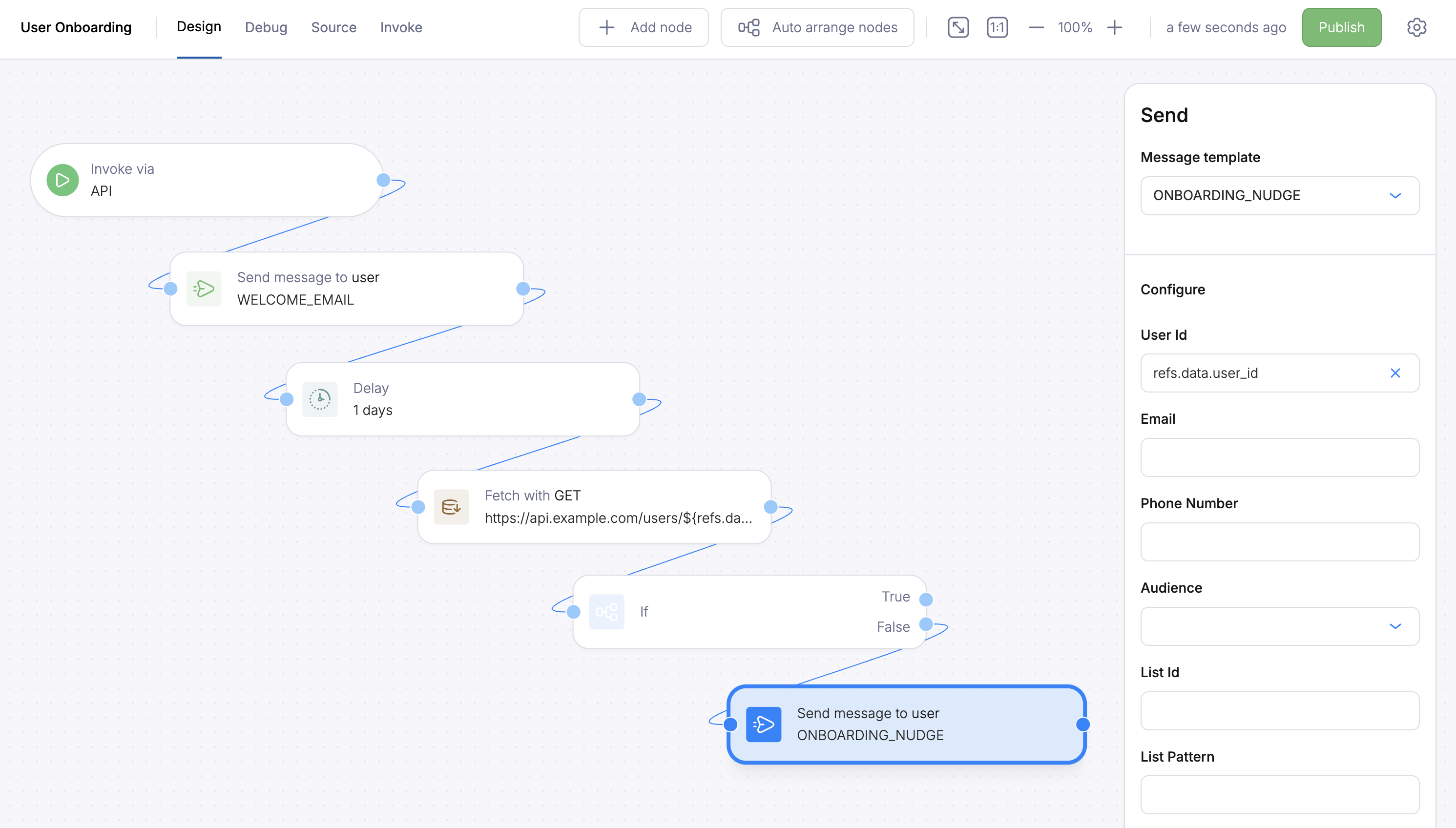
- Template: Select your
ONBOARDING_NUDGEtemplate - To:
refs.data.user_id
Test with the Debugger
Before publishing, test the automation with the built-in debugger. The debugger executes a real run, so the Fetch Data node will actually call your URL; make sure your onboarding status endpoint is running before testing.Create a test event
Click the Debug tab in the designer. Create a test event with data for an existing user: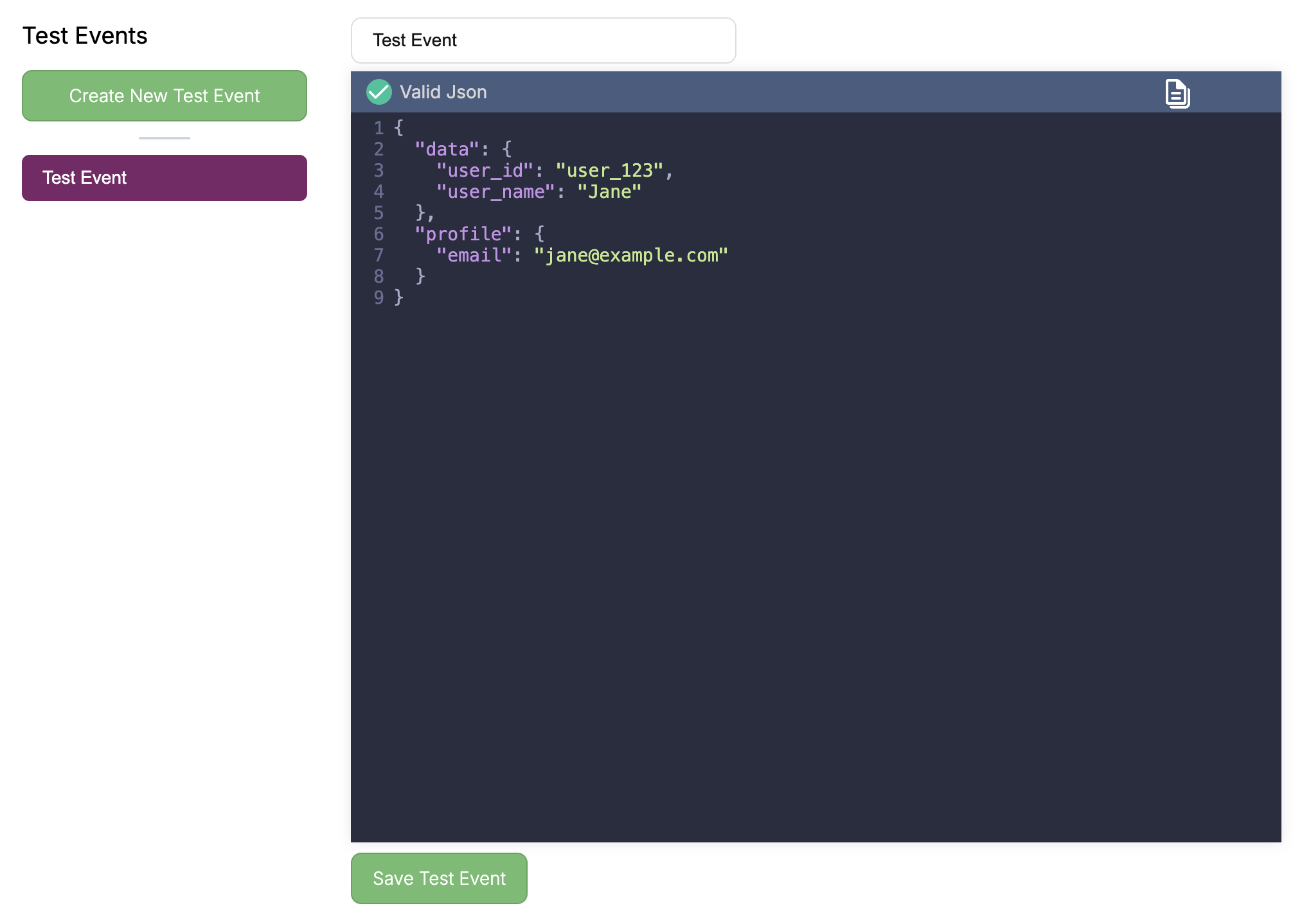
Publish and Invoke
Publish the automation
Click the Publish button in the upper-right corner. Review the changes in the diff view and confirm.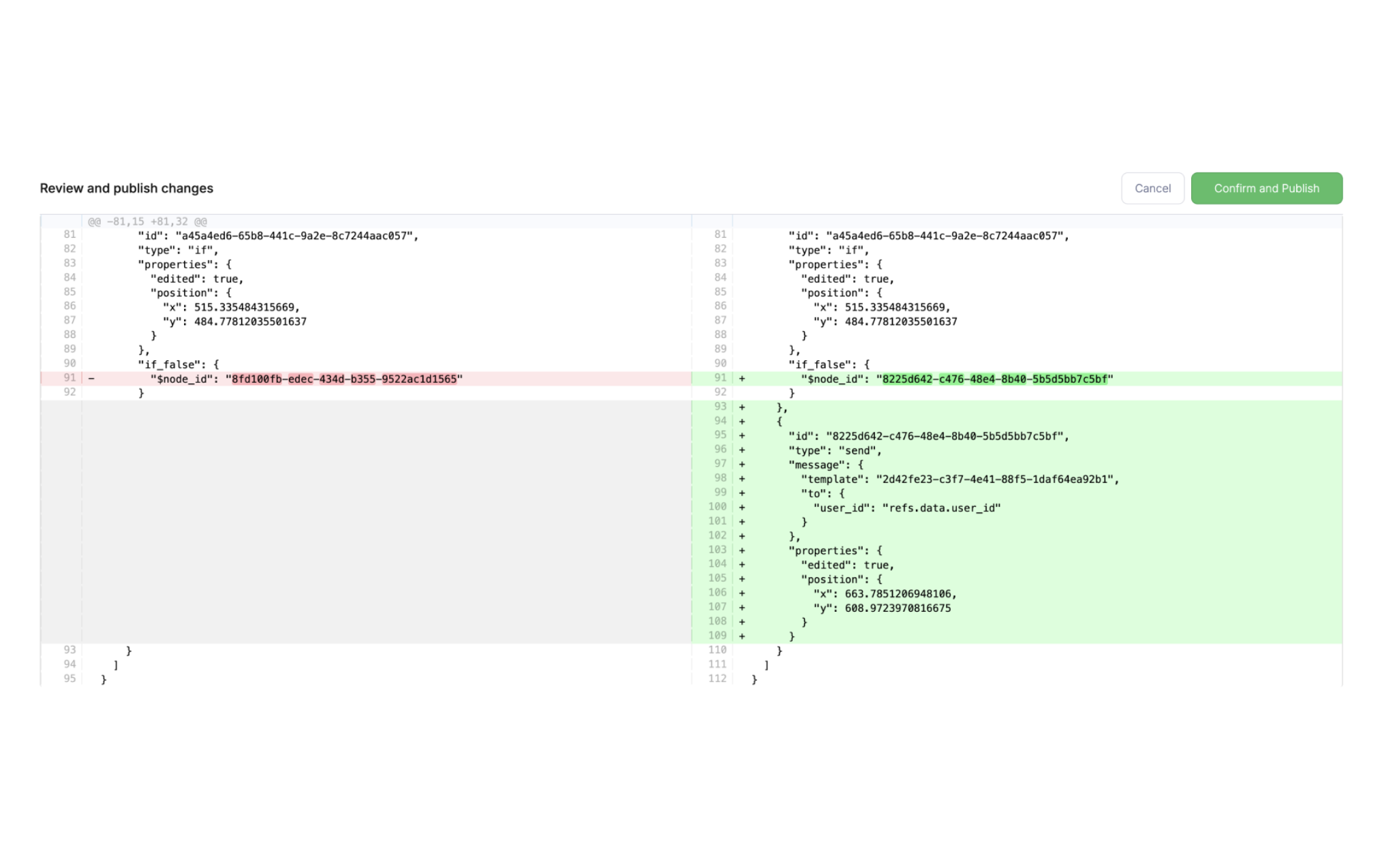
Invoke from the Invoke tab
Click the Invoke tab. Courier generates a ready-to-use curl command with your template ID already filled in. You can copy this and add your data payload, or click Invoke to run it directly with an empty payload.To pass runtime data, use the generated curl as a starting point and add your 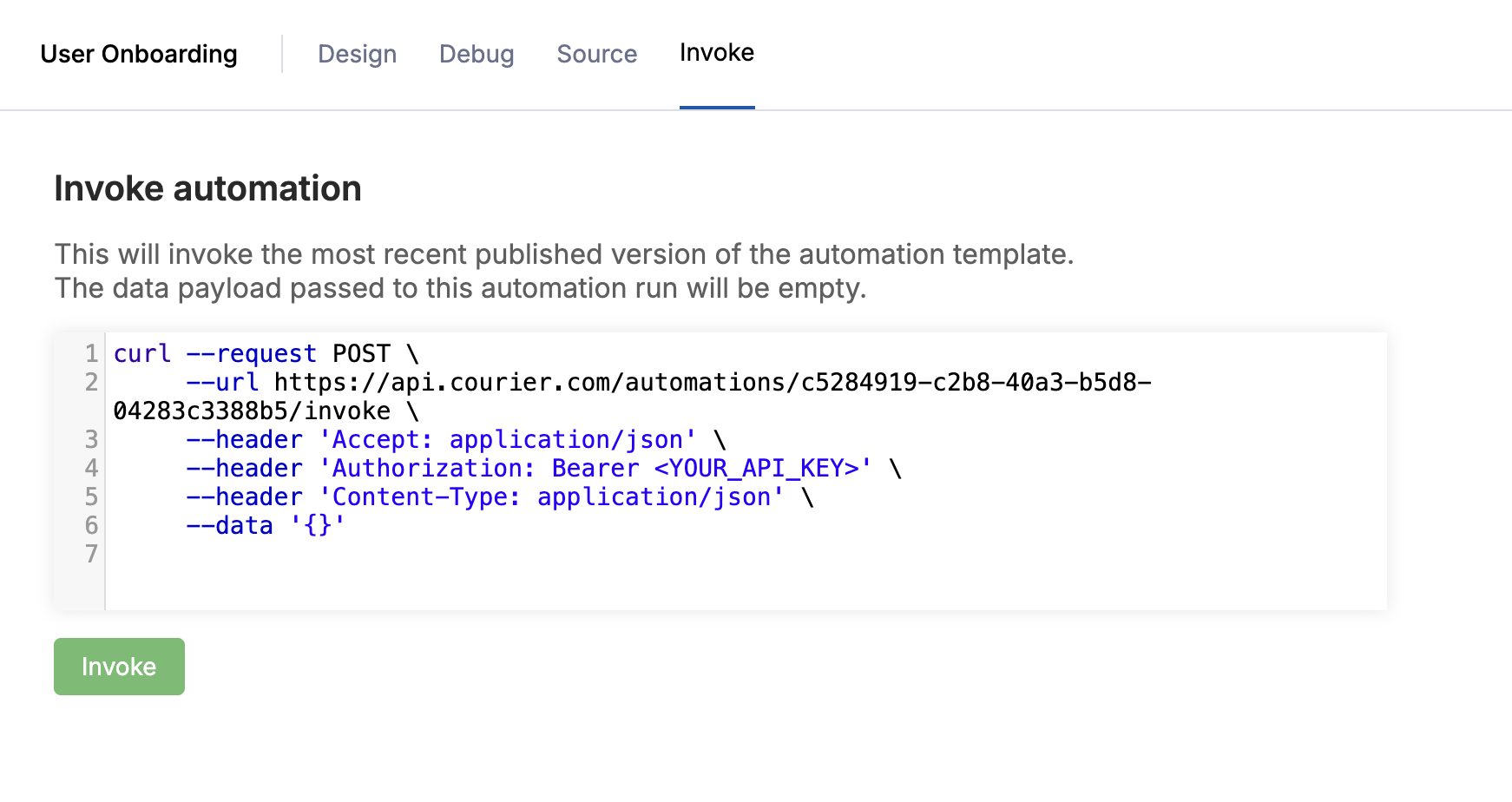
data and profile objects to the --data body:data and profile objects become the automation’s run context, accessible in every node via refs.data.* and refs.profile.*.In production, call the same endpoint from your application code when a user signs up. The template ID in the curl command is the one you’ll use in your SDK calls. See the Automations API reference for SDK examples.Extending the Workflow
Once you’re comfortable with the basics, try adding:- A schedule trigger instead of API Invoke to run the automation daily for new signups. See Scheduling.
- A Switch node instead of If to branch on multiple onboarding stages (e.g. “not started”, “in progress”, “completed”). See If / Switch.
- A Get Profile node to load the user’s full Courier profile before sending, so your templates can reference profile attributes. See Get Profile.
- Data mapping in send nodes to reshape fetched data into clean template variables. See Dynamic Data.
What’s Next
How to Cancel an Automation
Stop in-flight automations with cancellation tokens
Send Automations via API
Invoke ad-hoc and template-based automations programmatically
Automations With Tenants
Apply tenant-specific branding and data to automation runs
Automations Overview
Full reference for all node types and capabilities